Season stats and tax reports
Season Snapshot, Alerts, the Custom Report Builder, the Schedule C Tax Summary, and how to email reports and receipts.
Insights and reports
Season Snapshot: Insights
Where in the app: Bottom bar → Season → Insights tab
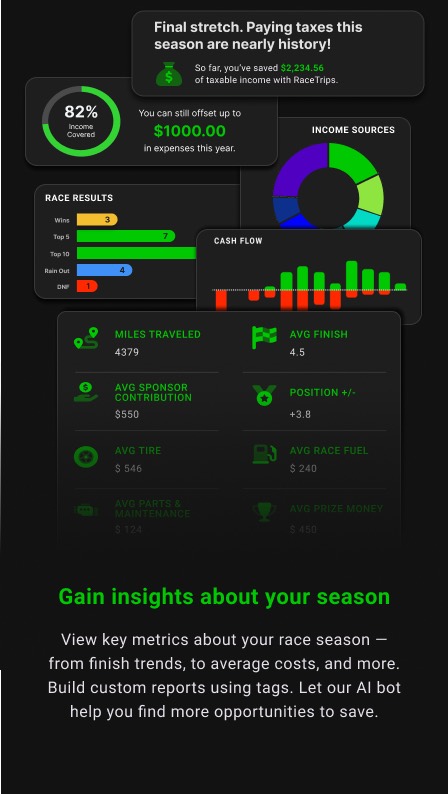
The Insights tab answers one question: how much taxable racing income have you offset this year, and where is the money going?
Pick a year
- Tap the year dropdown in the title bar. The list shows the current year and every year you own or can buy.
Panels
- Money bag panel. A status headline from the server (for example "Final stretch. Paying taxes this season are nearly history!") and "So far, you've saved $X of taxable income with RaceTrips."
- YOUR PROGRESS. A ring showing % Income Covered (expenses as a share of income) and "You can still offset up to $X in expenses this year."
- YOUR SEASON. INCOME, EXPENSES and TOTAL for the year.
- CASH FLOW. Twelve months: green income bars above the line, red expense bars below, and a white cumulative cash line.
- MY EXPENSES. A donut of expenses by category. Tap a slice to see its icon, name and percentage in the center. The list below shows each category's color, share and amount.
- MY INCOME. The same donut and list for income categories.
- Empty states. A chart with no data reads "No expenses to display" or "No income to display". Before you have any income the money-bag headline reads "No income yet". The cash-flow chart labels months by their first letter and draws a dashed line at zero.
Trial and edition states
- During the trial the five stat panels (not the money bag) carry a small open-lock icon. Tap it for the Ready to upgrade to Premium? dialog with your trial progress.
- After the trial expires, everything below the money bag is replaced by Upgrade to unlock advanced stats.
- A year you have not purchased shows Get Ready for YYYY! with an Upgrade to Premium button.
Season Snapshot: My Season
Where in the app: Bottom bar → Season → My Season tab
My Season is about racing, not just money: how many trips, how you finished, and what an average trip costs.
Filter by tag
- Tick FILTER BY TAG and select chips. Every panel below recalculates for trips carrying any selected tag. Untick to see the whole season.
Panels
- MY TRIP REPORTS. A 2×6 grid of months with the trip count in each. Past months are outlined green, the current month is solid green, future months (and every month of a future year) are gray and show no number until they have trips. Tap a month to open My Race Trips on that month. The header shows TOTAL: N.
- RACE RESULTS. Horizontal bars for Wins, Top 5, Top 10, DNF, Rain Out and similar buckets, counted from your prize-money finish positions. The panel appears only once you have prize-money entries.
- COMPLETED TRIP ANALYSIS. AVG PRIZE, AVG COST and TOTAL TO RACE, then stat boxes such as Miles Traveled, Avg Finish, Position +/−, Avg Tire, Avg Race Fuel, Avg Parts & Maintenance, Avg Prize Money. Averages use completed trip reports plus season-level fuel, tires, parts and pit passes; merchandise, used-part sales, point fund and sponsor income are excluded.
Trial and edition states
Lock icons during the trial. After the trial expires you still see Filter by tag and My Trip Reports; Race Results and Completed Trip Analysis are replaced by Upgrade to unlock advanced stats. Unpurchased years show Get Ready for YYYY!.
Alerts
Where in the app: Bottom bar → Alerts
Alerts lists Trip Reports that are incomplete so nothing deductible slips through.
What gets flagged
- MISSING PRIZE MONEY. A trip with no prize entry (add one, or mark it N/A, DNQ or RAIN).
- MISSING TRAVEL DISTANCE. A trip with no miles logged.
- Alerts covers Trip Reports in the current calendar year.
Using the list
- The Alerts tab shows a red badge with the number of open alerts.
- Each card shows the trip's date, name and its warning rows. Tap a card to open the trip and fix it. The list refreshes when you come back.
- When everything is complete you see a thumbs-up: No issues found with your Trip Reports!
Custom Report Builder
Where in the app: Bottom bar → Reports → Custom Report tab
Slice your income and expenses by any date range and by tag.
Build a report
- Open Reports. The Custom Report tab is selected.
- Optionally tick FILTER BY TAG and select tags.
- Under SELECT DATE RANGE choose Year to Date, Last Year, Last Month or Custom. Last Month is the first to last day of the previous month; Year to Date and Last Year are calendar years. Custom keeps whatever range the screen is already showing, which is January 1 to December 31 of the current year on a freshly opened Reports screen; tap either date to open a range picker (any range from 2020 up to today). If a custom range spans two years and either is locked, the lock panel is shown for the whole report.
- The report updates immediately.
Reading the report
- Total Income (green) and Total Expenses at the top.
- An Income panel and an Expenses panel, each headed by the date range and the total, listing every category with its icon and amount.
Trial and edition states
- Trial expired for any year in the range: Upgrade to unlock your tax reports.
- A year in the range not purchased: Get Ready for YYYY!
Tax Summary (Schedule C)
Where in the app: Bottom bar → Reports → Tax Summary tab, or Side menu → Tax Report
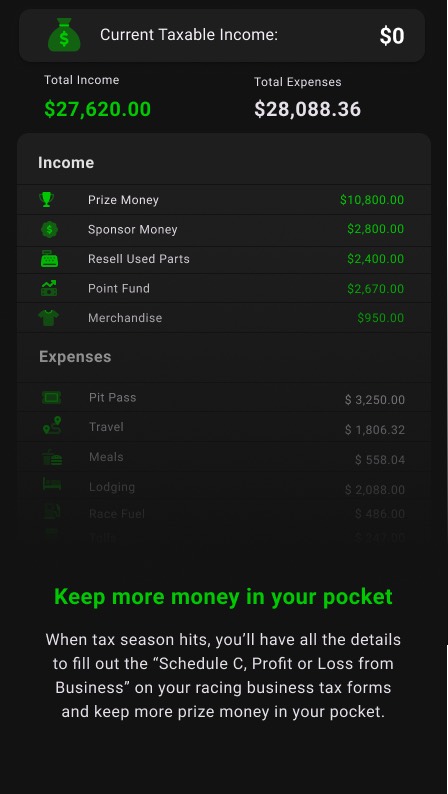
The Tax Summary maps your year onto IRS Schedule C (Profit or Loss From Business) so you or your preparer can fill the form line by line.
Choose the year
- Tap the year dropdown beside "Tax Summary"; the subtitle reads "IRS Schedule C Summary" and the screen title is RaceTrips Reports. Opening Reports from the side menu's Tax Report item lands on this tab directly. The page shows "Loading..." until the data arrives.
What is on the page
- Schedule C header panel. An explanation of the schedule from the server.
- Part I – Income. Lines such as Line 1 Gross receipts or sales, with your income categories (prize money, sponsor money, point fund, merchandise, resold parts) and a Line total.
- Part II – Expenses. One block per Schedule C line (car and truck expenses, travel, meals, supplies, repairs and maintenance, and so on). Each shows a Line N badge, the line name, the categories that roll into it with their full amounts, and the Line N Total.
- Partial deductions. Lines that are not 100% deductible (for example meals at 50%) show "50.00% deductible" in amber and a Deductible 50.00% row with the amount removed.
- Footer. Notes on how to use the numbers, plus two buttons: Email Tax Summary and Email Receipts of this year.
Trial and edition states
- Trial expired: Upgrade to unlock your tax reports, which explains that the Tax Summary "is what you'll need when you file your taxes with the IRS" and that the Custom Report Builder "allows you more flexibility to drill into your spending".
- Year not purchased: Get Ready for YYYY!
A note on taxes
RaceTrips organizes your racing income and expenses into a Schedule C style summary. It is not tax advice, and RaceYear is not a tax advisor. Whether racing expenses are deductible depends on whether your racing qualifies as a business rather than a hobby, which usually means operating as an LLC or DBA with a business plan. The IRS allows deductions that are "ordinary and necessary" for the industry. Review your situation and the summary with a tax professional before you file.
Emailing reports and receipts
Where in the app: Reports → Tax Summary → footer buttons; Additional income form → envelope icon
Get your numbers and your paperwork out of the app and into your inbox or your accountant's.
Email the Tax Summary
- On the Tax Summary tab tap Email Tax Summary. The summary for the selected year is emailed to your account address. A toast titled "Tax Summary 2026" shows the confirmation, or "Could not send email." if it failed.
Email a year of receipts
- Tap Email Receipts of this year. Every receipt photo you attached to items in that year is zipped and emailed to you (toast "Receipts of 2026").
Email a receipt for income you received
- In an Additional Income form, tap the envelope icon. The item is saved first, then you enter the recipient's email address and tap Send. Use it to send a sponsor a receipt for their payment.
Fixing problems
Season and Reports
- Lock icons on the tabs. You are on the free trial. An open lock means the feature still works; a closed lock means the trial is used up for that year.
- "Upgrade to unlock advanced stats" / "Upgrade to unlock your tax reports". Your trial reports are used up for the selected year, so charts and reports are hidden. Buy the year's edition to unlock; nothing you logged is lost.
- "Get Ready for YYYY! Looks like you're trying to see data about a year you haven't activated yet". You own other years but not this one. Buy that edition, or switch the year dropdown to a year you own.
- "No expenses to display" / "No income to display" / "No income yet". Nothing recorded in that category for the selected year or tag filter. Add entries or untick Filter by tag.
- Trip counts or results do not match after adding tags. Filter by tag limits everything on the tab to trips carrying the selected tags.
- The Tax Summary shows "Loading..." for a long time. Pull down to refresh and check your connection.
- Custom Report dates cannot go past today. The range picker runs from 2020 to today. Use Year to Date, Last Year or Last Month for presets.
- Alerts does not list an old trip. Alerts covers the current calendar year only.
- Alerts spins forever. The tab shows a spinner until the season loads; if that request failed the spinner stays. Pull to refresh on another tab, then come back.
- Insights shows "No income yet" and dashes instead of amounts. That is the empty state, and it is also what you see while the first load is running. Pull to refresh. Note that if a later refresh or year change fails, the previous year's numbers stay on screen instead.
Email and receipts
- "Tax Summary YYYY" or "Receipts of YYYY" with "Could not send email." Check your connection and that your email is verified, then retry.