Trip reports
Create a trip, then log its prize money, expenses, receipts and miles. Also covers rainouts, the Report Saved dialog, and income or expenses outside a trip.
Trip Reports
Create a trip report
Where in the app: Trips → + → Create New Trip Report
A Trip Report is one race trip: a single day or a multi-day weekend. Create it first, then add prize money, expenses and miles to it.
Start a trip
You can start from three places:
- Tap the green + on the bottom bar and choose Create New Trip Report.
- Tap a day on the calendar. The same action sheet opens with that date pre-filled.
- Tap Start a Trip in the empty-month panel ("No trips this month, yet... Or pick a date from the calendar to get started"), or Start Your First Trip in the headline panel.
Move between months with the arrows beside the month name or by swiping the calendar. The list under the calendar is headed TRIP REPORTS with the month name; each row shows the trip's date in its type color, the name, small icons for what you have logged, and the balance on the right.
Fill in the basics
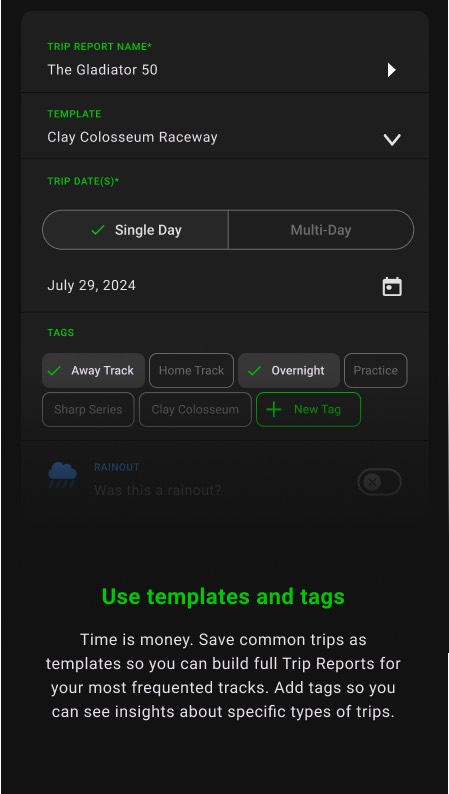
- Trip Report Name* is required. Use the track or event name, for example "King of the Clay 50".
- Trip Template (optional). Pick a saved template to pre-load its expense items into the new trip. See Trip templates.
- Trip Dates*. Toggle Single Day or Multi-Day, then tap the date row (it reads "Select a Date" on Single Day and "Select a Date Range" on Multi-Day until you pick) to open the picker; tapping the already selected option also opens it. Multi-Day opens a range picker. A date is required; you will see "Please select a date or a date range" if you skip it.
- Trip Tags. Tap existing tag chips to select them, or + New Tag to create one on the spot. Selected chips show a green check.
- Rainout. Flip the switch if the trip was rained out. See Record a rainout.
Save
- Tap the green ✓. If another trip already exists on the start date, RaceTrips asks "This is already a trip on this date. Do you want to save another trip on this date?" Choose Yes, Create another Trip or Cancel.
- The new Trip Report page opens immediately so you can add prize money, expenses and miles.
Record a rainout
Where in the app: Trips → + → Record Rainout Day
A rainout is a trip you made that did not race. Recording it keeps your travel and expenses deductible and feeds the Rain Out count in your season results.
Log a rainout
- Tap + and choose Record Rainout Day (or tap a calendar day and choose it there).
- The Create form opens with the Rainout switch on and the name pre-filled as "Rain out". Rename it if you like, pick the date(s) and any tags.
- Save with ✓. The trip shows a blue rain-cloud icon in the list and a blue dot on the calendar.
Prize money on a rainout
- When you add prize money to a rainout, choose a start position of RAIN (or use the N/A or DNQ shortcuts). These positions set the amount to $0 and hide the finish position field.
Add prize money
Where in the app: Trip Report page → Add Prize
Prize money is the income side of a trip. Record each payout with its start and finish position so RaceTrips can compute results and averages.
Add a payout
- Open the trip and tap Add Prize. The form is headed ADD PRIZE MONEY / Prize Money Details with the trip name under the amount (expense forms read ADD EXPENSE / My Race Expense). When you reopen an item the heading changes to EDIT and the + button is replaced by a trash icon.
- Enter the amount in the big dollar field at the top (whole or decimal numbers).
- Prize Money Date* defaults to the trip's end date. Tap to change.
- Payment method: Check (the default) or Cash. When you reopen a payout to edit it the selector shows Check again, so re-select Cash if that is what you used before saving.
- Start position* opens the Select the Start Position list (P1, P2 and so on, plus DNQ, RAIN and N/A).
- Finish position* appears once you pick a real start position. Choose where you finished.
- Add optional Notes and a Receipt photo.
- Tap ✓ to save and return. (+ saves and clears the form for another payout; in the current version a second + can overwrite the payout you just saved, so use ✓ and Add Prize again to be safe.)
Prize money has no Category field; every payout is filed under Prize Money.
Did not qualify, rained out, or no race?
- Tap N/A - No Race Trip or Mark as DNQ under the amount. Both set the amount to $0, set the start position, and remove the finish position requirement.
- Choosing DNQ, RAIN or N/A as a start position does the same. Picking a real position afterwards clears the $0 so you must enter a value.
Where prize money shows up
- The trip header shows a finish position badge per payout, for example P3 (+7): finishing position and places gained or lost.
- The Summary tab shows PRIZE MONEY in green; the Details tab lists each payout.
- Season → My Season counts Wins, Top 5, Top 10, DNF and Rain Out from these entries.
Add expenses and scan receipts
Where in the app: Trip Report page → Add Expense
Expenses are the deductions. Enter them manually or let Smart Scan read the receipt for you.
Scan with AI or enter manually
Tapping Add Expense first asks how you want to start:
- Scan with AI. The camera opens right away. Take a photo of the receipt and RaceTrips scans it, filling in the amount, expense name and date. Review, adjust and save.
- Enter Manually. Opens an empty expense form.
The expense form
- Amount in the large dollar field at the top.
- Expense Name*. As you type, RaceTrips looks up names you have used before and auto-selects the matching Category if one is not chosen yet. Once you have picked a category yourself, typing no longer changes it. Smart Scan re-runs this lookup after it fills in the name.
- Category*. Opens the expense category list (pit pass, race fuel, tires, parts & maintenance, travel, meals, lodging, tolls, helmet tear-offs and more). Each has an icon and a color used throughout the charts.
- Expense Date*. Defaults to the trip's end date.
- Notes. Free text, multi-line.
- Receipt. Tap the picture area or the camera icon to take a photo, the gallery icon to pick one, or X to hide a photo you just added. To replace a photo, take or pick a new one; a receipt already saved on an item can be replaced but not removed.
Smart Scan from the receipt box
After you attach a photo, RaceTrips asks Scan the receipt: "Would you like to automatically scan this receipt with AI? This will overwrite the amount, name and date fields." Choose Smart-Scan or Don't scan. If you chose Scan with AI and closed the camera without taking a photo, you see No Image available for scanning and land on the empty form; attach a receipt and scan again.
Save
- ✓ saves and returns to the trip.
- + saves and clears the form ("Item Saved") so you can log the next receipt. It clears the date, category and positions too, and does not put the trip's end date back, so set them again for the next item. In the current version a second + can overwrite the item you just saved, so the reliable way to log several receipts is ✓, then Add Expense again for each one.
- The receipt photo is uploaded with the item and appears again on the item's form when you reopen it from the Details list. Receipts are also bundled into the yearly receipts ZIP (see Emailing reports & receipts).
Leaving without saving
Tapping the back arrow always asks before leaving. If required fields are missing you see Are you sure? There are errors on the form (shown in Red). with Continue editing or Discard. Otherwise you see Unsaved changes: Do you want to save or discard modifications. with Save or Discard changes.
Add travel miles
Where in the app: Trip Report page → TOTAL DISTANCE → Add Miles
Travel distance is a deductible expense at the IRS mileage rate. Type the miles or let RaceTrips calculate them between two addresses.
Add mileage
- Open the trip and tap Add Miles in the TOTAL DISTANCE panel.
- Type Miles to add (must be greater than 0), or fill in locations and calculate:
- Start location. Type an address, or tap the target icon to fill in "Current location" from GPS (grant location permission when asked; if it is denied the field stays empty).
- Destination location. For example "Grandview Speedway".
- Choose One Way (the default) or Round Trip.
- Tap Calculate. RaceTrips resolves the addresses, fills in the distance and replaces both location fields with the resolved names. If a location cannot be found, an error message appears under the button.
- Tap ✓ to save, or + to save and add another leg ("Miles Saved"). The miles field must be a number greater than 0, written with a decimal point rather than a comma; ✓ with an invalid value shows "Please fix the form errors". The + button does not run these checks, so use ✓ if you want the form validated.
The miles field is focused as soon as the screen opens, so you can type straight away.
Edit or remove miles
- Miles appear as a line in the trip's Details tab ("Travel (88 miles)" style). Tap it to edit the distance or locations; the trash icon that deletes the entry is in the title bar of the mileage form once it is open.
Review, edit and delete a trip report
Where in the app: Trips → tap a trip
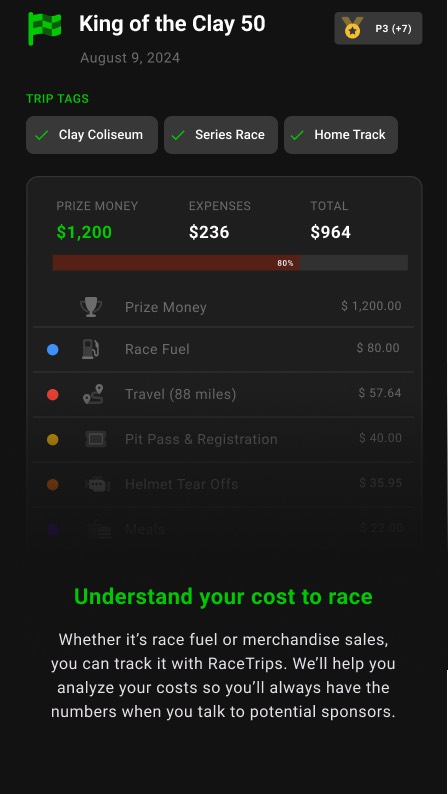
The Trip Report page is the home for one trip: header, tags, action buttons, distance, and a Summary or Details view of every dollar.
Reading the page
- Header. Trip name, formatted date range, finish-position badges, and the trip-type icon.
- TRIP TAGS. Selected tags, read-only here; change them with the pencil. If the trip has none yet, tap + Add a Tag to jump to the edit form.
- Add Prize / Add Expense buttons.
- TOTAL DISTANCE with Add Miles.
- Summary tab. PRIZE MONEY, EXPENSES and TOTAL, a ratio bar: green while your prize money is at or below your expenses (showing how much of your expenses the prize money covers), red once prize money exceeds expenses, and totals per category. Tap anywhere on the Summary to switch to Details.
- Details tab. Every line item with its date, name and amount. Tap a row to edit it (expense, prize or miles).
- Save as a Template at the bottom. See Trip templates.
Edit the basics
- Tap the pencil in the title bar to open Edit Trip Report: name, single/multi-day dates and tags. Save with ✓.
Delete a trip
- Tap the trash icon. Confirm Delete in the "Do you want to delete this Trip Report? This cannot be undone!" dialog. Deleting a trip removes all its line items and returns the trial report if you are on the trial.
Edit or delete a line item
- Open the item from Details. Change any field and tap ✓, or tap the trash icon and confirm "Do you want to delete this Prize Money?" (or Expense, Additional Income, Additional Expense, or "this mileage item"). This cannot be undone.
- Pull down on the Trip Report page to reload it after making changes elsewhere.
Report Saved, reminders and AI suggestions
Where in the app: Appears when you back out of a trip after adding or changing items
A quick recap of what the trip just did to your taxable income, what is still missing, and suggestions from RaceTrips AI.
What the dialog shows
- Report Saved! with "You just increased / decreased your taxable liability by $X". Adding expenses decreases it (shown in green); adding prize money increases it.
- DON'T FORGET TO… reminders: Tap a reminder to jump straight to that form.
- Add Your Travel Distance when the trip has no miles.
- Add Your Prize Money when the trip has no prize entry.
- RACETRIPS AI SUGGESTS cards. Based on your trips, the AI proposes expenses you may have forgotten (for example a pit pass). Tap the card's button to open the expense form with that category pre-selected. Tap X to dismiss the suggestion for this trip; it fades out and will not return.
- Done returns you to the trip list. The X in the corner, or a tap on the dark background, closes the dialog and stays on the trip.
Turn AI suggestions on or off
- In My Profile, toggle AI INSIGHTS: View AI Insights Messages and save.
Additional income and expenses (outside a trip)
Where in the app: Trips → + → Log an Expense (No Trip Report) / Log additional Income (Not Prize Money)
Not everything happens on a race weekend. Log season pit passes, parts, sponsor checks, merchandise or used-part sales as stand-alone entries.
Log an additional expense
- Tap + and choose Log an Expense (No Trip Report).
- Choose Scan with AI or Enter Manually.
- Fill in the amount, Expense Name, Category and Expense Date (all required; the date row shows the placeholder "[DAY MON DD, YYYY]" until you pick one, unless you started from a calendar day, which pre-fills that day), plus notes and receipt, then ✓.
Log additional income
- Tap + and choose Log additional Income (Not Prize Money). Examples: T-shirt sales, sponsorships, used part sales.
- Choose Scan with AI or Enter Manually.
- Fill in the amount, Income Name, an income Category (sponsor money, resell used parts, point fund, merchandise, other) and the Income Date (all required), the Payment method (Check / Cash), notes and receipt.
- Envelope icon (income only). Saves the item and opens Send Receipt via Email. Enter an address and tap Send to email a receipt confirming the payment, handy for sponsors.
- ✓ saves.
How they appear
- Each entry shows in the month list with its own icon: an orange money-transfer icon for Additional Expense, a gold dollar badge for Additional Income, and matching colored dots on the calendar.
- Tapping one opens a page headed Additional Expense or Additional Income listing just that item. Tap the item to edit it. There is no pencil icon on these pages; the trash icon deletes the entry.
- Deleting the item deletes the whole entry.
- They do not count toward your free trial reports, and they roll into Reports and Season totals. The Completed Trip Analysis includes fuel, tires, parts and season pit passes from these entries but excludes merchandise, used-part sales, point fund and sponsor income.
Fixing problems
Trips
- "Please enter some text" under Trip Report Name. A trip needs a name.
- "Please select a date or a date range". Tap Single Day or Multi-Day, then tap the date line to open the calendar (2020 to 2030).
- "This is already a trip on this date. Do you want to save another trip on this date?" You already have a trip that day. Yes, Create another Trip saves it anyway; Cancel lets you change the date.
- "Do you want to delete this Trip Report? This cannot be undone!" Deleting removes the trip and all its prize money, expenses and miles.
- The "Report Saved!" pop-up appears when I leave a trip. It shows when the trip's balance changed while you were in it and you leave using the back arrow at the top of the screen. It is skipped for Additional Expense and Additional Income entries, and the device back gesture leaves without showing it. Tap a reminder to jump to that entry, or Done.
- AI suggestion cards keep appearing. Tap the X on a card to hide it for that trip, or switch off View AI Insights Messages in My Profile and save.
- Calendar dots or the list do not update. Pull down to refresh. Changing month waits half a second before loading, so a brief spinner is normal.
- An error line appears where the trip list should be ("No Internet", "Connection timeout", "404", "500 Internal server error"). The month could not be loaded. Check your connection and pull to refresh; if a 500 error persists the server is having a problem, so try later.
- Save or Delete seems to do nothing. Most server errors are not shown as pop-ups; the thin progress bar under the title simply stops. Check your connection, pull to refresh and retry. If a request never finishes, close and reopen the app.
- A saved item shows a success message but is not there afterwards. The confirmations "Item Saved", "Miles Saved" and "Template created" appear even when the save failed to reach the server. If an entry is missing after a connection problem, add it again.
- A new trip opens as a blank page. If creating the trip failed, the app still opens the Trip Report screen but with nothing on it. Go back, pull to refresh, and create the trip again.
Prize money
- "Please select a Start Position" / "Please select a Finish Position". Both are required. Pick a start position first; if you choose DNQ, RAIN or N/A the finish position is filled in and hidden and the amount is set to $0.
- "Please enter an Amount" / "Please enter a valid decimal number". Enter digits only, with an optional decimal point (for example 250 or 250.50). No dollar sign, no thousands separator, up to 9 characters.
- "Please select a Date". Every entry needs a date. New trip entries default to the trip's end date; stand-alone entries start blank and show the placeholder "[DAY MON DD, YYYY]", unless you started them from a calendar day, which pre-fills that day.
- The payment method shows Check when I reopen a Cash payout. The selector resets to Check when editing. Re-select Cash before you save.
- My second payout replaced the first one. The + button (save and add another) can overwrite the item you just saved in the current version. Save with the check and tap Add Prize again for each payout.
- The + button cleared my date and category. Save-and-add-another clears the date, category and positions and does not put the trip's end date back. Set them again for the next item.
Expenses and Smart Scan
- "Scan the receipt: Would you like to automatically scan this receipt with AI? This will overwrite the amount, name and date fields." Appears after you attach a photo. Smart-Scan runs the scan; Don't scan keeps the photo as a plain receipt.
- "No Image available for scanning: Please add a receipt first". You asked for a scan but no photo is attached (usually after closing the camera). Use the camera or gallery icon in the Receipt section, then scan.
- "Error: Failed to pick image". The camera or photo library could not be opened, usually because permission was denied. Allow Camera and Photos access for RaceTrips in your device Settings.
- The camera opens the photo library instead. RaceTrips deliberately swaps the camera for the photo library when it detects a simulator or emulator, so this does not happen on a real phone. A denied camera permission gives "Error: Failed to pick image" instead.
- Smart Scan got the amount or date wrong. Scan results are suggestions. Correct the fields before saving; the scan only fills amount, name and date.
- "Please enter a Name" / "Please select a Category". Expense and income entries need both. Typing a name you have used before auto-selects its category after a short pause; otherwise pick one from the list.
- "Unsaved changes: Do you want to save or discard modifications." Shown every time you use Back on an entry form, even if nothing changed. Save validates and saves; Discard changes leaves without saving.
- "There are errors on the form (shown in Red)." You pressed Back while a required field is invalid. Continue editing returns to the form; Discard leaves without saving.
- The X on the receipt photo did not remove it. X hides the preview, but the photo is still uploaded when you save. Take or pick a new photo to replace it. A receipt already saved on an item can be replaced but not removed.
- The receipt photo looks smaller than the original. Photos are compressed to 80% quality and resized to at most 1024 by 2048 pixels before upload.
- The Category, Start position or Finish position list is empty. The list could not be loaded from the server. Go back, check your connection, pull to refresh on the trip and open the field again.
Miles
- "Please enter a value" / "Enter a valid number" / "Must be greater than 0", or the snackbar "Please fix the form errors". Miles must be a positive number, up to 5 characters (for example 125 or 87.5).
- Red text under the Calculate button. The server could not find one of the locations or a route between them. Make the start and destination more specific (add city and state) and tap Calculate again.
- The location (crosshair) icon does nothing. Location Services are off or permission was denied; the app does not show a message in this case. Turn on Location Services and allow access in Settings, then tap the icon again. The start field will read "Current location".
- "Must be greater than 0" on a decimal. The Miles field needs a decimal point, not a comma. Type 87.5, not 87,5.
- The + button on the miles form skips the checks. Save-and-add-another does not validate the field. Use the check if you want the form checked.
Email and receipts
- "Send Receipt via Email" after saving Additional Income: enter a valid address ("Please enter a valid email address" otherwise) and tap Send. "Email Sent" confirms; "Failed to send email" means the server rejected it, so check the address and connection.
- "Error: No line item available to send". The entry had not finished saving. Save first, then tap the envelope again.