Account, plans and maintenance
Your profile, plans and purchases, maintenance and RacePrep, Team & Crew, and signing out or deleting your account.
Account
My Profile
Where in the app: Manage tab → Profile, or side menu (☰) → your name at the bottom
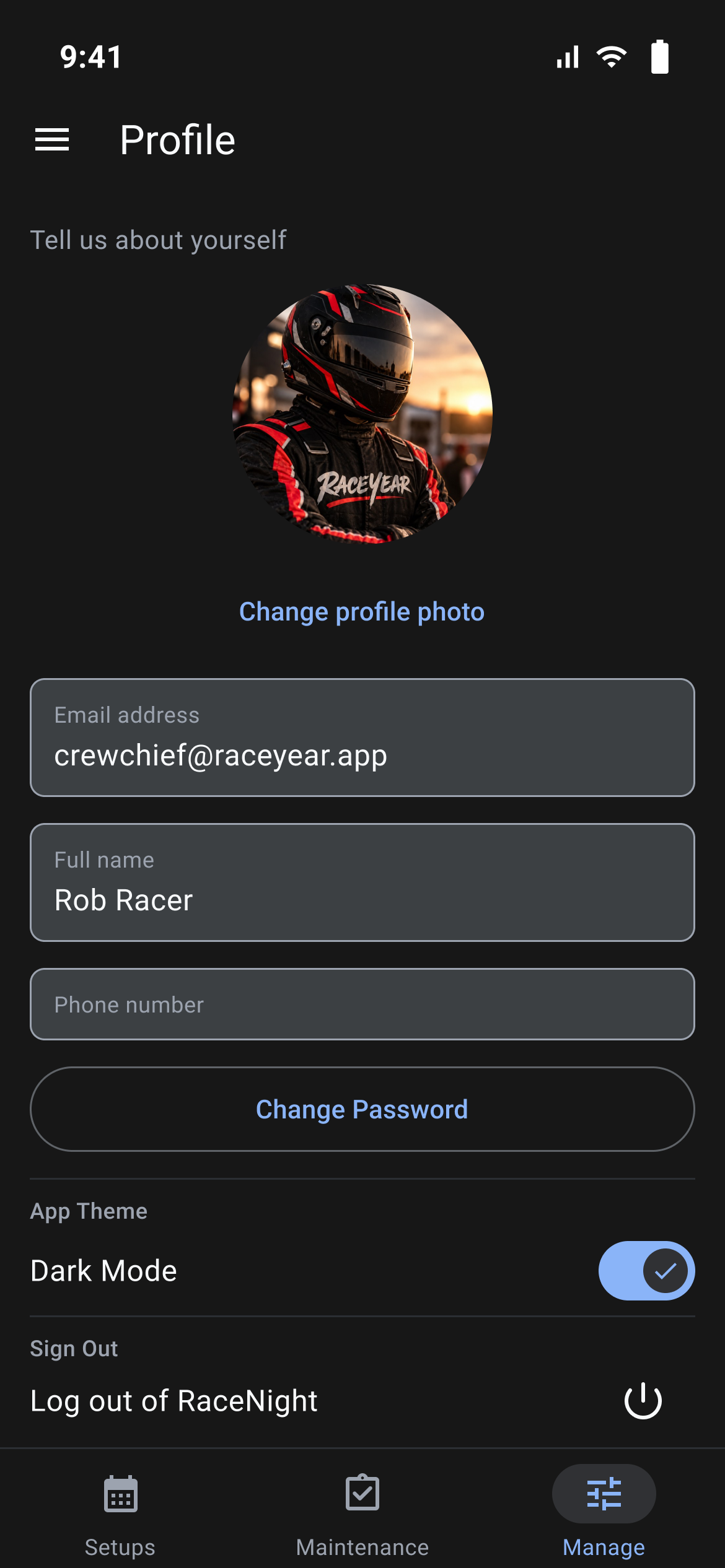
Your profile screen holds your photo, name and phone number, the Dark Mode switch under App Theme, Change Password, and the power icon beside Log out of RaceNight under Sign Out.
Text size is fixed. RaceNight ignores your phone's font size setting.
Your photo
Tap the round photo at the top, or tap Change profile photo, and pick a picture from your library. It uploads as soon as you pick it. The button carries a camera icon but only opens your library, so you cannot take a new picture from here. Until you set one the circle shows a gray person outline, and once a photo is set there is no way to take it away again, only to replace it with another.
Your details
| Field | Can you change it | Longest entry |
|---|---|---|
| Email address | No. The line under it reads "Email cannot be changed" | 255 characters |
| Full name | Yes, and it is required | 128 characters |
| Phone number | Yes, and it is optional | 20 characters |
Clear Full name and "Please enter your name" appears under it. While that error is showing, nothing on the profile saves, including your photo.
How changes are saved
There is no Save button and no back arrow. Full name and Phone number save when you tap away from the field, and a photo saves the moment you pick it, with no spinner and no confirmation either way. To leave, use your phone's back gesture or pick another tab. The screen is never locked, even when your subscription has lapsed.
Verify your email
If your address is still unconfirmed, for example after opening the app with no signal, a colored bar above your photo reads "Verify email (check your inbox)" with a Send Again button. Tap Send Again and a green "Email Sent" message appears at the bottom; if it does not go through you get "Failed to send verification email. Please try again." instead. After you click the link in your inbox the bar does not clear on its own, so leave Profile and open it again.
Change your password
- Tap Change Password.
- A dialog headed "Just a heads-up!" warns that the same password is used for RaceNight and RacePrep. Tap Cancel to back out, or Continue.
- A panel slides up, headed Change Password with the subtitle "Enter your new password". Type into New Password; the eye icon shows or hides it, and the X closes the panel without changing anything.
- Tap Change Password. The panel closes and a green "Success" message reading "Password changed successfully" appears at the bottom.
You are not asked for your old password, and the new one must be at least 6 characters. Leave the field empty and it is rejected first with "Please enter a new password", before the length rule is ever reached; too short and it reads "Password must be at least 6 characters". On failure the panel stays open and an "Error" explains why.
Dark mode and offline
The Dark Mode switch under App Theme recolors the app straight away, and the choice is stored on the phone rather than on your account. The screen never warns you when it cannot reach the server, and an edit made with no signal is lost silently, so make profile changes when you have a signal.
Subscriptions and purchases
Where in the app: Manage tab → Subscription, or side menu (☰) → Subscriptions
This screen lists the plans you can buy, the subscriptions you already hold, and the Restore Purchases button. A house icon at the top right takes you straight to the Setups tab, which is the quickest way off the page.
The plans on offer
Plan names and prices come from RaceYear's servers, so they are not listed here. Tab names usually come from the server too; when the server sends none, the app falls back to Free Trial, Annual (save 30%) and Monthly. The page is titled Subscriptions. The line above the plans comes from RaceYear too, and reads Upgrade subscription when the server sends none. The rest of the page is fixed:
- Plans sit in tabs. Tap a tab name to switch; swiping sideways does not. An empty tab reads "No plans available."
- Compare, under the plans, opens a feature comparison. Close it with the X or swipe it down. With nothing to compare, the button is not shown.
- A free plan card shows Start a free trial. A paid card shows a price, "billed annually." or "billed monthly.", and a buy button.
- A spinner shows while the page loads; pull down to refresh it.
What each plan includes
RaceNight has two plans. RaceNight AI opens the app and AI Assist on the setup list, plus Cars, Best Practices, Profile and Subscriptions. RaceNight Pro and the free trial open everything else: setups, search and filters, Templates, Baselines, Tracks, Tags, Community Setups, My Shared Setups, email, Maintenance, Lap History and Team & Crew. On the AI plan, tapping one of those opens a full-screen upgrade page with a close X and Upgrade Subscription. With no active plan at all, RaceNight shows one full screen with Upgrade Subscription at the bottom. It cannot be dismissed, and the side menu and bottom tabs are not reachable behind it. Your data stays on the phone. Buy or restore a plan to get back in.
Start a free trial
Open the tab holding the free plan and tap Start a free trial. No store is involved and you are not charged. You land on the Setups tab; if it fails, a message headed "Trial" appears at the bottom.
While you are on a trial and hold nothing else, a colored strip at the top of the Setups list, with Upgrade Subscription on its right, reads "9 days left on your free trial.", "1 day left on your free trial.", "Last day of your free trial.", "Your trial has ENDED." or "Your trial was CANCELLED." Tap it to open this page. The last day still counts as active.
The strip is left out on a lifetime-free plan, which carries the Forever tag on this page in place of a countdown. A free-plan holder may therefore never see it.
Buy a plan
- Tap the buy button on the plan you want.
- Your App Store or Google Play sheet opens. Finish the purchase there.
- A dialog headed "You're all set!" confirms it. Tap Get Started.
Tap the buy button once: every buy button on the page spins while a purchase runs, and a second tap starts a second purchase. Buying needs a signal and only works in the phone app. If the store cannot be reached, a Store issue dialog gives the reason; OK closes it and nothing is charged. The reason is most often "This subscription is not available in your region or store.", and sometimes "The App Store / Play Store is not currently available." or "Subscriptions can only be purchased from the mobile app."
Restore, review and cancel
Restore Purchases at the bottom re-links a subscription you already bought. Tap it, then Restore in the dialog that ends "You will not be charged.", or Cancel to back out. If a purchase is found you land back on the Setups tab with it applied; if nothing is found, nothing happens and no message appears.
When no trial is on offer the page also shows Your current Subscriptions: one row per plan, with the plan name and its price on the first line, then the plan type on the left (Monthly plan, Annual plan or Free Trial), the expiry in the middle written as "Renews" and the date, and a status tag on the right, one of ACTIVE, PENDING, CANCELLED / EXPIRED, Forever, Expired, LAST DAY, 1 day left or N days left. A Free Trial row shows no price and no renewal date, because the tag carries the countdown instead. With none held it reads "You have no active subscriptions." There is no cancel button and no shortcut to your store account, so cancel a paid plan in the App Store on iPhone or Google Play on Android.
When a trial is on offer this block is not shown at all. In its place the page carries the single line "Start a trial or jump right in with a subscription."
Maintenance and RacePrep [RaceNight Pro]
Where in the app: Bottom bar → Maintenance
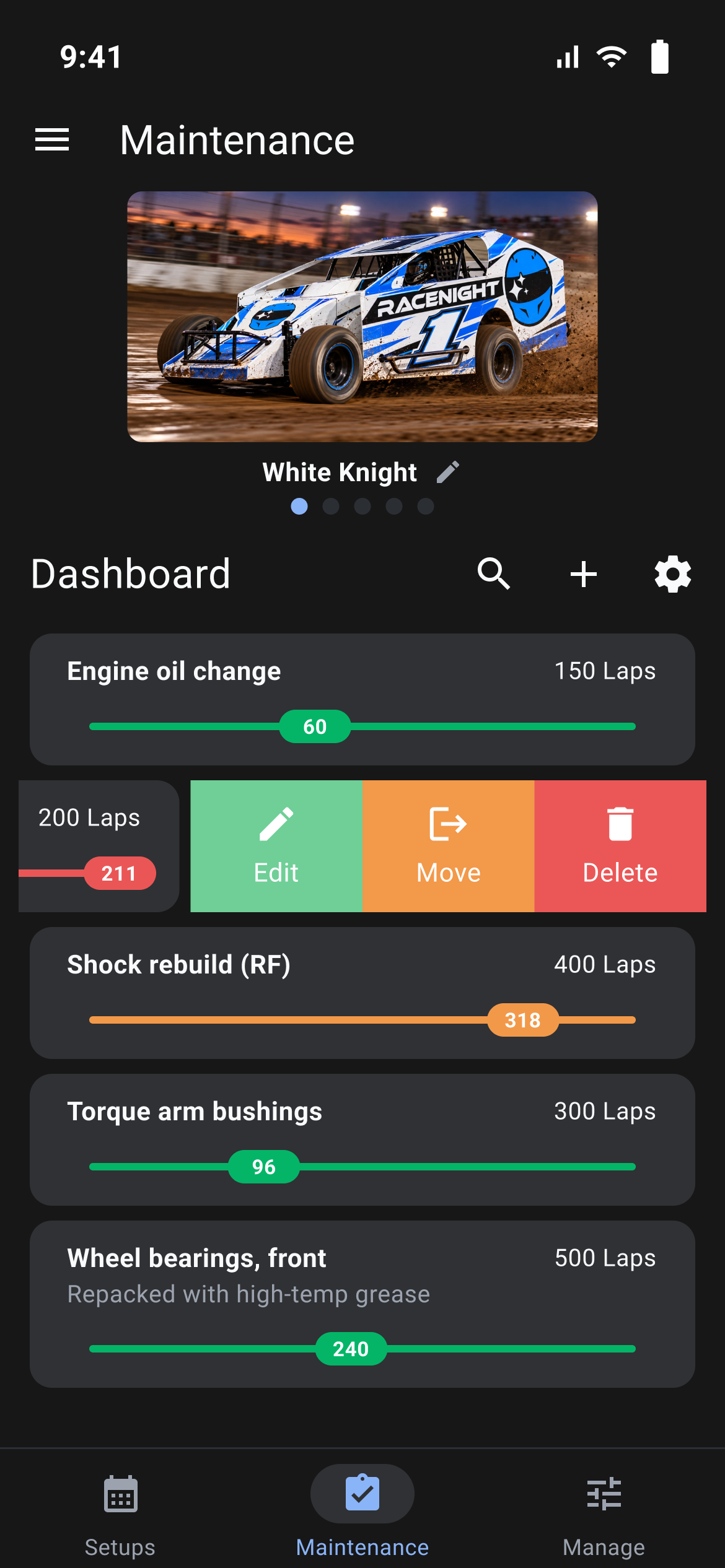
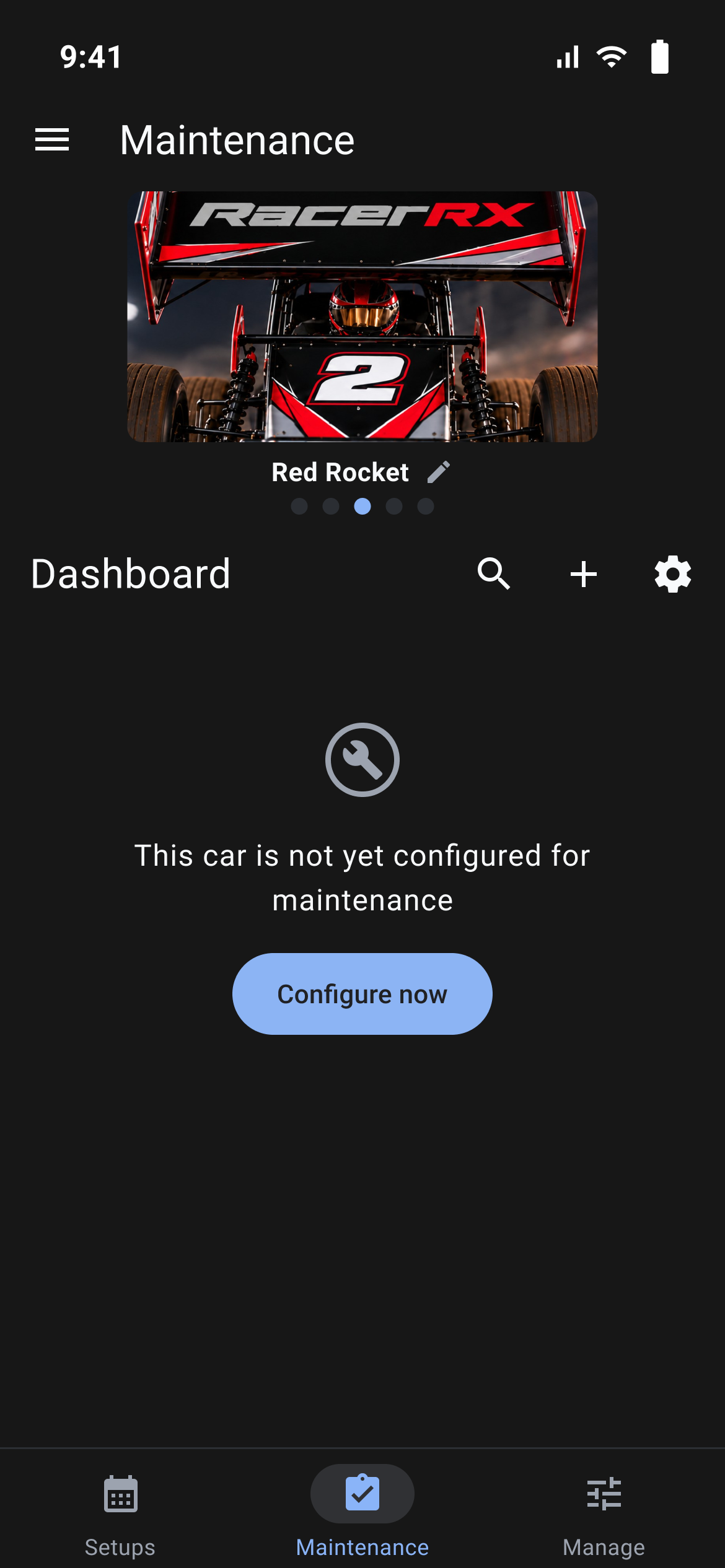
The Maintenance tab gives you the maintenance pages from RacePrep inside RaceNight: the same records, on the same RaceYear account.
How maintenance works in RaceNight
Maintenance counts laps on each part of your car. When you finish a setup on the Setups tab with the checkered flag, the laps from each session's Laps This Run can be added to that car's counters, once per race. It needs a signal.
Maintenance has five pages:
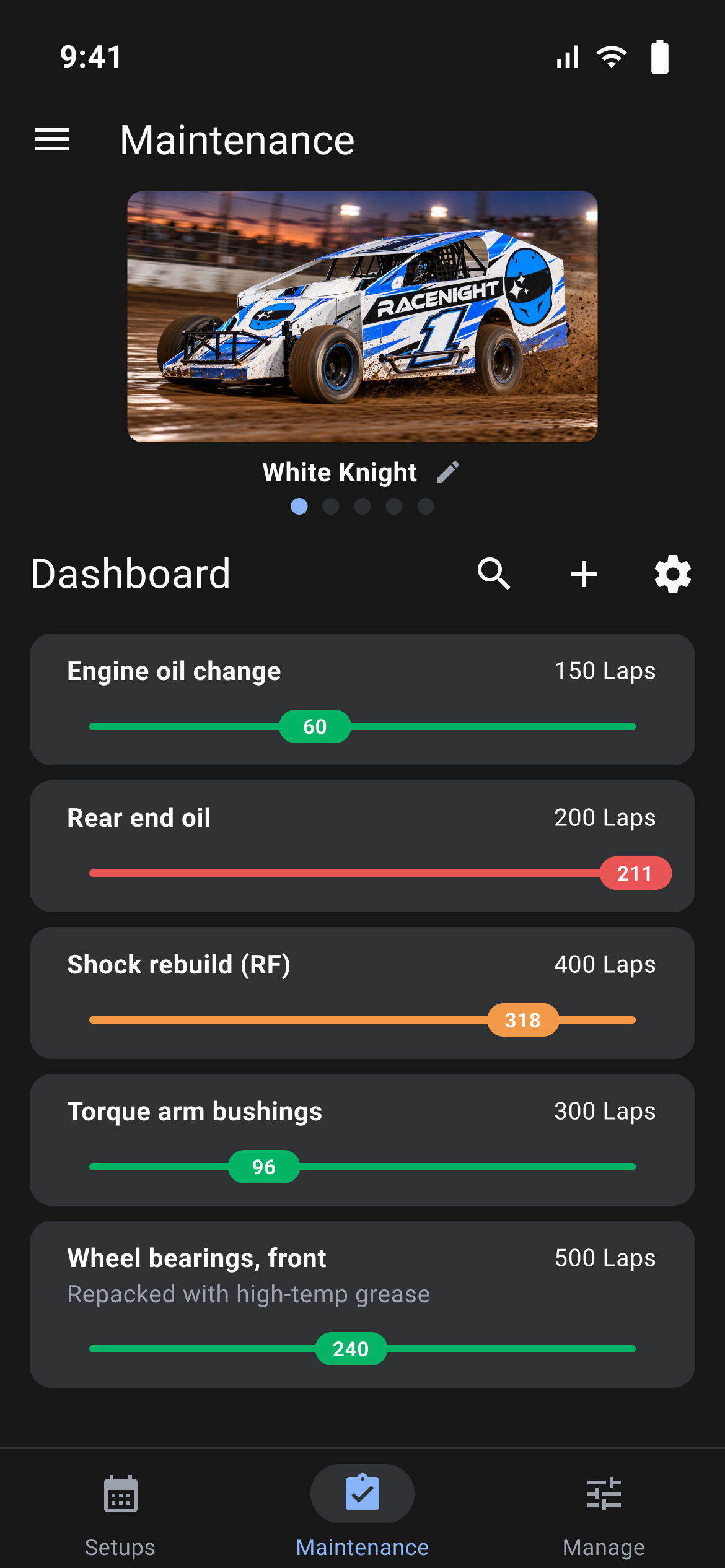
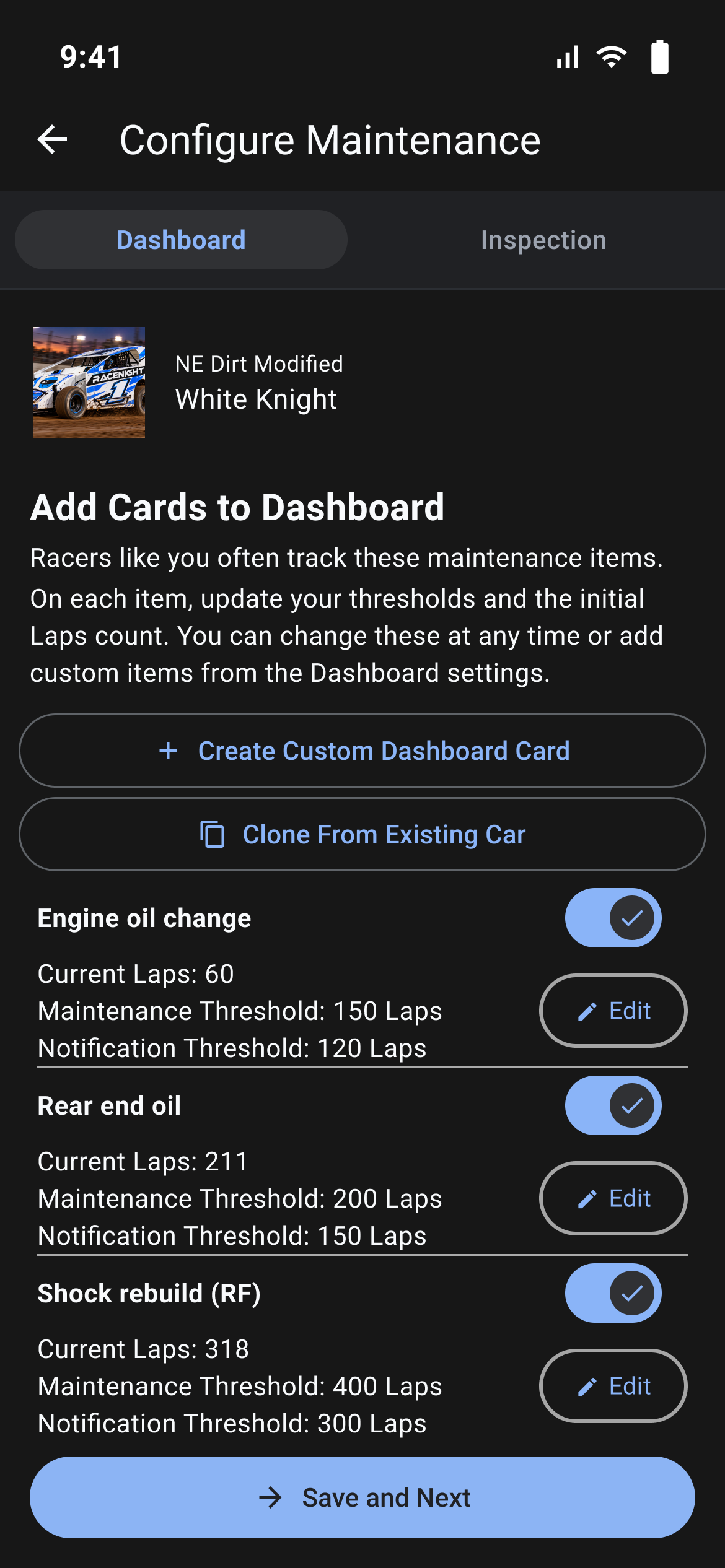
- Maintenance Dashboard [RaceNight Pro]: One card per part with its lap count against the limit you set. After you service or replace the part, tap Reset to Zero.
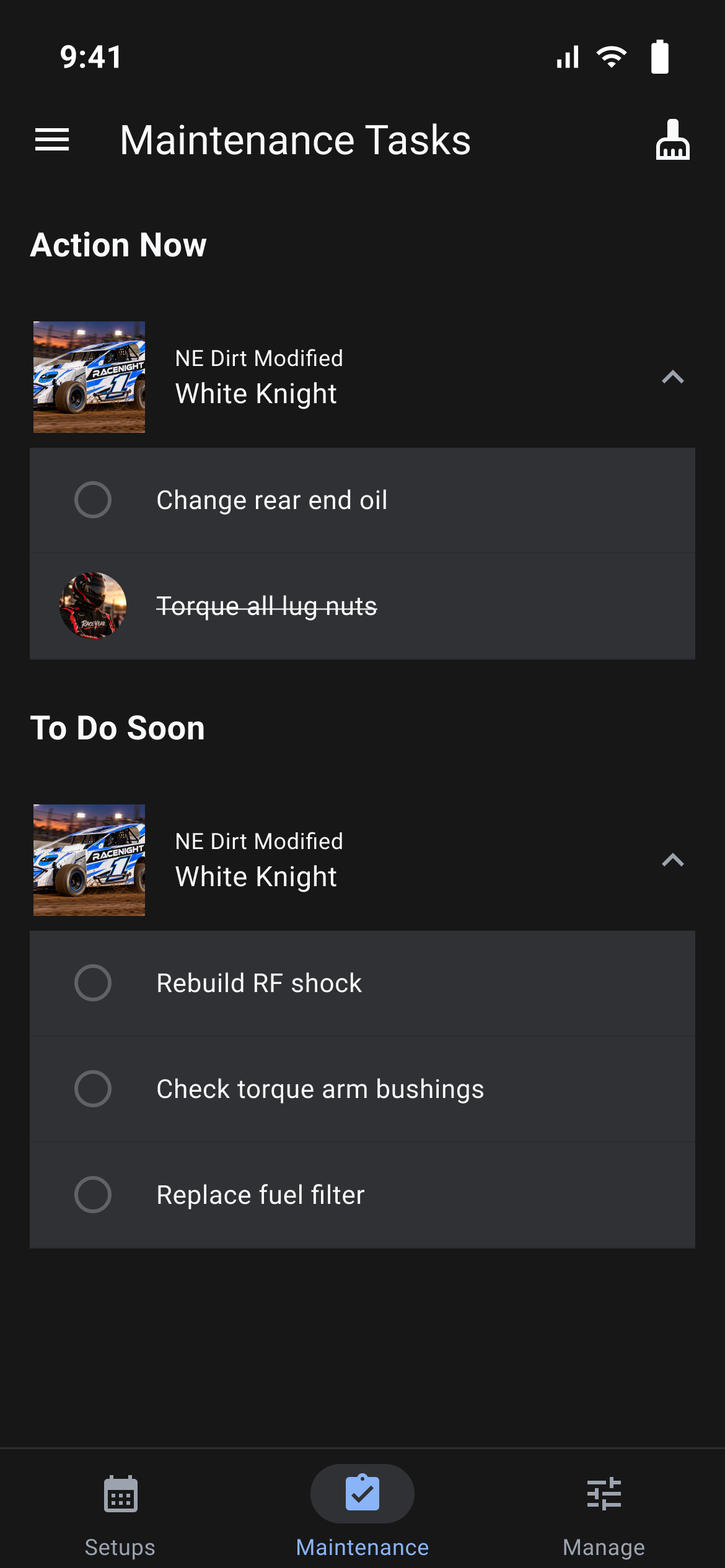
- Task List [RaceNight Pro]: Parts past their limit sit under Action Now, parts close to it under To Do Soon. Check them off as you do the work.
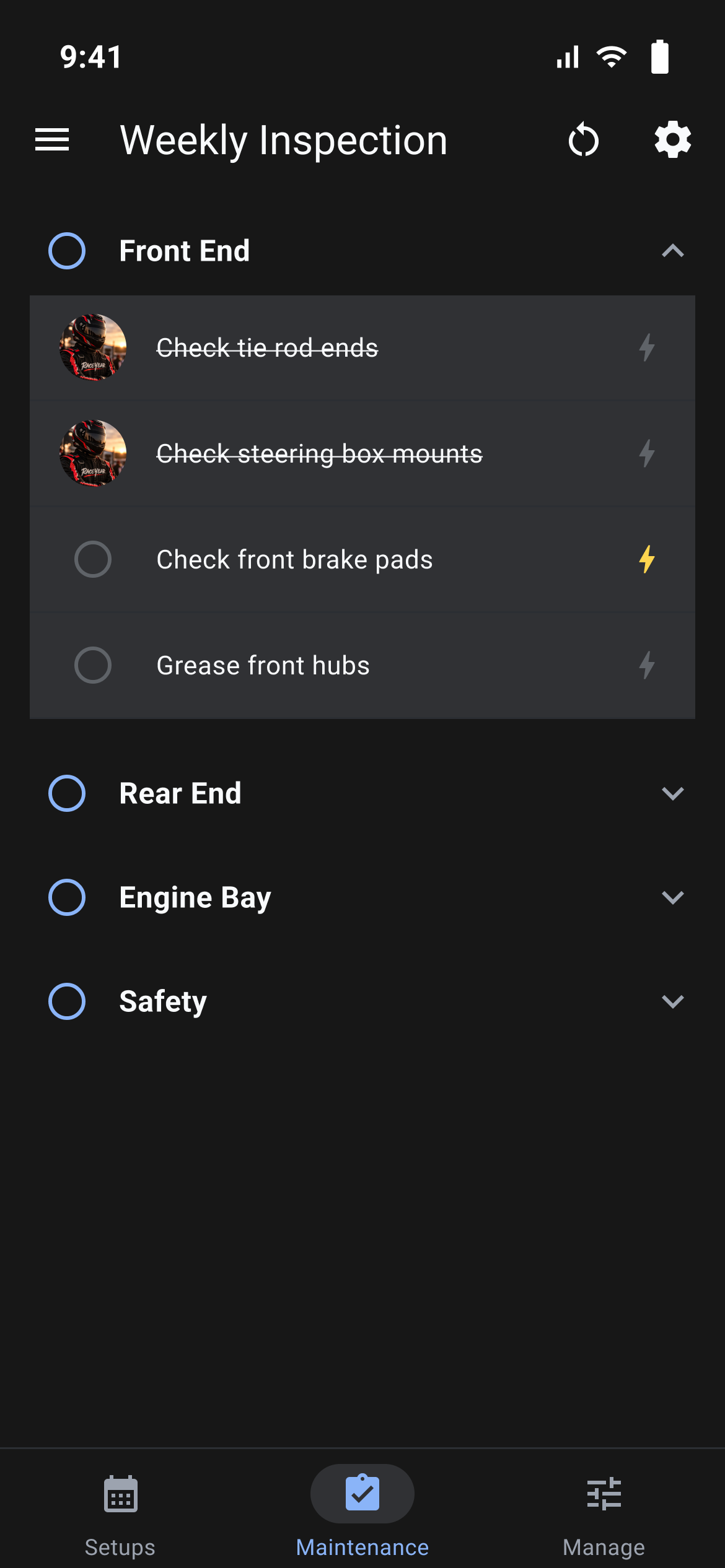
- Weekly Inspection [RaceNight Pro]: Your bolt-check list, grouped by area. Check off each item, then reset the checklist when the race trip is over.
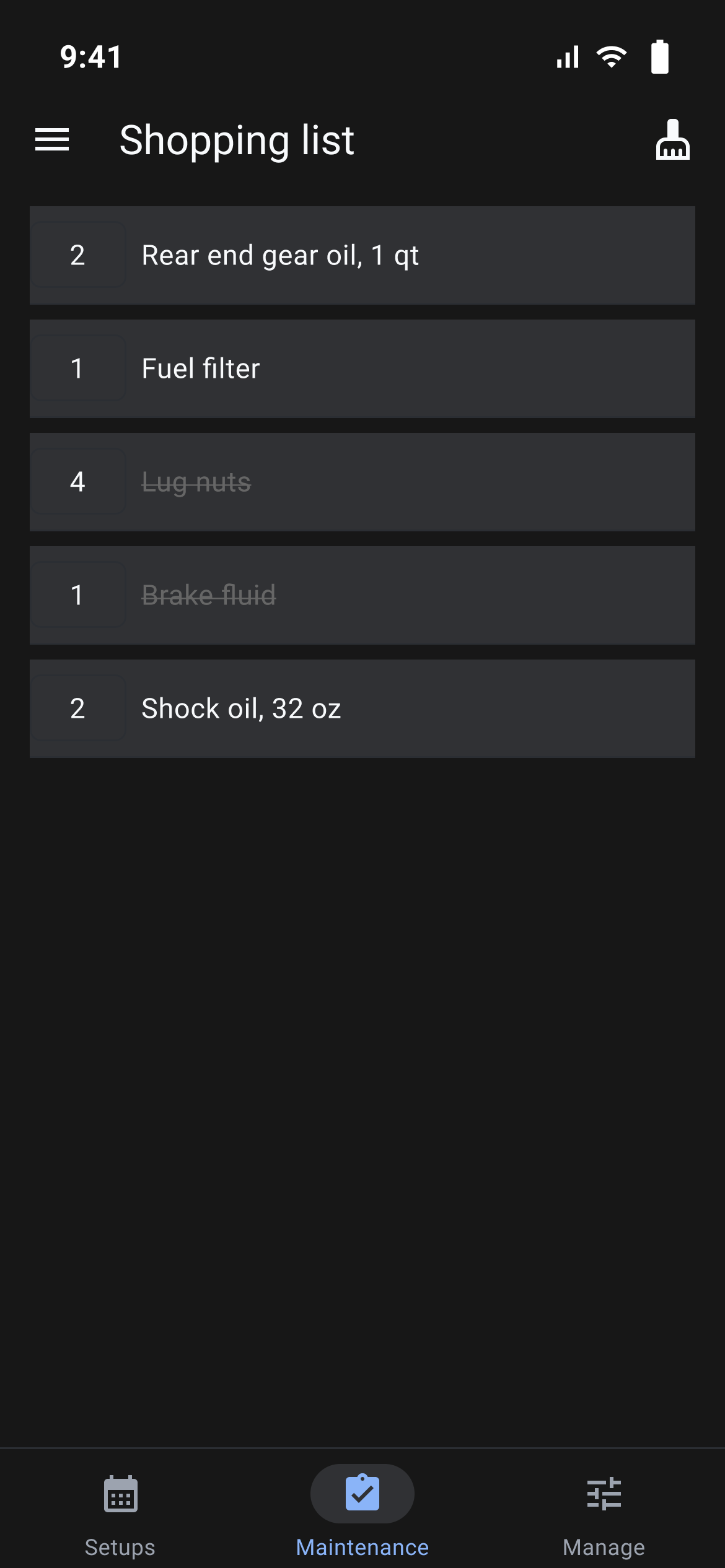
- Shopping List [RaceNight Pro]: What you need to buy, with quantities, grouped by the store in each part's Purchased from. Tap a row to cross it off.
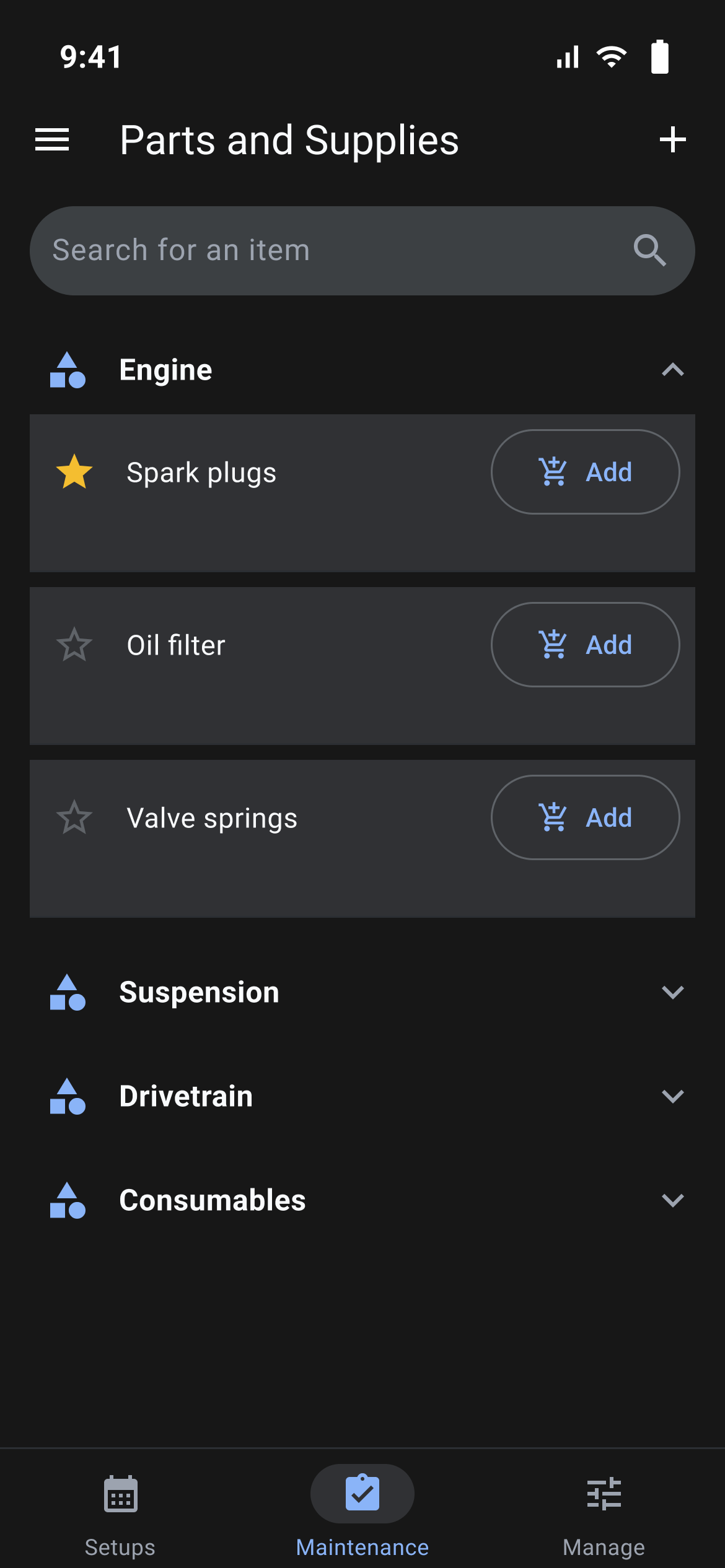
- Parts & Supplies [RaceNight Pro]: Your spares and supplies. Tap Add on a row to put it on the shopping list, and star the ones you restock often.
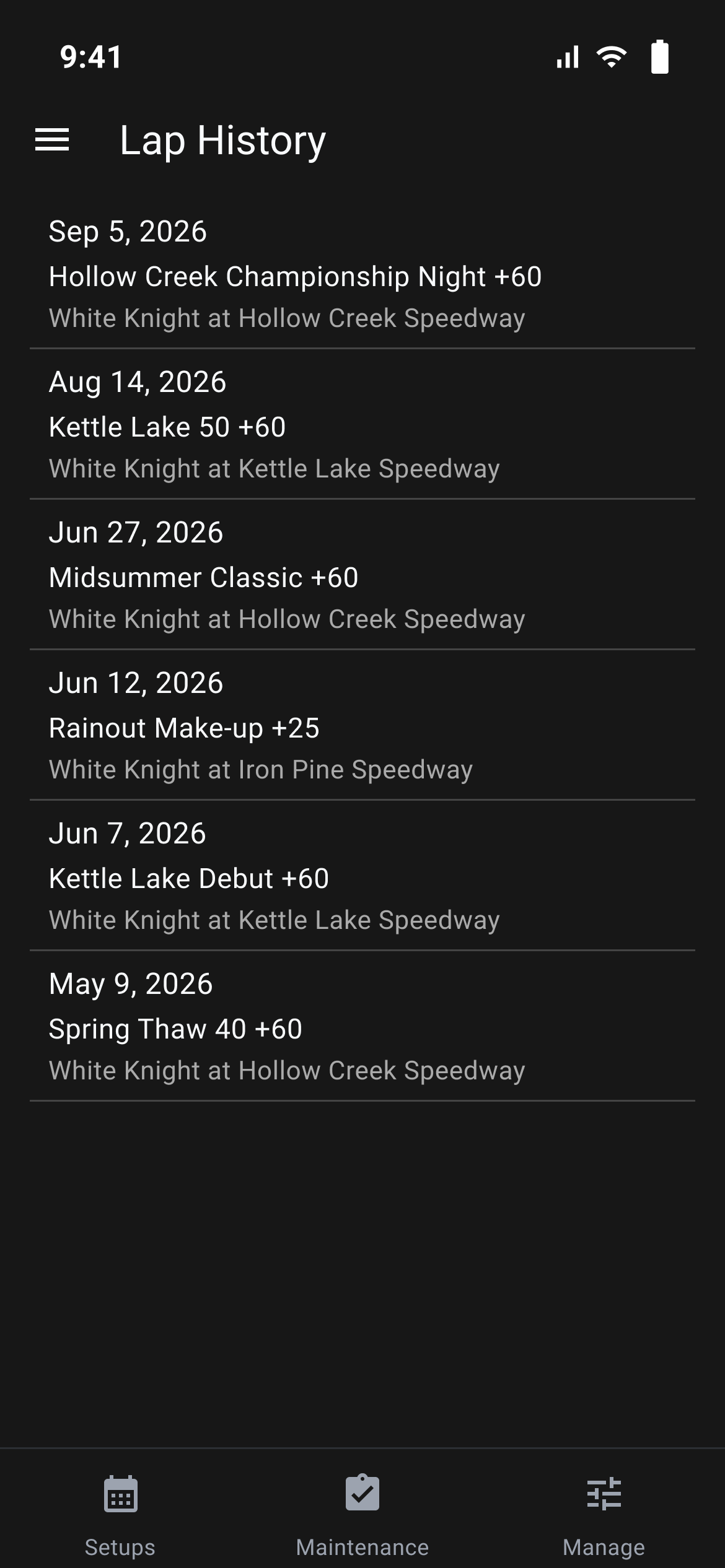
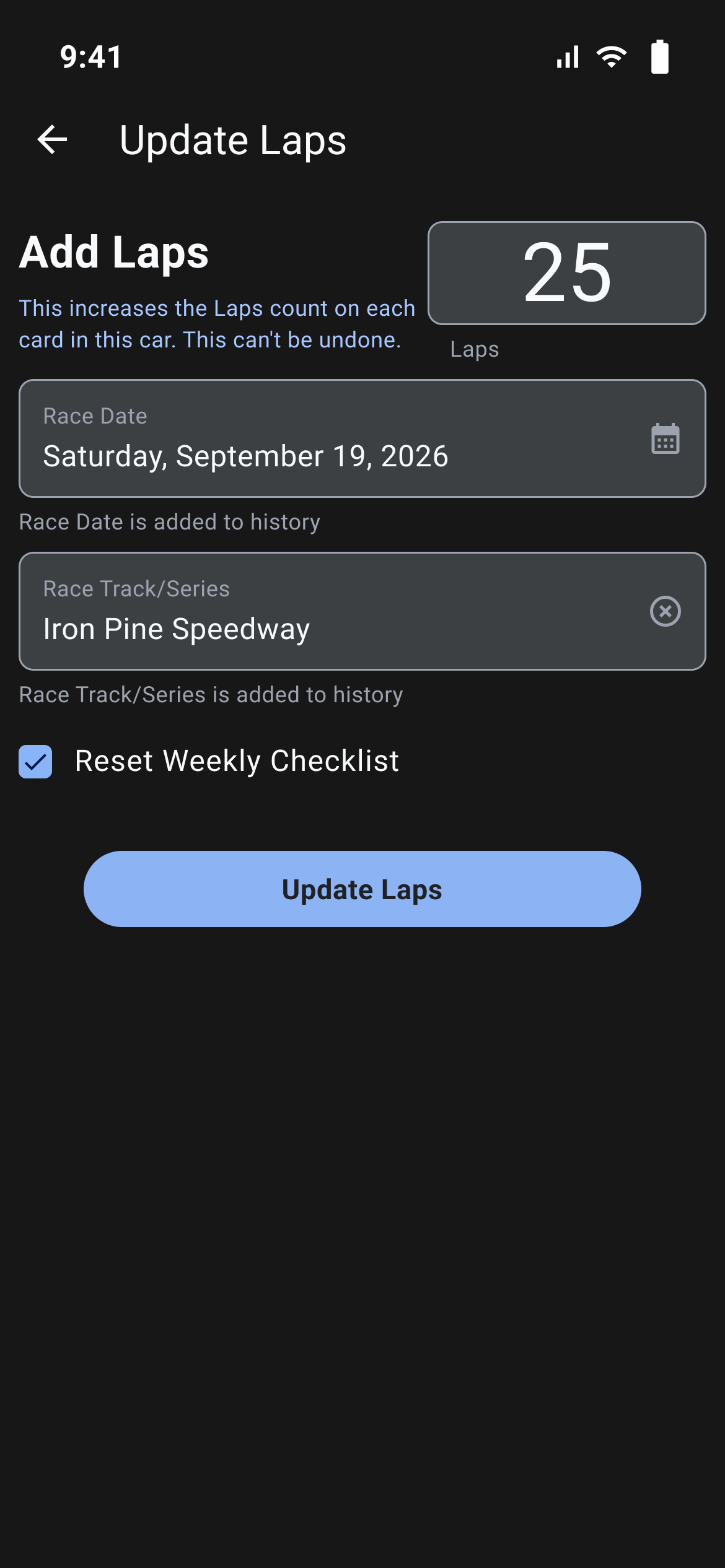
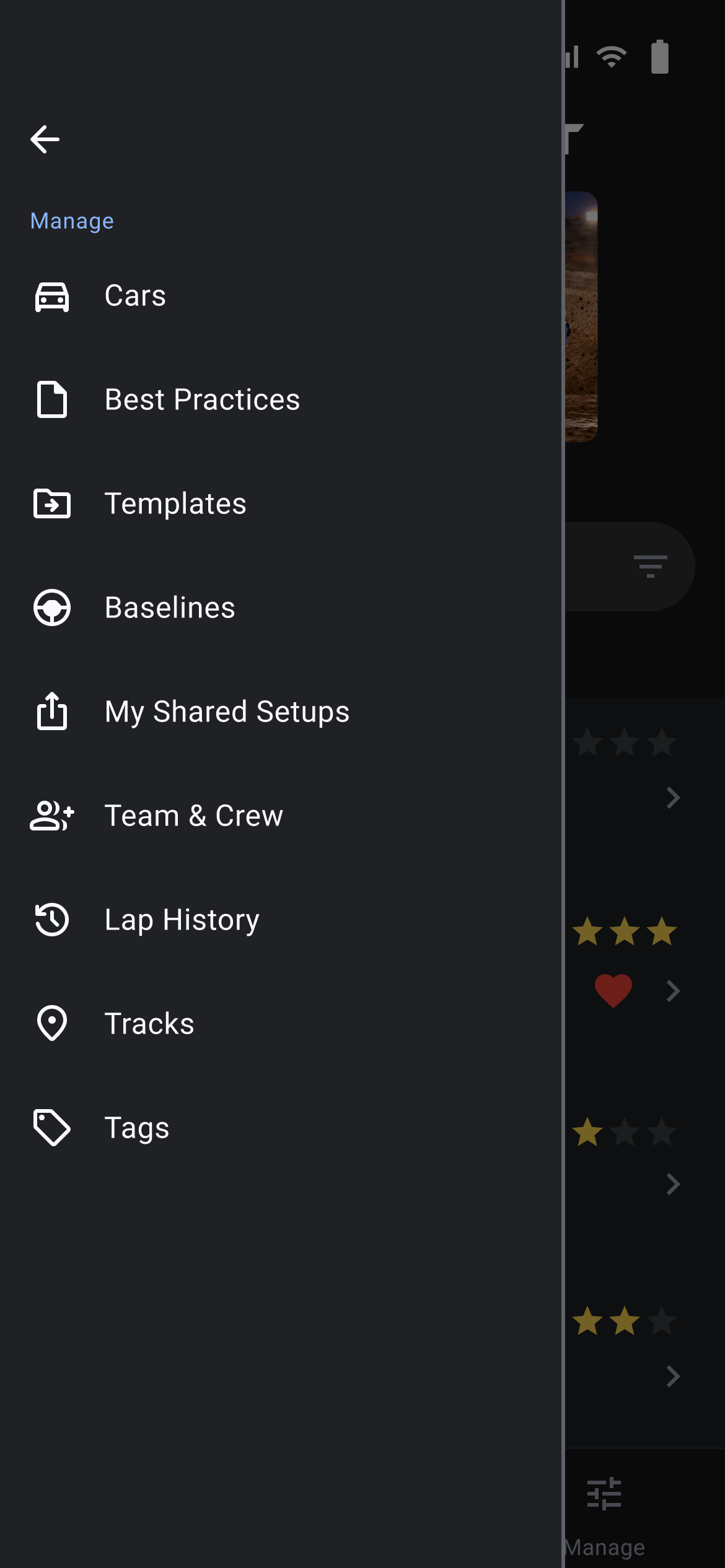
Lap History [RaceNight Pro] is in the side menu under More Tools, then Manage. It lists the lap counts added to your cars, one row each: the race date, what changed, and the car and track.
Shared records and the car you pick
Maintenance uses your RaceYear account, so RaceNight and RacePrep show the same records.
Tap Maintenance in the bottom bar to open a menu card with Maintenance Dashboard, Task List, Weekly Inspection, Shopping List and Parts & Supplies. The car filter on the Setups tab does not lock it.
Team & Crew [RaceNight Pro]
Where in the app: Side menu (☰) → More Tools → Manage → Team & Crew
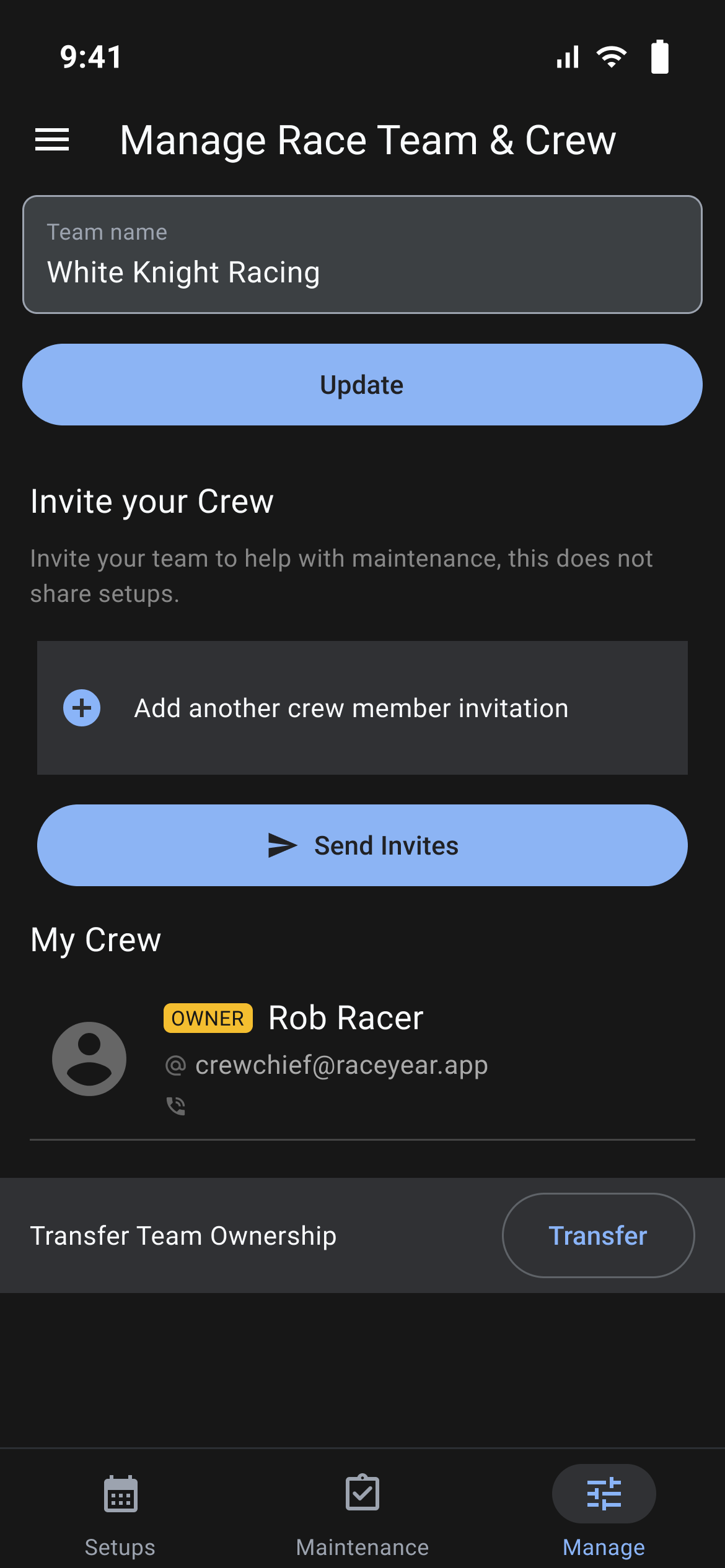
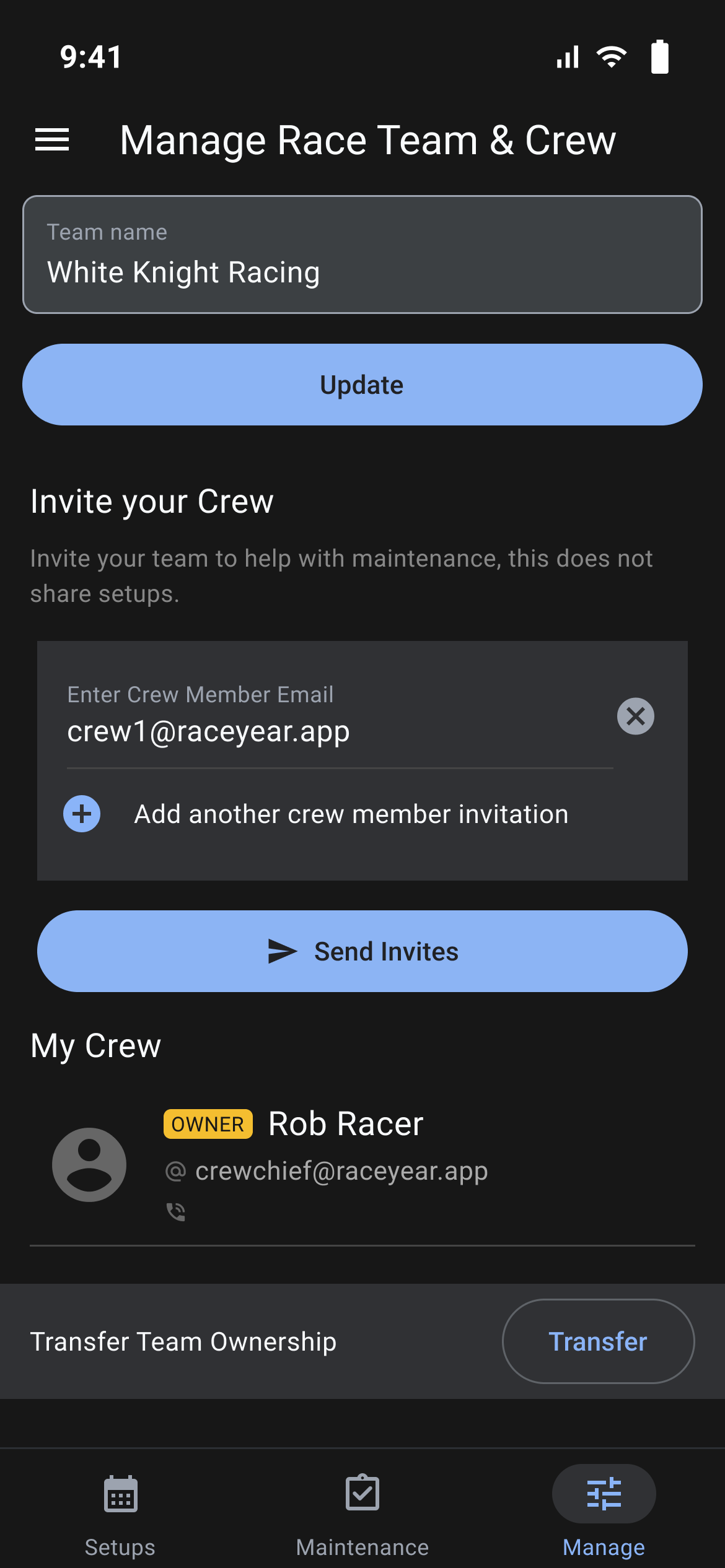
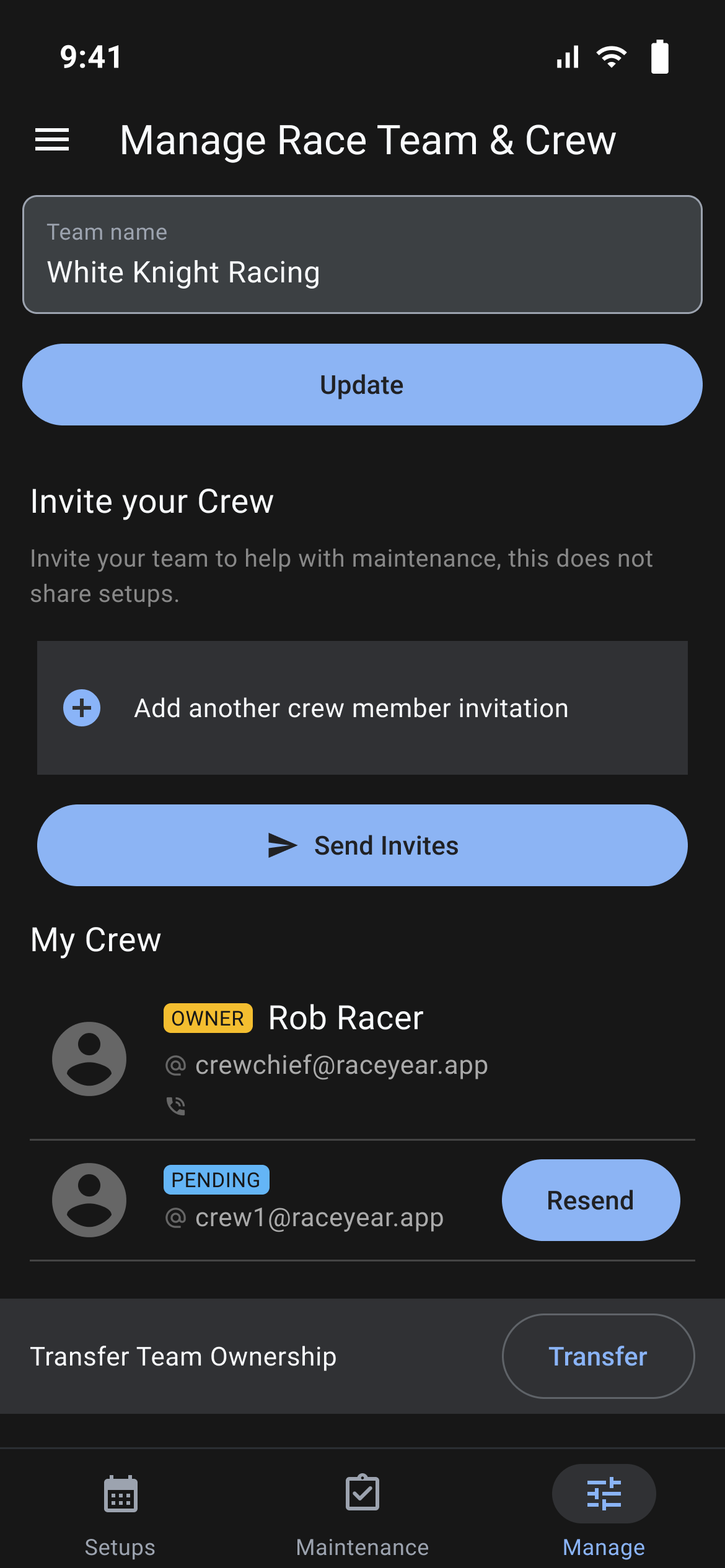
Invite the people who help in the shop. The page says what it does in one line: "Invite your team to help with maintenance, this does not share setups." You run the team from RaceNight. Your crew works in the RacePrep app.
Running your team
- Team name: Type it and tap Update.
- Invite your Crew: Tap Add another crew member invitation and type an address in Enter Crew Member Email. Add a row for each person, then tap Send Invites.
- My Crew: You show as OWNER. A new invite shows as PENDING. Tap Resend if the email went missing.
- Remove and Unblock: Remove sits on an ACTIVE member. After "The Crew Member will be blocked and will no longer have access." they show as REMOVED, and Unblock lets them back in.
- Transfer Team Ownership: Transfer opens a RaceYear web page in your browser.
Sign out and delete your account
Where in the app: Manage tab → Profile → Sign Out. Account deletion is on the web: raceyear.app/racenight/delete-account.
Signing out backs your data up to RaceYear's servers and then clears it off the phone, so it is worth understanding before you tap it.
Sign out
Open Profile, scroll to Sign Out, and tap the power icon beside "Log out of RaceNight". Only the icon is tappable. A Log Out dialog asks "Are you sure you want to log out of RaceNight?" Tap Cancel to stay signed in, or Log Out to go on.
- A box you cannot dismiss appears, headed "Syncing Data", while your whole RaceNight database is uploaded.
- Everything RaceNight keeps on the phone is then deleted and rebuilt empty, and you land on the sign-in screen.
- Sign back in and the data comes down again behind a box reading "Restoring Data", when the server holds a backup for your account.
Signing out does not clear your Dark Mode choice, so the next person to sign in on that phone starts in the theme you left. Sign out lives only on the Profile screen, not in the side menu.
Delete your account
To delete your account, use the delete account page at raceyear.app/racenight/delete-account.
Help, tutorials and feedback
Where in the app: Side menu (☰) → Help → Get Help
Everything RaceNight offers as help sits in the side menu. Every link below leaves RaceNight: most open in your phone's browser, and the last one opens your app store.
The Help submenu
- Tap ☰ at the top left of the Setups, Maintenance, Manage or Profile screen.
- Under the Account heading, tap Help.
- Under Get Help, tap Contact RaceNight, Template Feedback, Tutorial Videos or User Guide, or use the back arrow to return to the main menu.
Contact RaceNight opens www.raceyear.app/racenight/help. Use it for questions, problems and anything else you want the team to see. Template Feedback opens the RaceNight templates page, Tutorial Videos opens www.raceyear.app/racenight/tutorial and User Guide opens the RaceNight user guide start page.
Every link that leaves the app
| Where | What it opens |
|---|---|
| Side menu → Help → Tutorial Videos | www.raceyear.app/racenight/tutorial |
| Side menu → Help → User Guide | www.raceyear.app/racenight/user-guide |
| Side menu → Help → Contact RaceNight | www.raceyear.app/racenight/help |
| Subscriptions page → Terms of Service | www.raceyear.app/terms-and-conditions |
| Subscriptions page → Privacy Policy | www.raceyear.app/privacy-policy |
| Sign-in and register screens → Terms of Service, Privacy Policy | the same two pages |
| Manage tab → Templates → Request a Template, and the same button in onboarding step 4 | the template request page |
| Add or edit a car → race class list → Request a Race Class | the race class request page |
| New Update Available! dialog → Get Update Now | the RaceNight listing in your app store |
The update dialog is not something you open: it appears on its own when RaceNight notices a newer version in the store, headed "New Update Available!" over the line "It seems you're using an older app version." Get Update Now closes it and opens the store listing; Maybe Later closes it and leaves it alone until you next start the app.
Some setup templates also carry link buttons inside a setup, and those open in your browser too.
In-app tips
The first time you open a setup, a short tour points out each part of the sheet, from the session bar to the full sheet icon and the 3-dot menu. Tap Next to move on or Skip to close it. It shows once.