Fields, recap and the full sheet
How to fill in each kind of field, use the pit tools, close out the night in Recap and read the full sheet. Also covers hiding fields, baselines and template updates.
Fields and the full sheet
Filling in fields
Where in the app: Setups tab → tap a setup → any section
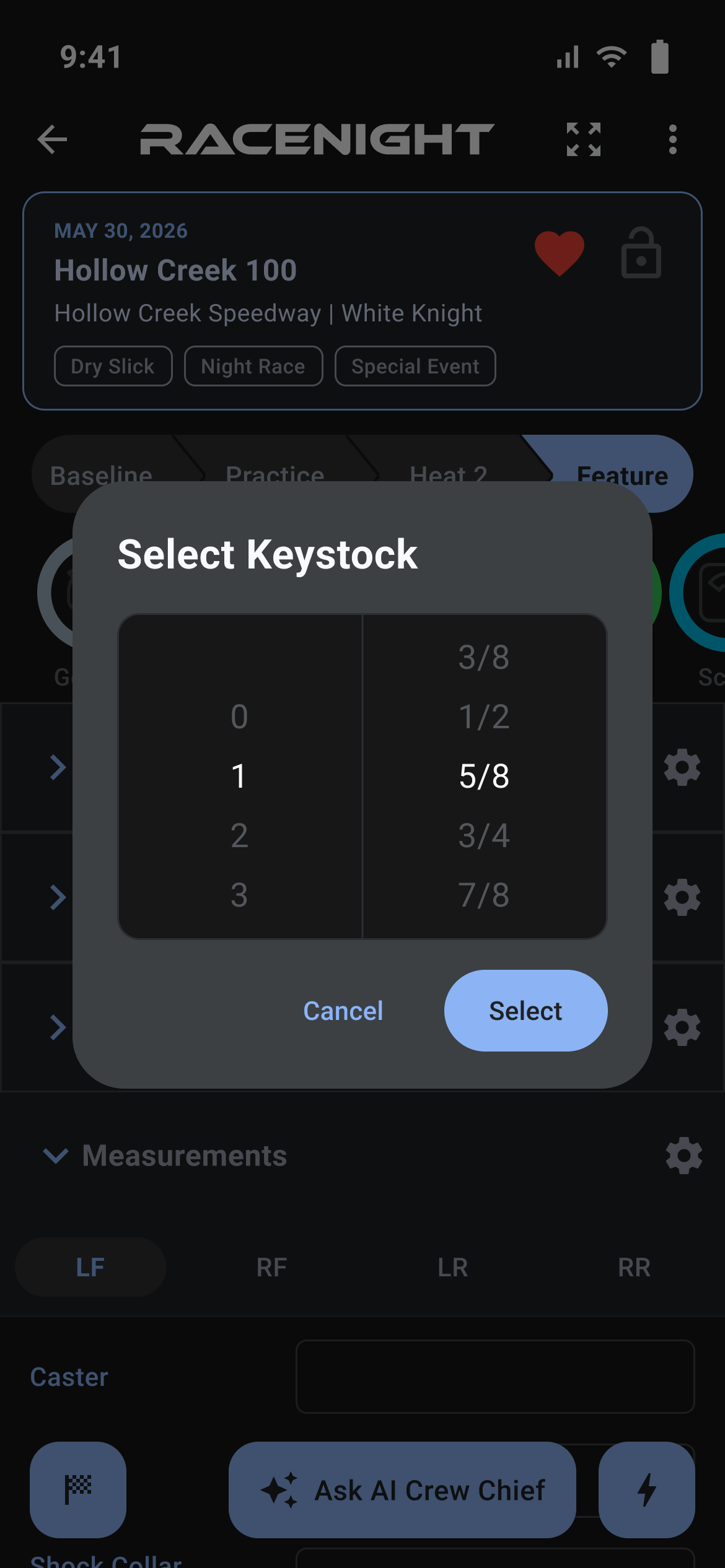
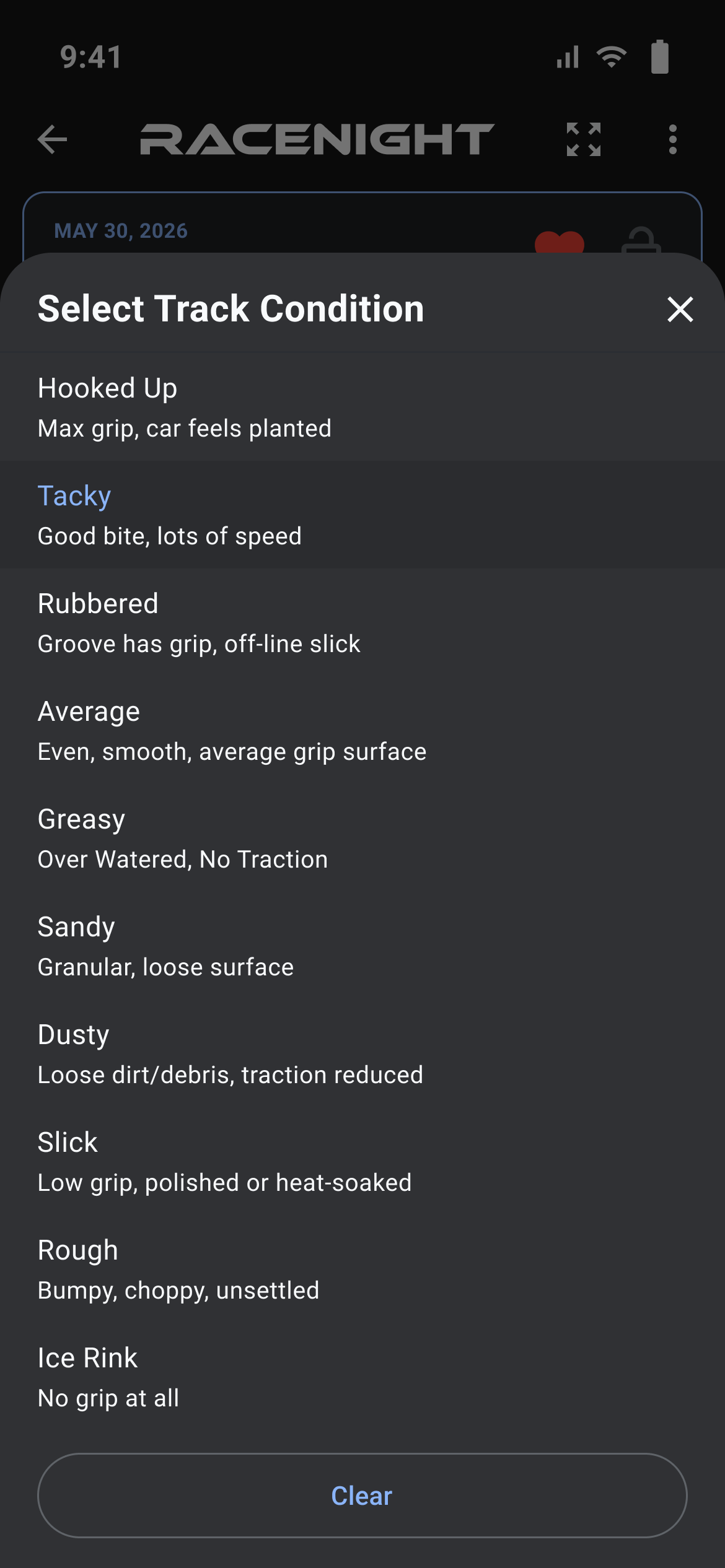
Every field in a setup sheet works the same way, and there is nothing to press to save.
The field row, and when it saves
The label sits on the left or above the control, with a smaller gray description under it when the template has one. Gray text inside a control is a placeholder, not a saved value, and shading shows whether the value was changed in this session or carried in from an earlier one.
Typed fields are written when the field loses focus: tap another field, scroll the page, close the keyboard, change session or open the full sheet. Pickers, chips, checkboxes and ratings save the moment you choose. There is no Save button anywhere in a setup.
The common field types
- Text is a single line box. Notes is a taller box that grows as you type; its keyboard has no Done key, so tap outside the box to finish.
- Numbers open a number keypad. The template decides whether the field takes whole numbers, decimals or a percentage, and can set a minimum and a maximum. A value it will not accept is not saved and a red line appears under it, such as "Please enter a valid number" or "At most 10.0".
- Fractions open a picker headed "Select" plus the field name, with whole numbers on the left wheel and fractions on the right, in halves, quarters, eighths or sixteenths. Cancel discards, Select applies.
- Big spinner fields are for large numbers: two wheels headed Hundreds and Ones, or one headed Value when the range is small.
- Checkboxes read Yes or No, and tapping toggles and saves.
- Pick lists open a list of options with a radio button each; tapping one saves and closes. Lists that learn from you also have a pencil and a trash can beside your own values, an Add new button, and a Clear button that restores the default.
- Chips you pick several of show a Select pill when empty. Tap chips on and off, then press Select (3) or Done. Clear All only empties the chips in the sheet, so you still have to press the button to save. Bold full-width headings are group titles and cannot be picked.
- Chips that are always visible put every option on the row, and tapping one saves at once.
- Ratings are five stars. Tap a star or drag across them, and tap the left edge of the first star for no stars.
- Shortcuts are a second view of a field elsewhere in the sheet, so editing one here changes both. Separators are headings and rules with nothing to fill in, and templates can add buttons that open another section or a web page.
To add to a list that learns, tap Add new or the plus chip to open Add to your list, fill in New list value and, if you want, Optional description, then Save. To change or remove one of your own values, use the pencil and trash can, or press and hold its chip. Options that came from the template cannot be changed.
Tables, grids and inventory fields
Where in the app: Setups tab → tap a setup → Scale, Shocks, Tires or Gears
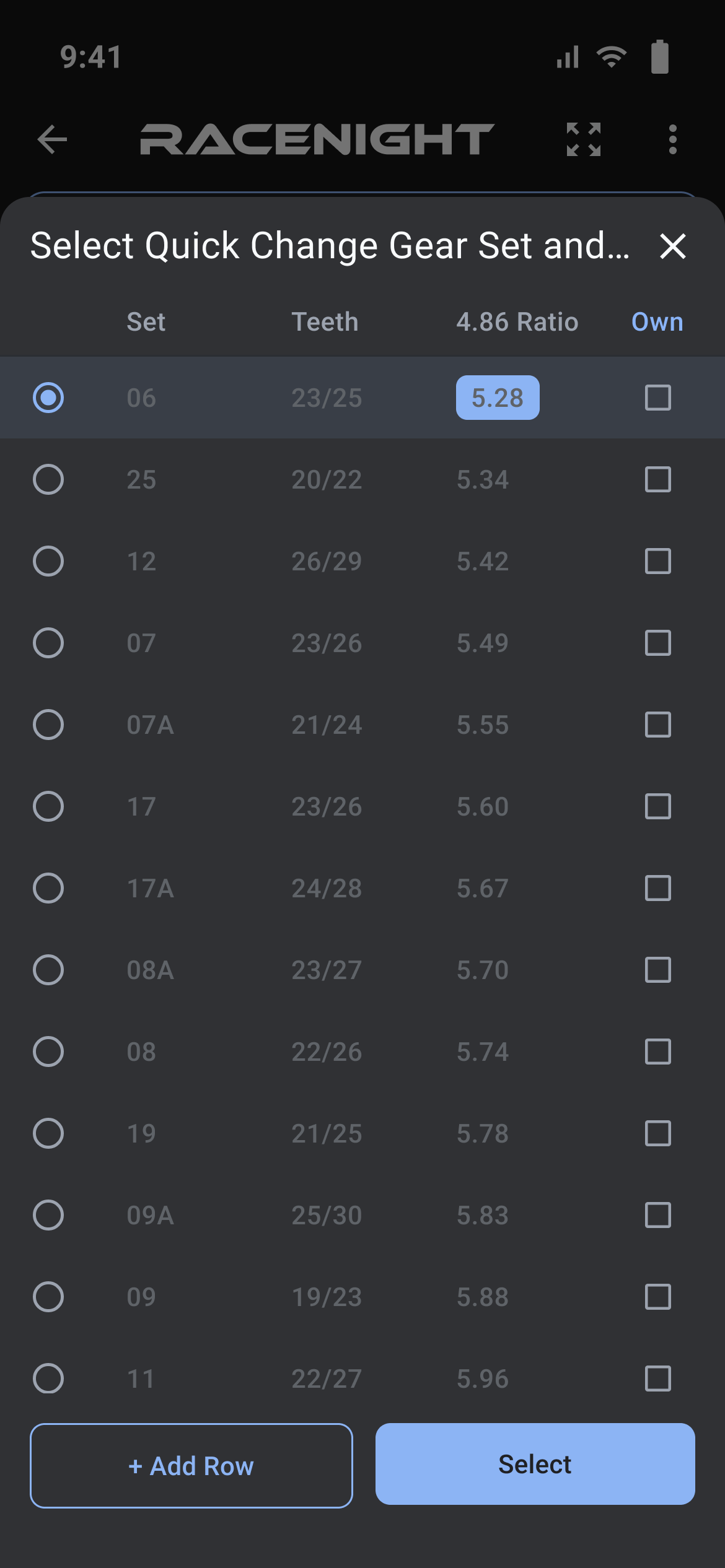
Some fields hold more than one number, and each has its own way of being edited.
The corner grid
Ride heights and corner weights are entered on a picture of the car with a box at each corner. Fill them in any order; the keyboard's next key moves left front, right front, left rear, right rear. The whole grid is saved when it loses focus, not as you move between boxes, so tap outside it when you have finished. On a fraction grid you tap a box and the fraction picker opens, which saves as soon as you press Select. Boxes may be left blank.
Per-corner sections
Sections such as Coilover Assembly, Spring Smash Data, Wheels & Tires and Tire Temps hold four panels named LF, RF, LR and RR. Tap a panel name to switch corners; each corner keeps its own values. In the Full Setup Sheet the same section becomes one table with a column per corner, which is the quickest way to compare all four.
Gear ratio chart
Some templates, such as kart sprocket templates, include a spur and pinion chart. There the field shows a Select pill and the sheet draws a grid of ratios with the current pair in the middle. Tap a cell to center it, or drag to scroll the teeth. Cancel changes nothing; OK writes the centered spur and pinion into the two gear fields.
Inventory fields
An inventory field points at one row of a shared list, such as a tire set or a gear set. With nothing chosen you see only the Select pill; once a row is chosen the field shows it as a small table with the column headings above the values.
- Tap the field or the pill to open the picker. The Select button stays grayed out until you pick a row, and an empty list reads "No items available".
- Lists you may add to also show + Add Row, with one box per column and a Save button. Blank rows are allowed.
- Rows you added carry a ⋮ menu with Edit and Delete, and deleting asks "Are you sure you want to delete this row?" first. Rows that came from RaceYear cannot be changed.
Learn chips and comments
Learn chips are saved pick-list answers you can tap again. They mix the template's options with values you have added. Tap a chip to choose it, or the round plus for the full list. To change or delete one of your own values, press and hold its chip and use Edit or Delete.
A comments field is a question followed by a bubble for each answer. Tap the question or Add comment, type, and press send; sending closes the sheet, so add comments one at a time. Press and hold a bubble to open Edit comment, with Cancel, a red Delete and OK. Comments do not carry forward, so each session starts empty.
Calculated fields and pit tools
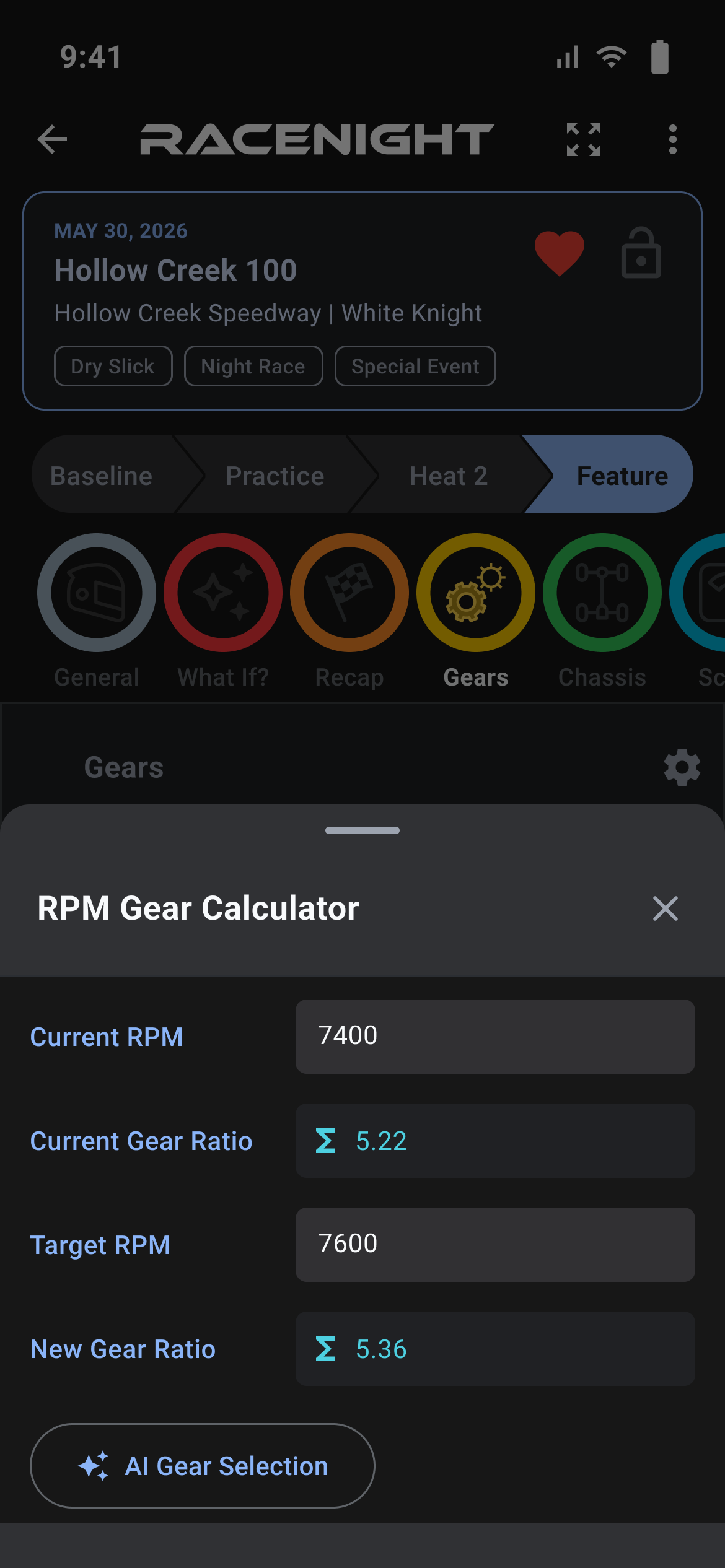
Where in the app: Setups tab → tap a setup → Tires, Scale or Gears
Some fields work the numbers out for you and cannot be typed into.
How to spot one
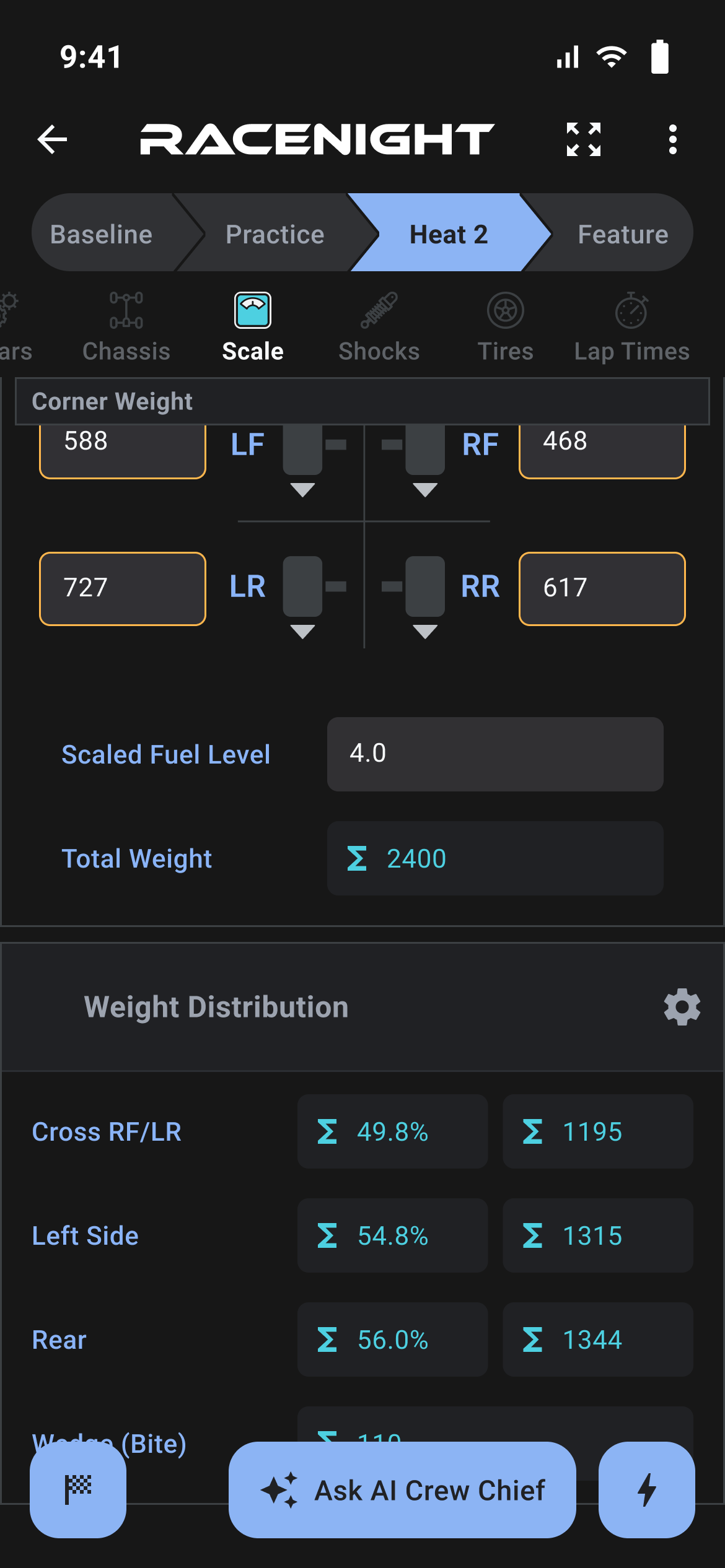
A calculated field has a blue sigma (∑) marker on the left and the result beside it in the same blue. There is no box to tap and no keyboard. Press and hold the sigma for three lines of detail: the formula, the same formula with your numbers filled in, and the raw result.
What feeds them
Calculated fields read other fields in the same setup and update while you type, so changing a tire size changes the stagger below it.
- If any field the calculation needs is empty, the result stays blank rather than showing a wrong number.
- Impossible sums, such as dividing by zero, show "N/A", and one "N/A" makes everything built on it read "N/A" too.
- One calculation can feed another, and RaceNight works them out in the right order. Some fields show two results side by side, with headings such as Front and Rear.
The calculators inside a template
Which tools you get depends on the class template. The Universal NE Dirt Modified template, for example, has RPM Gear Calculator in Gears, Weight Distribution in Scale beside Ride Height and Corner Weight, Stagger in Tires, and Tire Temps per corner with Average Temperature underneath. Because they belong to the template they differ between classes and can change when you take an update.
Race recap
Where in the app: Setups tab → tap a setup → Recap
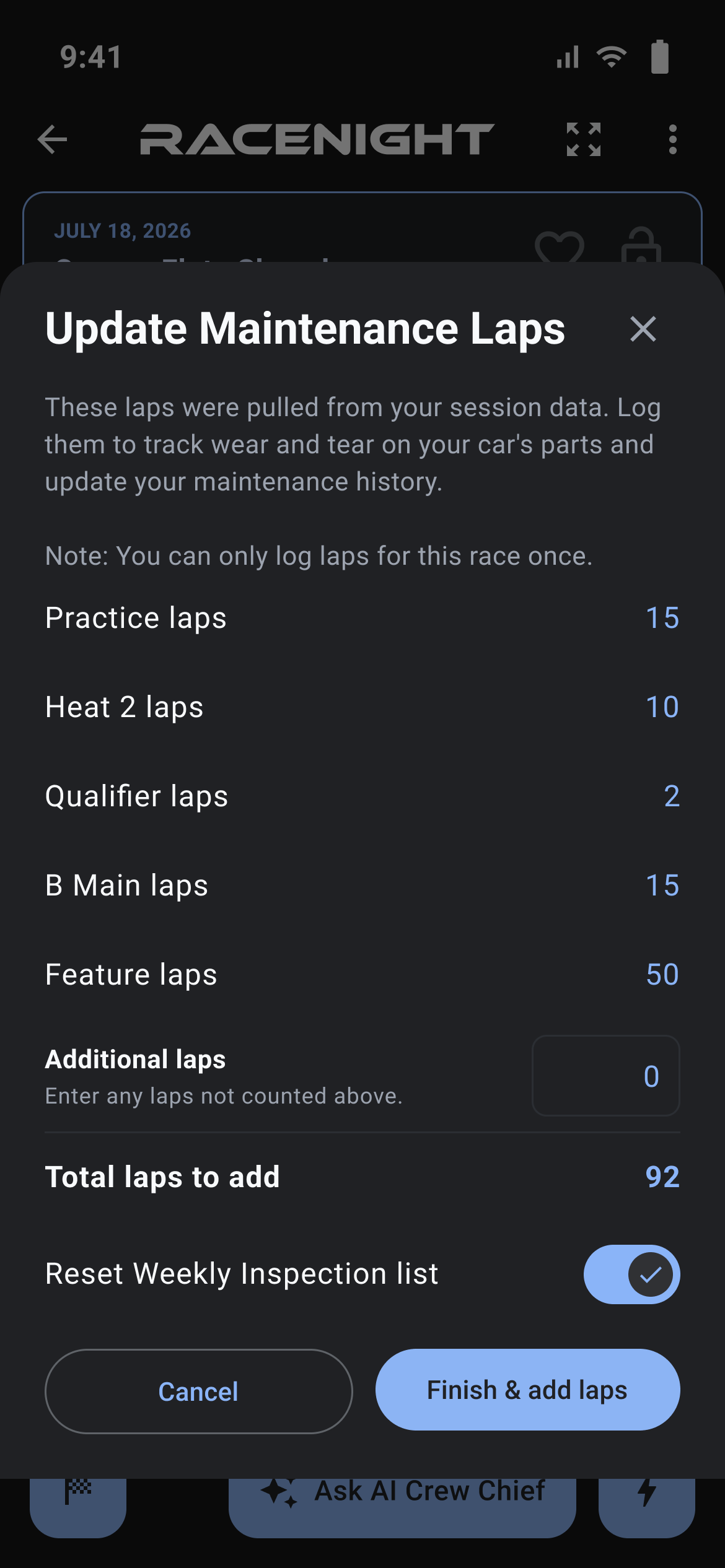
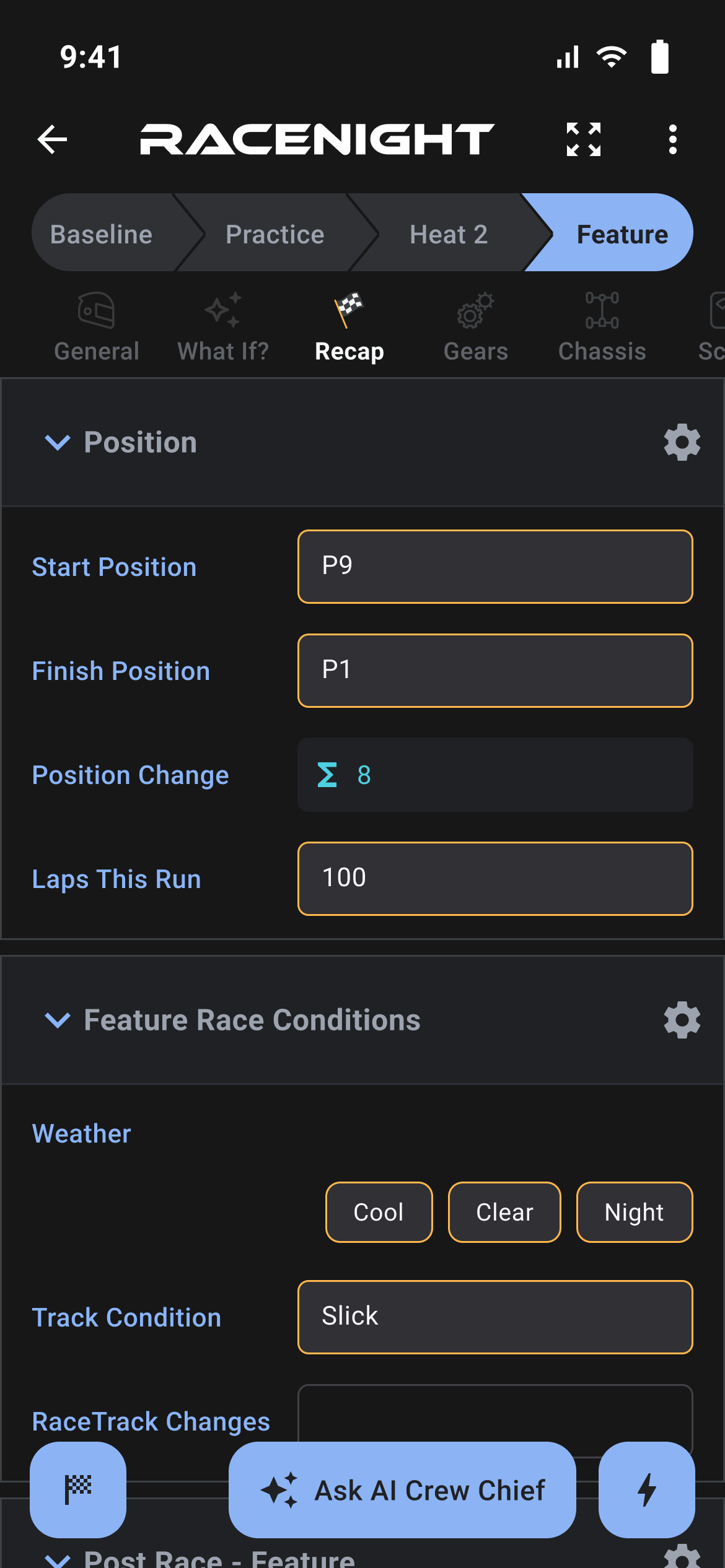
Recap is where you log how each session went: results, driver feedback and race conditions.
What Recap holds
Section names adapt to the active session selected in the chevron bar. In Feature, standard templates include:
- Rate Feature Set Up [RaceNight Pro]: 0 to 5-star evaluation of the car's overall balance during the session.
- Position [RaceNight Pro]: Start Position, Finish Position, Position Change and Laps This Run.
- Driver Feedback [RaceNight Pro]: Chips for Corner Entry, Middle of the Corner and Corner Exit (Tight, Good or Loose).
- Feature Race Conditions [RaceNight Pro]: Weather, Track Condition, RaceTrack Changes, Air Temp and Air Density %.
- Post Race - Feature [RaceNight Pro]: Finish weight, fuel start and end, Fuel Used and Fuel / Lap worked out for you, gauges, shock travel indicators and tire condition.
- Forward Bite and Side Bite [RaceNight Pro]: Forward Bite reads Needs Drive, Has Drive or Breaks Loose. Side Bite reads Needs More, Has Side Bite or Too Much.
- Feature Notes [RaceNight Pro]: Three prompts: "What changes did you make this session?", "How did the car handle after the changes? What improved or got worse?" and "What would you change or try next time?"
- Trackside Tuning Guidance [RaceNight Pro]: One-tap AI session diagnosis delivering targeted setup adjustments for the next run.
- Recap Photos [RaceNight Pro]: A photo log for tire wear, track conditions or damage.
On Practice and Qualifier, sections adjust dynamically to Rate Practice Set Up, Practice Race Conditions, etc.
Finish and save laps: Positions, Fuel, and RacePrep [RaceNight Pro]
The Position section captures your race results and drives key calculations:
- Start and Finish Position: Dropdowns covering P1 through P30. The finish picker includes DNF.
- Position Change: Automatically calculates spots gained or lost (e.g., started P8, finished P3 = +5). Shows N/A if marked DNF.
- Laps This Run: Enter the number of laps completed in the session.
- Fuel / Lap Calculation: In Post Race, enter Fuel Start and Fuel End. RaceNight divides the fuel used by Laps This Run to give your Fuel / Lap.
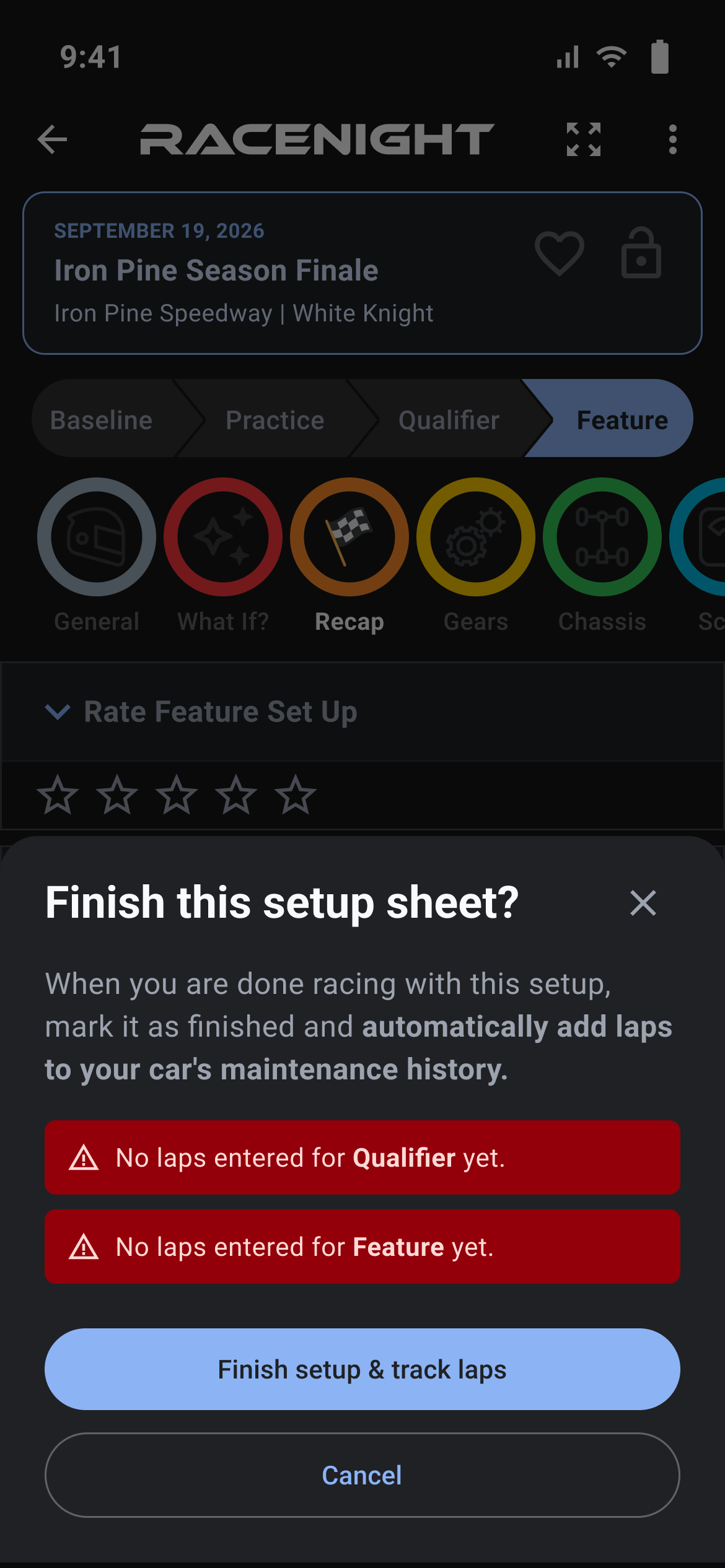
- Maintenance: When you finish the setup with the checkered flag, each session's Laps This Run goes to your car's maintenance counters in RacePrep [RaceNight Pro] in one step. You can do this once per race, and it needs a signal.
Finish a setup [RaceNight Pro]
When the night is over, tap the checkered flag at the bottom left. "Finish this setup sheet?" warns about sessions with no laps. Tap Finish setup & track laps, check the laps for each session, and confirm. The laps go to your car's maintenance history. Logging laps needs a signal, and you can do it once per race, so fill in Laps This Run for every session first. A finished setup shows a green flag on its header and opens in the full sheet. Tap the pencil to edit it again. Edit sessions is not offered on a finished setup.
Rate the session and driver balance [RaceNight Pro]
- Tap the active session in the chevron bar (Practice, Qualifier, or Feature).
- Scroll to the rating row: tap or drag across the stars (0 to 5 whole stars). To clear a rating, tap the far left edge of the first star.
- Fill in Driver Feedback:
- Corner Entry: Tight, Good or Loose.
- Middle of the Corner: Tight, Good or Loose.
- Corner Exit: Tight, Good or Loose. Forward Bite and Side Bite follow underneath.
- Add your handling notes under Feature Notes, or the Notes section named for the session you are on. Driver Feedback holds only the chips.
Trackside Tuning Guidance [RaceNight Pro]
When track grip changes rapidly, tap Analyze this session and the AI Setup Coach reads the session:
- Real-Time Diagnosis: Sends your driver feedback, corner balance chips, tire temps, air pressures and track conditions to the AI.
- Actionable Adjustments: Returns specific changes for the next run, such as stagger, shock or cross weight.
- One-Tap Apply: If the recommendation contains setup values, tap OK to write them directly into your current session sheet. Tap Cancel to dismiss without making changes.
- Offline Safeguard: Requires an active internet connection. In offline mode, the app alerts you with "You're in Offline Mode"; all manual Recap logging continues to work offline without interruption.
Recap photos [RaceNight Pro]
- Select Recap, tap the lightning bolt button at the bottom right, and pick Add Photo.
- Select Camera to snap tire graining or track conditions, or Gallery to choose an existing picture.
- Type an Image Title (e.g. "RR Tire Wear Post-Feature") and tap Add.
- Photos attach to the current session and remain visible in all later sessions. Tap any photo to inspect full screen.
When Recap will not open
Some templates hide Recap on the Baseline session. Then the sheet reads "You're in your Baseline session." and lists the sessions Recap is used for, for example "Recap fields are only used for Practice, Heat 2, and Feature sessions."
What the recap is used for later
- Setup list stars and filters: The rating shows on the setup row and drives the rating filter.
- Full Setup Sheet: All recap numbers and driver notes appear in the Full Setup Sheet for cross-session debriefs.
- AI Crew Chief Context: Everything logged in Recap forms the context for future Ask AI Crew Chief recommendations.
- RacePrep Tracking: Laps reach maintenance when you finish the setup.
Photos on a setup
Where in the app: Setups tab → tap a setup → lightning button → Add Photo
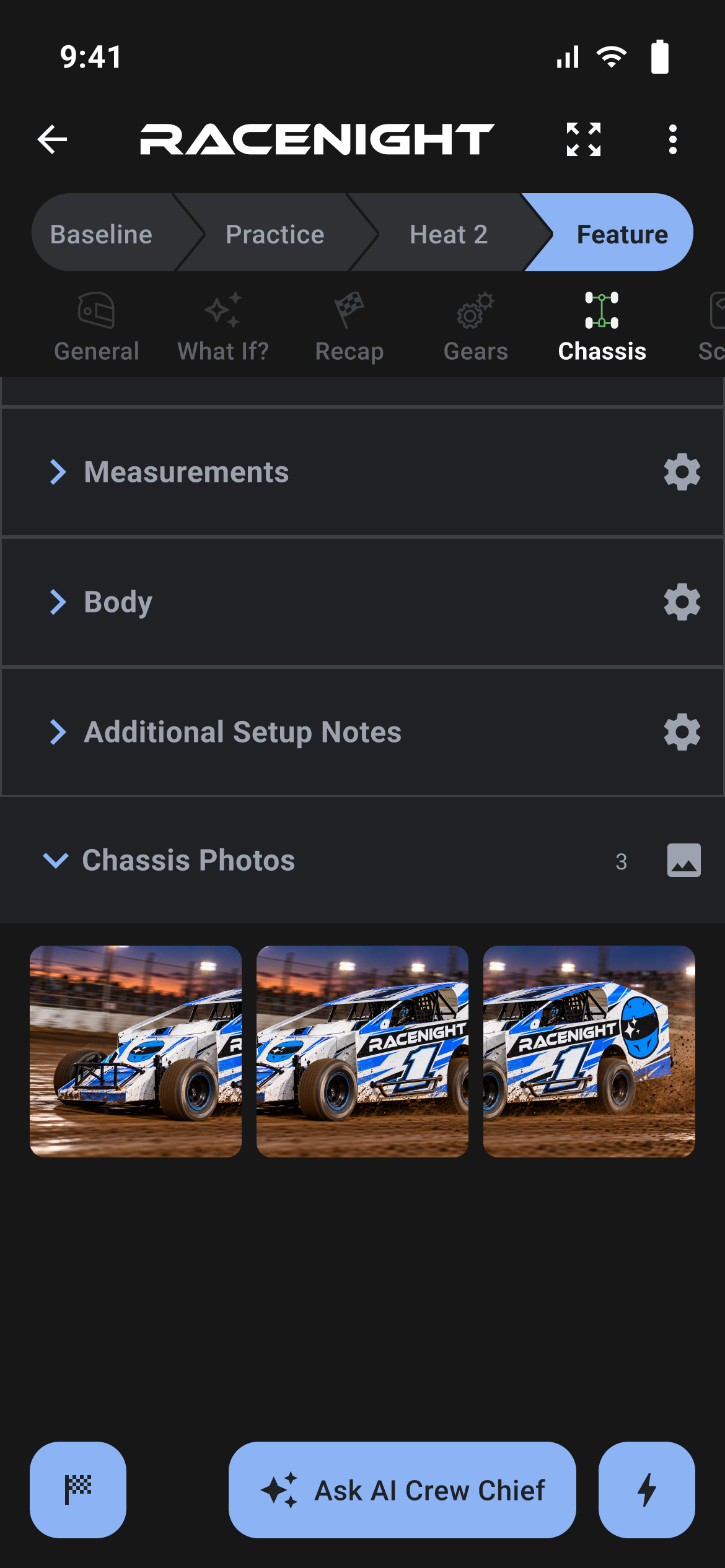
Most templates include photo sections so you can keep pictures of the car with the numbers.
Where photos live
Photo sections come with the template, with names such as Setup Sheet Photo, Chassis Photos and Scale Photos. You cannot create one. An empty photo section reads "Use the blue (+) Icon and select 'Add a Photo' to access your gallery or take a photo."
Adding a photo
- Move to the category that holds the photo section you want. Add Photo only appears when that category has one.
- Tap the lightning button, then Add Photo.
- Choose Camera or Gallery in the "Add Photo" dialog, or Cancel, then take or pick the picture.
- Type a caption in the Image Title box and press Add. Cancel throws the picture away, and an empty title is saved as "Untitled".
The photo goes into the first photo section in that category, stamped with the session you are on, and the section opens so you can see it. Photos live on your phone, so adding and viewing them works with no signal.
Viewing and removing
Photos are listed newest first, cropped square, with the caption underneath and a count on the section header. Tap one to open it full screen; pinch to zoom, and a single tap anywhere closes the viewer. When the setup can be edited the viewer also has a pencil (Edit image), which changes the title but not the locked URL box, and a trash can (Delete image), which asks "Are you sure you want to delete ...?" first.
Some templates include diagrams as fields. Tap one to see it full screen and tap again to close. These cannot be renamed or deleted, and once loaded they stay available offline.
The full setup sheet
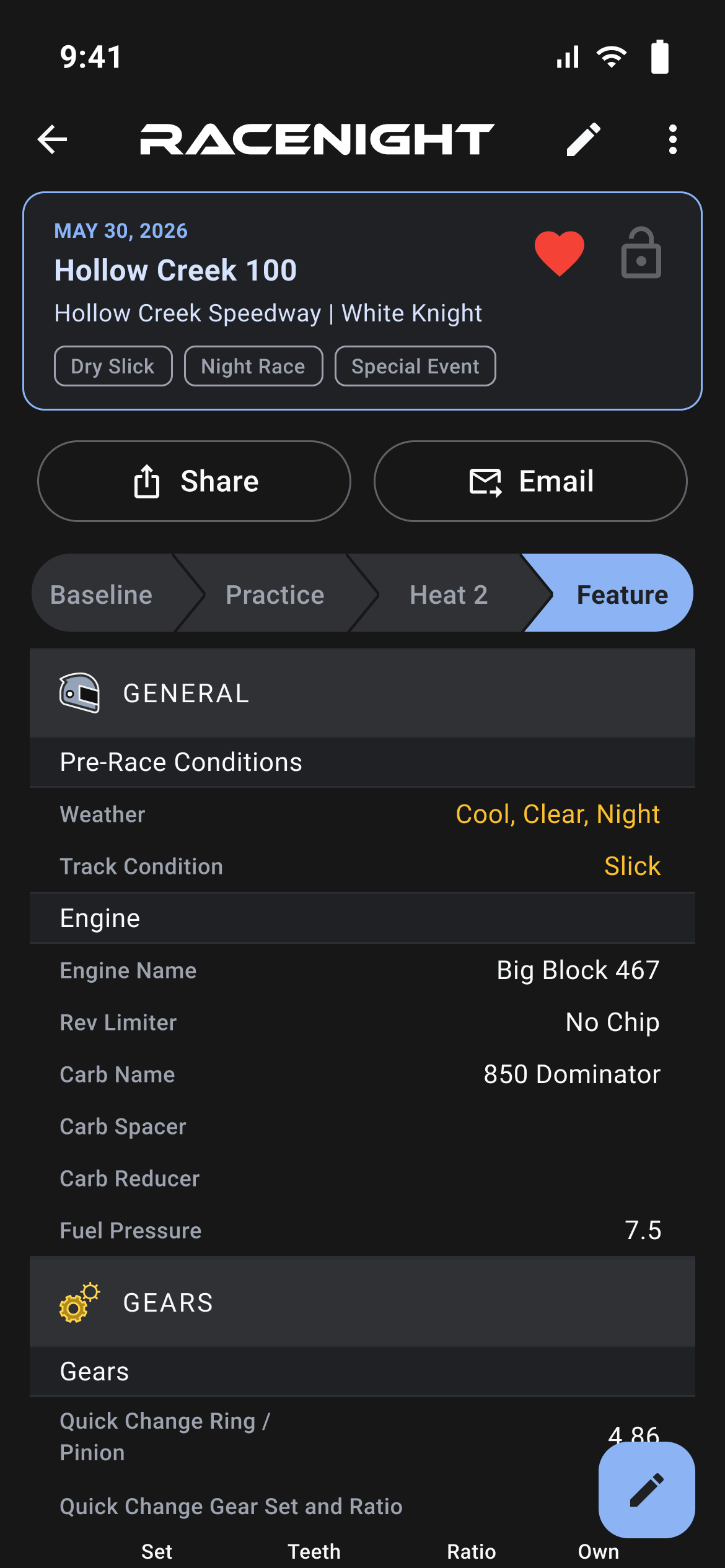
Where in the app: Setups tab → tap a setup → the full sheet icon (⤢) in the app bar
The Full Setup Sheet [RaceNight Pro] shows the whole setup on one scrolling page, for checking the car over in the pits.
What it shows and pit-side reading [RaceNight Pro]
Open it with the full sheet icon (⤢) in the setup's app bar, or tap the lightning button and select Full Setup Sheet.
- One page: Every category (Chassis, Shocks, Tires, Scale, Gears and the rest) sits under a capital heading, with all its sections and panels, in one scrolling sheet.
- Side-by-Side 4-Corner Tables: Sections with a value for each corner (such as Coilover Assembly, Spring Smash Data, Wheels & Tires and Tire Temps) show as 4-column tables (LF, RF, LR, RR), so you can compare corners side by side.
- Changed values are shaded: A value you entered or changed in the session you are viewing is shaded orange. A value changed in an earlier session and carried forward gets a lighter shade. Values never changed have no shading.
- Read-Only Safety: Protects your data at the track. Nothing on this sheet can be accidentally typed into or altered while passing the phone around in the pits.
- Empty fields left out: Empty fields and empty sections are left out, so the sheet only shows what you run. Photo sections stay on the editable sheet and are not shown here.
On your own setups the pencil (Edit Setup), at the top and bottom right, switches back to the editable sheet. Email is also offered on your own baselines. Share is not.
Sessions, Baselines, and Preview Mode [RaceNight Pro]
- Session bar: A session bar runs across the top of normal race setups. Tap Baseline, Practice, Qualifier, or Feature to show the whole car's numbers for that run.
- Baseline and Community Setup Previews: When opening a baseline from My Baselines or browsing shared setups in Community Setups, the sheet opens read-only, under its own banner across the top.
- One-Tap Setup Creation:
- For your own baselines: The 3-dot menu offers New Setup with this Baseline, Edit name, and Clone baseline.
- For community setups: from the Create setup screen, tap Use this baseline at the bottom. From Community Setups in the menu, use New Setup with this Baseline in the 3-dot menu.
Email a PDF [RaceNight Pro]
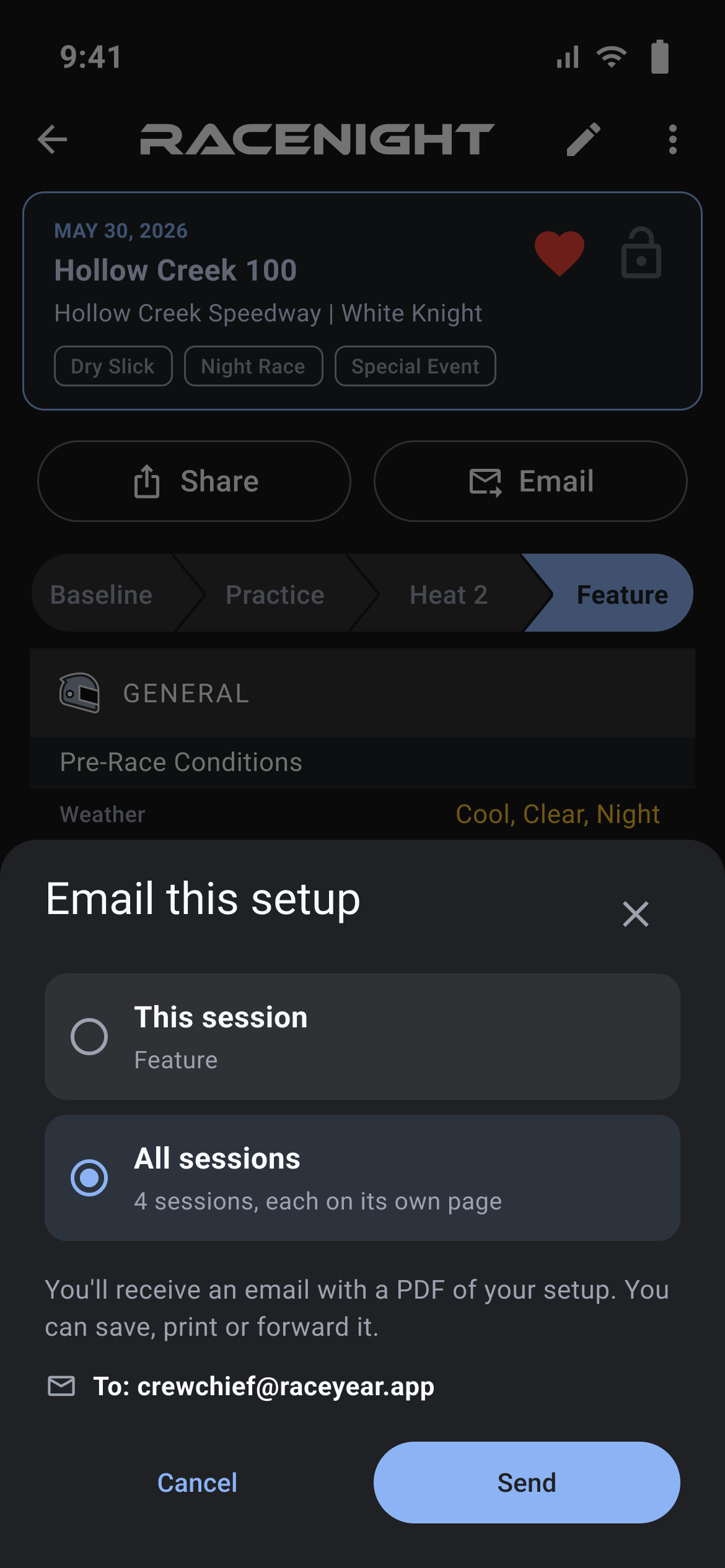
Tap Email on the full sheet. Pick This session or All sessions, each on its own page, then tap Send. The PDF arrives within a few minutes, ready to save, print or forward. Your email must be confirmed first. If it is not, the sheet offers Send verification link. Emailing needs a signal. Offline, you get the "You're in Offline Mode" panel instead, which lists emailing as paused.

Show and hide fields
Where in the app: Setups tab → tap a setup → the gear icon on a section header
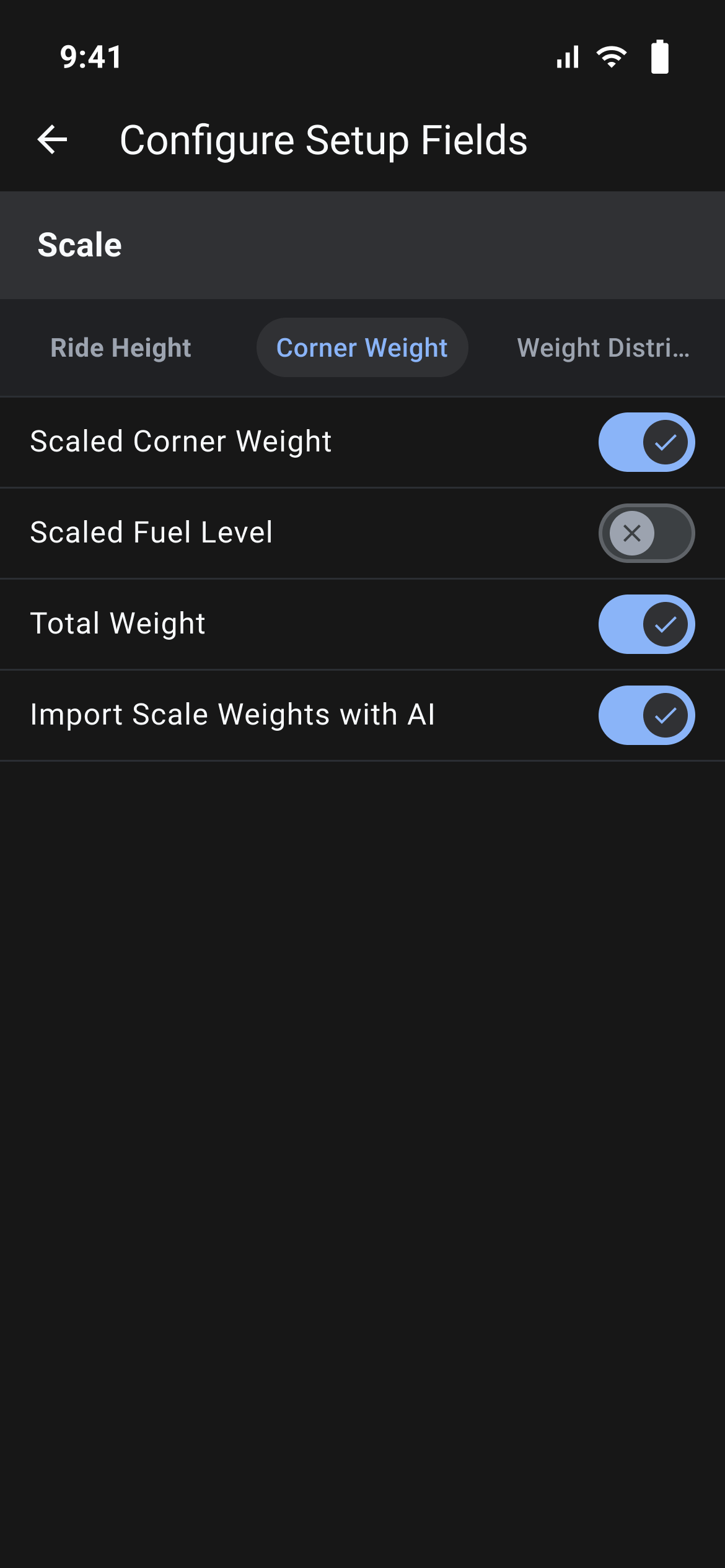
Configure Setup Fields lets you switch off the fields you never use so your sheet only shows what you run.
Using the screen
- Find the section you want to tidy. The gear icon appears on sections with fields, not on photo sections.
- Tap the gear icon. The screen opens on the panel you were looking at, and sections with several panels show tabs across the top, for example LF, RF, LR and RR, each with its own list.
- Slide the switch beside a field to show or hide it.
- Press back. The section rebuilds straight away.
There is no Save and no Cancel; each switch is saved the moment you tap it.
What hiding does
- The field disappears from the sheet and from the full setup sheet.
- Nothing is deleted. Values you already entered stay and come back if you switch the field on again.
- The setting belongs to the class template, so hiding a field hides it in every setup you build from that template.
Some switches are grayed out because the template does not allow those fields to be hidden, and separators are not listed. A panel with nothing to configure reads "No configurable fields in this panel". Fields cannot be renamed, reordered or added, and there is no reset to template defaults.
Editing the sheet's own details
The 3-dot menu item Edit sheet details opens a screen with Name your setup, saved when you leave the box and refused with "Name cannot be empty" if you clear it; Race track and Race date, each with a picker; Car/chassis, which can only be swapped for another car in the same race class and otherwise shows a padlock; Template and Baseline, both locked; and tags. Everything there saves itself as you change it.
Baselines: saving, previewing, and using
Where in the app: Setups tab → tap a setup → 3-dot menu → Save as baseline
A baseline is the setup you want to start from next time you race: the chassis geometry, spring package, gear ratio and weight balance.
Saving a baseline [RaceNight Pro]
- Open any setup whose starting balance was dialed in.
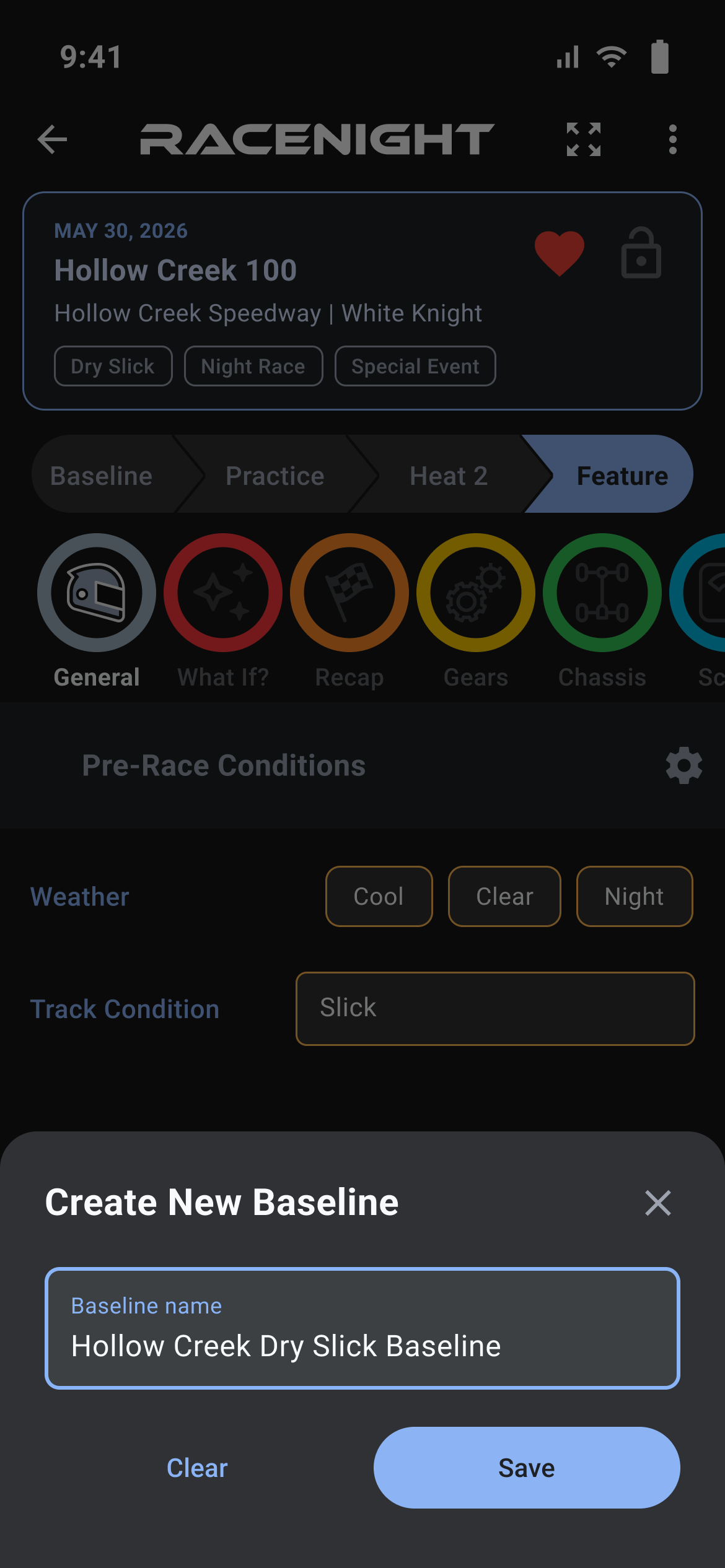
- Tap the 3-dot menu in the upper right and select Save as baseline.
- In the Create New Baseline dialog, enter a descriptive Baseline name (e.g. "Hollow Creek Dry Slick Baseline") and tap Save.
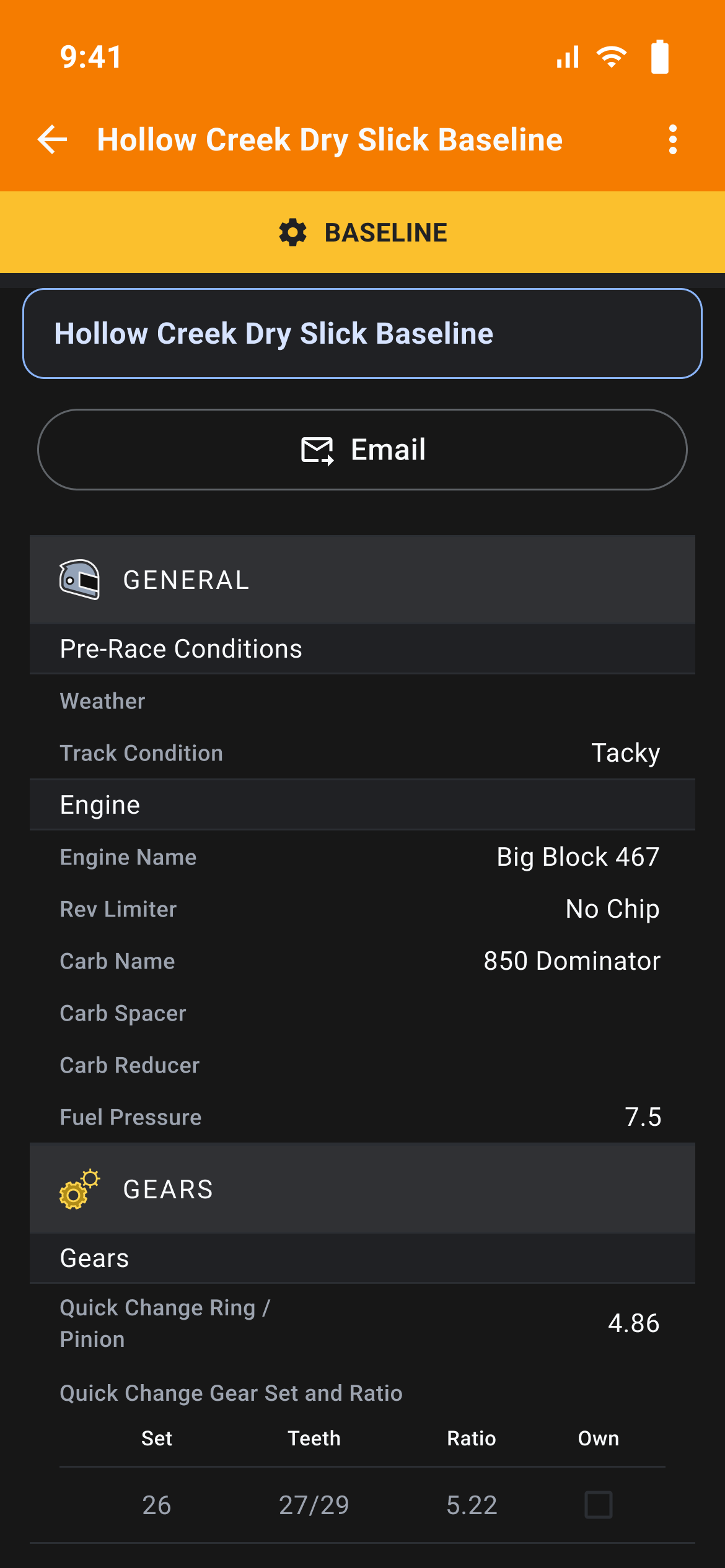
- RaceNight creates the baseline and lands directly on My Baselines with the full sheet opened in read-only preview mode.
You can't change the values in a saved baseline. Its 3-dot menu has New Setup with this Baseline, Edit name and Clone baseline. To change the numbers, start a new setup from it, make your changes, then save that setup as a new baseline.
Previewing baselines [RaceNight Pro]
Open the Manage tab and tap Baselines, or open the side menu, then Manage → Baselines, to reach My Baselines:
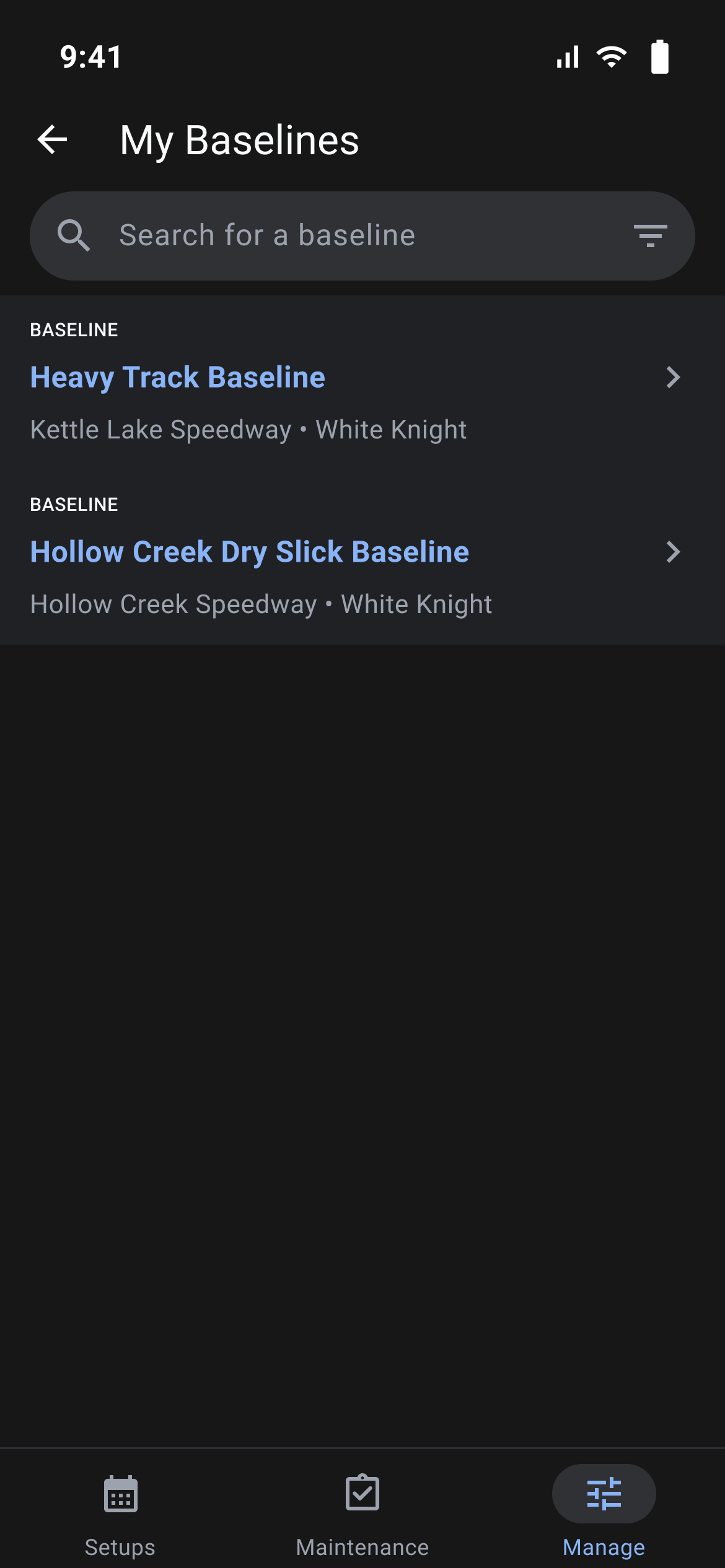
- Tap any baseline card to launch the Full Setup Sheet in read-only preview mode.
- Inspect all four corners, shock settings, gear ratios, and chassis measurements without modifying any data.
- Search your baselines by name or car using the search bar.
Using baselines to build new setups [RaceNight Pro]
There are three ways to build a new race night from a baseline:
- From the Baseline Viewer: Open any baseline and tap New Setup with this Baseline in its 3-dot menu.
- From My Baselines: Swipe any baseline row from right to left and tap the blue Create Setup button.
- During Setup Creation: On the Create setup screen, tap Select a starting baseline and choose from Your baselines, Community setups or Templates.
The new setup starts with the baseline's values and track, ready for session-by-session race night tuning.
Managing and cloning baselines [RaceNight Pro]
- Clone Baseline: In the baseline full view 3-dot menu, select Clone baseline. Enter a new name (defaults to "{Name} copy") to duplicate a baseline before experimenting with major chassis geometry revisions.
- Edit Name: Rename any baseline via its 3-dot menu → Edit name.
- Delete Baseline: Swipe a row left in My Baselines and tap the red trash can button to delete. Baselines already used by past setups can be safely deleted without altering those setups.
Template updates
Where in the app: Setups tab → tap a setup
RaceYear improves the class templates over time, and RaceNight offers to bring your setup up to the new version.
When you are asked
Opening a setup from the Setups tab compares it with the template already stored on your phone, so no internet is needed.
- A small change with nothing to review is applied on its own. You see "Updating setup..." at the top for a moment and nothing else.
- A larger change that does not affect your values shows the dialog straight away.
- A change that affects values you have already entered does not interrupt you. The 3-dot menu grows an Update available item so you can deal with it when it suits. Baselines are the exception and show the dialog immediately.
The dialogs
The first dialog is headed "Update your setup sheet!", or "Optional Update Available" when there is something to review. It shows the version line, for example "Version 1.8 → 1.9"; either "You can update safely without losing any data." in green or "Contains Setup Field Changes to Review." in red; the "What's new:" changelog; and the buttons I'll do it later and Update Version.
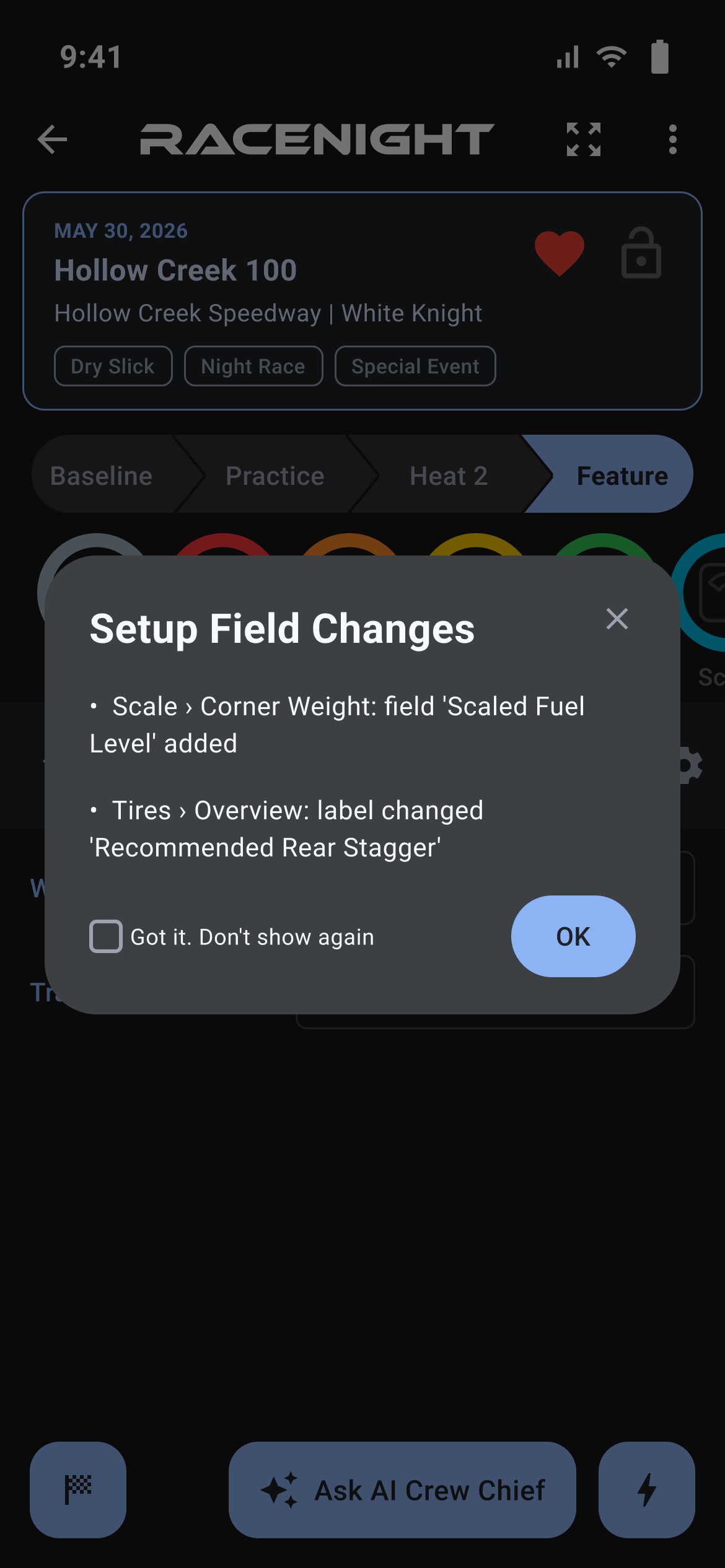
Update Version on a template with field changes opens a second dialog, "Setup Field Changes". It begins "No data was lost, but the following values will no longer show in your Setup Sheet or Baseline:" and lists every affected value one by one, grouped by session, category and section, for example "Practice > Chassis > Front End" with "Camber was 3.5" underneath. Cancel stops the update; Confirm Changes applies it, and a message reads "Update Complete" when it is done.
What happens to your values
- Your setup keeps its name, car, track, date, rating, favorite mark and all its sessions, and every value whose field still exists is carried over session by session.
- Session names are refreshed from the template, so they can change. Pictures from the old template are replaced, and photos you added are kept unless the update removed the section they were in.
- Values that no longer have a home are kept as notes. A red warning triangle appears on the sections concerned, and a note whose section has gone appears under Update Info on the lightning button. Tap either to page through them.
If you decline
I'll do it later changes nothing. Your setup stays on its version and keeps working, and you are asked again next time you open it from the Setups tab. If the setup was built from one of your baselines, updating it updates that baseline first.