RaceNight tutorials
Short walkthroughs with the screen for every step. New to RaceNight? Start with Get set up. Each tutorial says what it needs. Most need RaceNight Pro or the free trial. On the RaceNight AI plan you can use AI Assist from the setup list.
Jump to: Get set up · On race night · Between races · Your account
Get set up
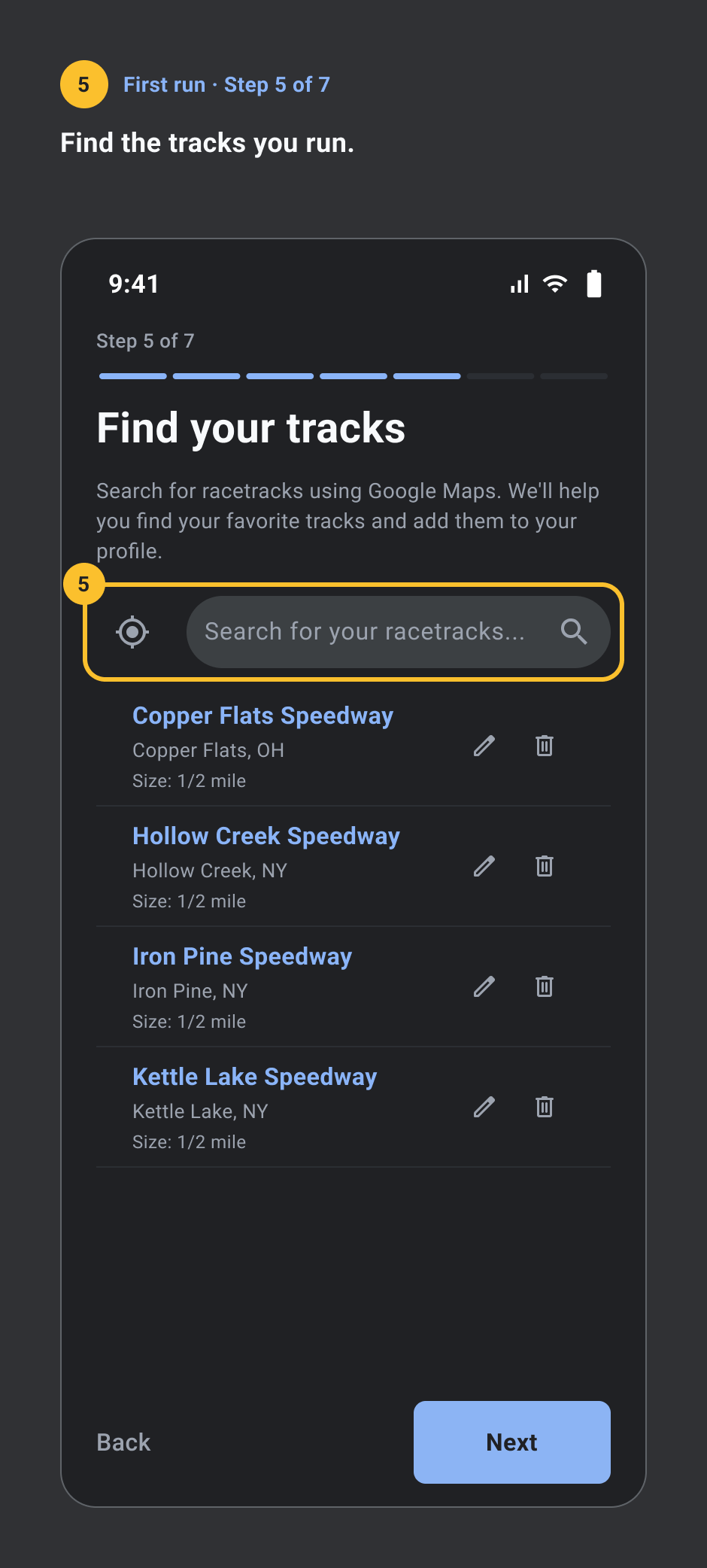
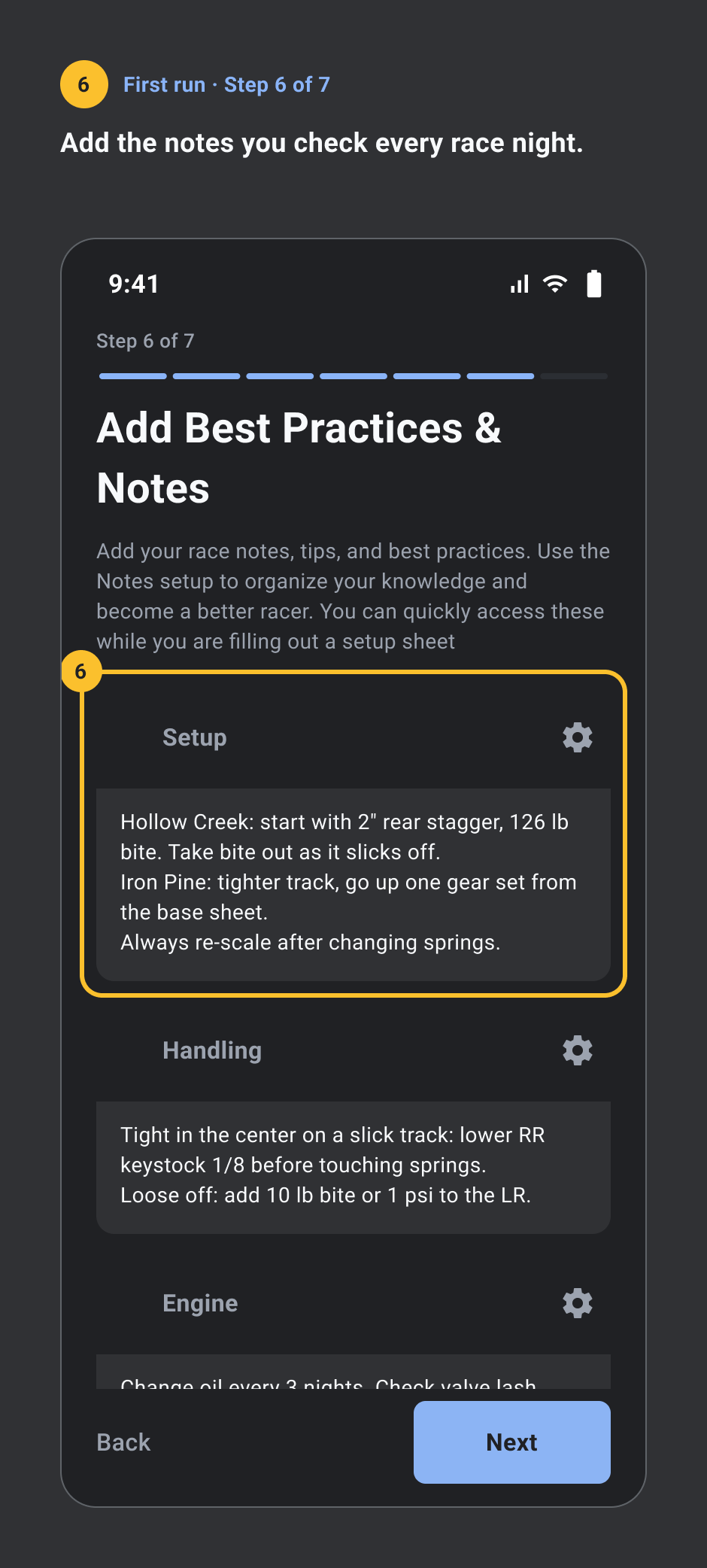
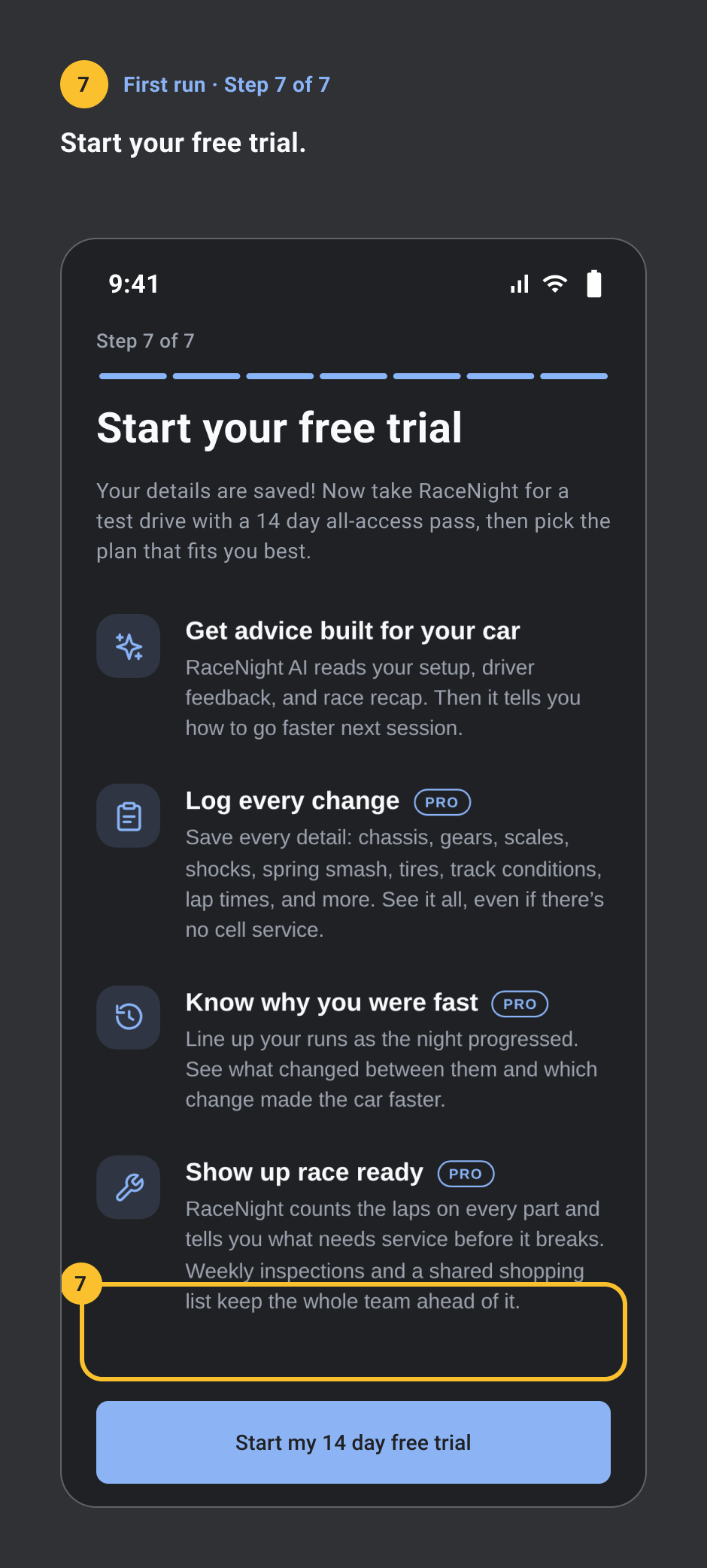
First run
Any plan, needs a signal. Templates need Pro. 7 steps.
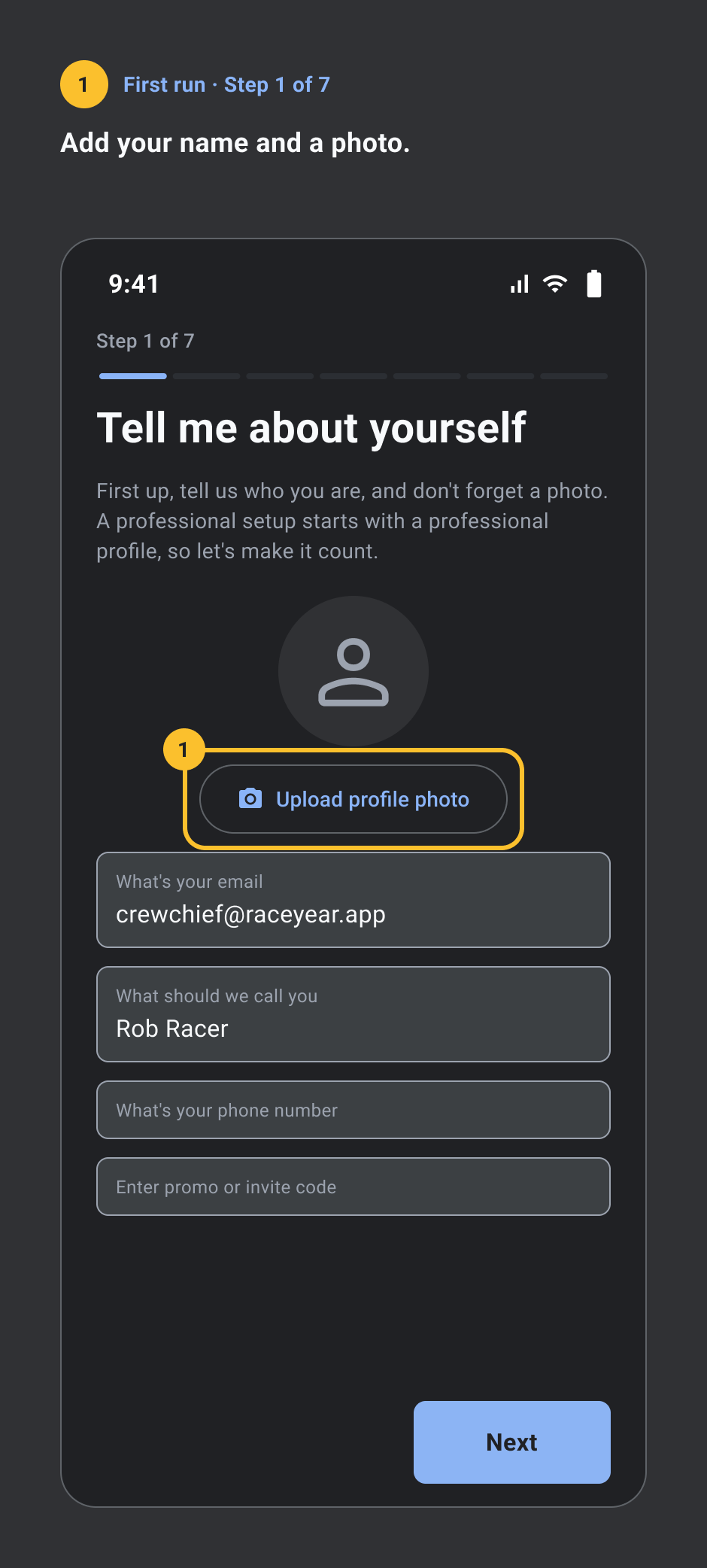
- Add your name and a photo.
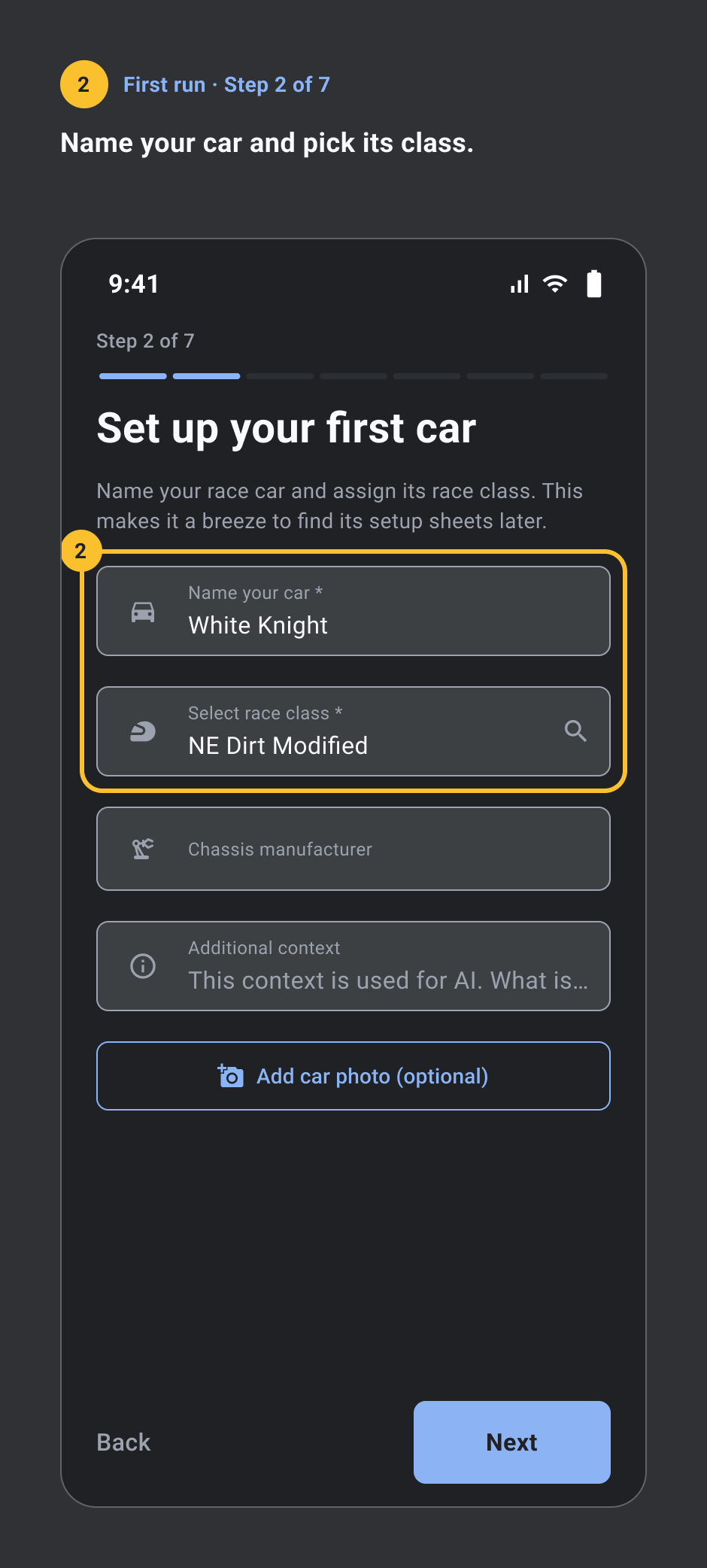
- Name your car and pick its class.
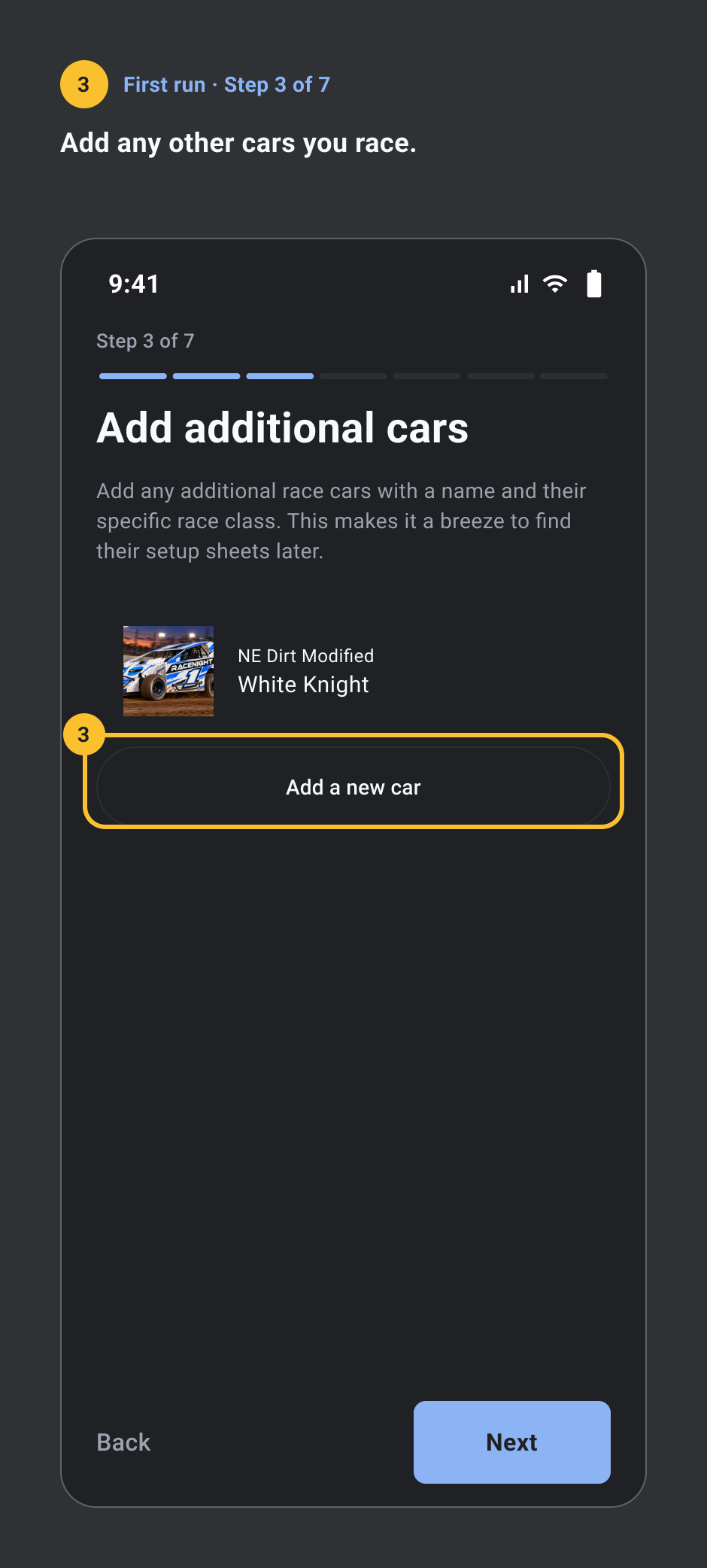
- Add any other cars you race.
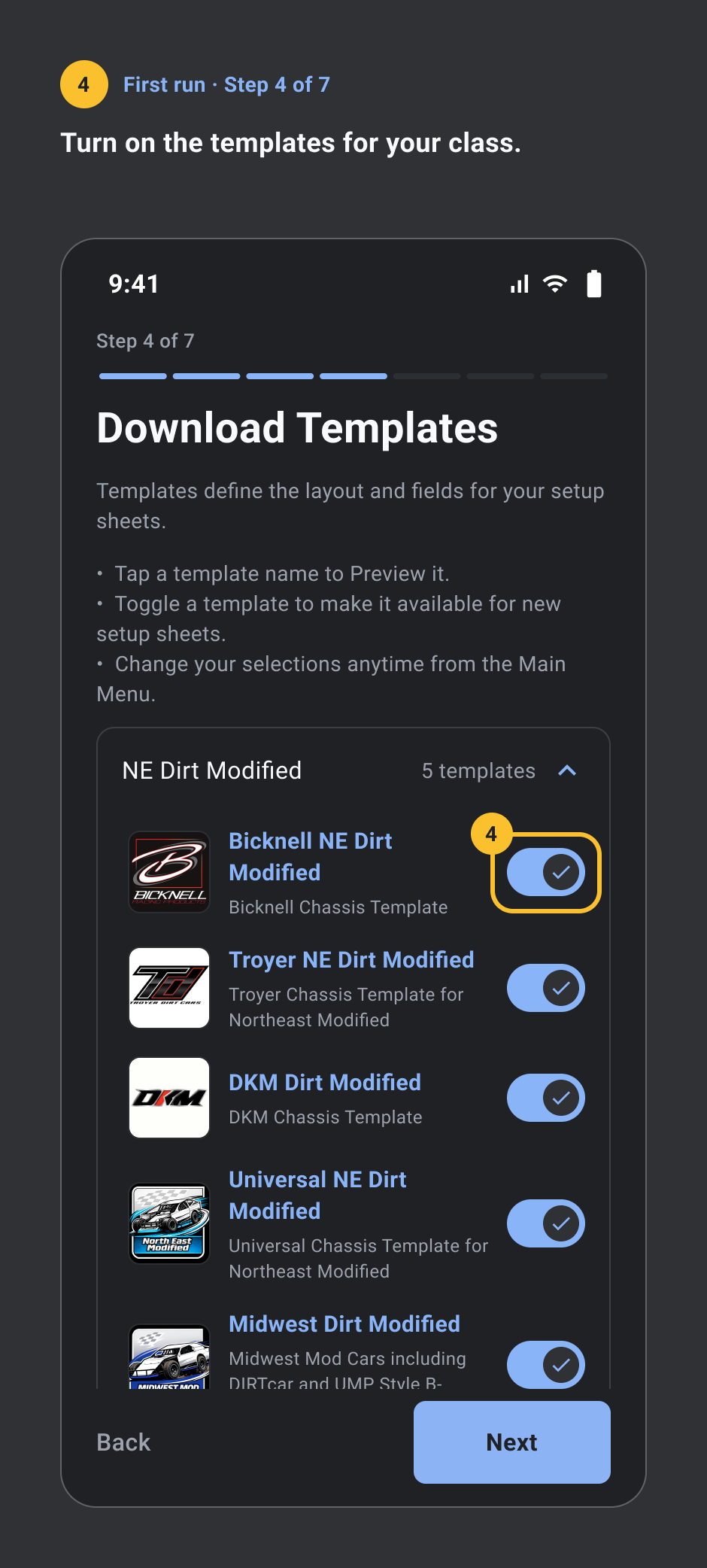
- Turn on the templates for your class.
- Find the tracks you run.
- Add the notes you check every race night.
- Start your free trial.
Add a car and its setup sheets
Cars on any plan, needs a signal. Setup sheets need Pro. 5 steps.
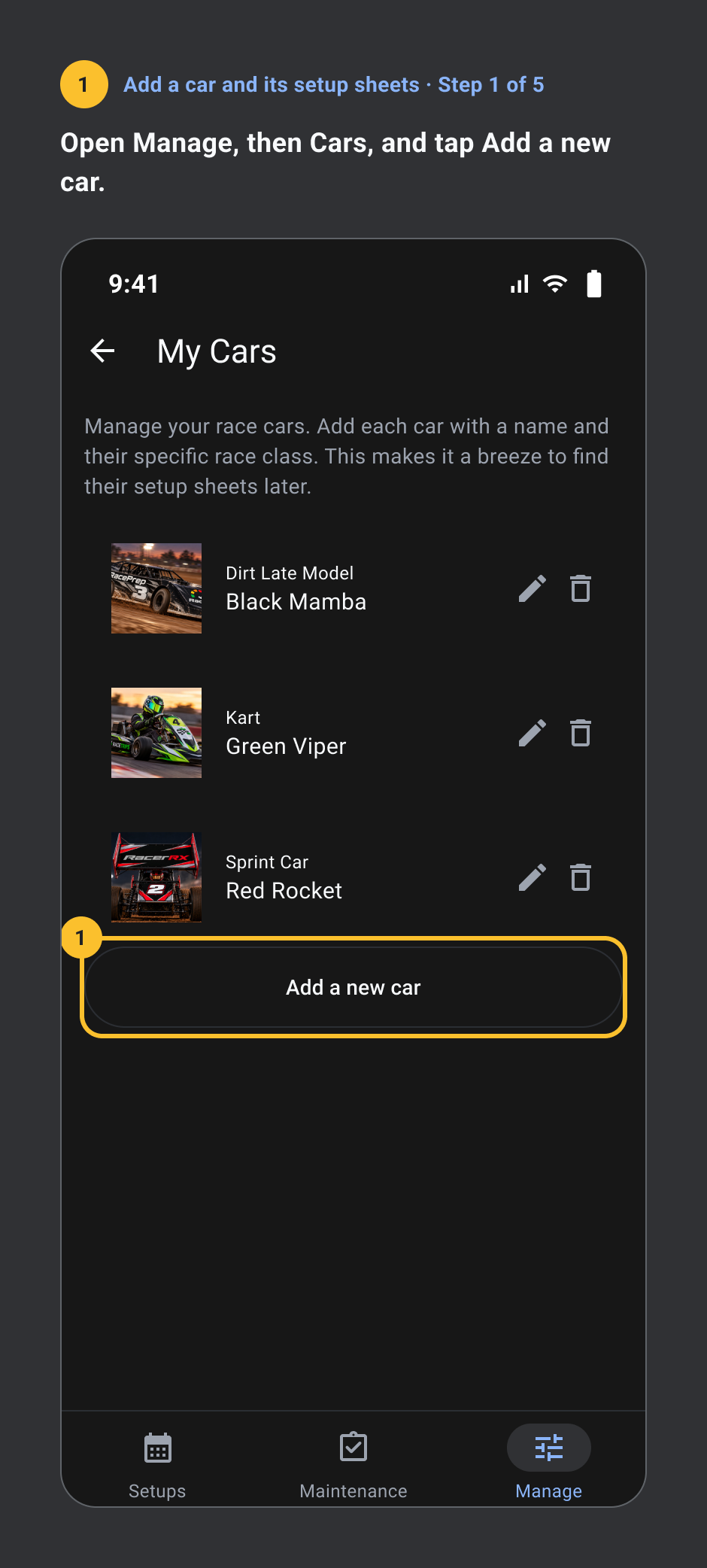
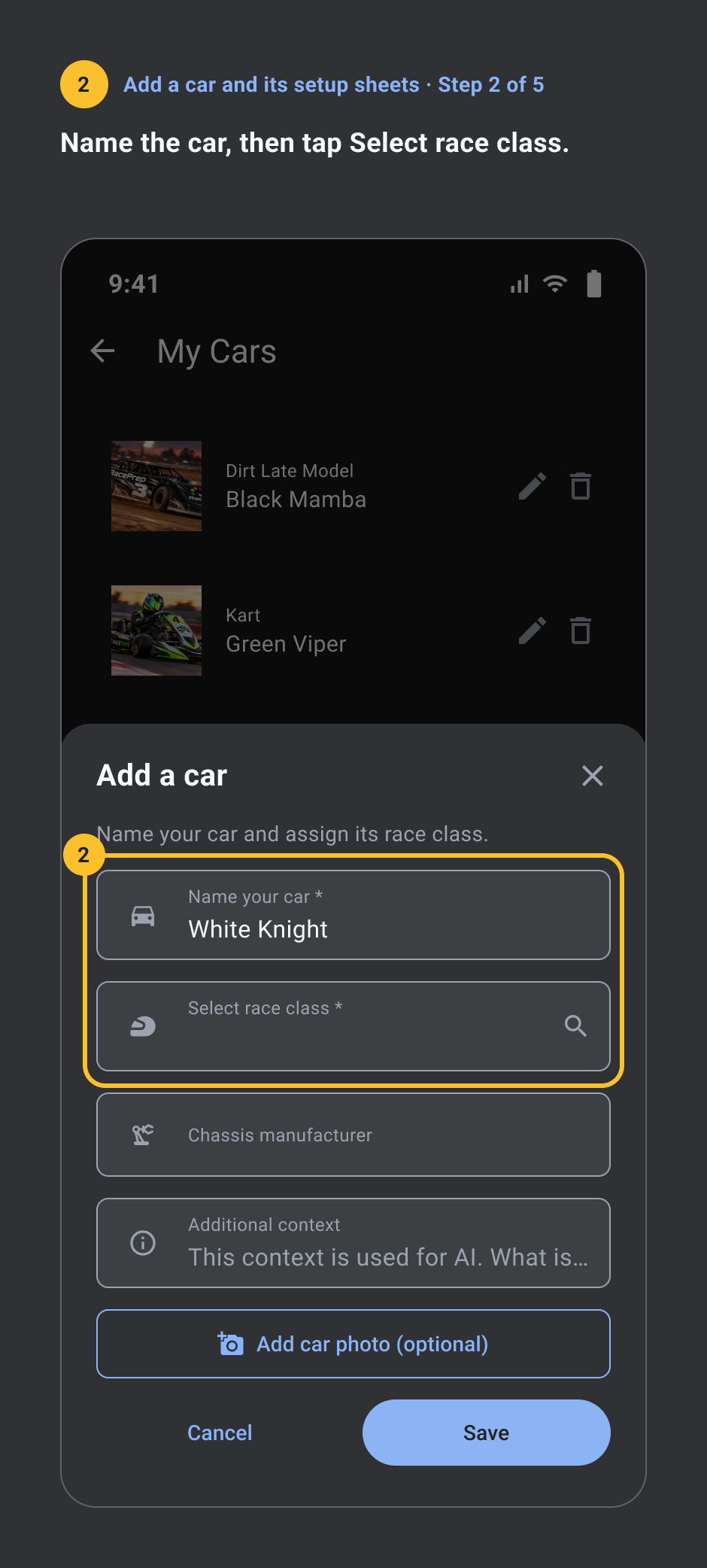
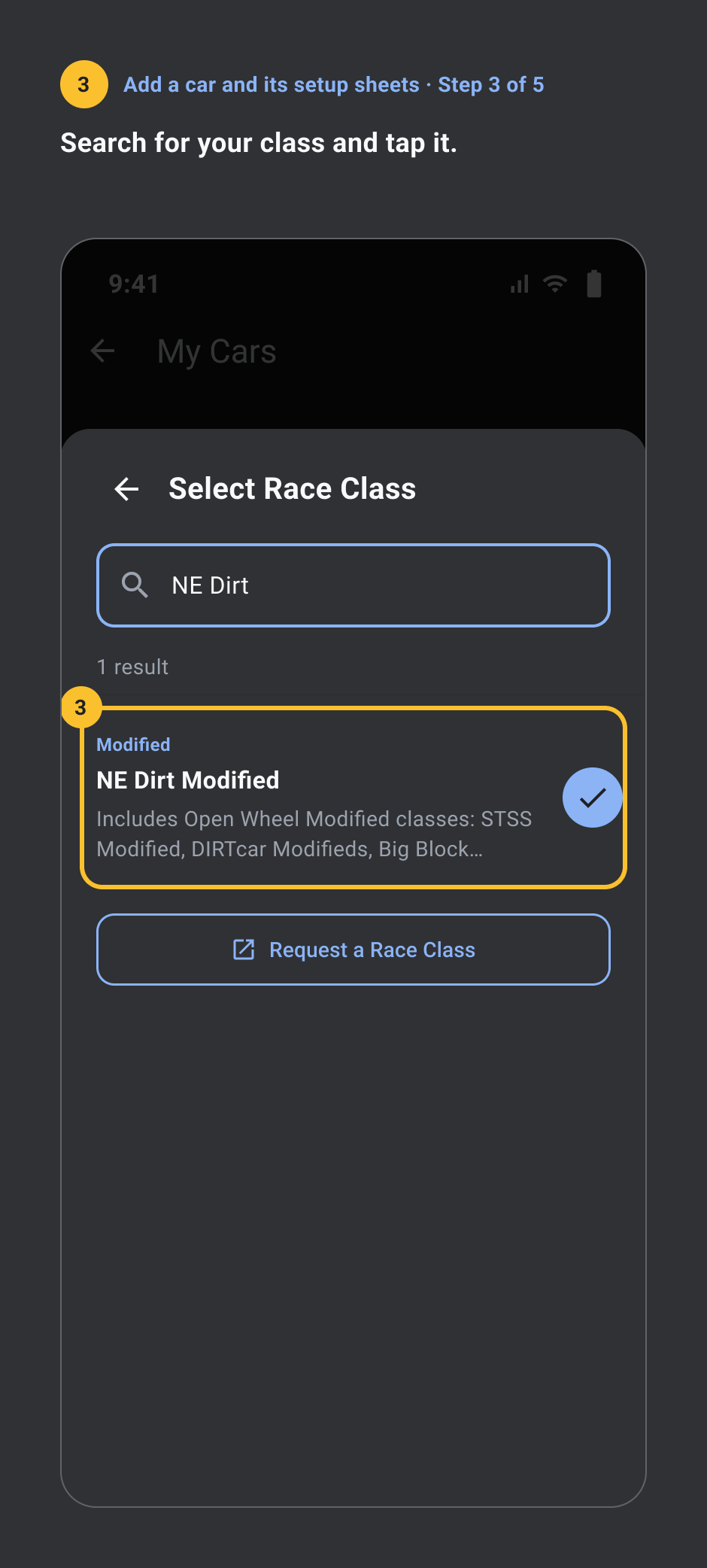
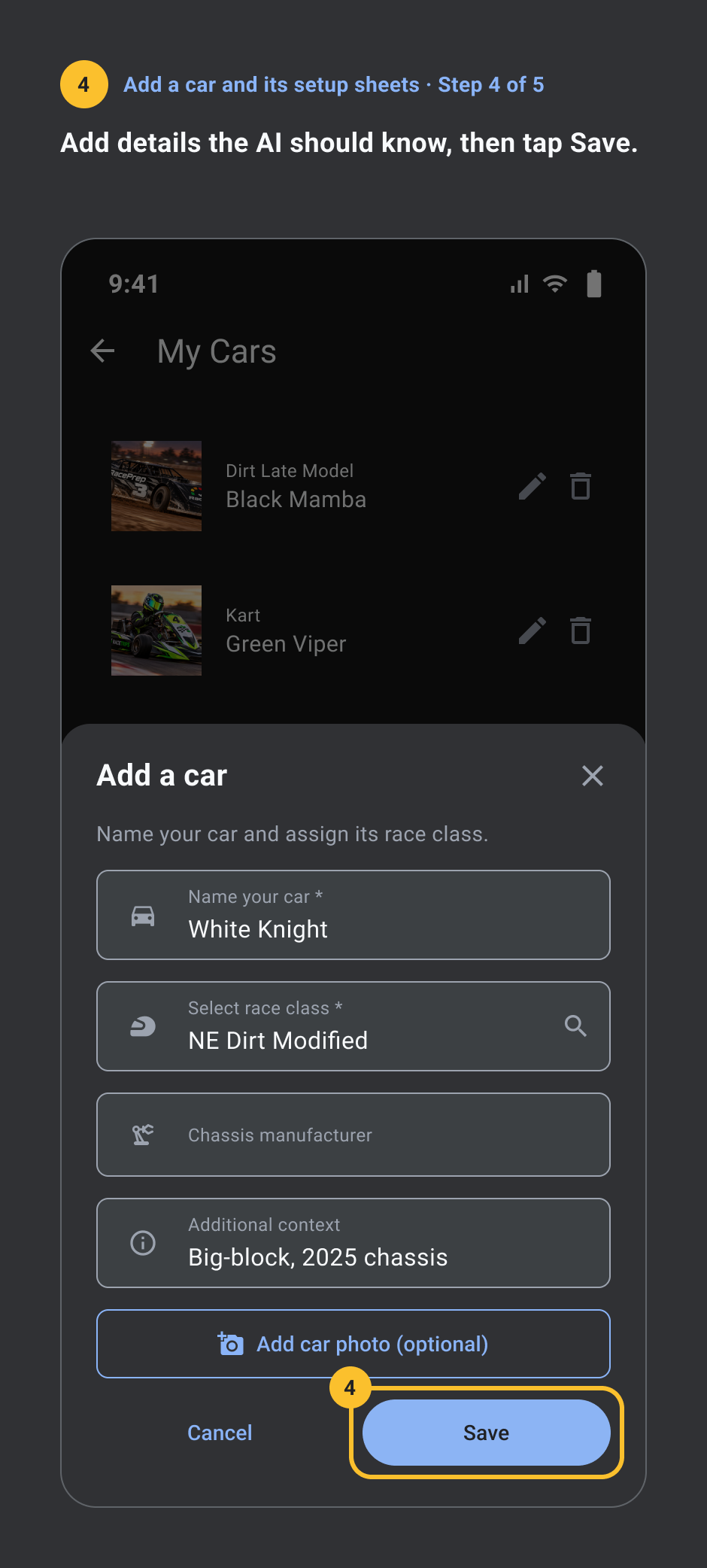
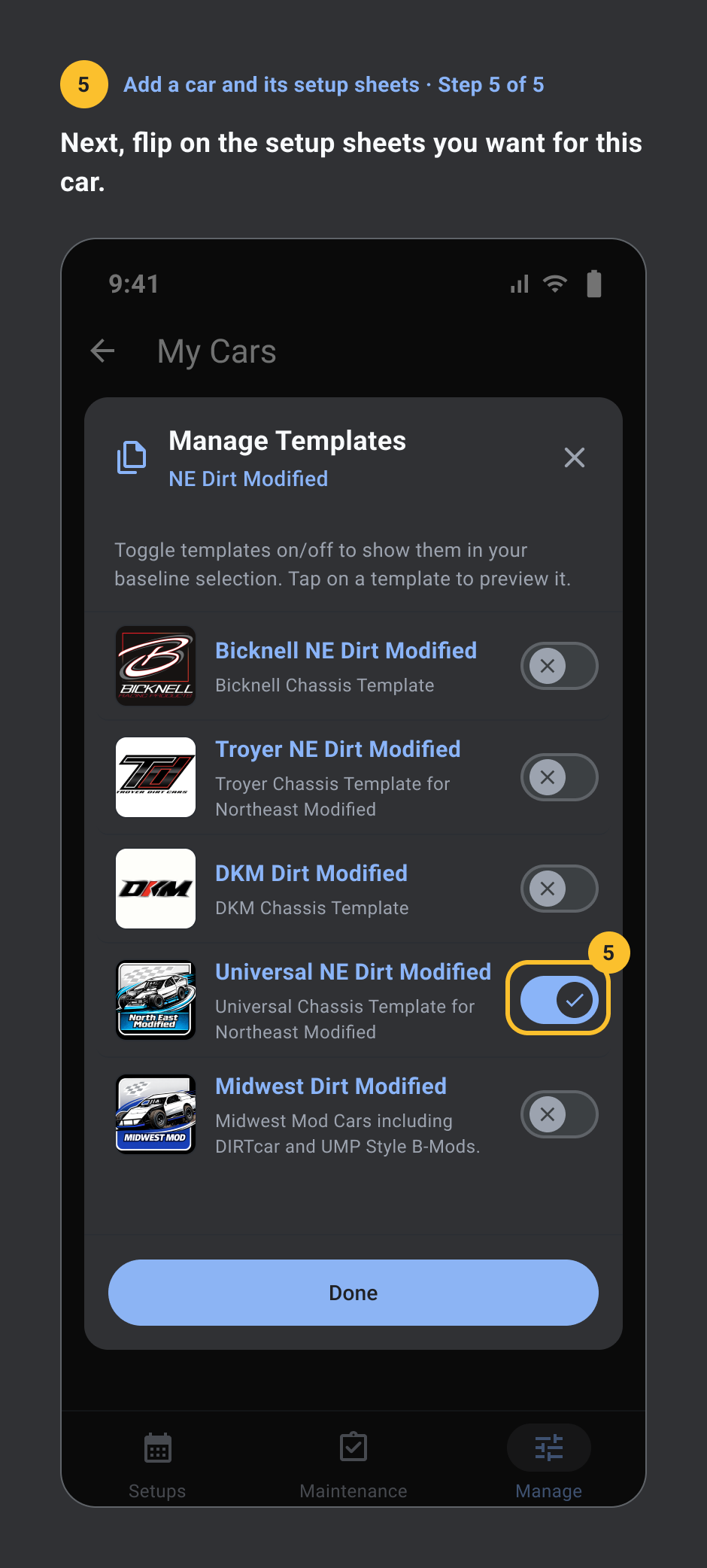
- Open Manage, then Cars, and tap Add a new car.
- Name the car, then tap Select race class.
- Search for your class and tap it.
- Add details the AI should know, then tap Save.
- Next, flip on the setup sheets you want for this car.
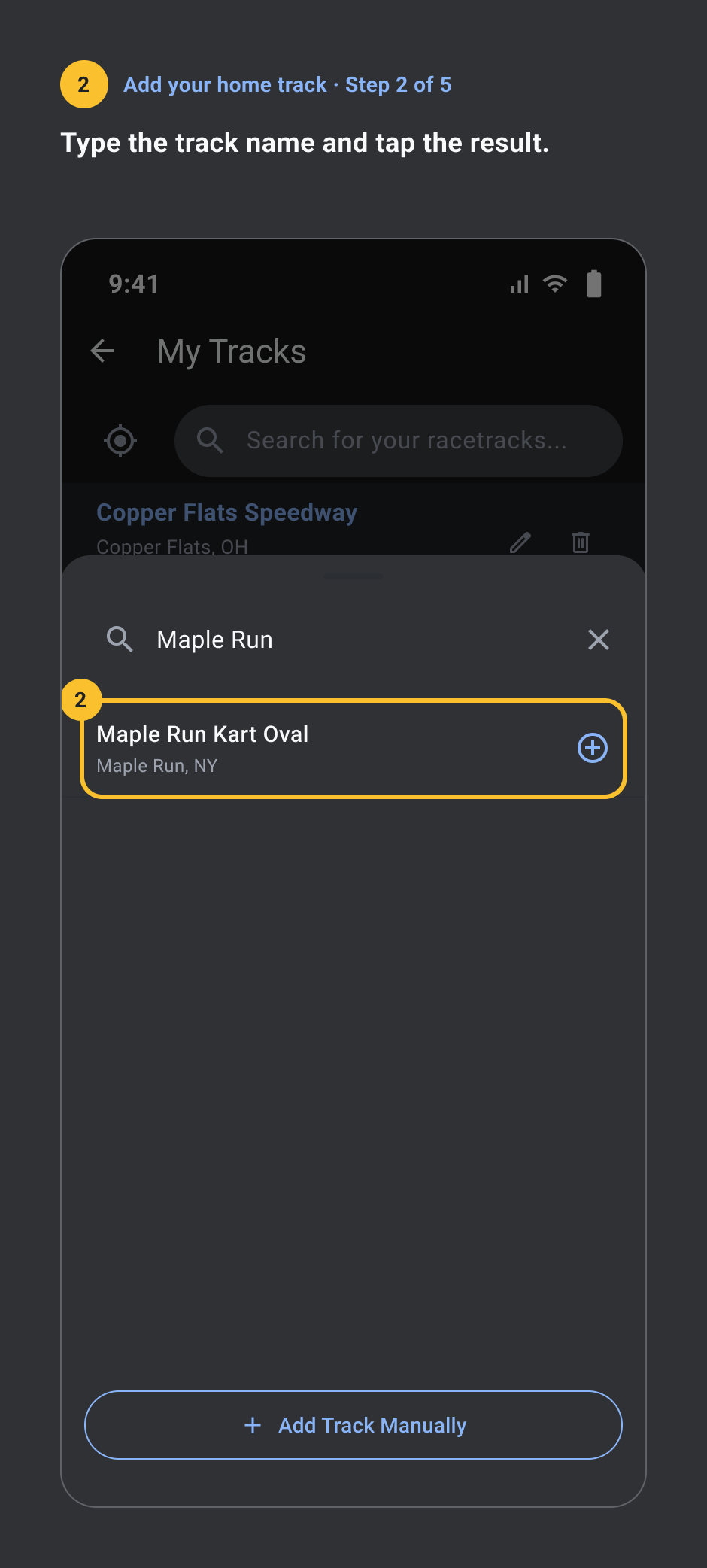
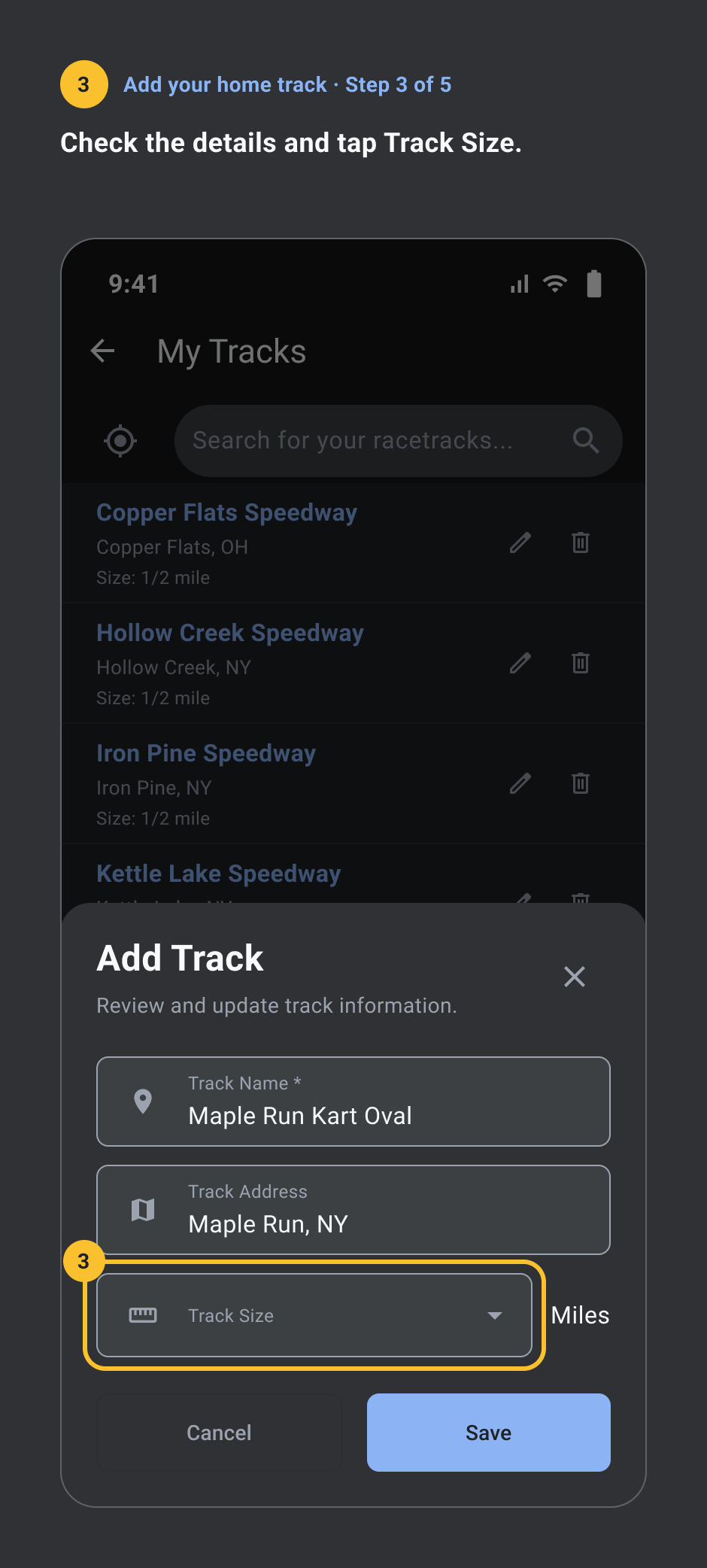
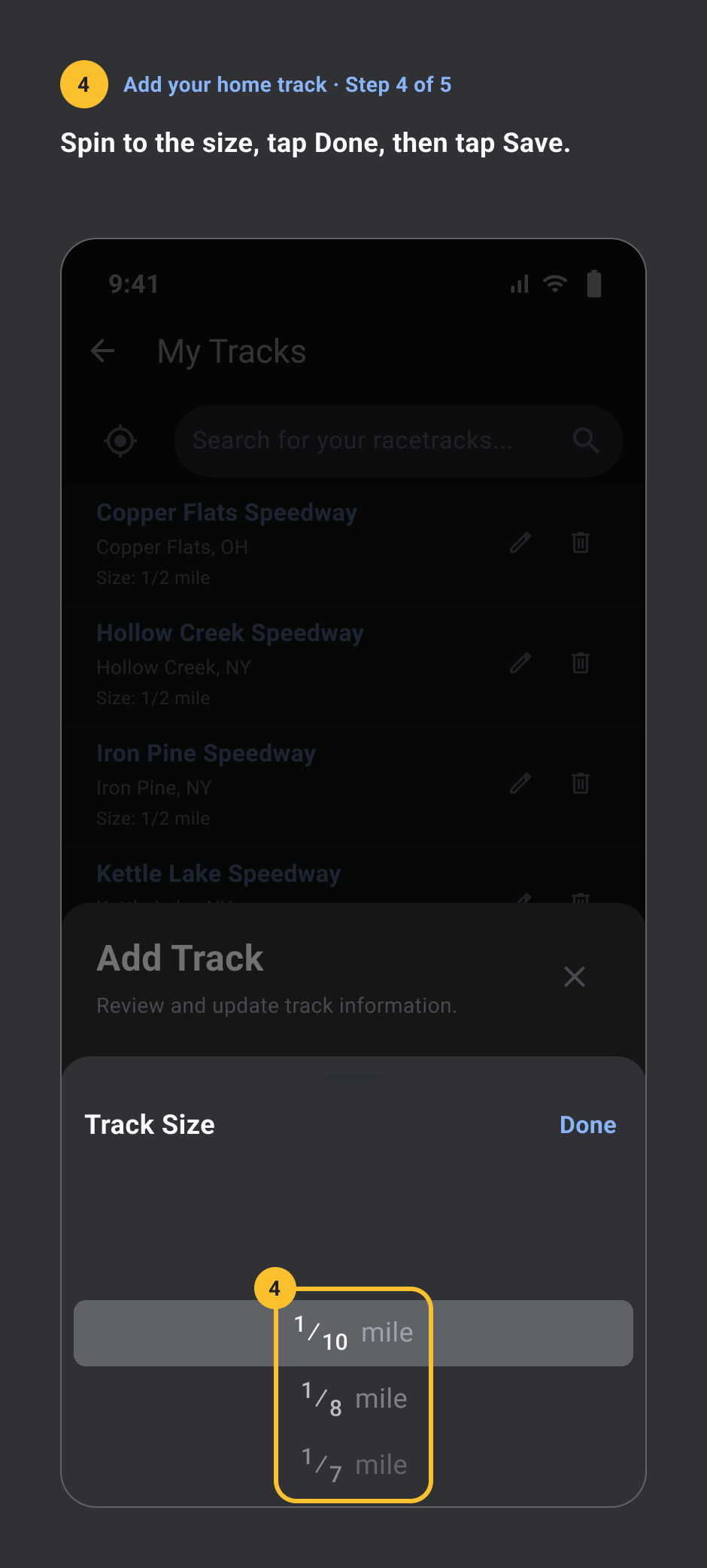
Add your home track
Pro, needs a signal. 5 steps.
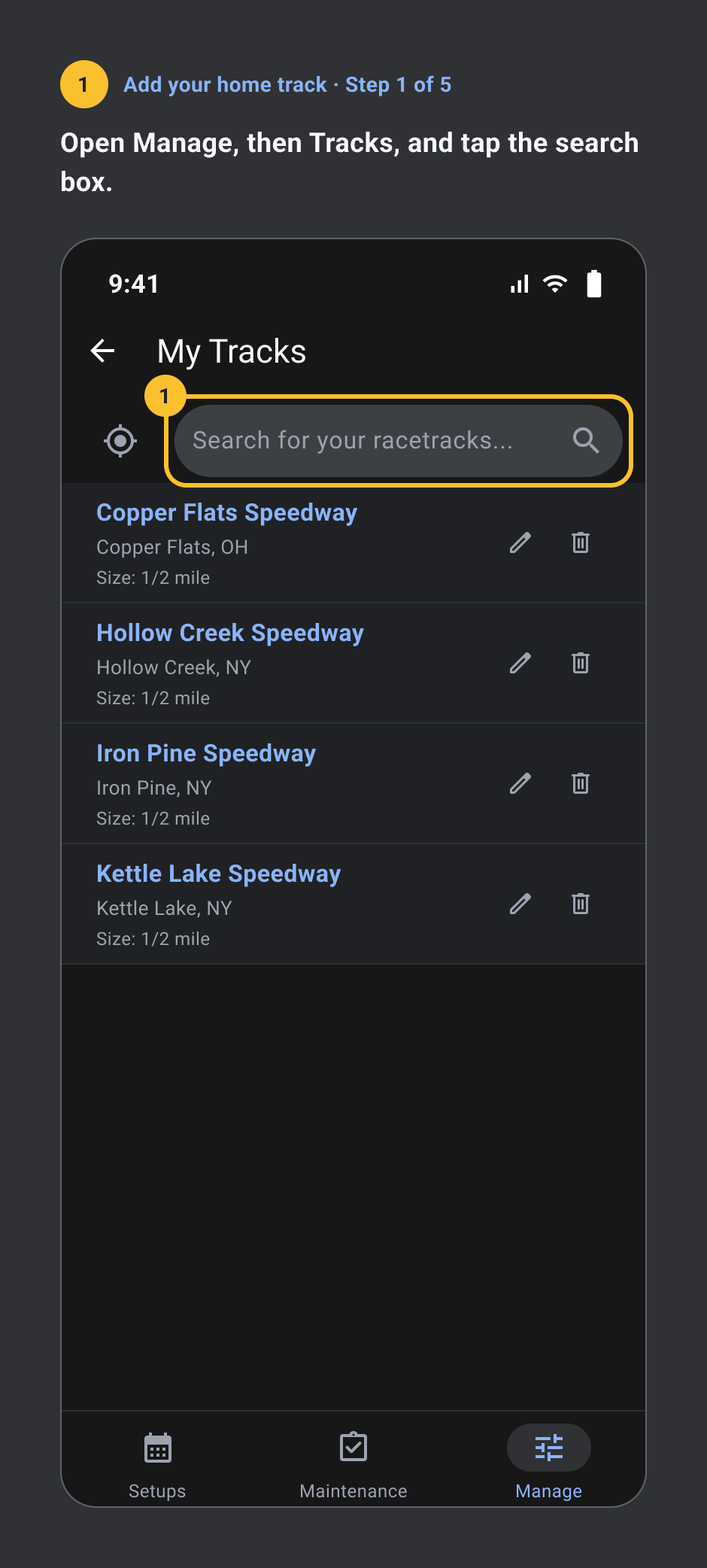
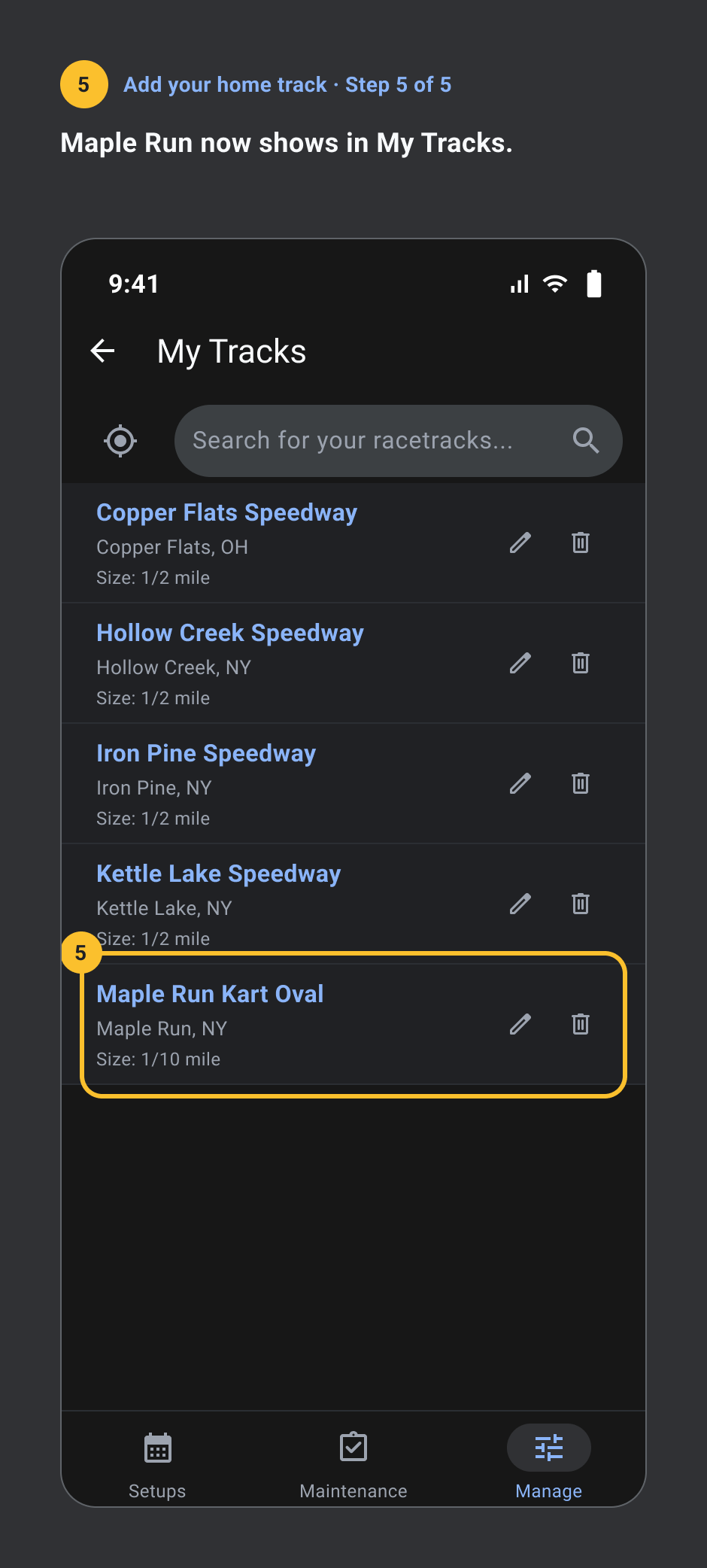
- Open Manage, then Tracks, and tap the search box.
- Type the track name and tap the result.
- Check the details and tap Track Size.
- Spin to the size, tap Done, then tap Save.
- Maple Run now shows in My Tracks.
On race night
Create your first setup
Pro. AI needs a signal. 5 steps.
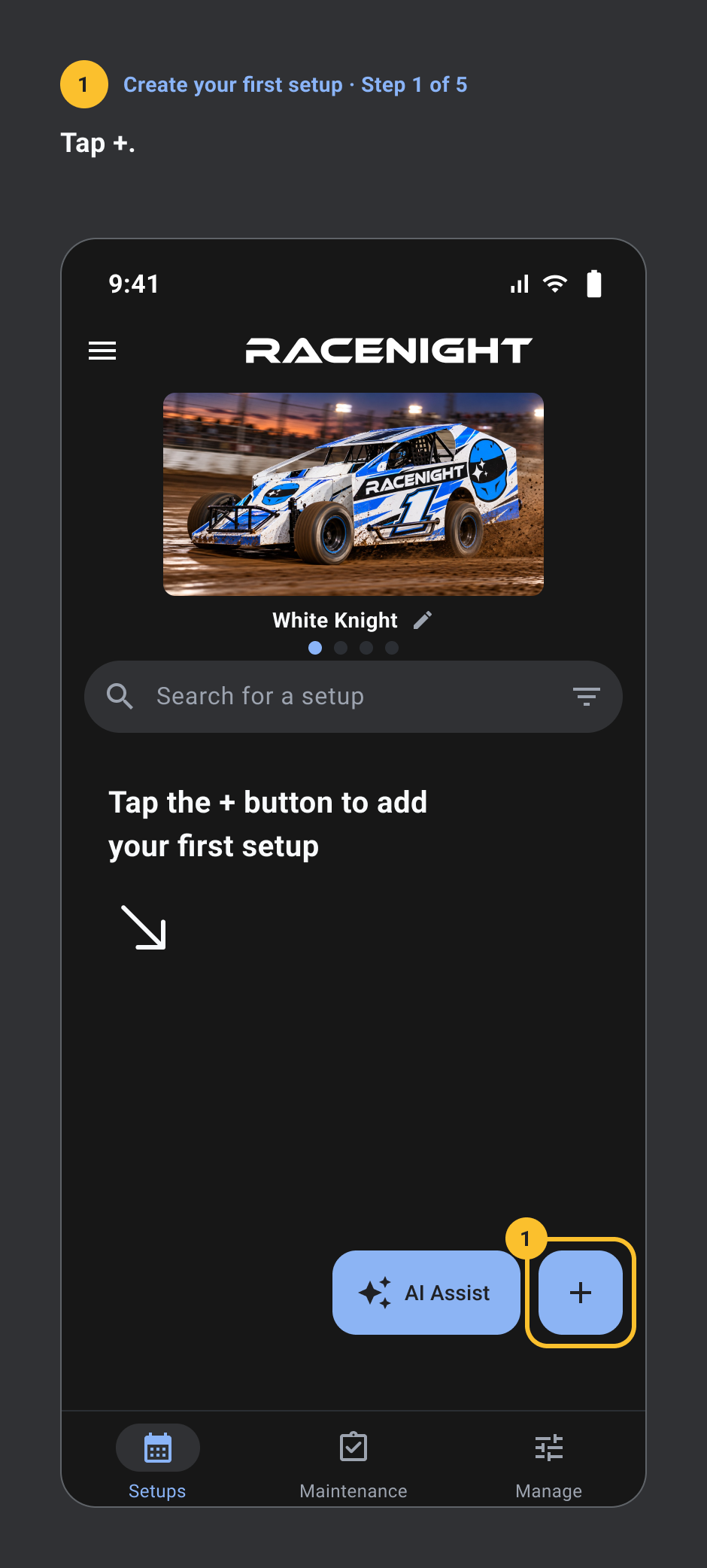
- Tap +.
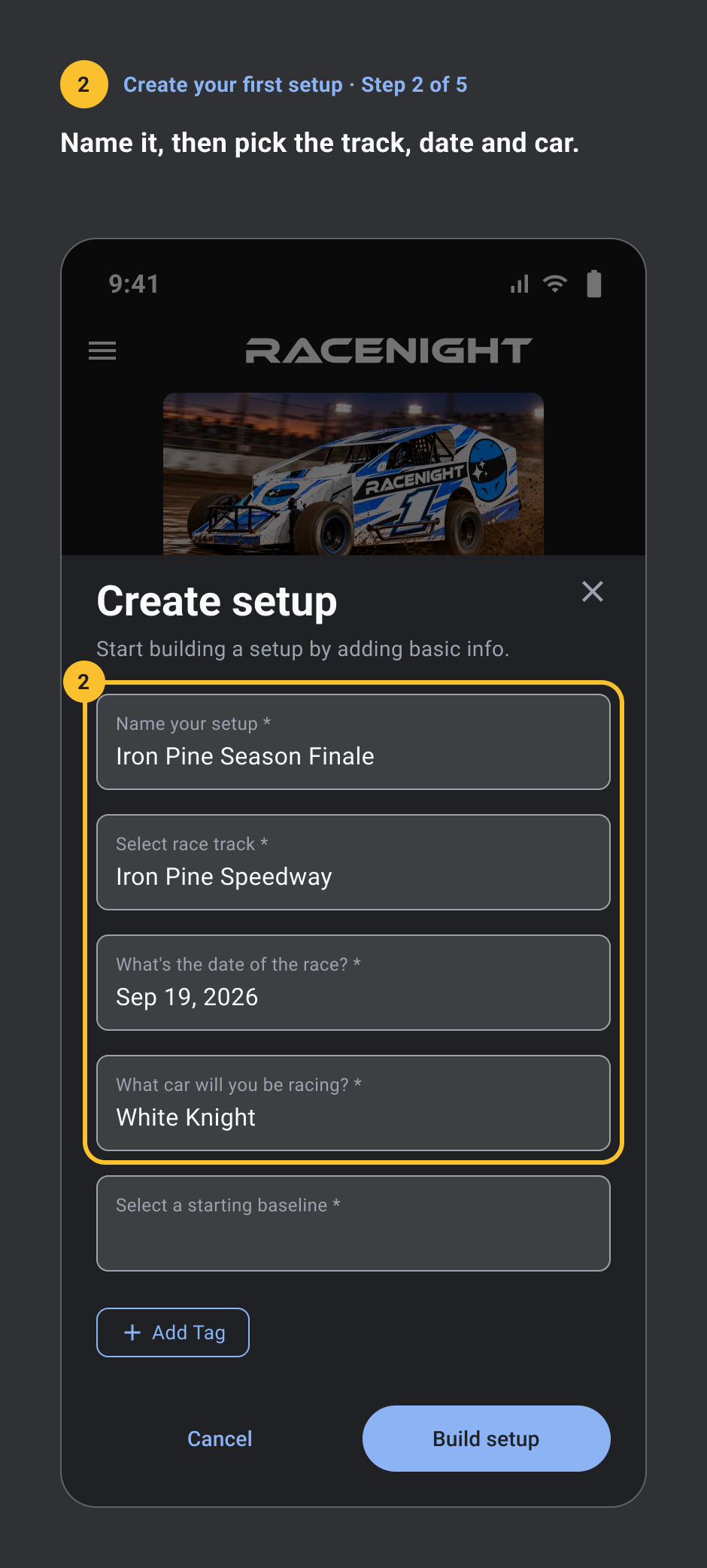
- Name it, then pick the track, date and car.
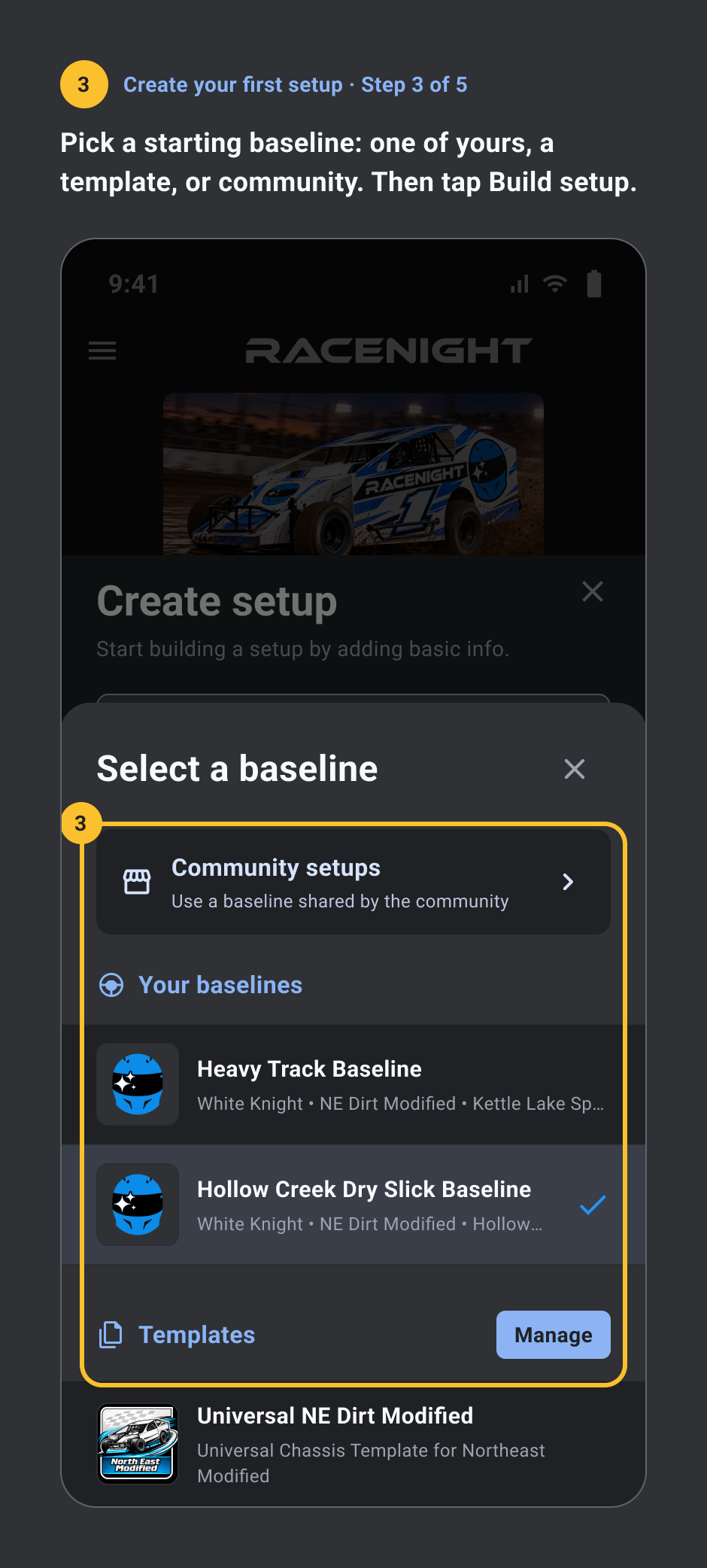
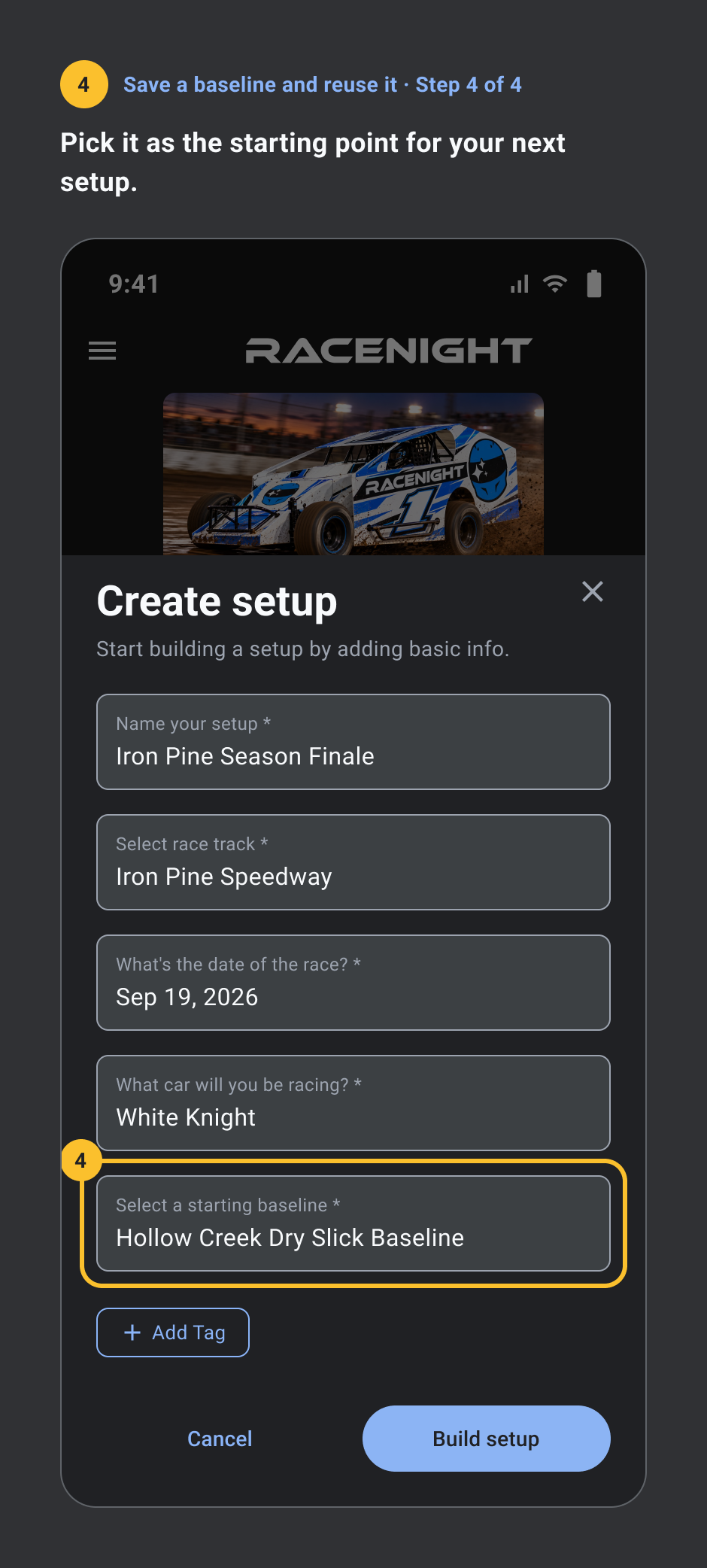
- Pick a starting baseline: one of yours, a template, or community. Then tap Build setup.
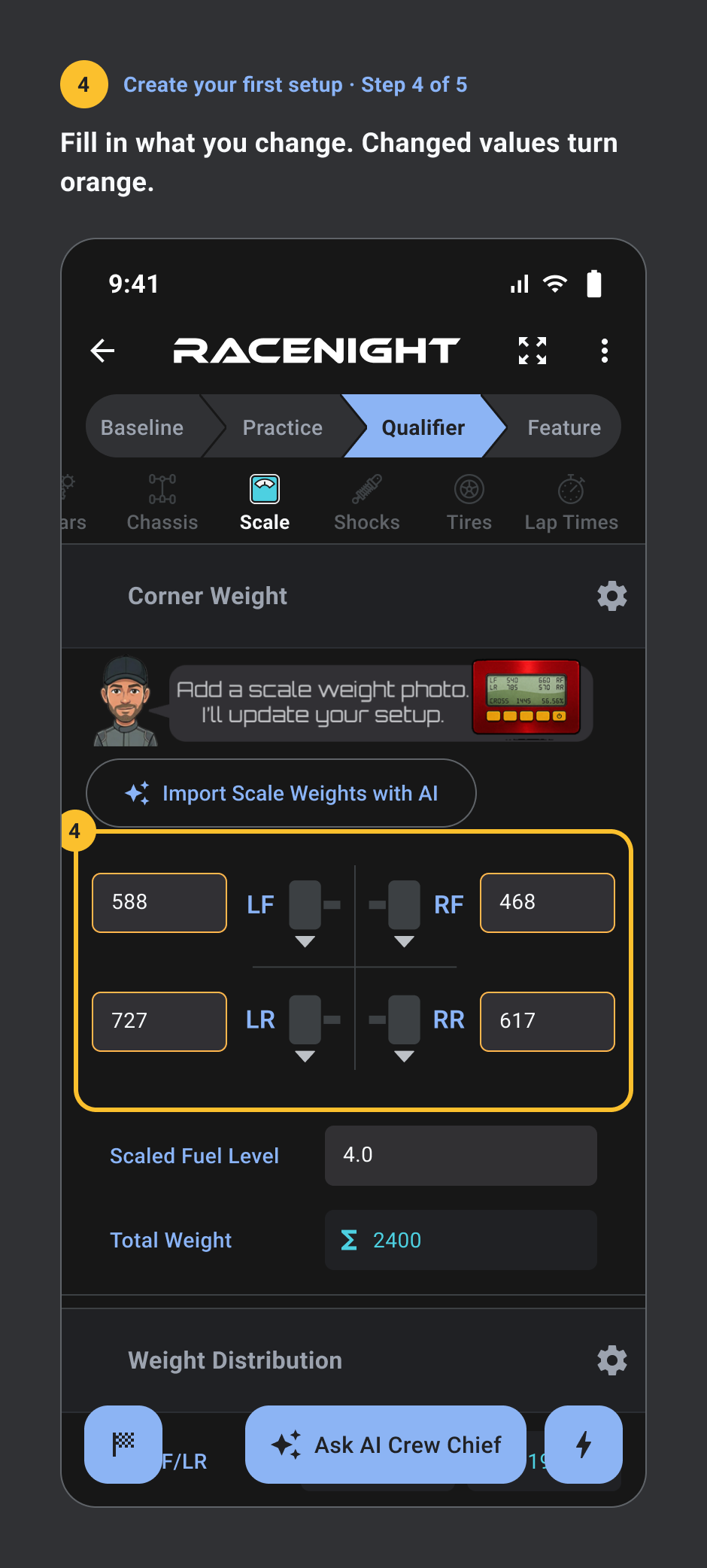
- Fill in what you change. Changed values turn orange.
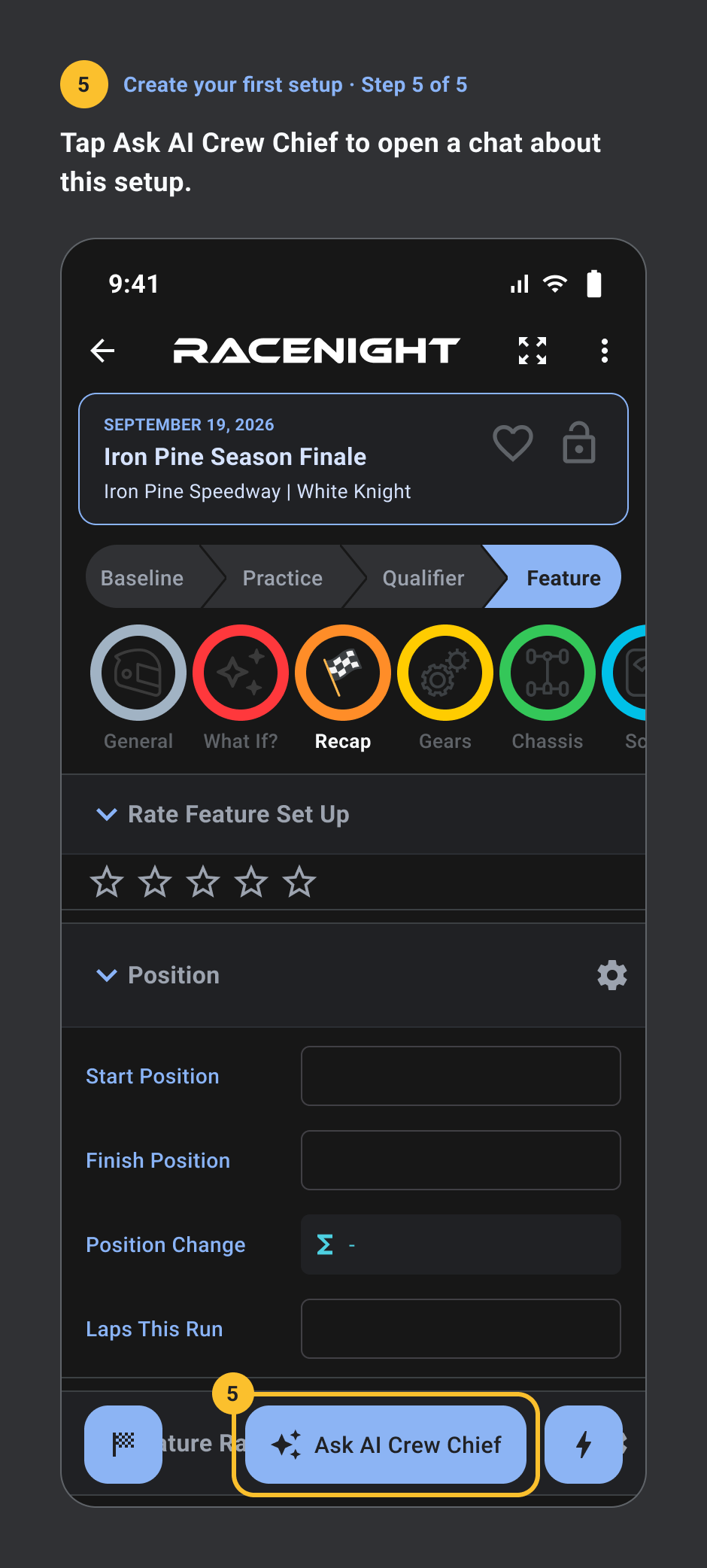
- Tap Ask AI Crew Chief to open a chat about this setup.
Match the sheet to your race night
Pro. 4 steps.
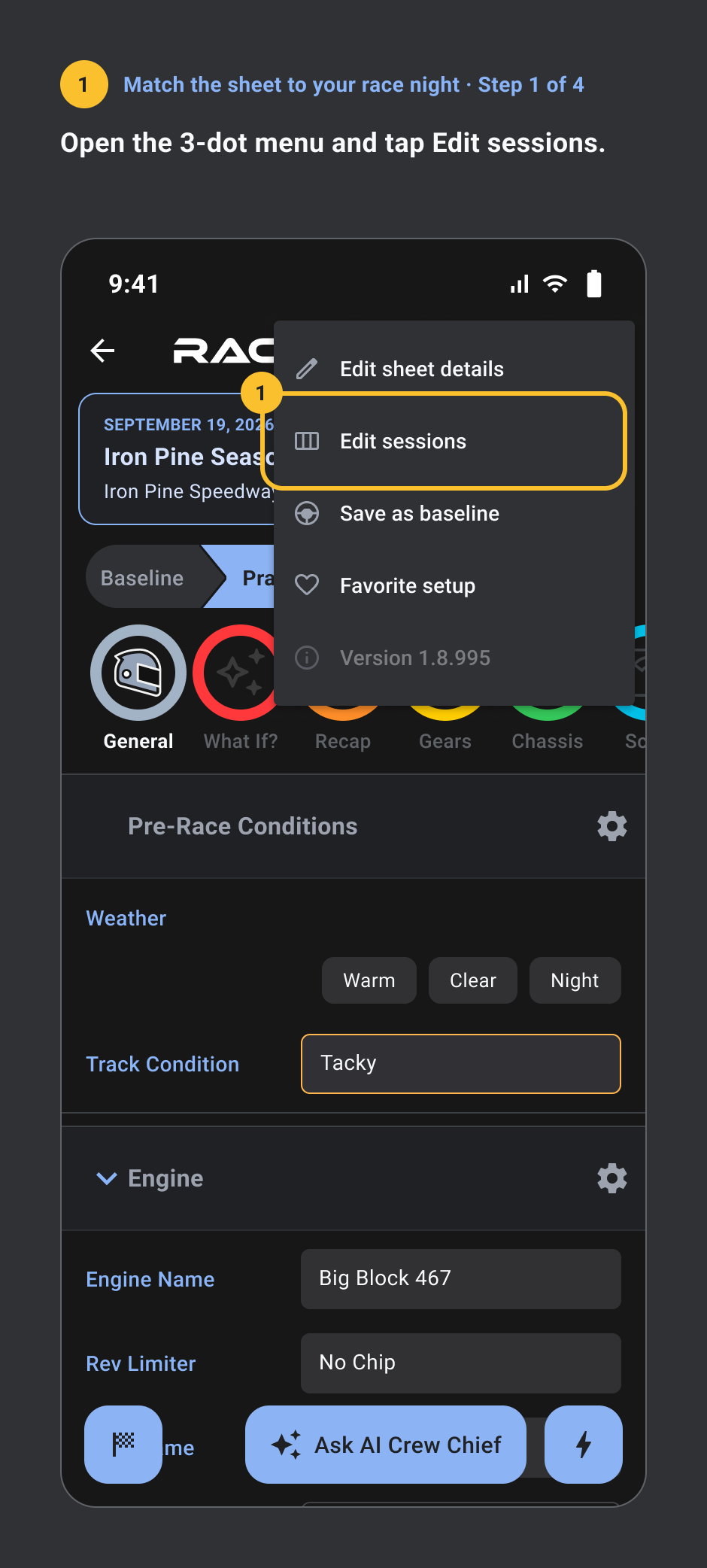
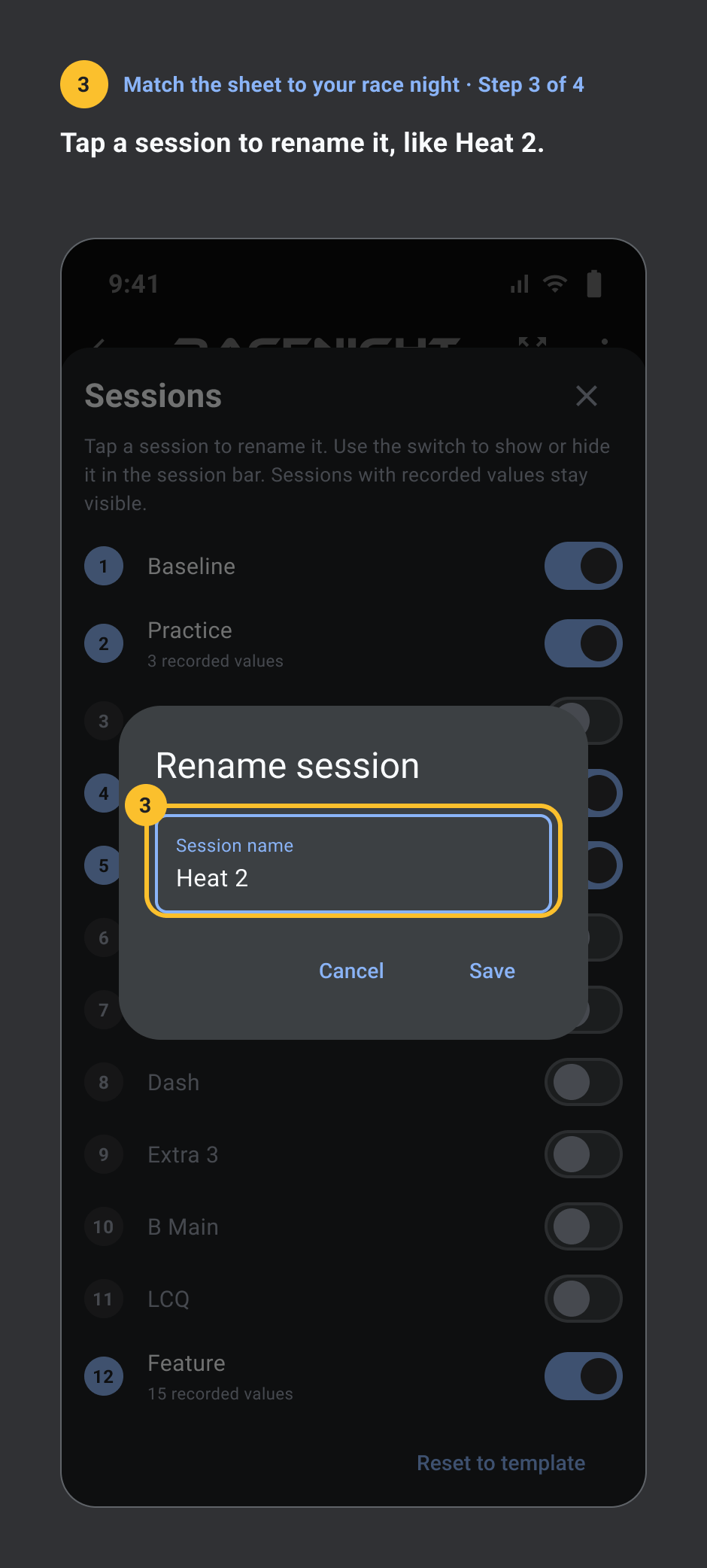
- Open the 3-dot menu and tap Edit sessions.
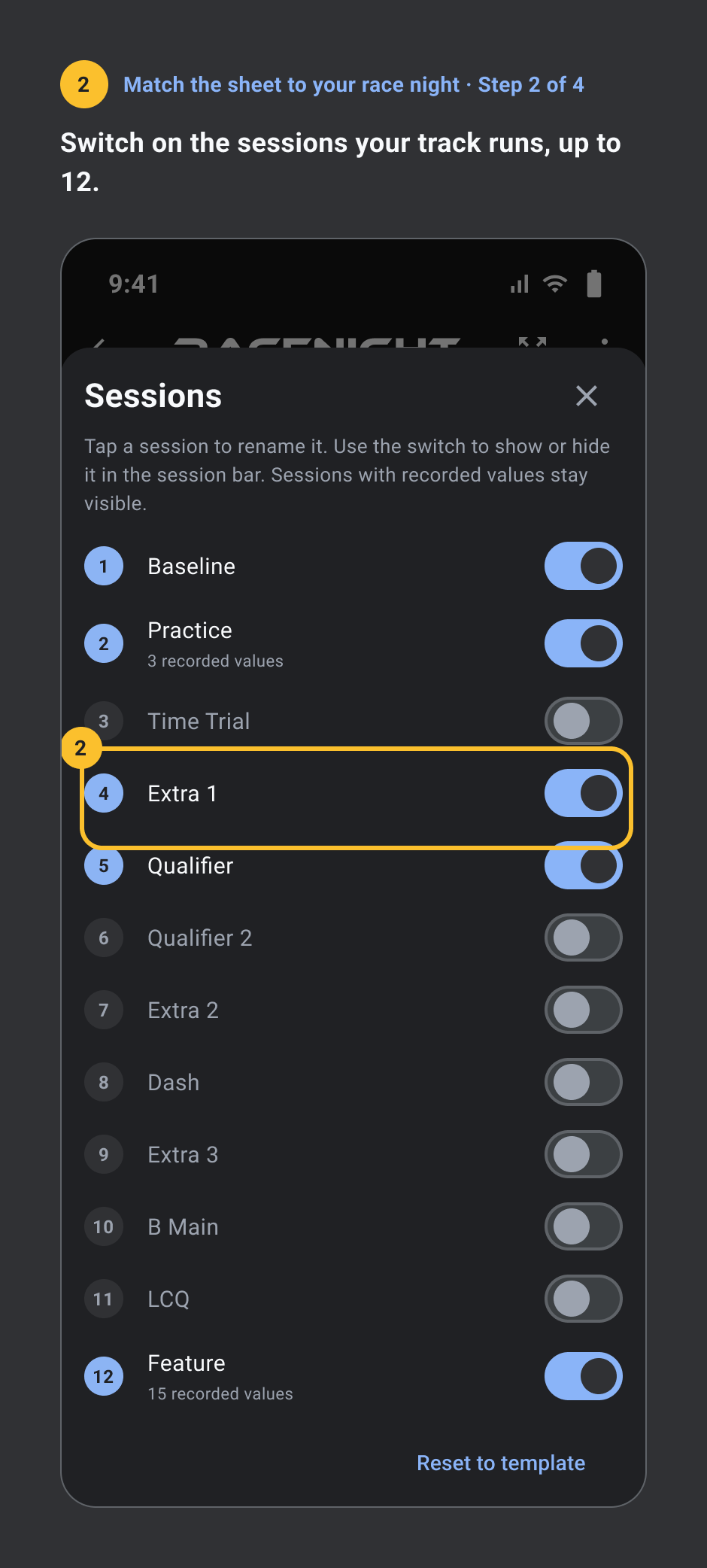
- Switch on the sessions your track runs, up to 12.
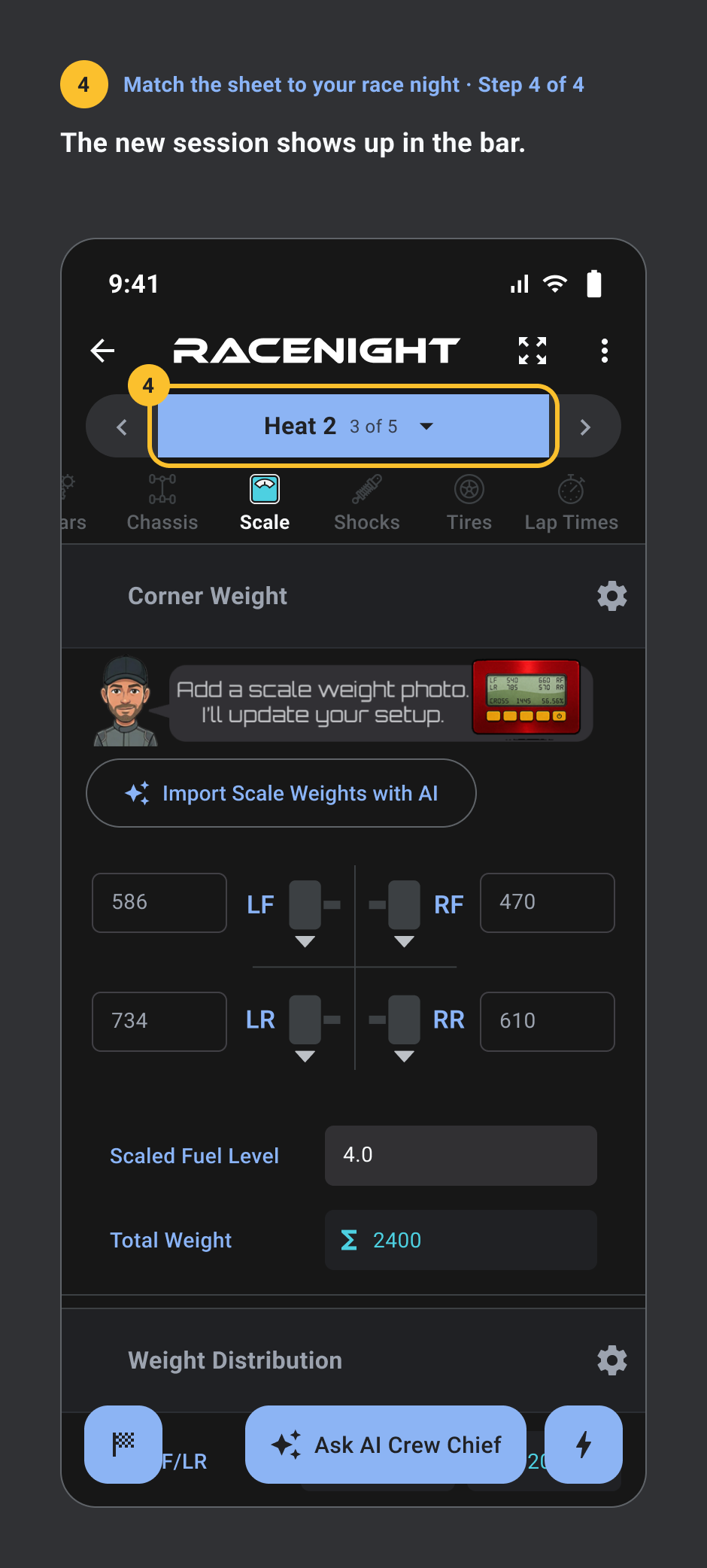
- Tap a session to rename it, like Heat 2.
- The new session shows up in the bar.
Ask the AI crew chief
Pro, needs a signal. 3 steps.
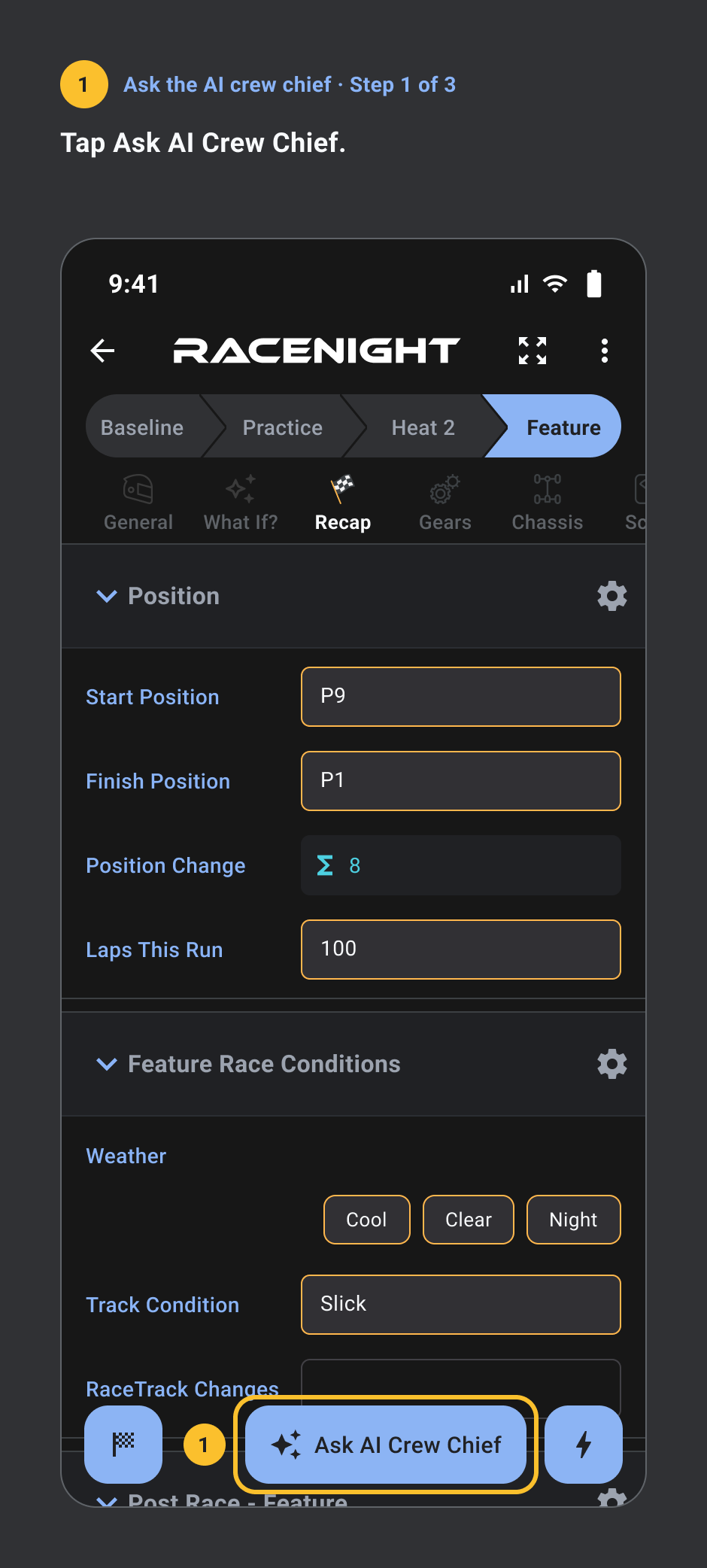
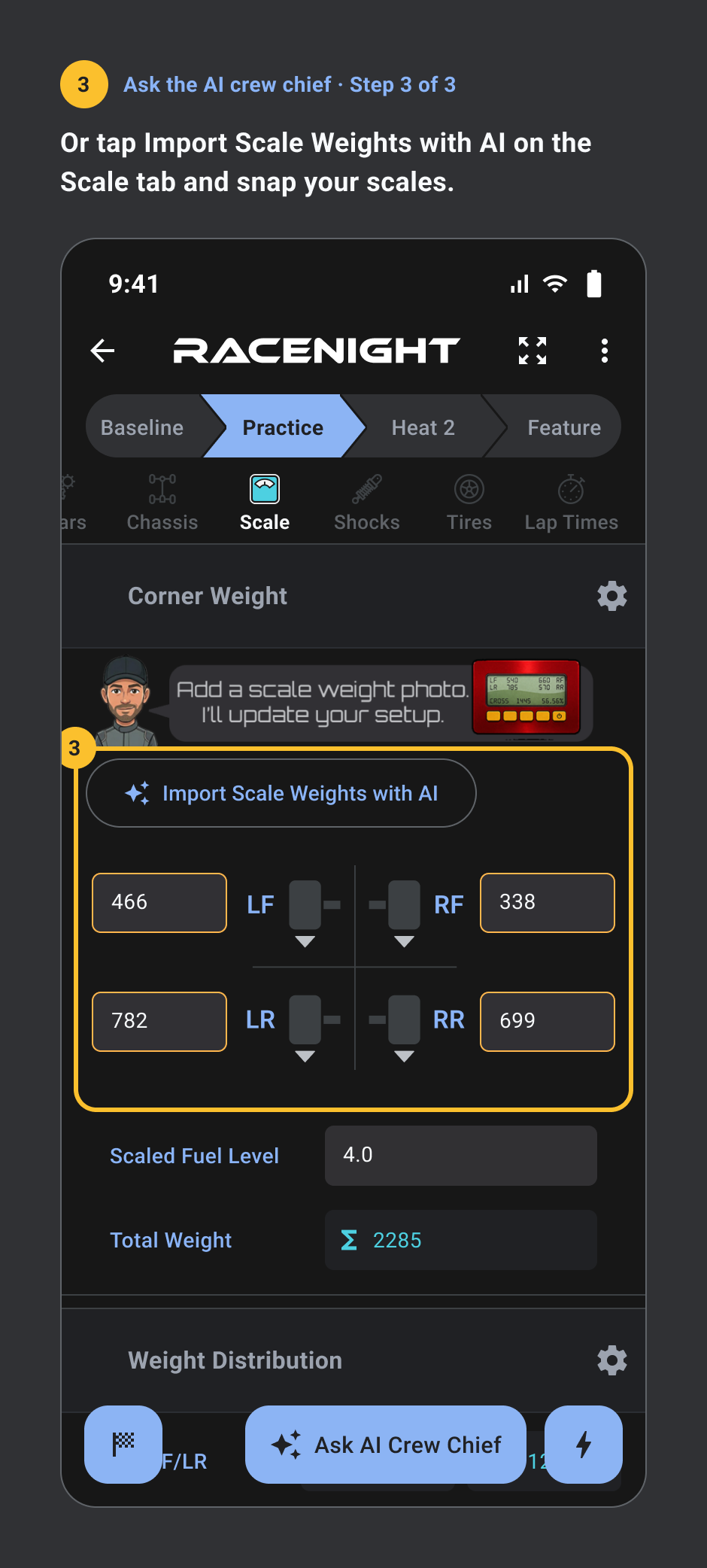
- Tap Ask AI Crew Chief.
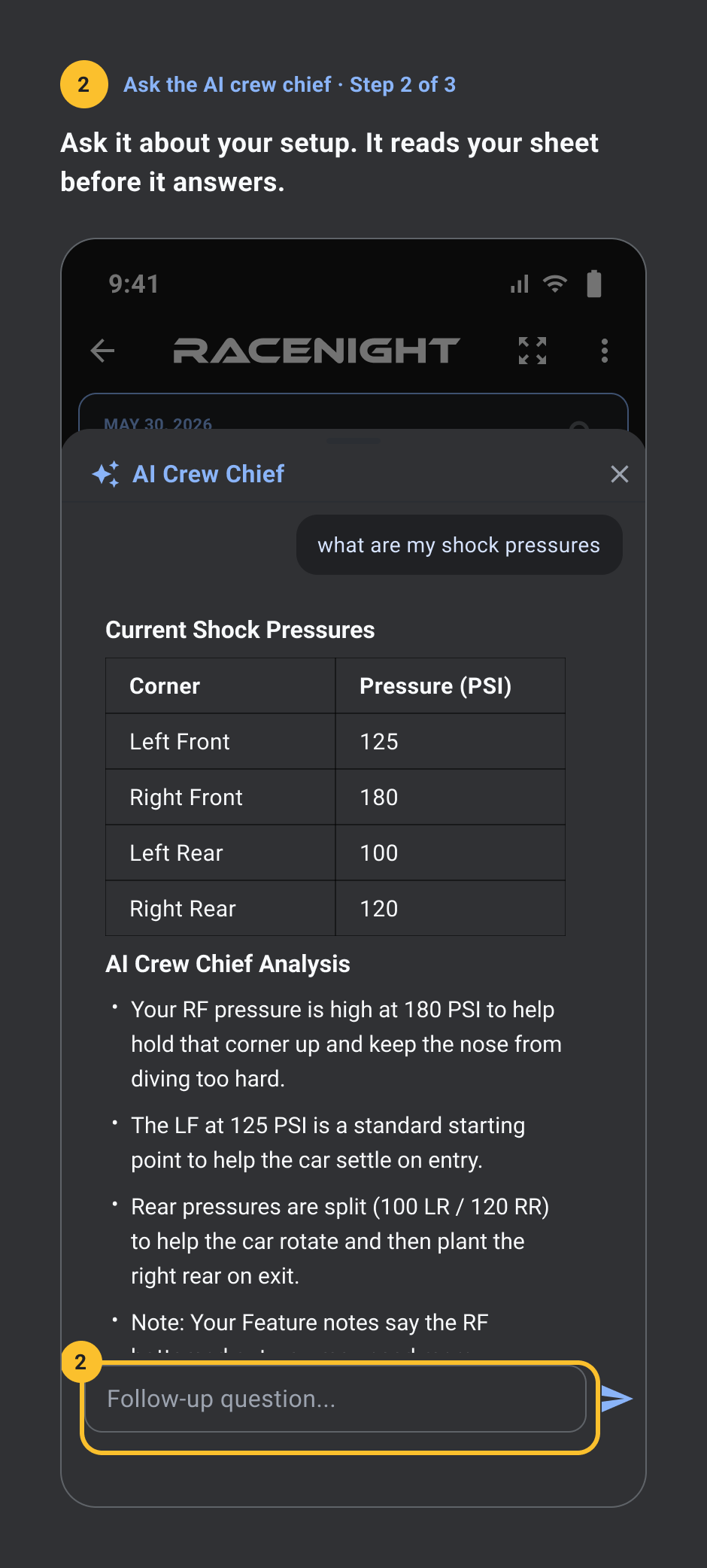
- Ask it about your setup. It reads your sheet before it answers.
- Or tap Import Scale Weights with AI on the Scale tab and snap your scales.
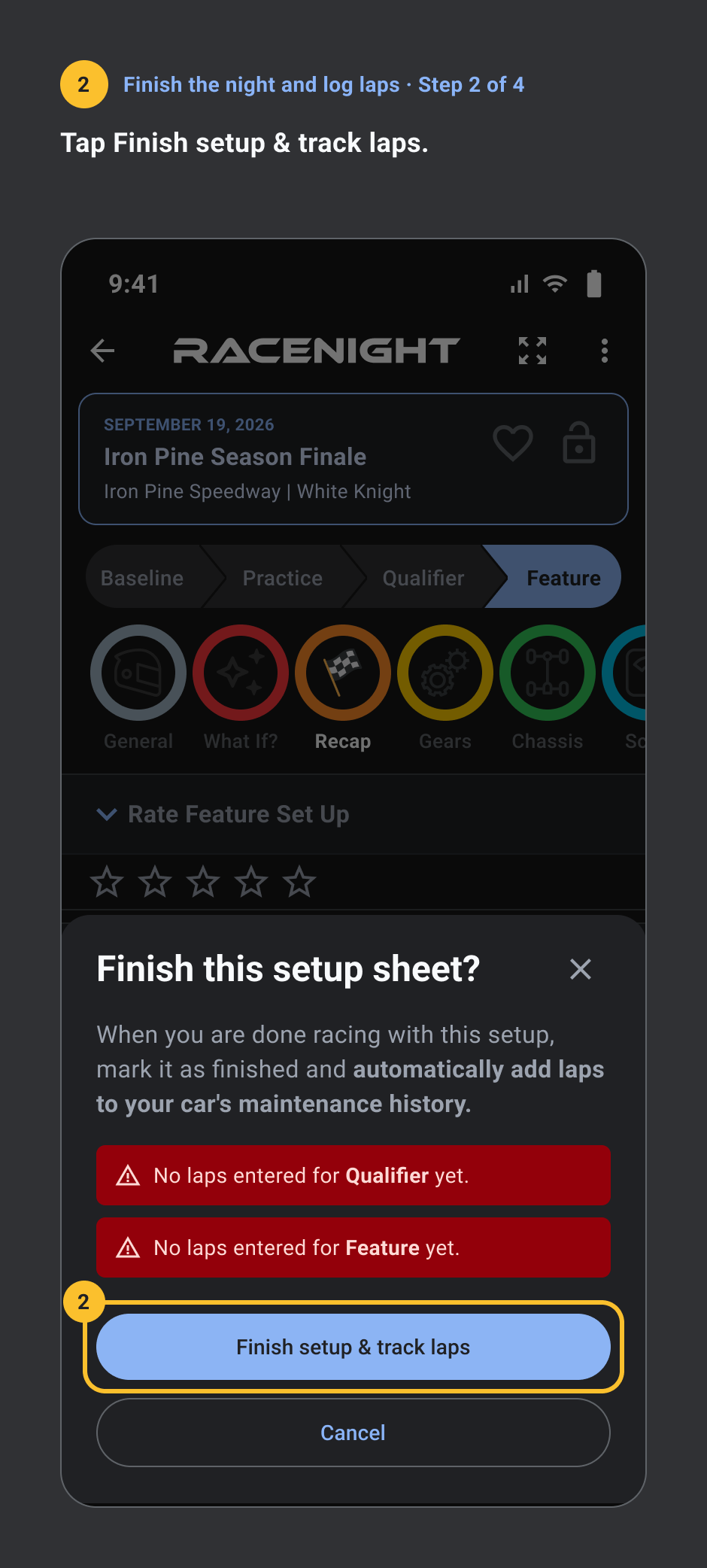
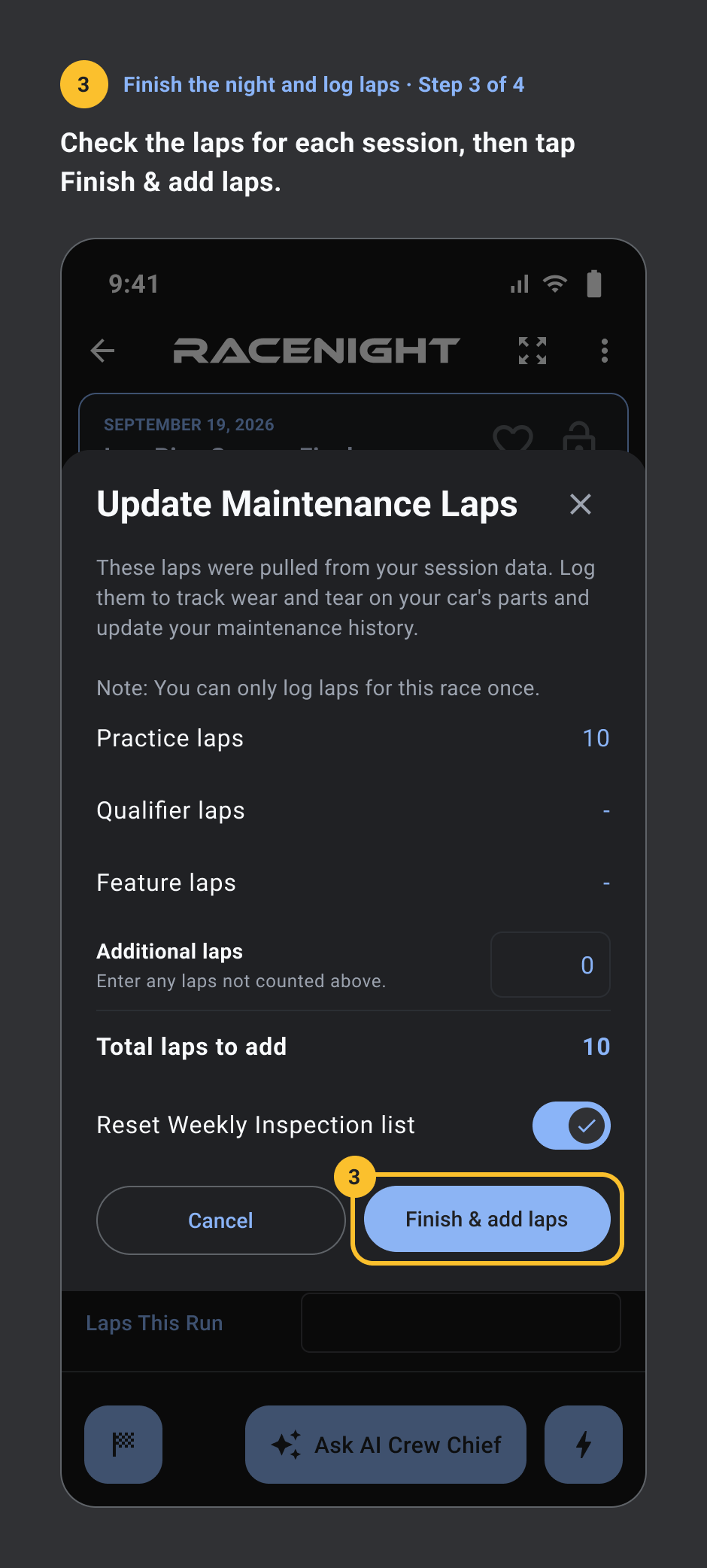
Finish the night and log laps
Pro, needs a signal. 4 steps.
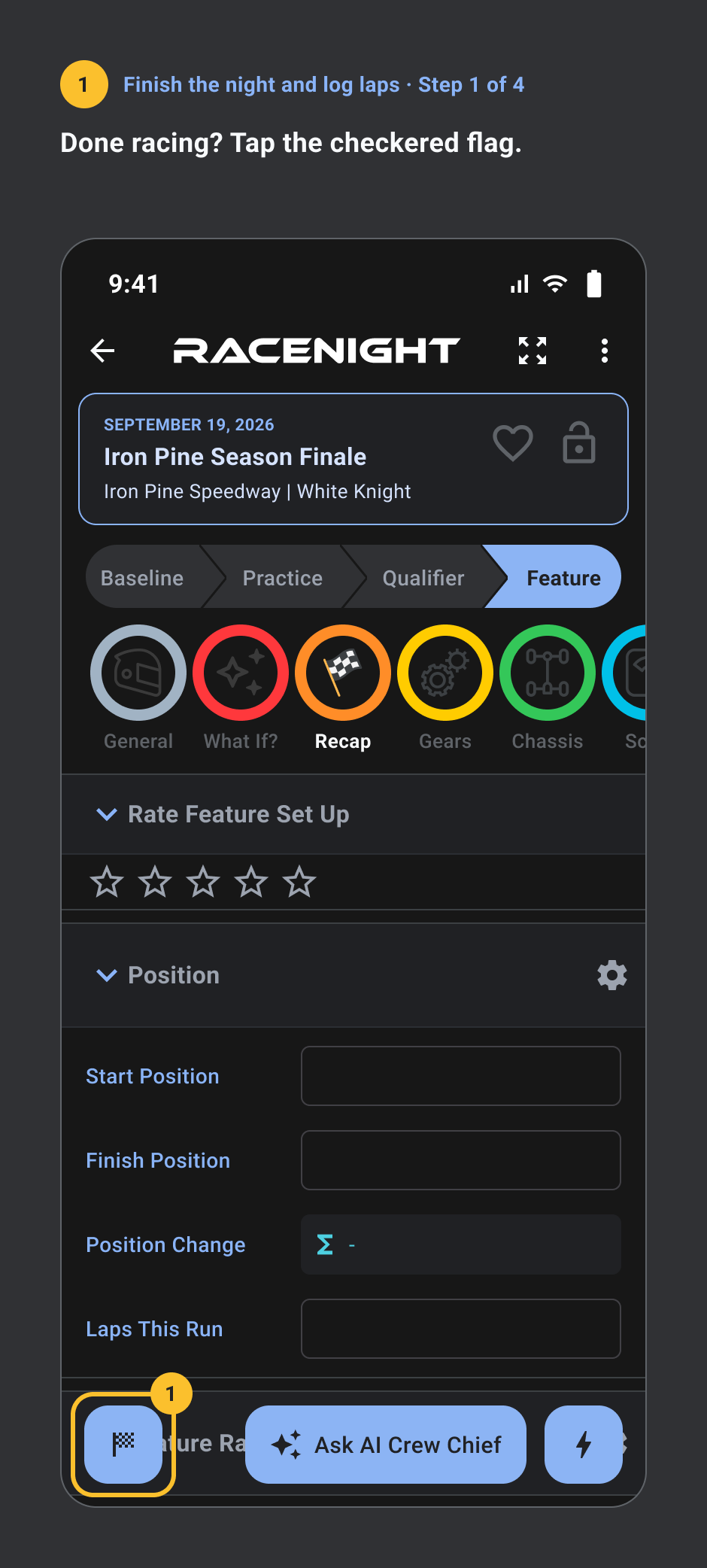
- Done racing? Tap the checkered flag.
- Tap Finish setup & track laps.
- Check the laps for each session, then tap Finish & add laps.
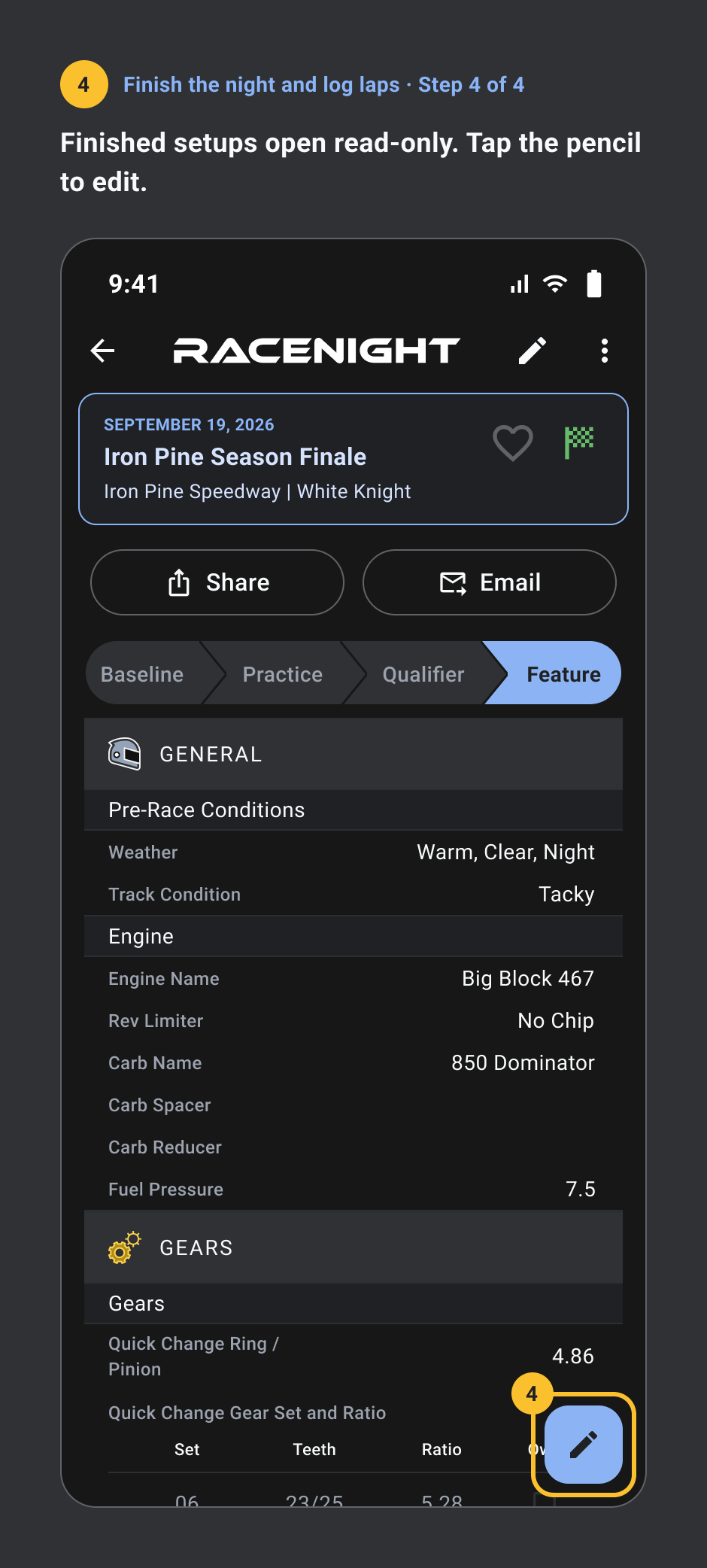
- Finished setups open read-only. Tap the pencil to edit.
Between races
Save a baseline and reuse it
Pro. 4 steps.
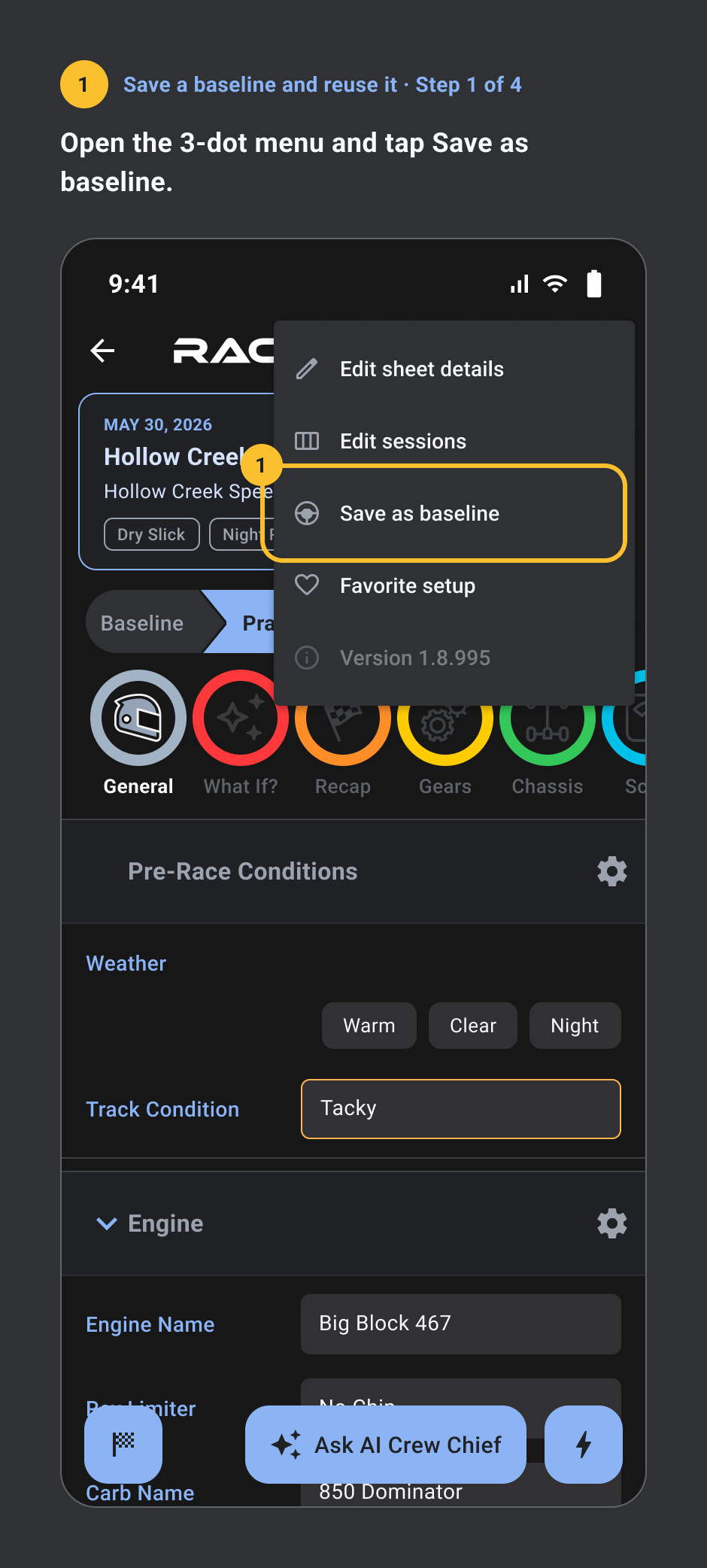
- Open the 3-dot menu and tap Save as baseline.
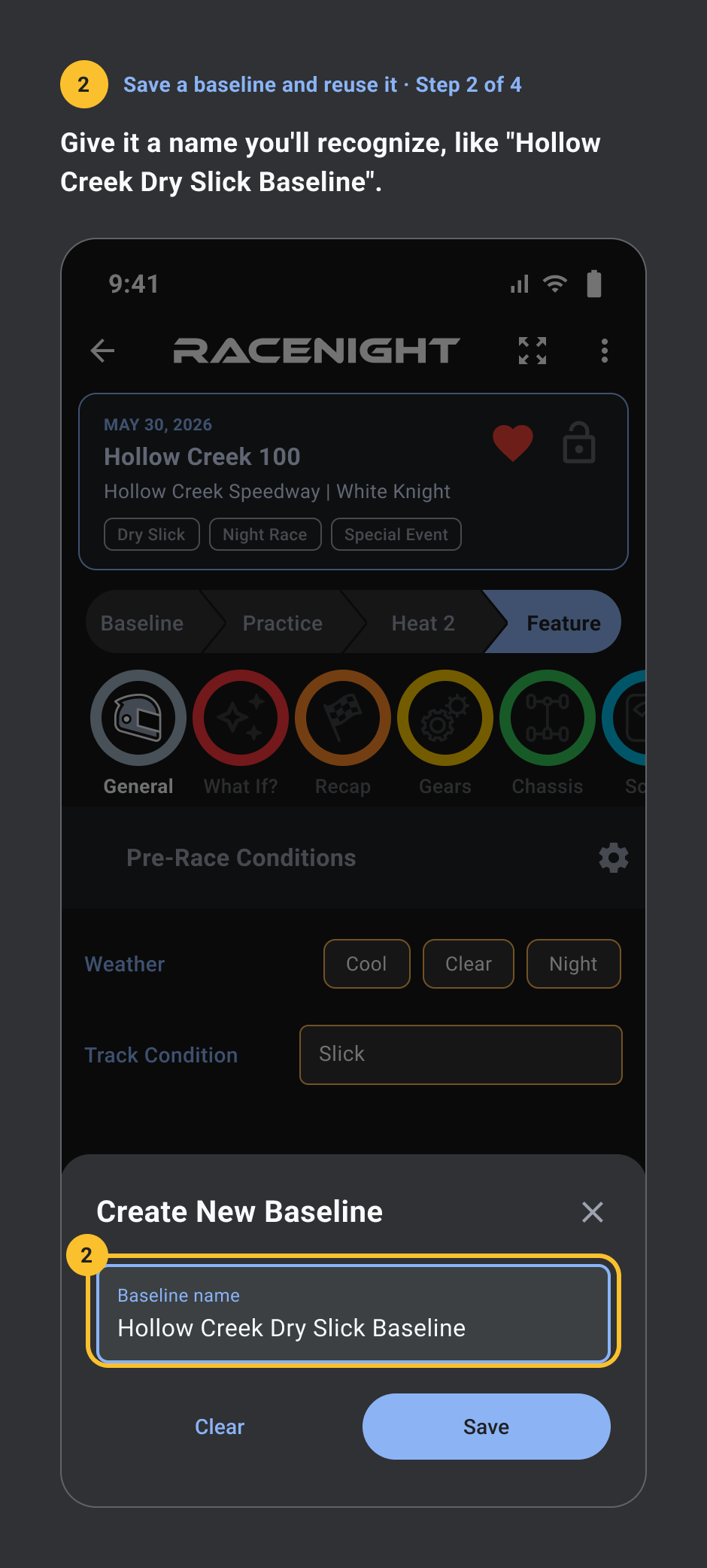
- Give it a name you'll recognize, like "Hollow Creek Dry Slick Baseline".
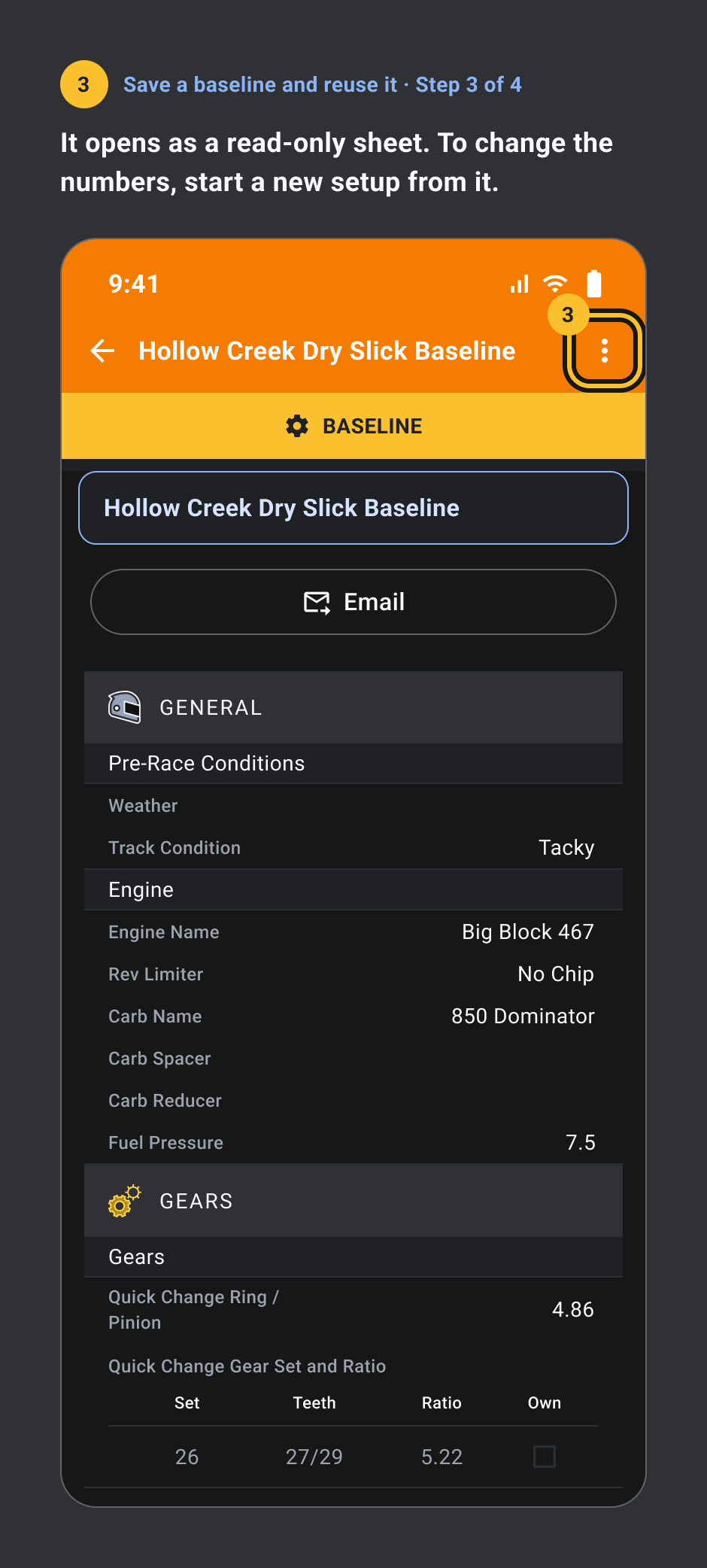
- It opens as a read-only sheet. To change the numbers, start a new setup from it.
- Pick it as the starting point for your next setup.
Hide fields you don't use
Pro. 2 steps.
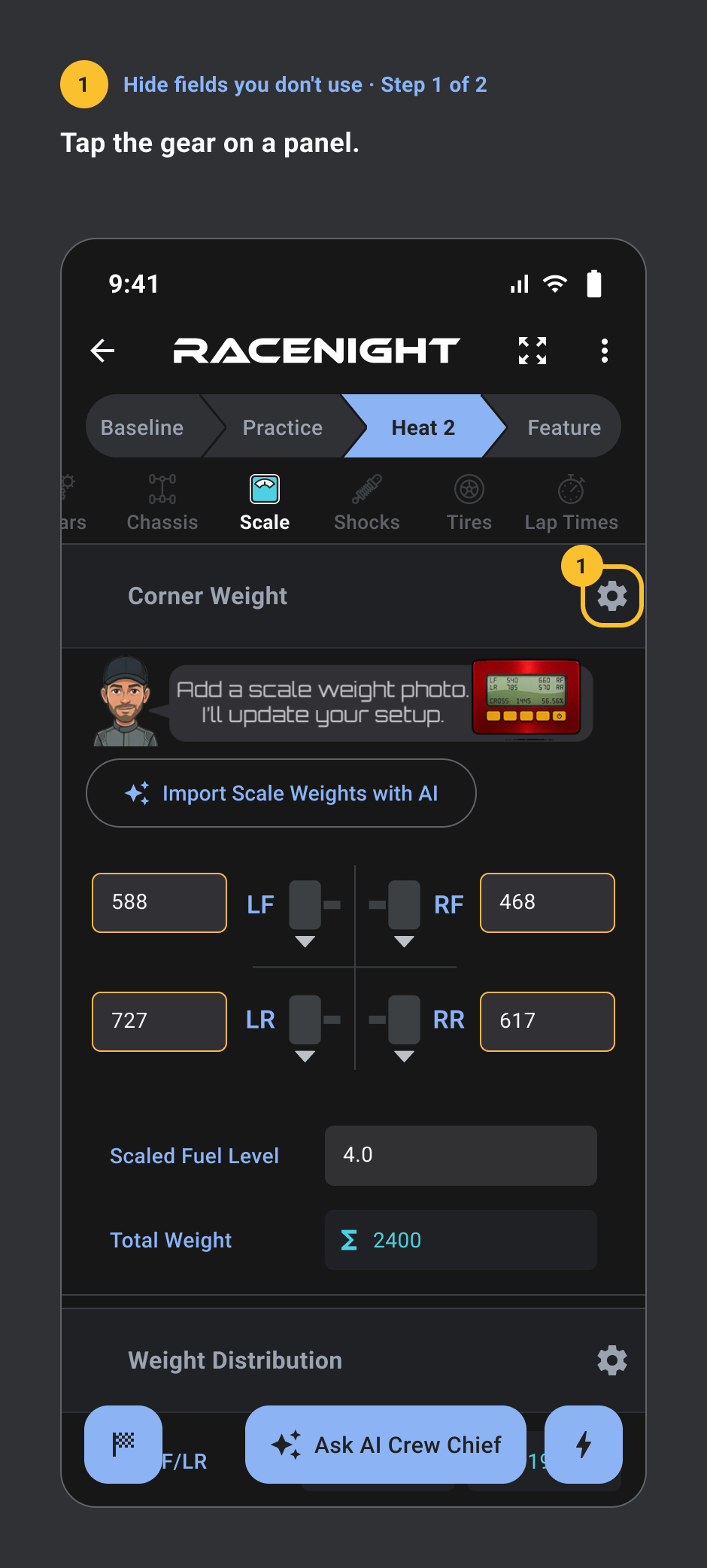
- Tap the gear on a panel.
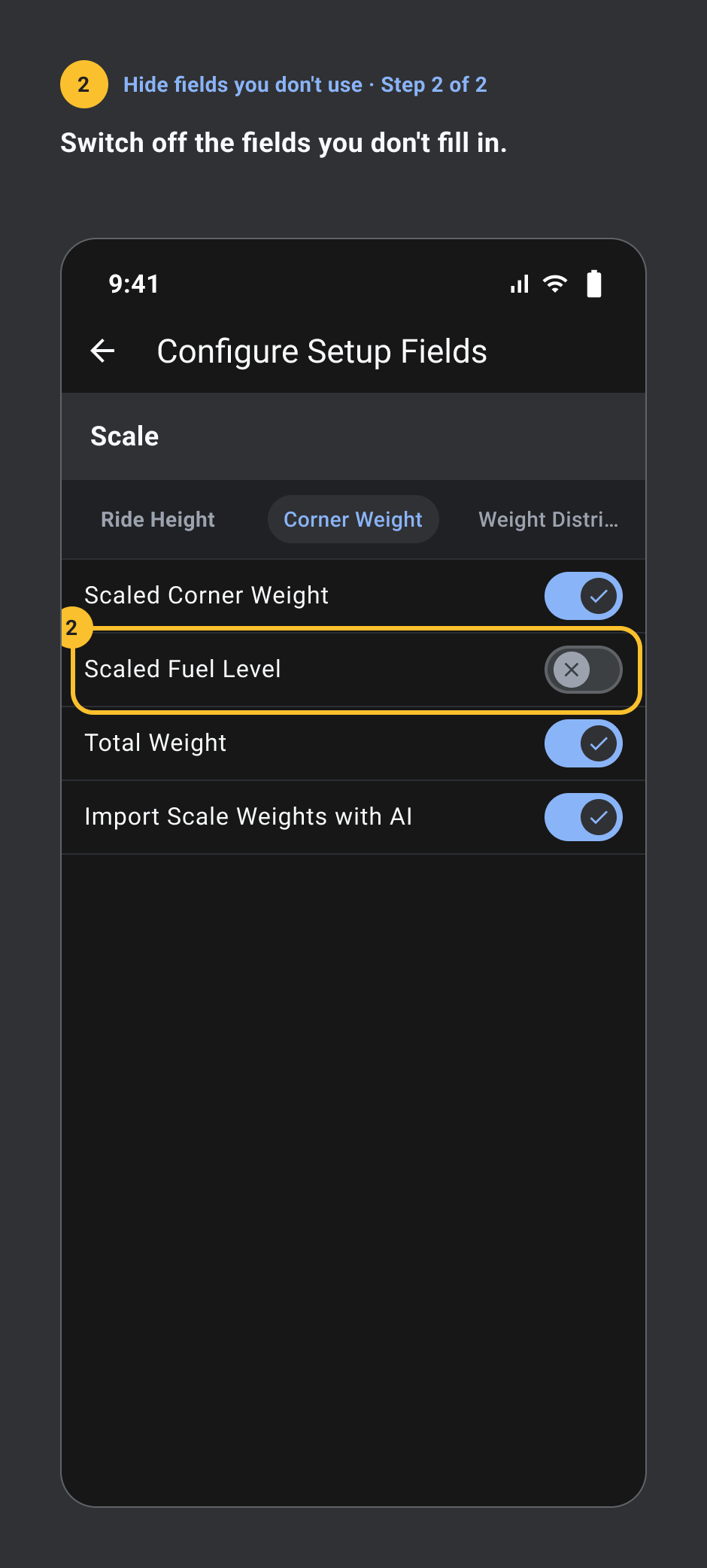
- Switch off the fields you don't fill in.
Hidden values stay saved. Turn the field back on and they come back.
Fix a setup's track, date or tags
Pro. 5 steps.
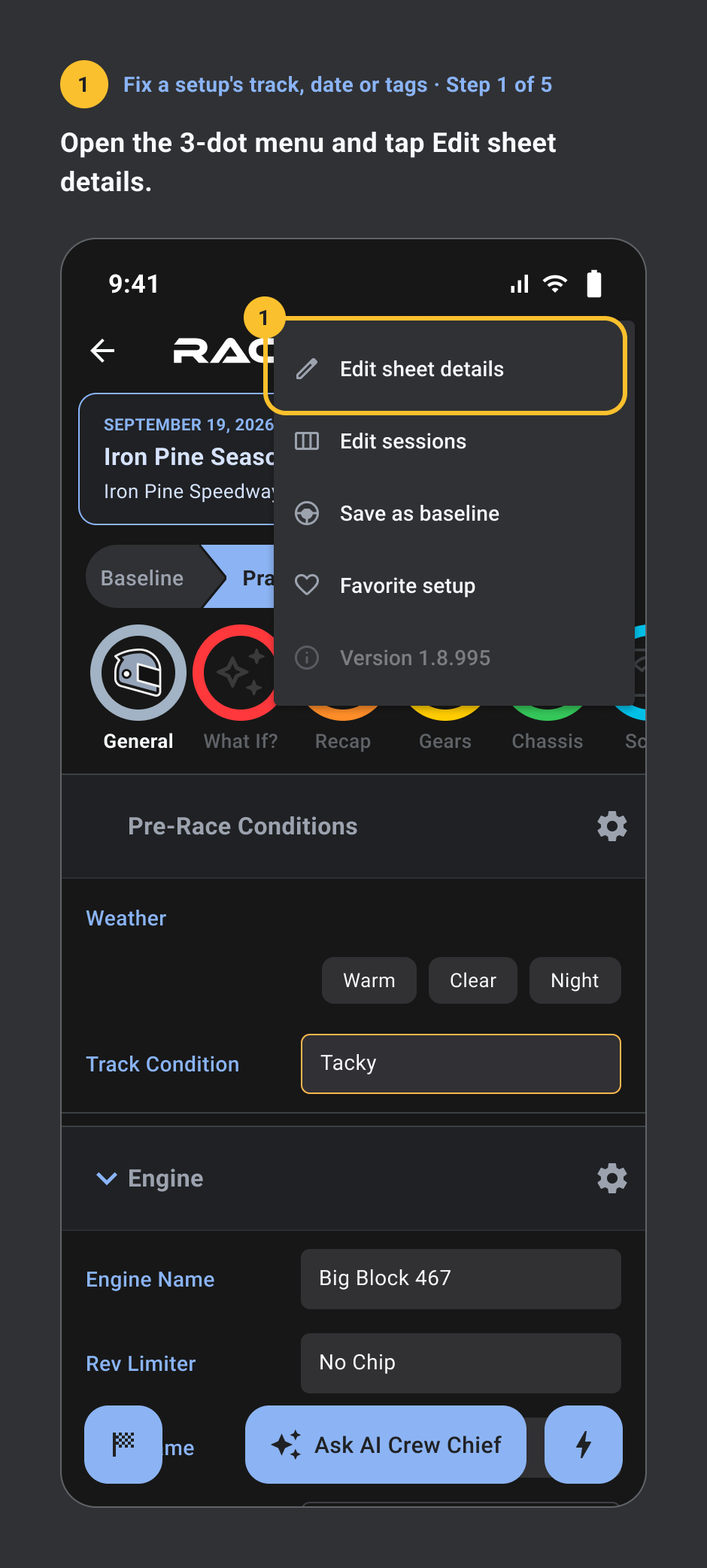
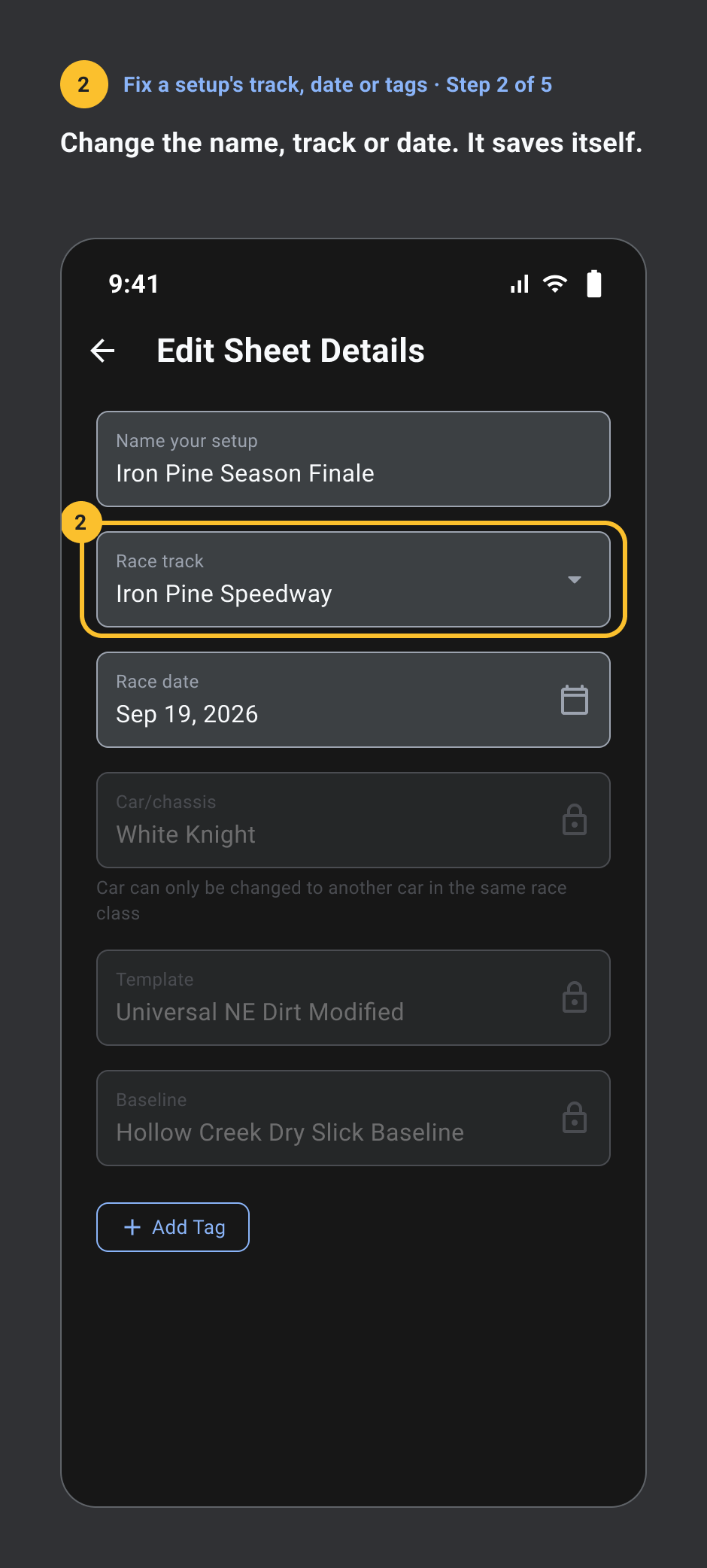
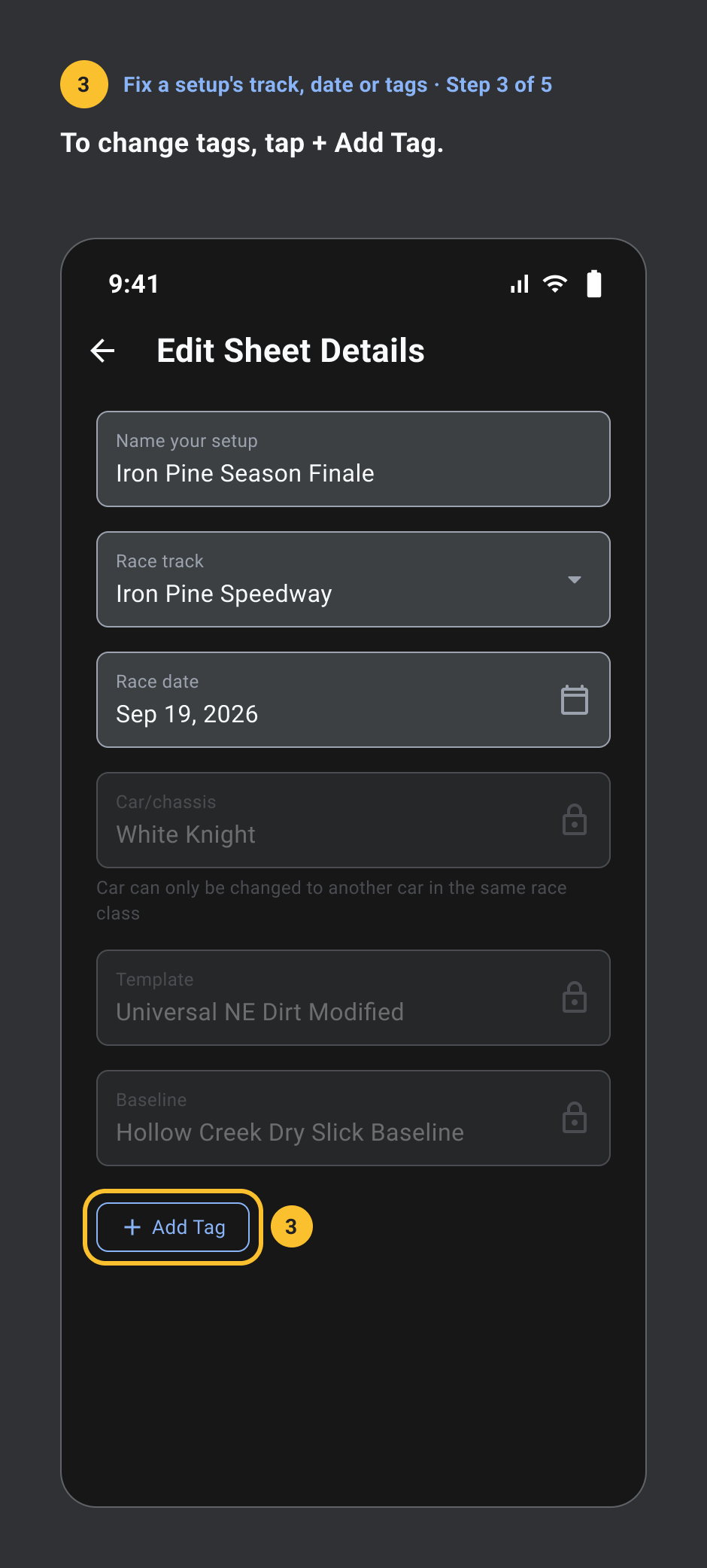
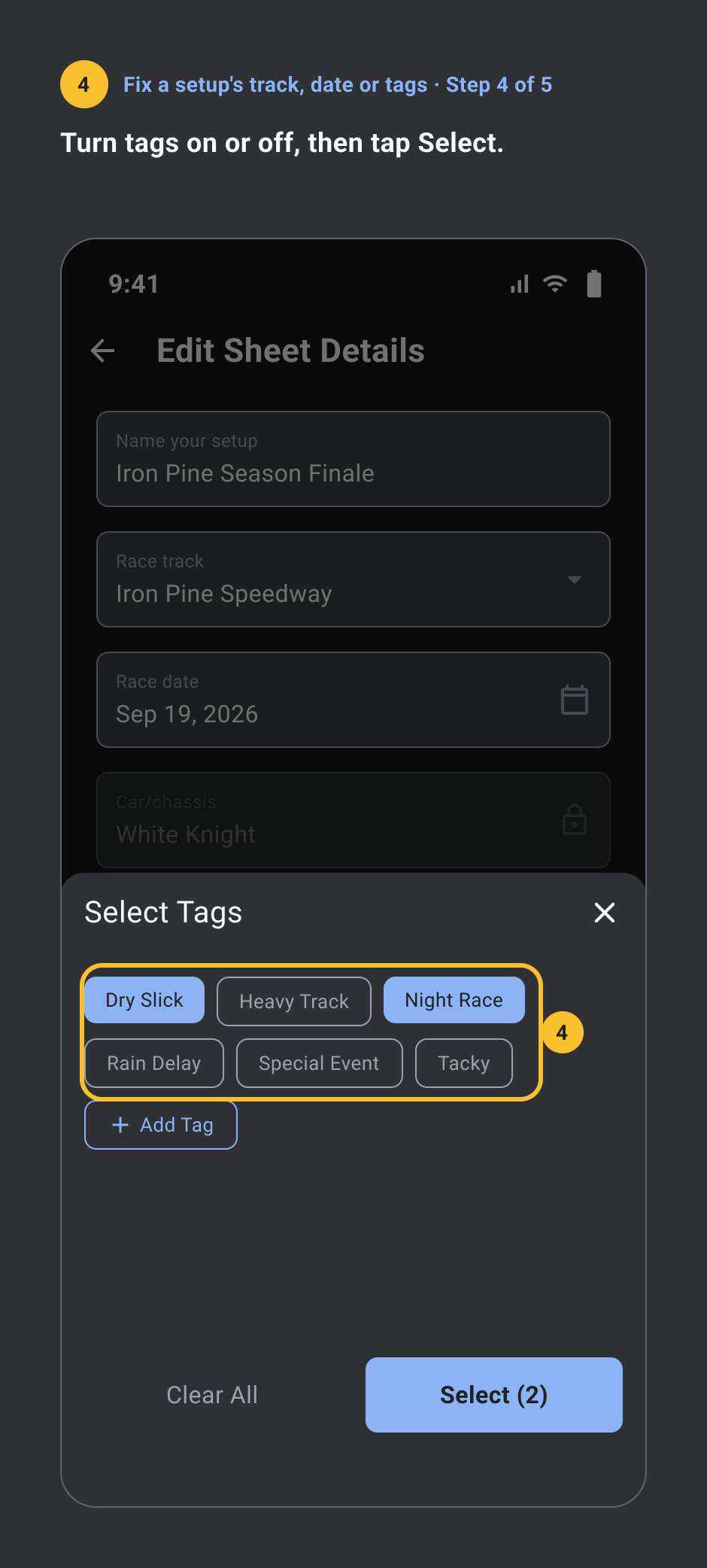
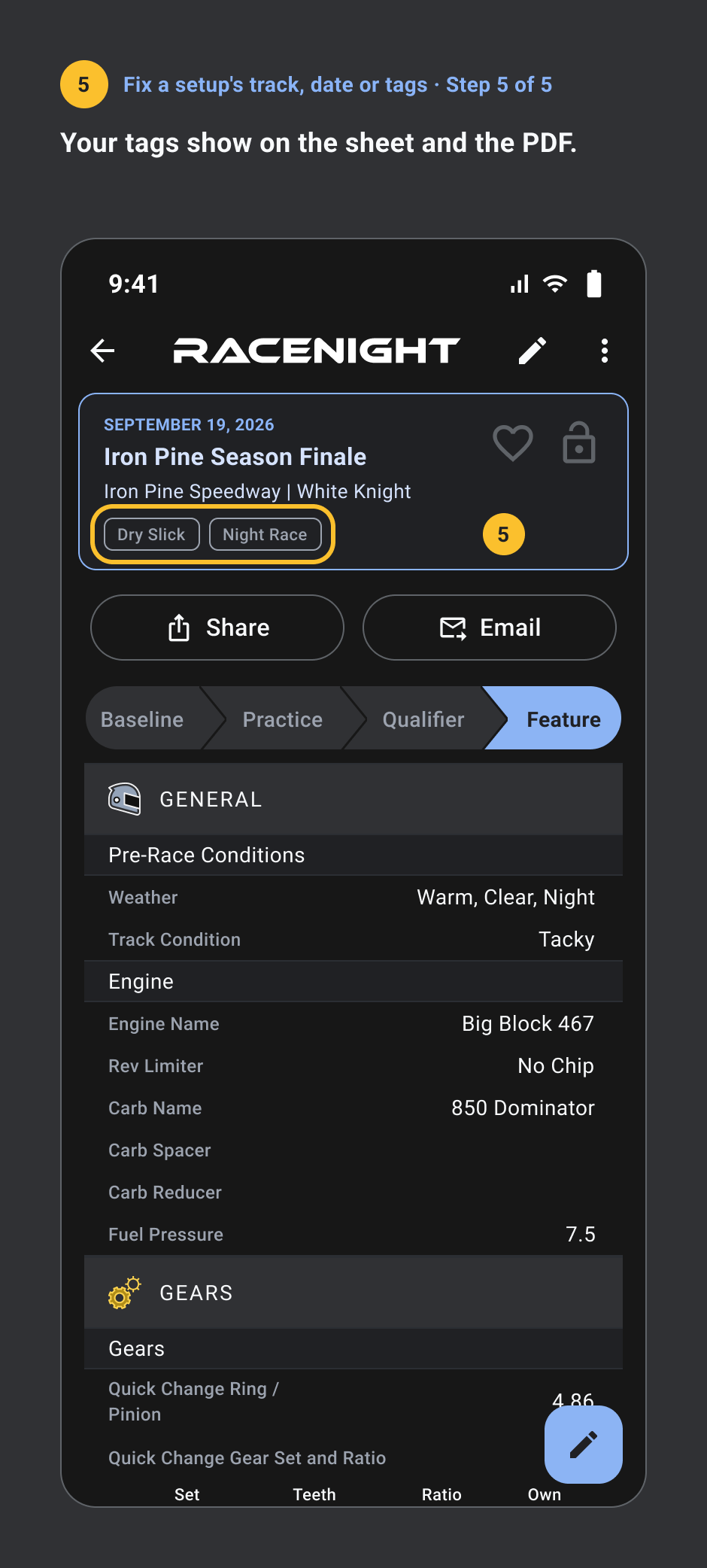
- Open the 3-dot menu and tap Edit sheet details.
- Change the name, track or date. It saves itself.
- To change tags, tap + Add Tag.
- Turn tags on or off, then tap Select.
- Your tags show on the sheet and the PDF.
Track part life with laps
Pro, needs a signal. 4 steps.
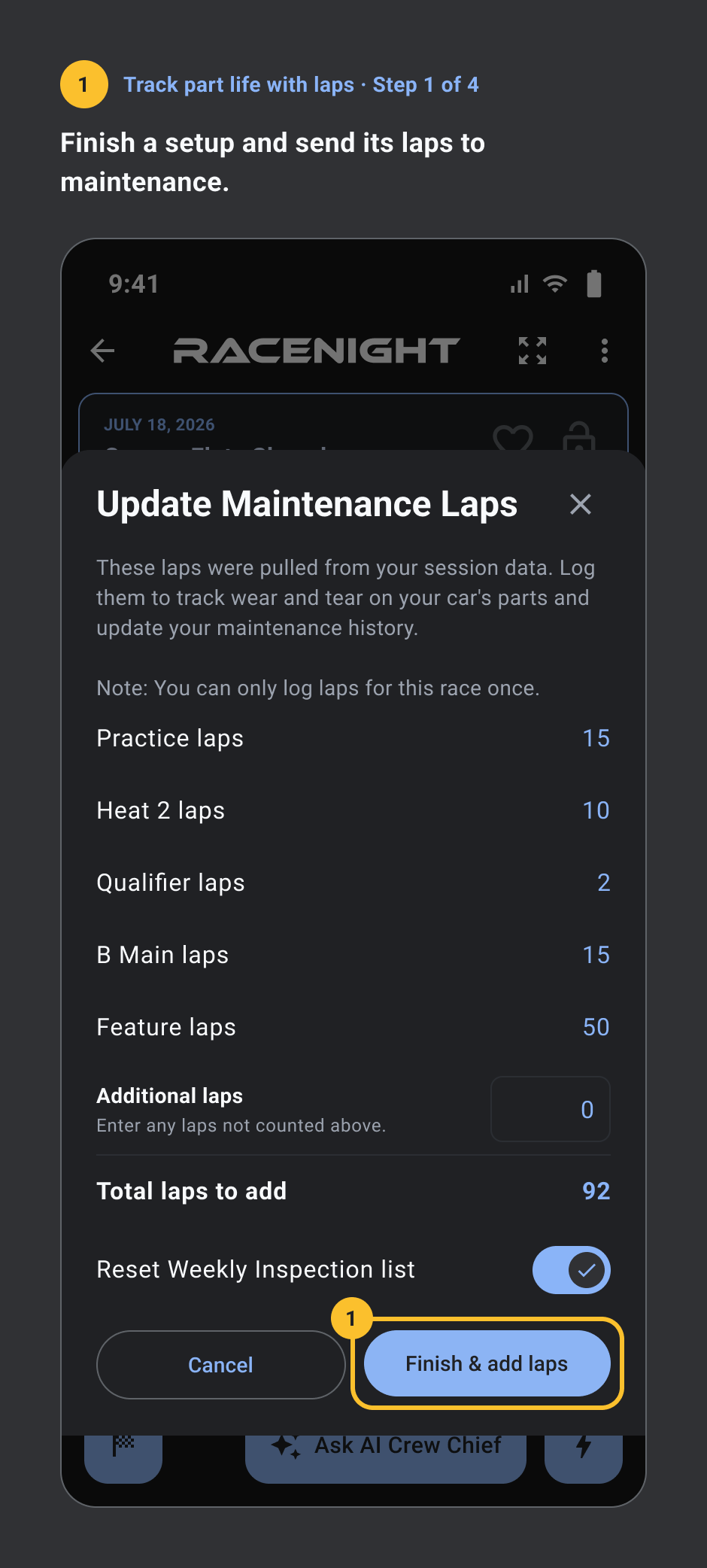
- Finish a setup and send its laps to maintenance.
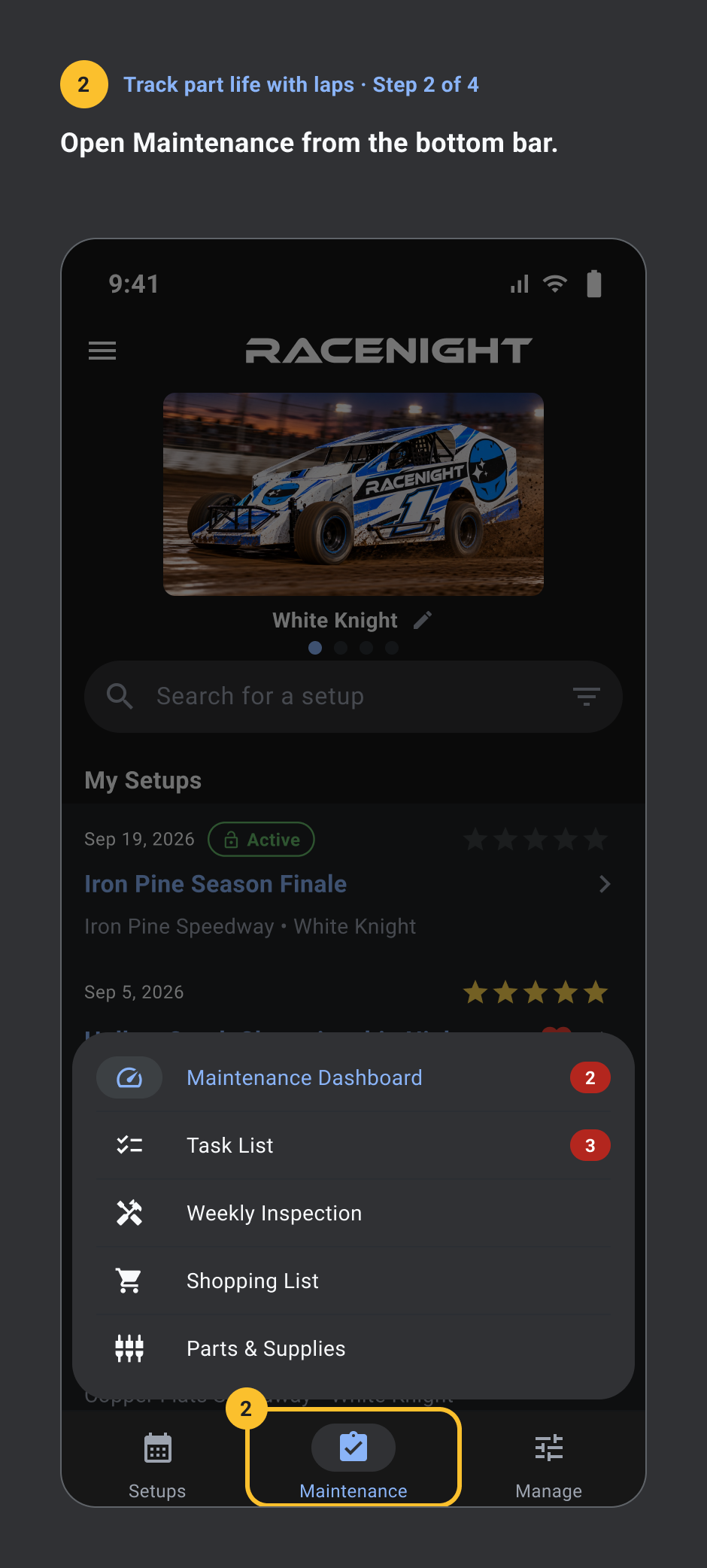
- Open Maintenance from the bottom bar.
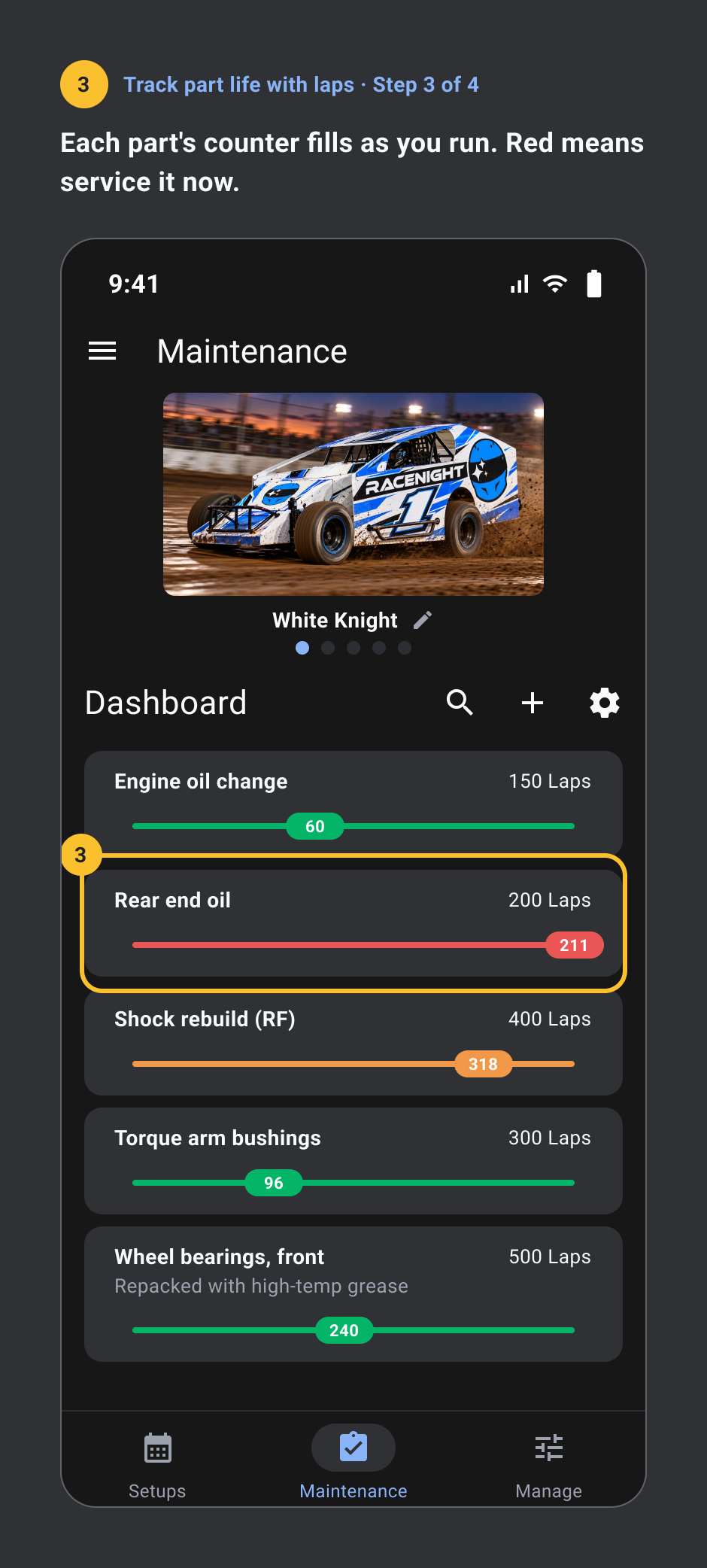
- Each part's counter fills as you run. Red means service it now.
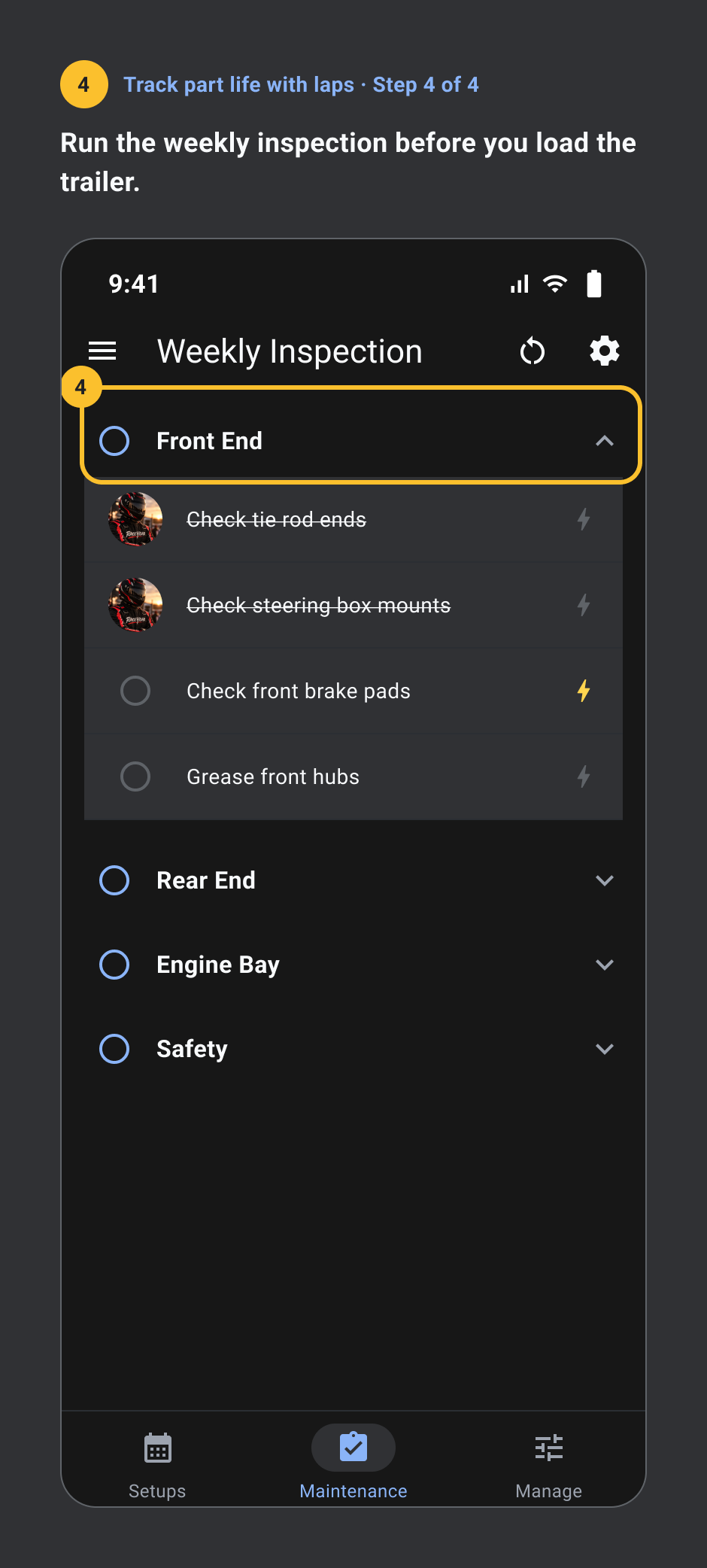
- Run the weekly inspection before you load the trailer.
Share a setup
Pro, needs a signal. 4 steps.
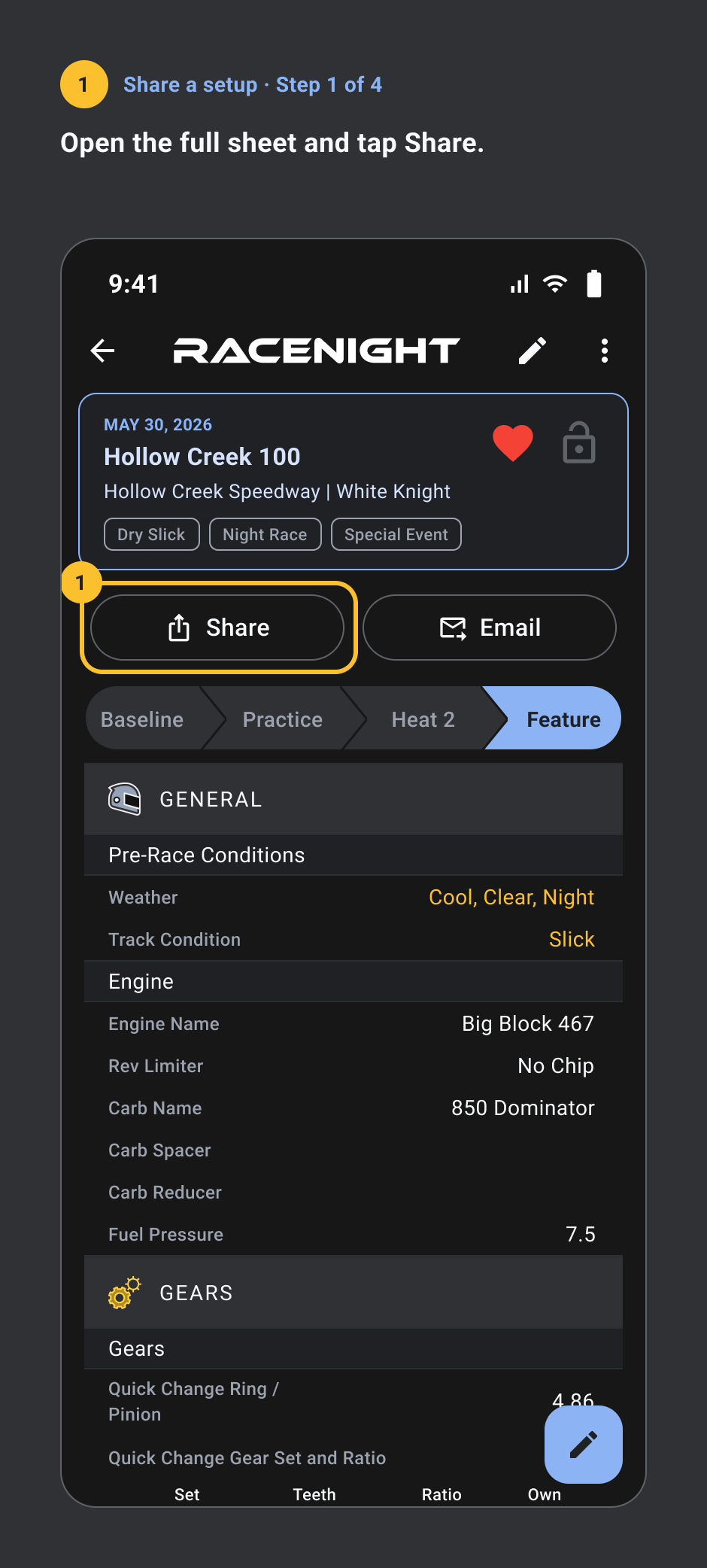
- Open the full sheet and tap Share.
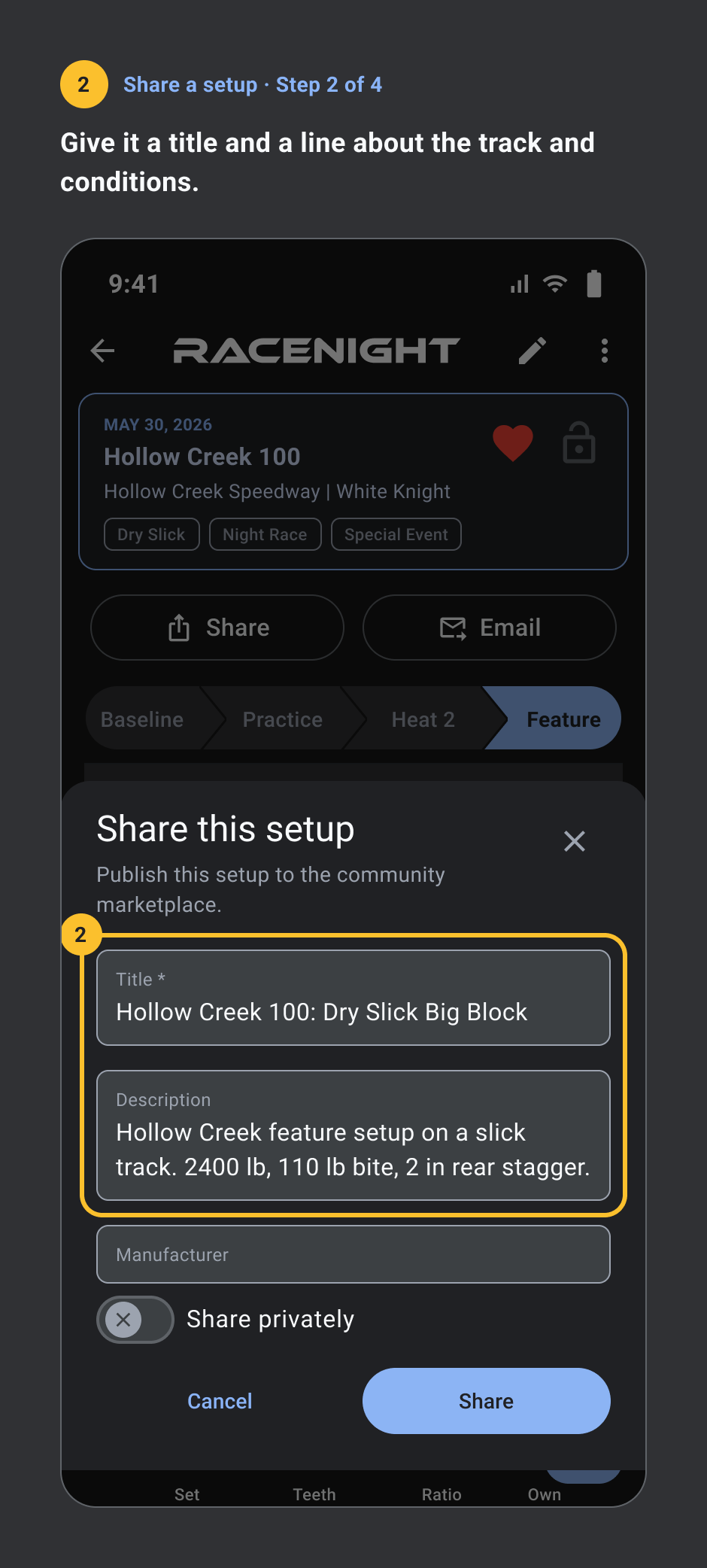
- Give it a title and a line about the track and conditions.
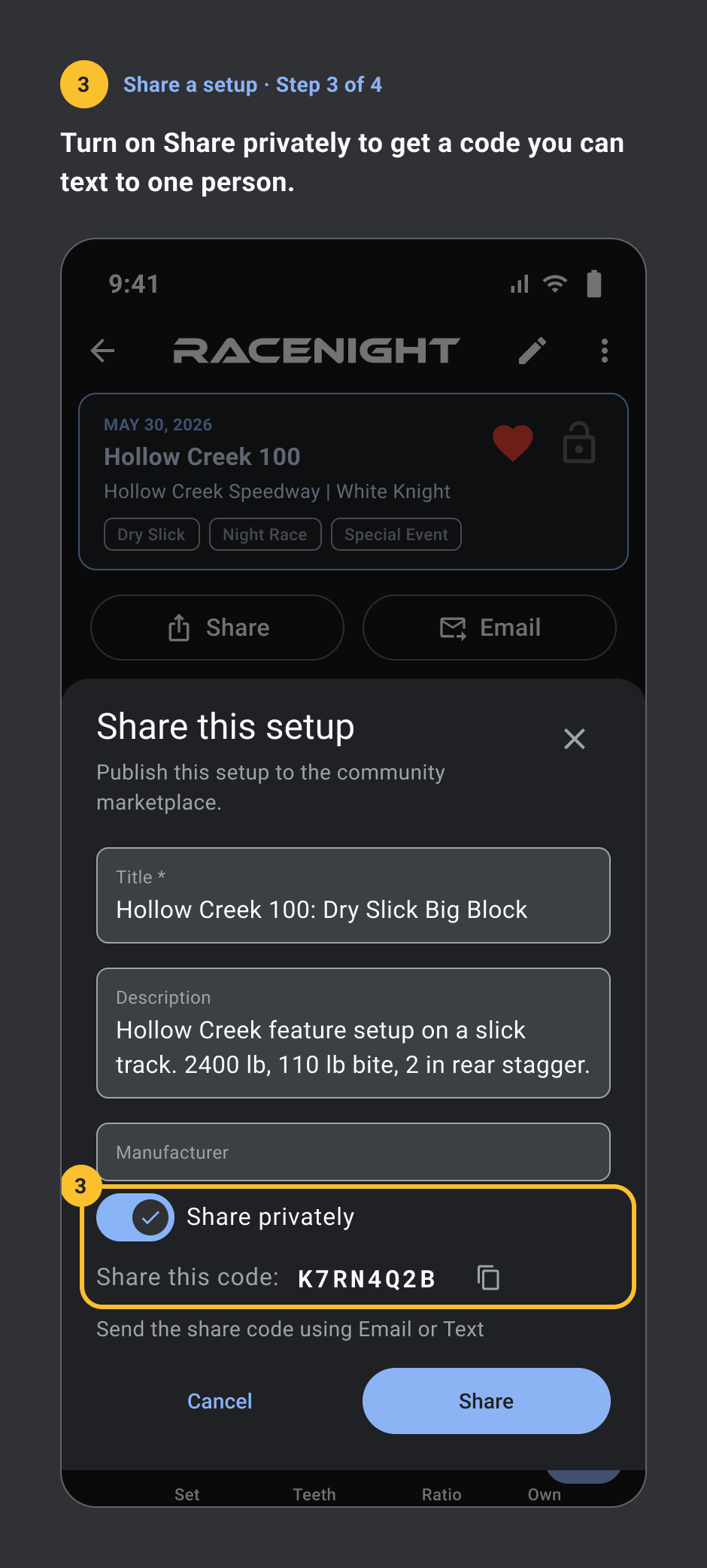
- Turn on Share privately to get a code you can text to one person.
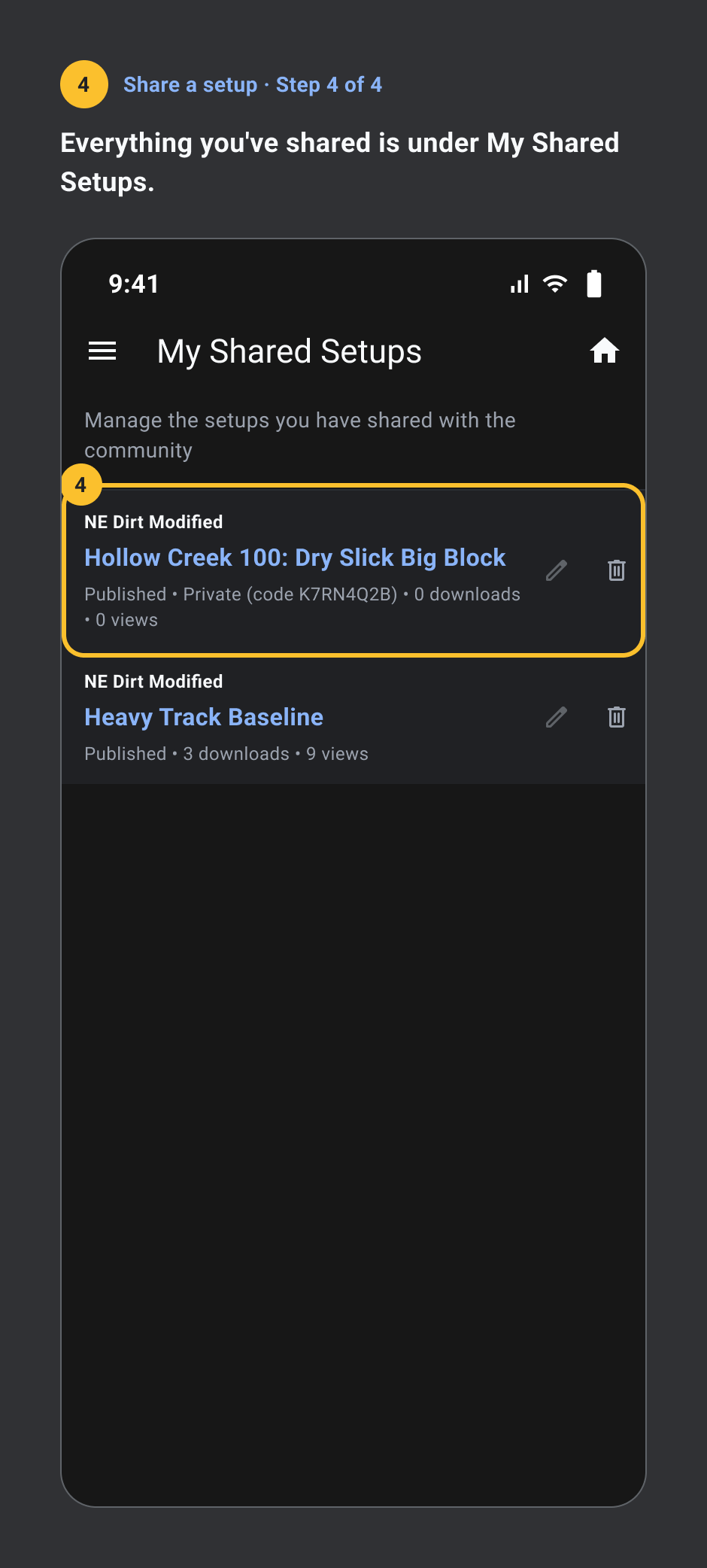
- Everything you've shared is under My Shared Setups.
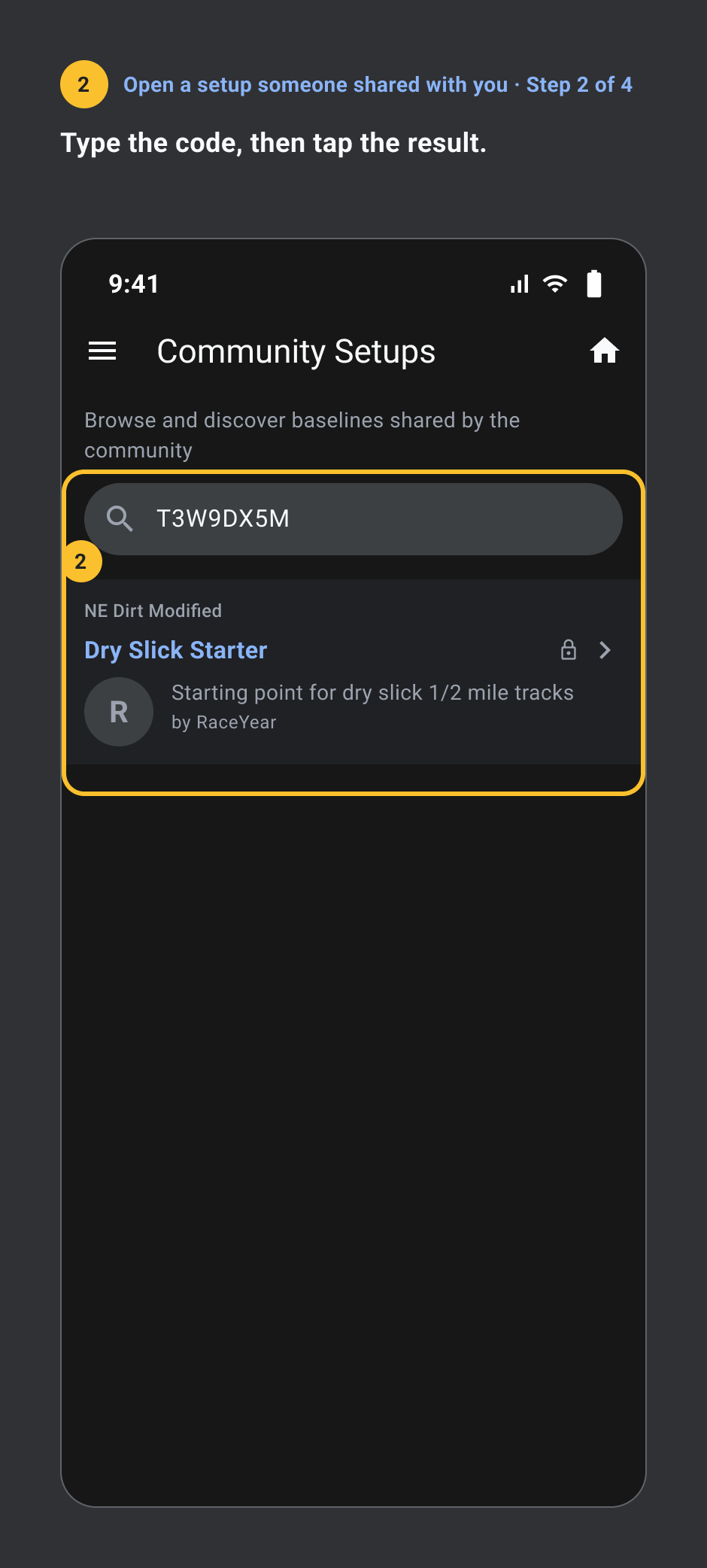
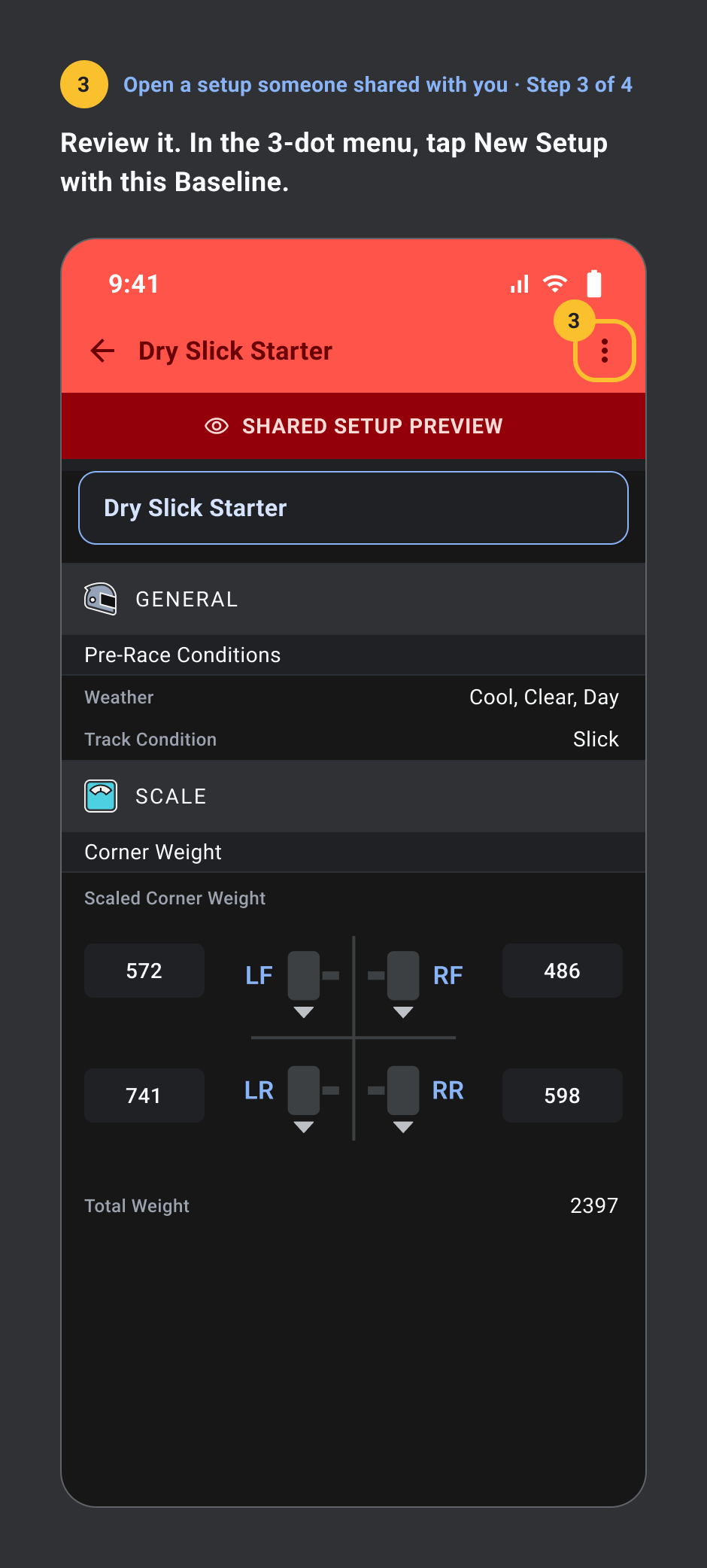
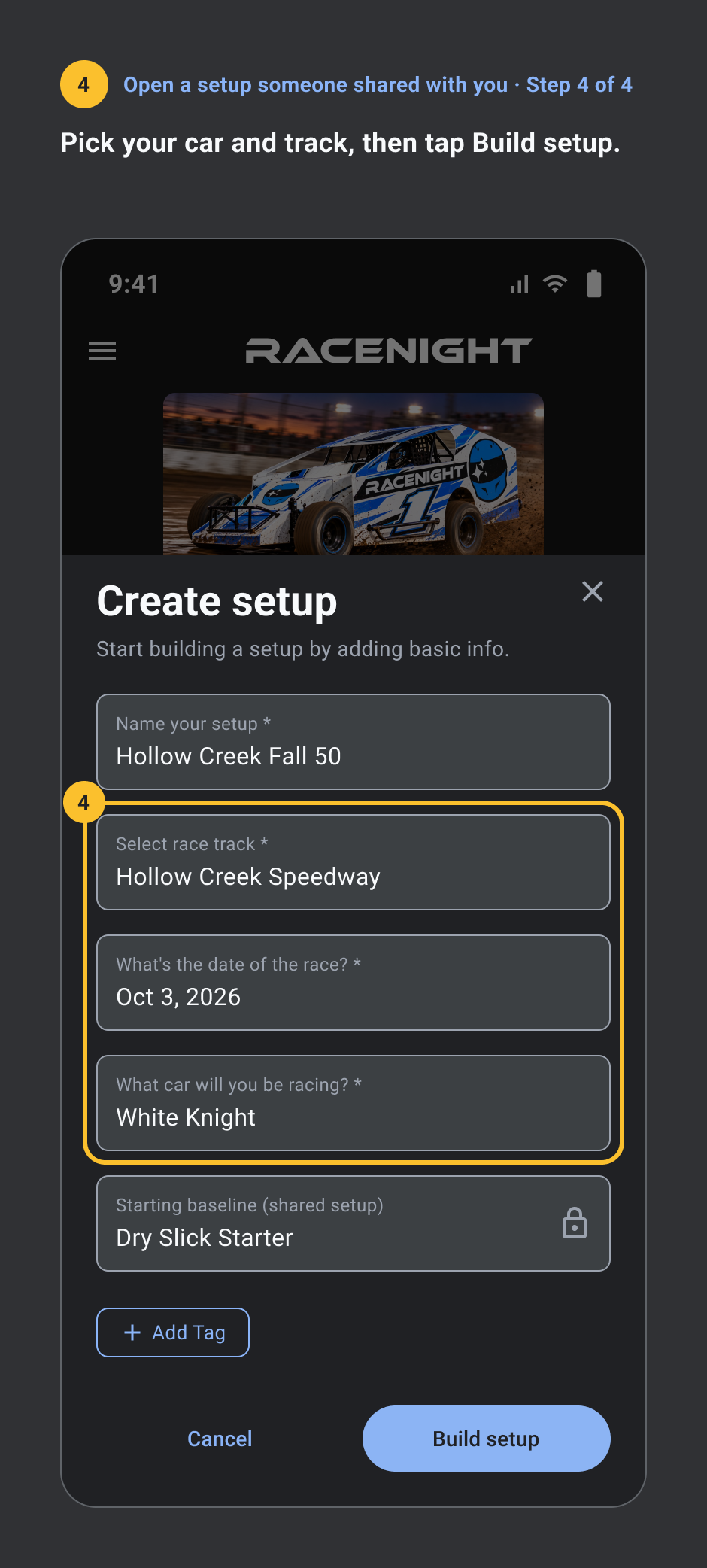
Open a setup someone shared with you
Pro, needs a signal. 4 steps.
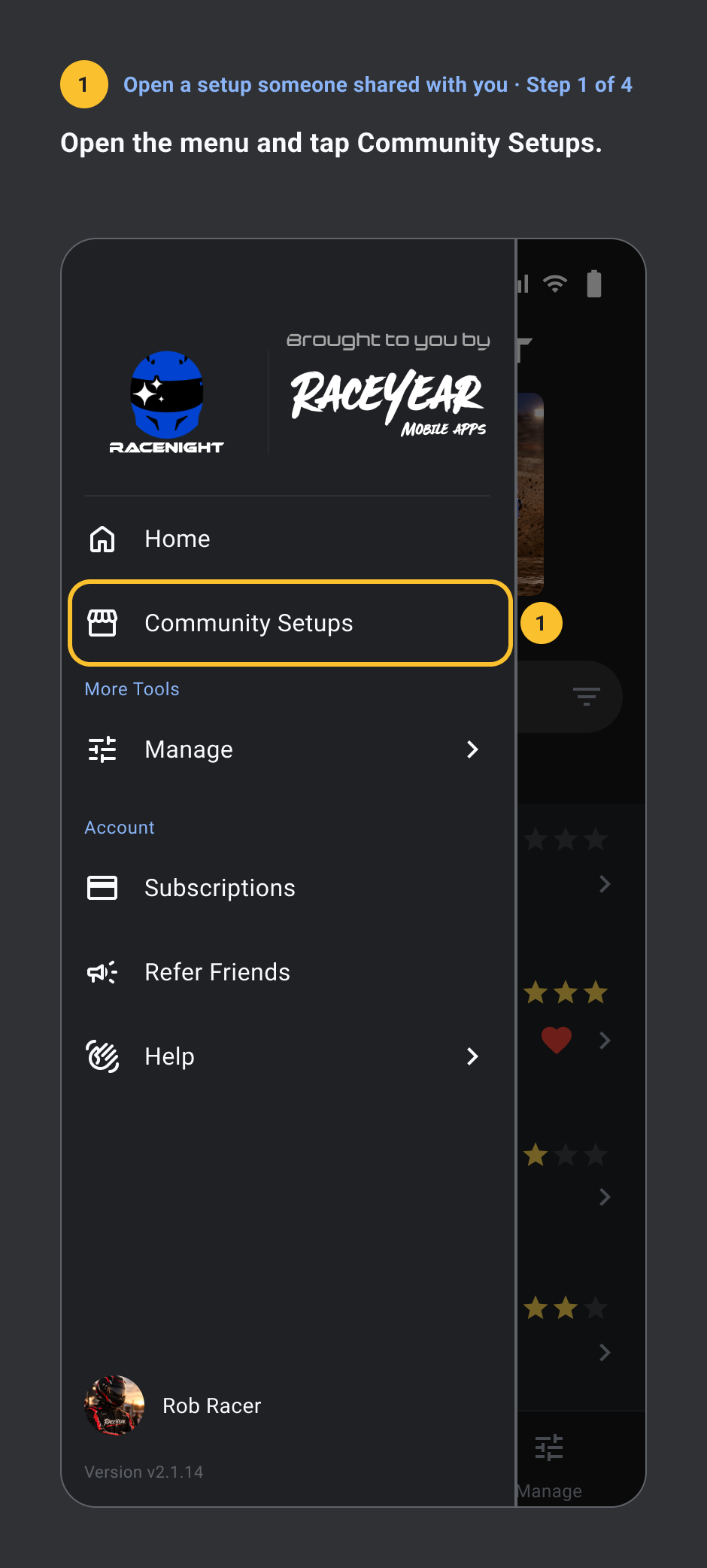
- Open the menu and tap Community Setups.
- Type the code, then tap the result.
- Review it. In the 3-dot menu, tap New Setup with this Baseline.
- Pick your car and track, then tap Build setup.
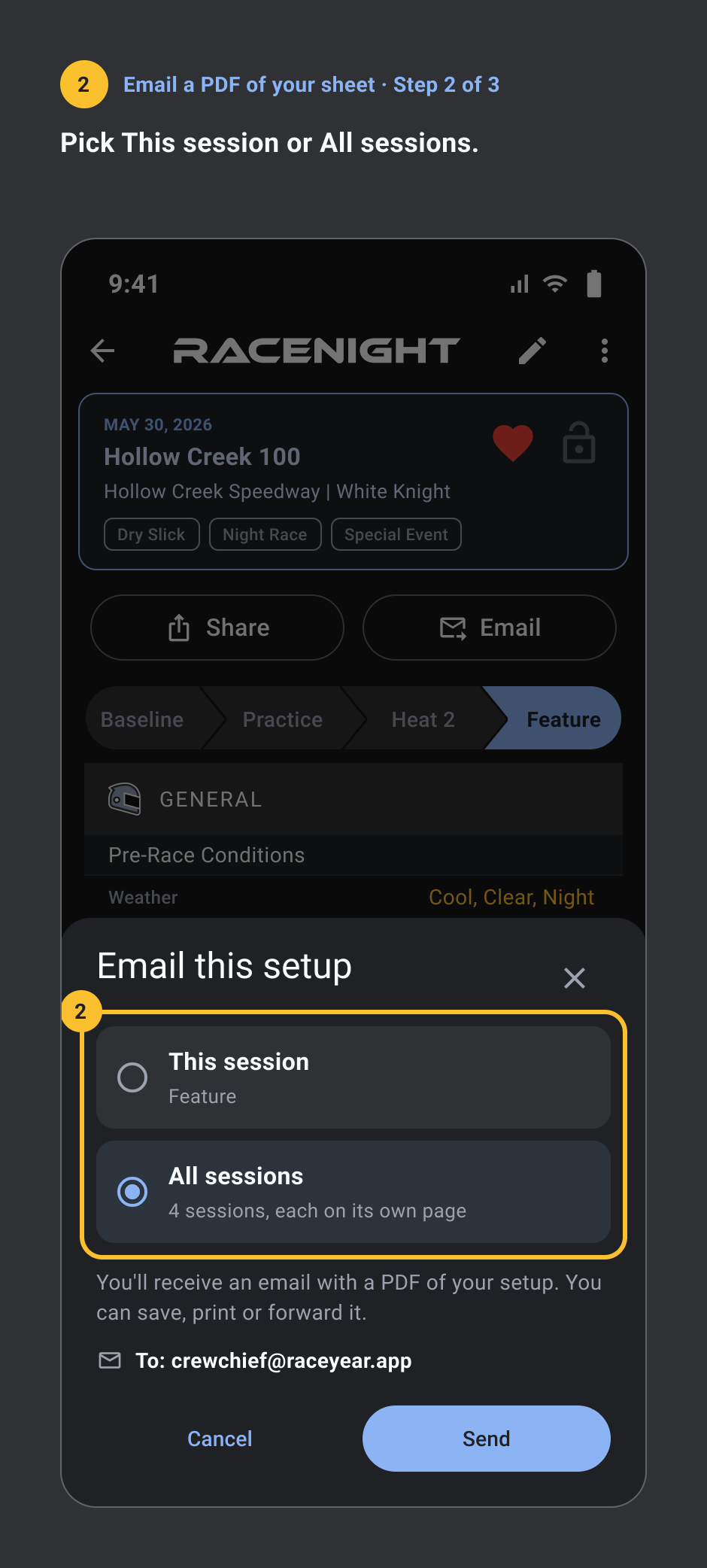
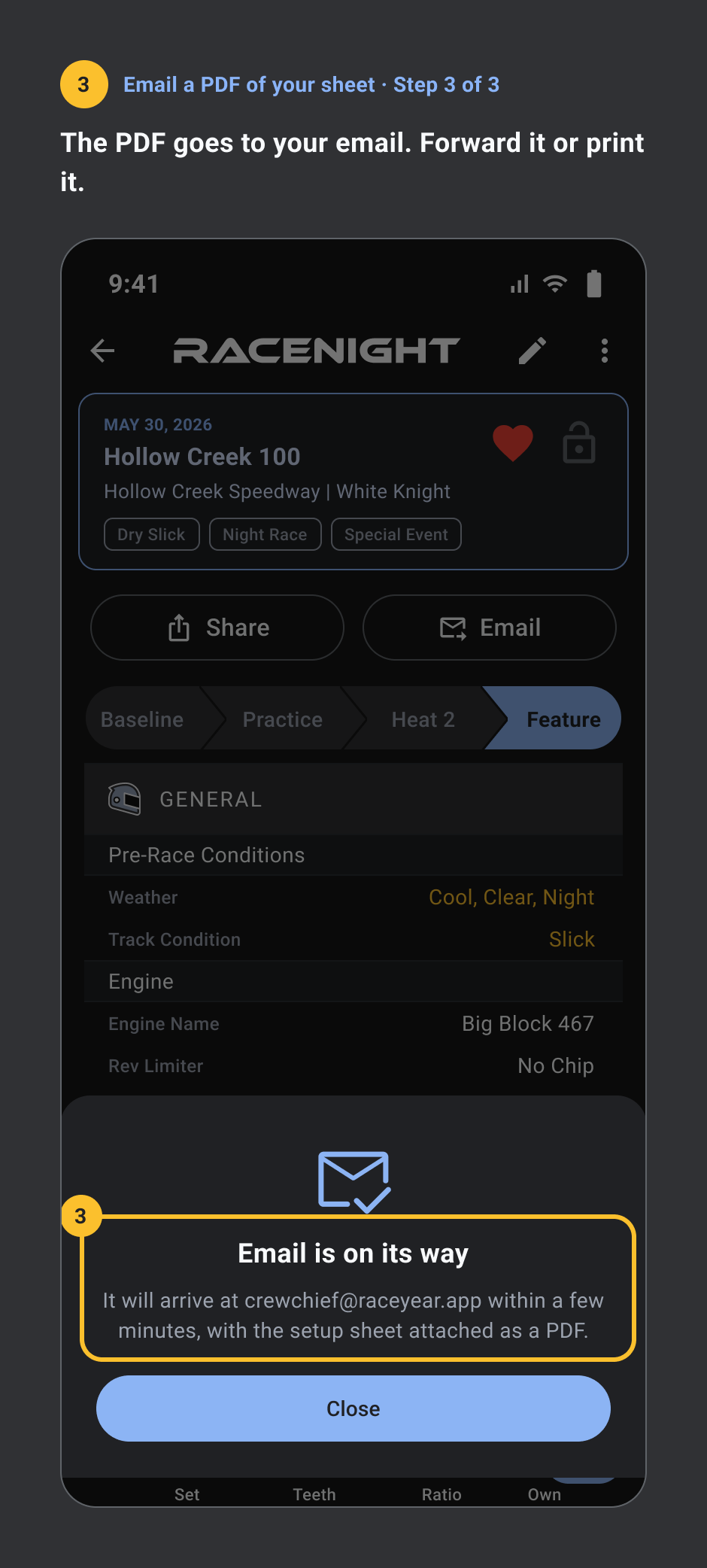
Email a PDF of your sheet
Pro, needs a signal. 3 steps.
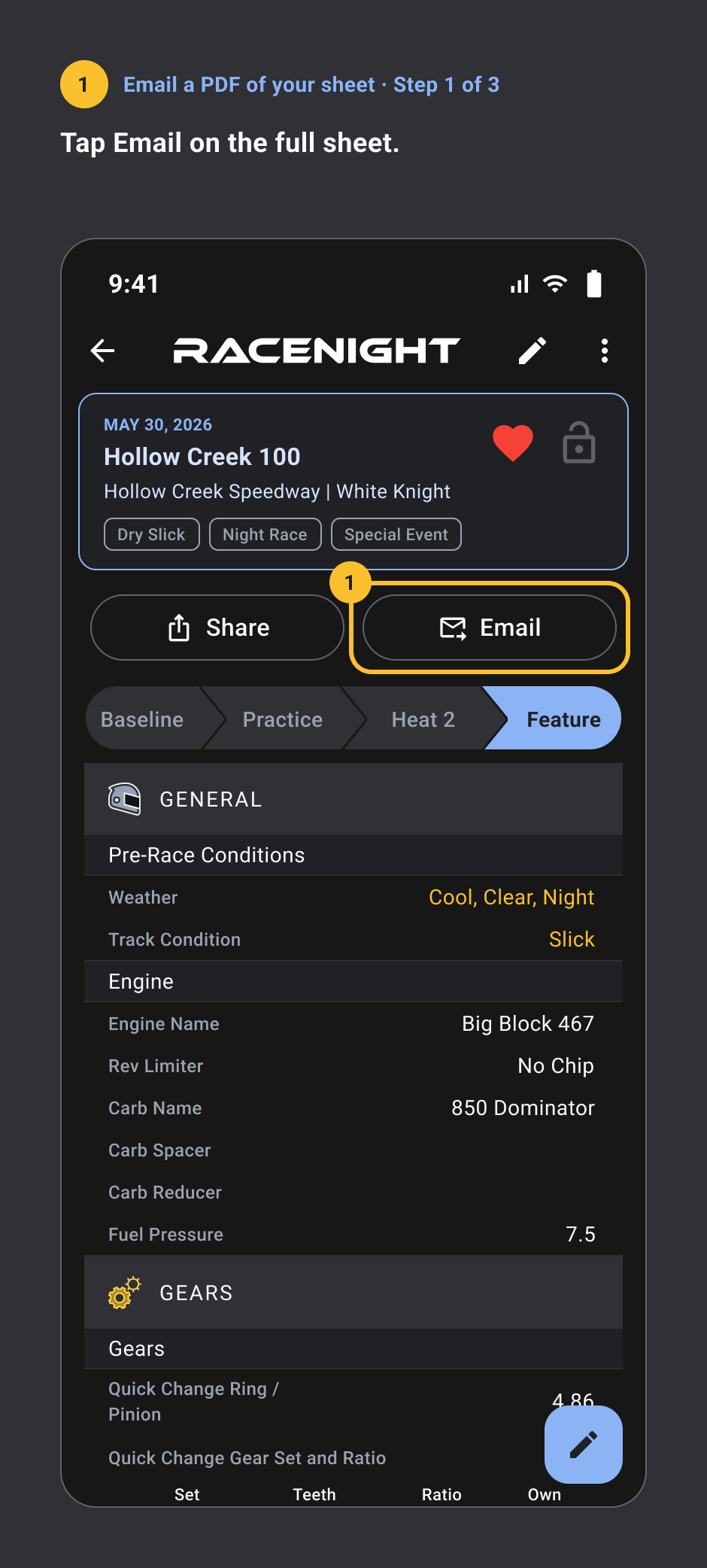
- Tap Email on the full sheet.
- Pick This session or All sessions.
- The PDF goes to your email. Forward it or print it.
Your account
Move to a new phone
Any plan, needs a signal. 5 steps.
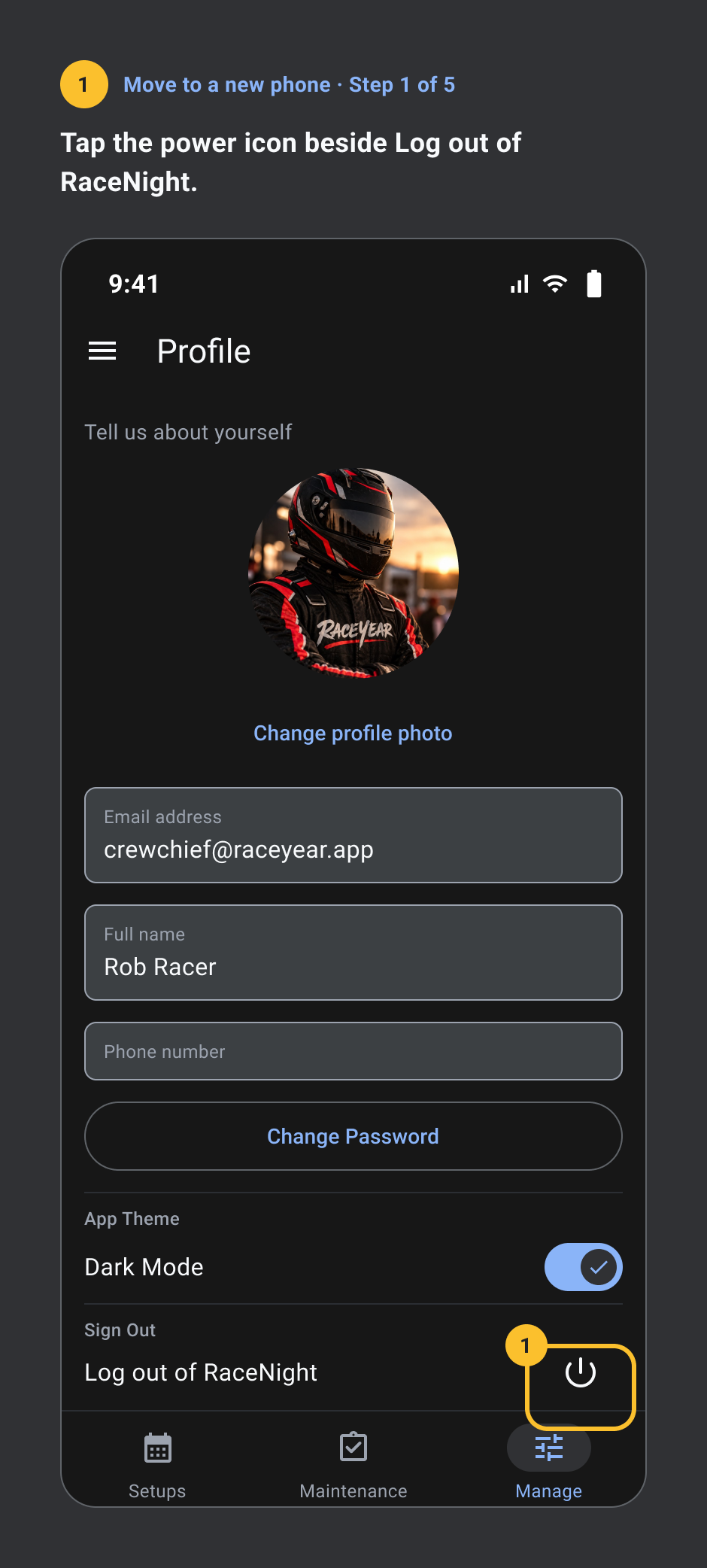
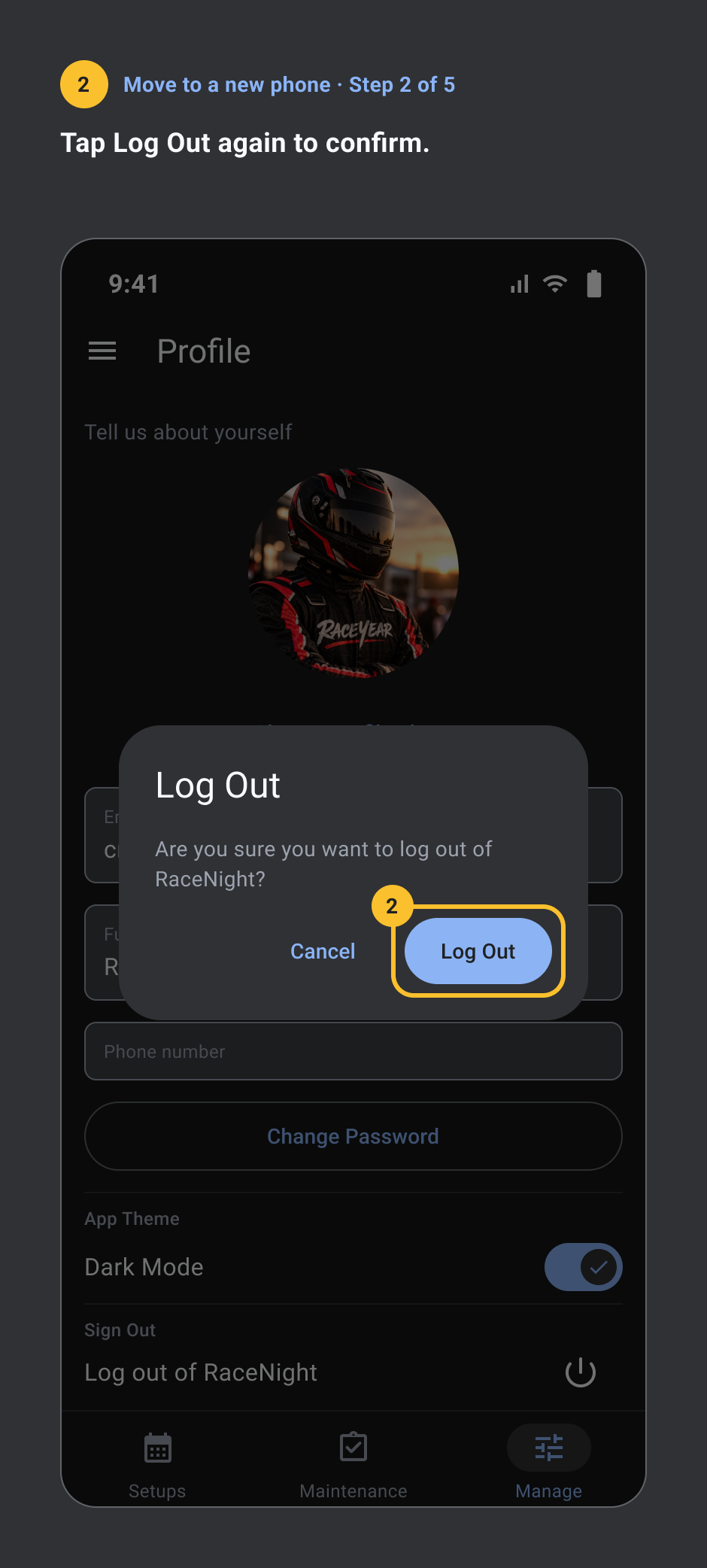
- On the old phone, open Manage, then Profile. Tap the power icon beside Log out of RaceNight.
- Tap Log Out again to confirm.
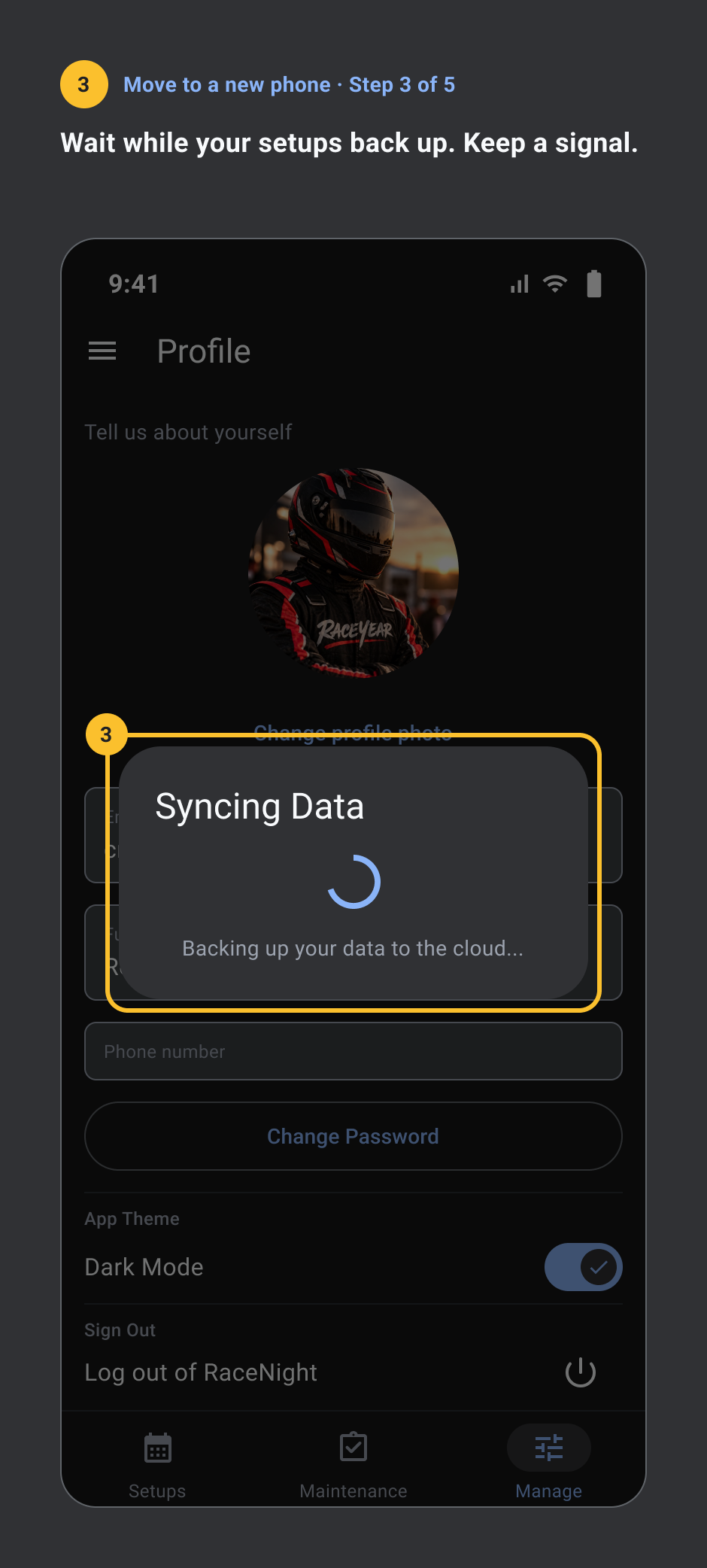
- Wait while your setups back up. Keep a signal.
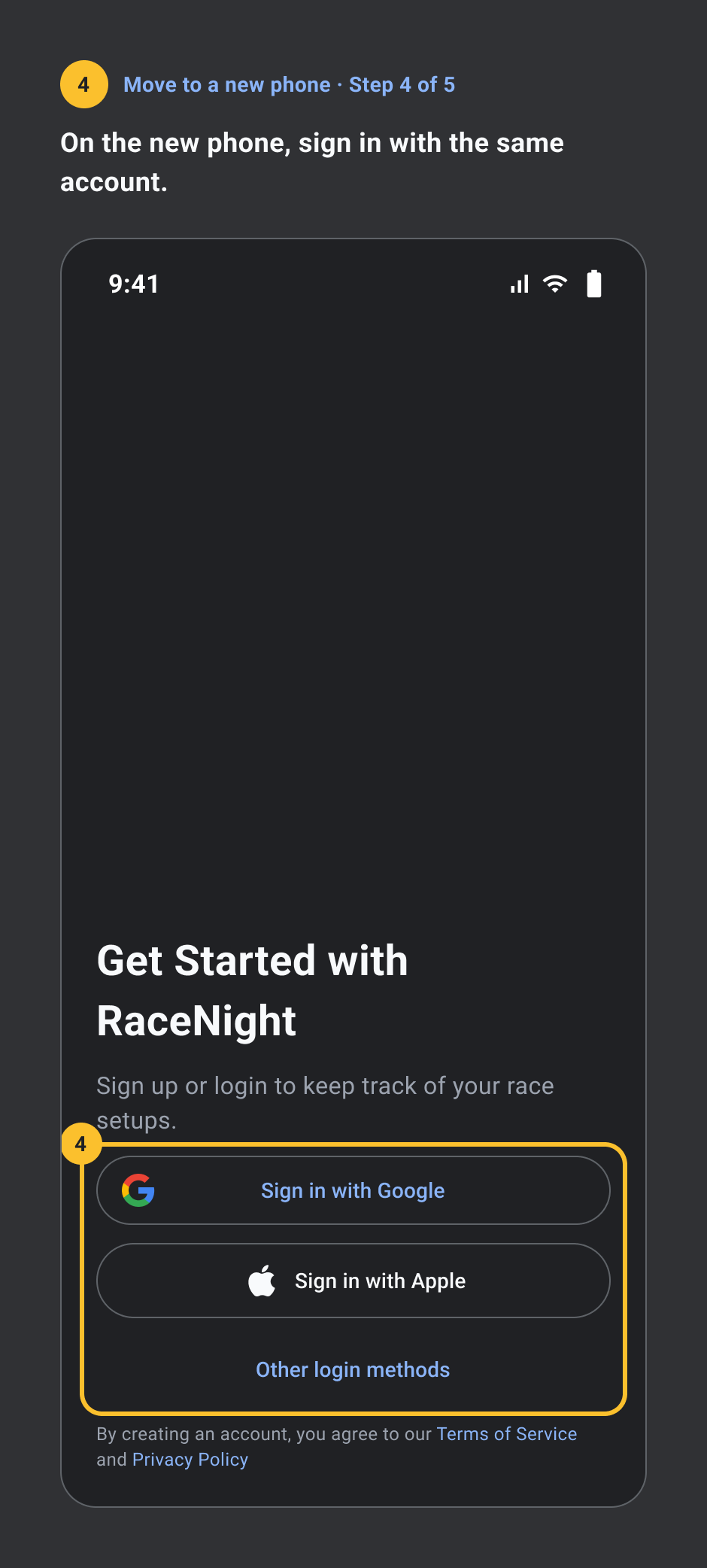
- On the new phone, sign in with the same account.
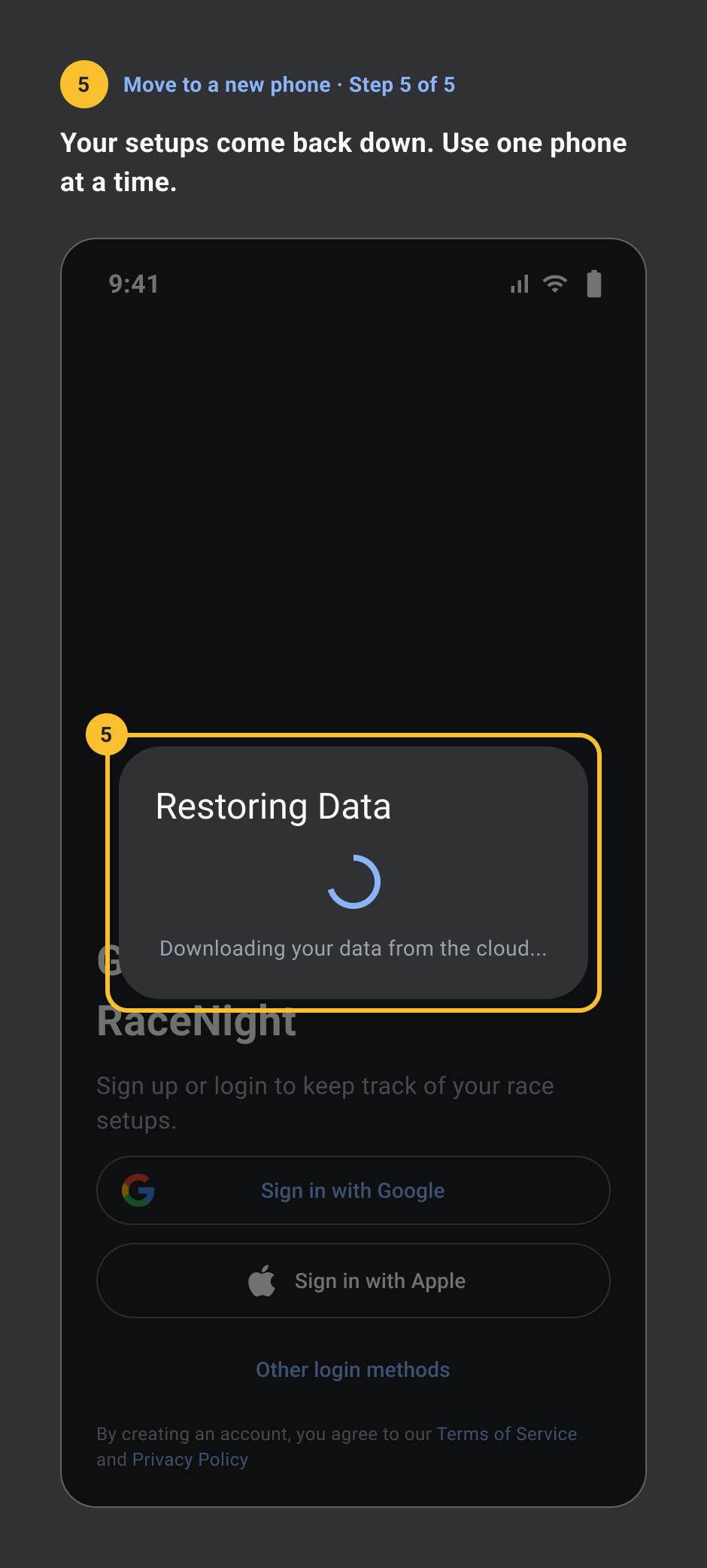
- Your setups come back down. Use one phone at a time.
Get the app
RaceNight is on iOS and Android. Download it on the App Store or Google Play. The app shows how many trial days you have left at the top of your setup list.
Still stuck?
The RaceNight user guide covers every screen, one topic per page. Short answers and how to reach us are on the Help page.