Offline, backup and FAQ
What works with no signal, how backup works, what each icon means, and answers to common questions.
Reference
Icons and badges
Where in the app: Throughout the app
A plain-English key to the icons, badges, chips and colors RaceNight uses, and what each one is telling you.
On the setup list
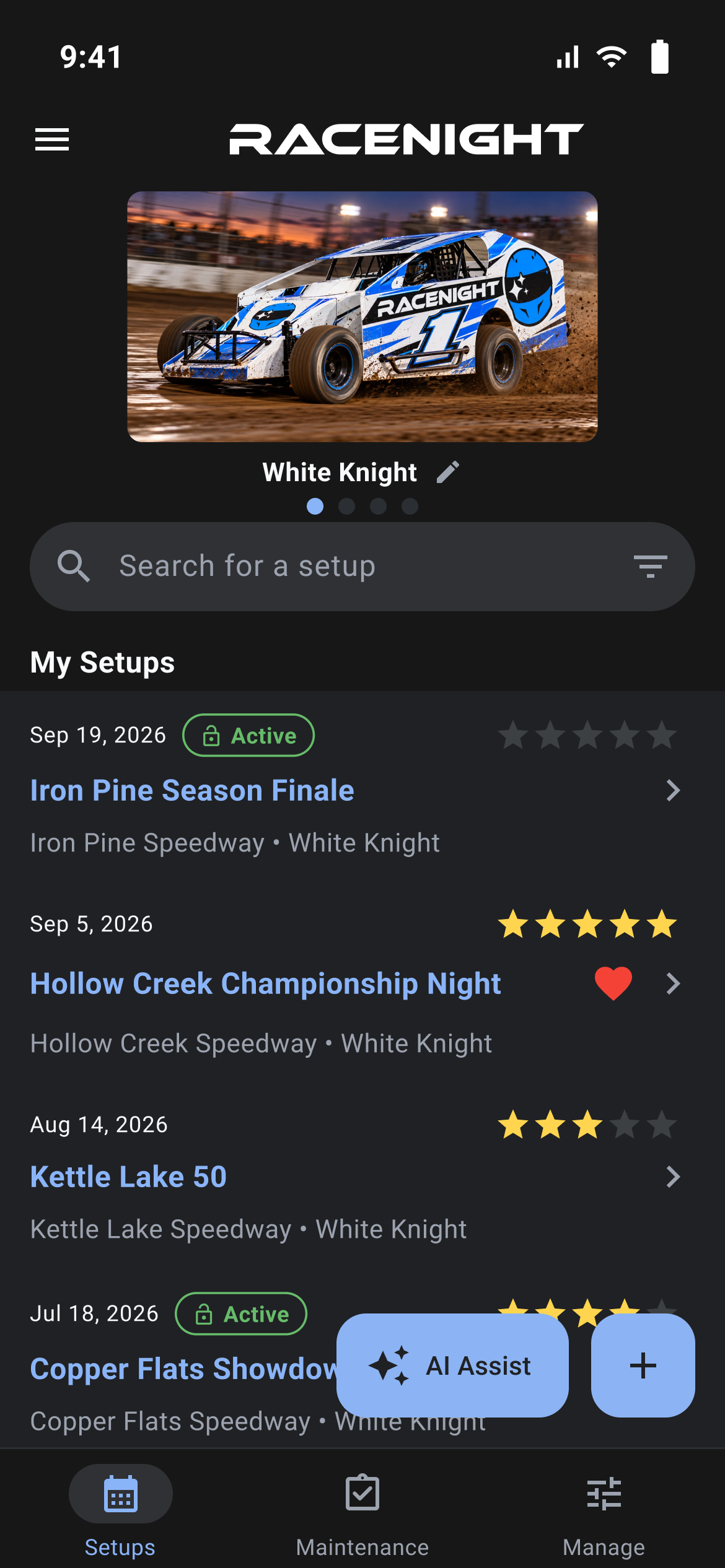
| What you see | What it means |
|---|---|
| Five stars on the right of the top line of a row | The rating from the last session that has one. Colored stars are the rating, the pale ones are the rest. Baselines show no stars. |
| Red heart beside the setup name | The setup is a favorite. |
| Arrow pointing right at the end of a row | Tap the row to open the setup. |
| BASELINE or ARCHIVED at the top left of a row | A baseline or an archived setup. Normal setups show the race date there. |
| Green Active pill with an open lock, beside the date | The setup is still open. Finished setups show no pill, and baselines never have one. |
| Filter icon (three stacked lines) at the right of the search box | Opens Apply Filters. |
| + button, bottom right | Creates a setup. Hidden while your subscription is locked. |
| AI Assist button with a sparkle, left of the + button | Opens AI Assist for the car picked in the carousel, without opening a setup. Works on the RaceNight AI plan too. |
| A banner above the search box counting down your free trial | How many days are left, with Upgrade Subscription beside it. It reads from the cached subscription, so it shows with no signal too. Paid accounts never see it. |
| Update Filters at the right of the Filters header | Opens Apply Filters again. Both the header and this button show only while a filter is on. |
| A chip with a red heart and no text, under Filters | The favorites-only filter is on. |
| A chip reading ★★★ | A minimum rating filter. One star per star you set, no empty stars. |
| Any chip with an × | An active filter. Tap the × to remove that one. |
Inside a setup
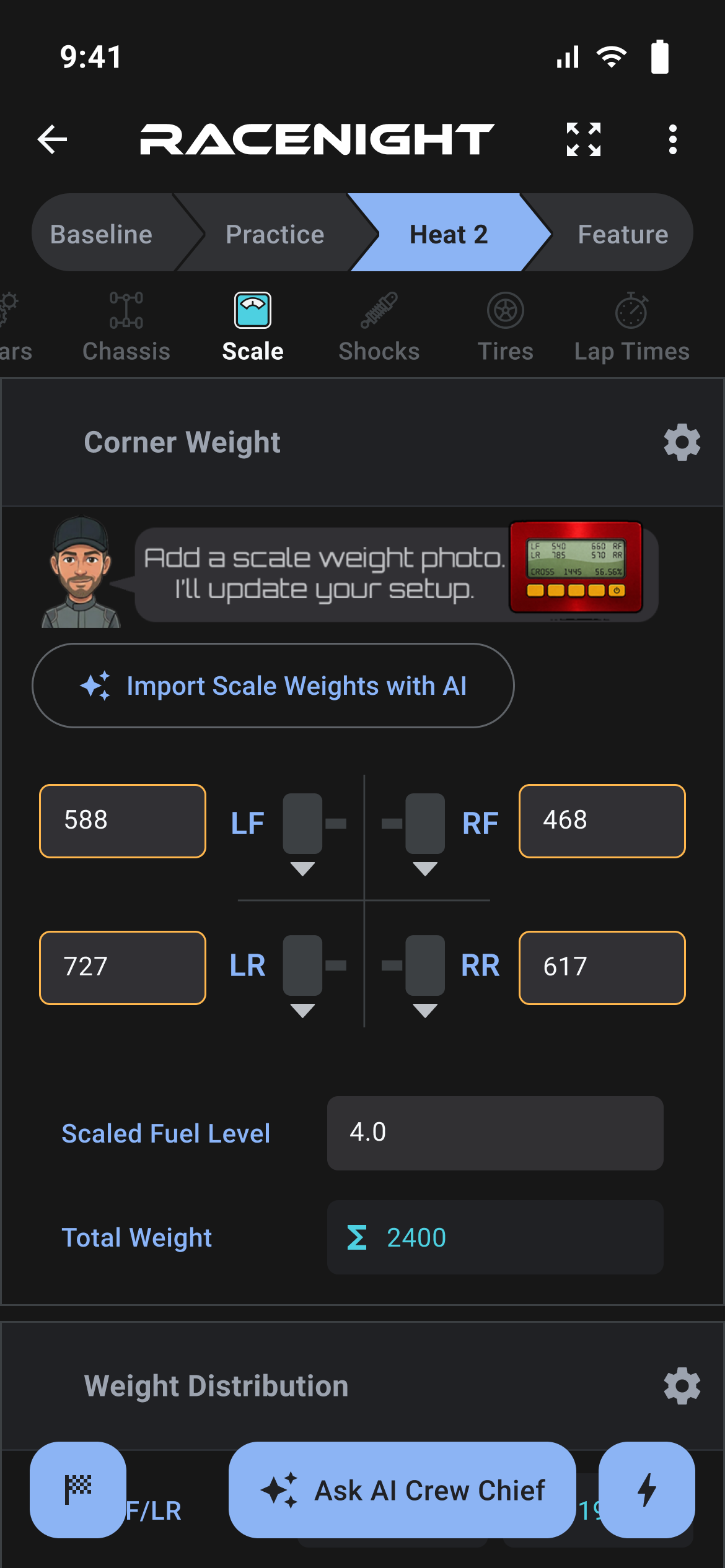
| What you see | What it means |
|---|---|
| A colored ring with a small picture inside, under the session bar | A category. The one you are on has a solid ring and a bold label, the others are faded. Slide sideways for more. |
| 3/7 on a section header | Three of the seven required fields there are filled in. It counts only the required fields that are showing in the session you are on, so the total can differ between sessions. Information only, nothing stops you leaving fields empty. |
| A single number on a photos section header | How many photos that section holds up to the session you are on. |
| Chevron on a section header | Tap the header to open or close the section. Some sections are always open and have no chevron. |
| Gear icon on a section header | Opens Configure Setup Fields for that section. |
| Picture icon on a photos section header | The section has at least one photo. |
| Red warning triangle on a section header | A template update changed fields here. Tap it to read what changed. |
| Σ at the left of a field | A calculated field. Press and hold the Σ to see the formula and the numbers behind it. |
| Pale orange field fill (an orange outline in dark mode) | You changed that value in the session you are on now. |
| Pale blue field fill (a plain gray fill in dark mode) | The value was set in an earlier session and carried forward, or it is a baseline field holding a value. |
| Heart on the right of the setup card | Tap to favorite or unfavorite the setup. It is red when favorited and a gray outline when not. Baselines and template previews have no heart. |
| Open lock on the right of the setup card (a green checkered flag once finished) | Whether the setup is still open or finished. Tap the open lock to finish the setup. |
| Orange stars and gray outline stars in a rating field | Your rating. Tap or drag across the stars to change it. |
| Checkered flag button, bottom left | Finish the setup and add its laps to Maintenance. It goes away once the setup is finished. |
| Lightning bolt button, bottom right | Opens the setup tools menu. |
| Sparkle button labeled Ask AI Crew Chief, to the left of the lightning bolt | Only appears when the template behind the setup has a crew chief. |
| Pale red bar reading TEMPLATE PREVIEW with "• Values not saved", where the session bar normally sits | You are previewing a template, not working on a setup. |
| Yellow bar reading BASELINE | You are looking at a baseline. To change it, build a setup from it and save a new baseline. |
On templates
- PRO pill on the corner of a template picture: that template is on the Pro tier.
- Switch beside a template: on means the template appears in your list when you create a setup. Every template you can see is already on the phone; the switch only picks which ones you use.
- A switch that will not move, plus a dialog titled "Sneak Peak" reading "This is a preview only template and cannot be added to your account.": the template is preview only. You can look at it, but you cannot add it.
Empty lists
- "No items found" where the setup list should be: your filters match nothing. Open the filter and clear one.
- "No baselines found": you have no baselines in the list you are looking at.
- A crossed-out cloud above "No templates available" and "Please check your internet connection and try again": no templates have been downloaded yet. Get a signal, then tap the circular arrow on Manage Templates to fetch them.
Locked and grayed out
- Full-screen upgrade page with Upgrade Subscription at the bottom. With a close X at the top right, you are on the RaceNight AI plan and tapped a RaceNight Pro feature. Without one, no plan is active and nothing else is reachable until you buy or restore a plan.
- A grayed switch in Configure Setup Fields: that template does not allow that field to be hidden.
Offline and syncing
- A cloud with a line through it, in a bar at the bottom, titled "No internet connection": you just lost signal. It shows at most once an hour.
- The same cloud icon in a dialog titled "You're in Offline Mode": green ticks list what still works, pause icons list what is on hold. I understand is the only way to close it. It is not raised when the signal drops. It appears only when something you tapped tried to reach the server and could not, such as a track or car search, so you can be offline a long time and never see it.
- A bar reading "Data Updated" and "Synced at 1:24 am": a background sync brought down new templates or lookup tables. If nothing changed, there is no message.
- A thin progress line under the top bar: something is loading.
- Circular arrow on Manage Templates: syncs your data now.
Working offline and syncing
Where in the app: Anywhere in the app
What RaceNight can do at a track with no bars on your phone, what has to wait for a signal, and how your data gets to and from the server.
What works with no signal
- Creating, opening and editing setups, and every value you type
- Searching and filtering the setup list
- Baselines, tags, best practices, and photos already on the phone
- The full setup sheet and calculated fields
- Template pictures you have already loaded once, and your light or dark theme
- Opening the app when you are already signed in. It waits five seconds for the server, then carries on offline.
What needs a signal
- Everything AI: the crew chief, AI fields and AI photos
- Searching for a track, and adding one from a search result. Adding a track by hand and editing the ones you already have both work with no signal.
- Adding a new car and changing your race class list. Editing or deleting a car you already have works with no signal.
- Downloading templates and lookup tables
- Community Setups, sharing a setup, emailing a PDF, and sending laps to maintenance when you finish a setup
- Signing in, registering, subscriptions and purchases
- Backup and restore, and uploading a profile photo
When syncing runs
RaceNight syncs on its own, twenty five seconds after you open the app, every ten minutes while it is on the screen, and straight away whenever you bring it back to the front. The timer stops while the app is in the background. To sync by hand, open Menu → Manage → Templates and tap the circular arrow, or pull the template list down.
A sync sends up your queued usage events, refreshes your subscription status, downloads any template or lookup table that changed, and tidies up your race class list. It does not upload your setups or your database.
At the end of every sync the app also asks the app store whether there is a newer RaceNight. If there is, a dialog headed "New Update Available!" reads "Update to get the latest features and experience." and offers Get Update Now, which opens the store listing, and Maybe Later, which closes it. You see it at most once each time you open the app, and never when the store cannot be reached.
Where your data lives
- On the phone: your setups, every value you type, sessions, cars, tracks, tags, baselines, notes, and photo files.
- On the server: templates and their change history, lookup tables, the race class list, your account and subscription, and a compressed copy of your phone database plus your photos once a backup has been made.
Backup and restore
- The app backs up automatically when you sign out. You see "Syncing Data" and "Backing up your data to the cloud...", then it clears the phone and returns you to the sign in screen.
- If that backup fails you get "Backup Warning" reading "Failed to backup your data to the server. If you logout now, you may lose unsaved data. Continue?" with Cancel and Logout Anyway. Tap Cancel, get a signal, and sign out again. Logout Anyway still clears the phone.
- When you sign in fresh and the server holds a backup, "Restoring Data" and "Downloading your data from the cloud..." appear and your data comes back. There is no Cancel on this one.
- A restore replaces everything on the phone with the backup.
- Photos travel separately from the database, so a photo that failed to upload is simply missing after a restore.
Signing in on another phone
Restoring only happens on a fresh sign in. A phone that is already signed in never pulls down a newer backup made somewhere else, and two phones on the same account overwrite each other's backups with no merging. Sign out of one before you use the other.
Frequently asked questions
Where in the app: Anywhere in the app
Short answers to the things racers ask most, with a link to the topic that covers each one in full.
Setups and values
Where is the Save button?
There isn't one. A value is written as soon as you move off the field, press the keyboard's done key, or switch sessions. See Filling in fields.
A setup I know I made is not in the list. Where is it?
The list is filtered to one car by default, and it goes back to one car every time you return to the Setups tab. Swipe the car carousel to the right car, or open the filter and clear it. See Your setup list.
I typed a value in Practice and it also shows in Qualifier. Is that broken?
No. Values carry forward so you only record what changed. Comment fields and a few fields the template marks as no-carry start blank in every session. See Sessions.
Can I add, rename or delete a session?
You can rename them and show or hide them, but you can't add or delete them. Open the 3-dot menu, pick Edit sessions, then tap a name to rename it or flip its switch to show or hide it. The template sets the slots, up to 12. A session that already holds values can't be hidden. See Sessions.
Why is a field showing Σ and refusing to let me type?
It is calculated from other fields. Press and hold the Σ to see the formula and the values behind it. See Calculated fields.
A calculated field is blank, or says N/A. Why?
Blank means a field it needs is still empty. N/A means the sum could not be worked out, for example a divide by zero. See Calculated fields.
How do I get rid of a setup I do not want?
Swipe the row and choose Archive. It leaves the list straight away with no confirmation, and you get it back by turning on My archived setups in the filter and swiping Unarchive. The same swipe on a baseline offers Delete instead, and that one does ask first: a dialog headed "Delete Baseline" asks whether you are sure you want to delete it, names the baseline, and gives you Cancel or Delete. See Your setup list.
Templates and updates
How do I get the newest version of a template?
Open Menu → Manage → Templates and tap the circular arrow. Templates also come down on their own in the background. See Templates.
My session names changed after an update. Why?
A template update refreshes the session names from the template. Your values stay put. See Template updates.
What is the red warning triangle on a section?
A template update moved or removed fields, so those old values no longer have a field to sit in. Tap the triangle to read which ones, then type them into the new fields. See Template updates.
Account and offline
Can I use RaceNight at a track with no signal?
Yes for filling in setups. AI, Community Setups, sharing a setup, emailing a PDF, sending laps to maintenance, adding a new car, track search and template downloads wait until you are back online. See Working offline.
Do I need to back up before I go racing?
The app backs up when you sign out, and restores on the next fresh sign in whenever the server is holding a backup. There is no timed backup, so sign out when you finish with a phone. See Working offline.
Will my setups appear on my second phone?
Only on a fresh sign in, and only from the last backup. A phone already signed in never pulls down newer data, and two phones on one account overwrite each other. See Working offline.
My trial ended. Have I lost my setups?
No. Your setups stay on the phone. Buy or restore a plan from the Upgrade Subscription screen and everything is where you left it. See Subscriptions and purchases.
The app is not following my phone's dark mode.
RaceNight follows your phone only on the very first launch. After that it uses the Dark Mode switch under App Theme on the Profile page, which you open by tapping your name at the bottom of the menu. See My Profile.
I made my phone's text bigger and nothing changed in RaceNight.
RaceNight draws its text at a fixed size and ignores the phone's font size setting. See My Profile.