Community setups
Browse setups other racers share, share your own publicly or with a private code, and manage what you've shared.
Community Setups [RaceNight Pro]
Browse community setups
Where in the app: Menu → Community Setups
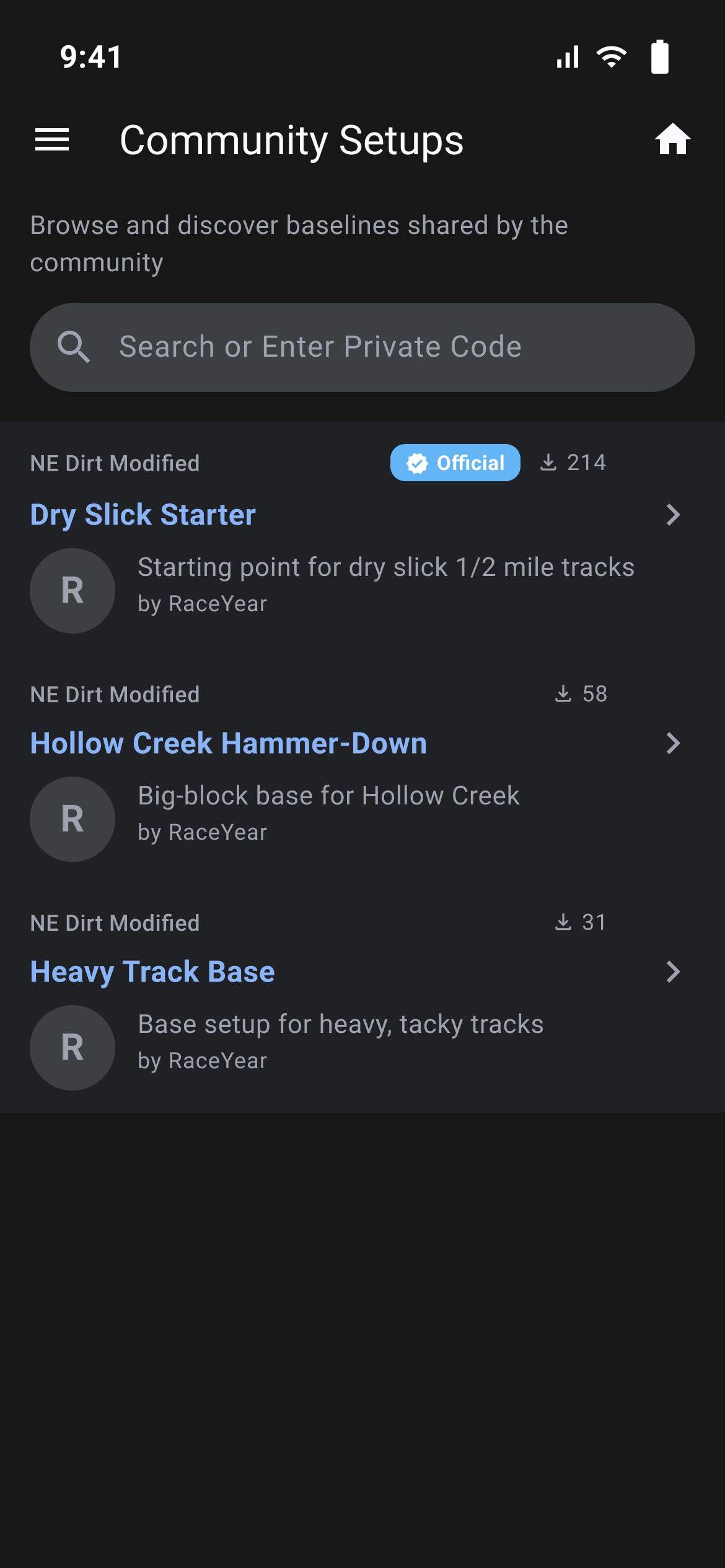
Look through baselines other racers have published and use one as the starting point for a setup of your own.
Open Community Setups
- Open the menu from the app bar.
- Tap Community Setups.
The page opens under "Browse and discover baselines shared by the community" and shows only the listings for the race classes your cars belong to. A spinner covers the page while it first loads. Pull down to refresh. The home icon returns you to your home screen.
What each listing shows
- The race class, then badges in this order: NEW for recent, Expired for a private share that has run out, Official for verified
- Download and view counts, shown only when above zero
- The title in color, or "Untitled", with a padlock when the setup was shared privately
- The publisher's photo, their initial, or a person icon; the description, up to two lines; the manufacturer in bold; and "by" plus the publisher's name
Search and filter
Type in the box marked Search or Enter Private Code. The search runs on the server. Tap the filter icon for Apply Filters:
- Sort by: Latest (newest first) or Popular (most downloads, newest breaking ties; the default)
- Official only: off by default; on, verified listings only
- Manufacturer and Race Class: tap chips to narrow the list, All clears that group
- Clear all drops every filter and resets the sort to Popular, without closing the sheet
- Show results closes the sheet. Filters apply as you tap them
- The x in the sheet's header closes it as well
A Filters row then shows one chip per filter. A sort choice gets no chip and does not bring the row up on its own, so Clear all can reset it without warning. Tap a chip's x to drop it, or Update Filters to reopen the sheet.
Preview a setup
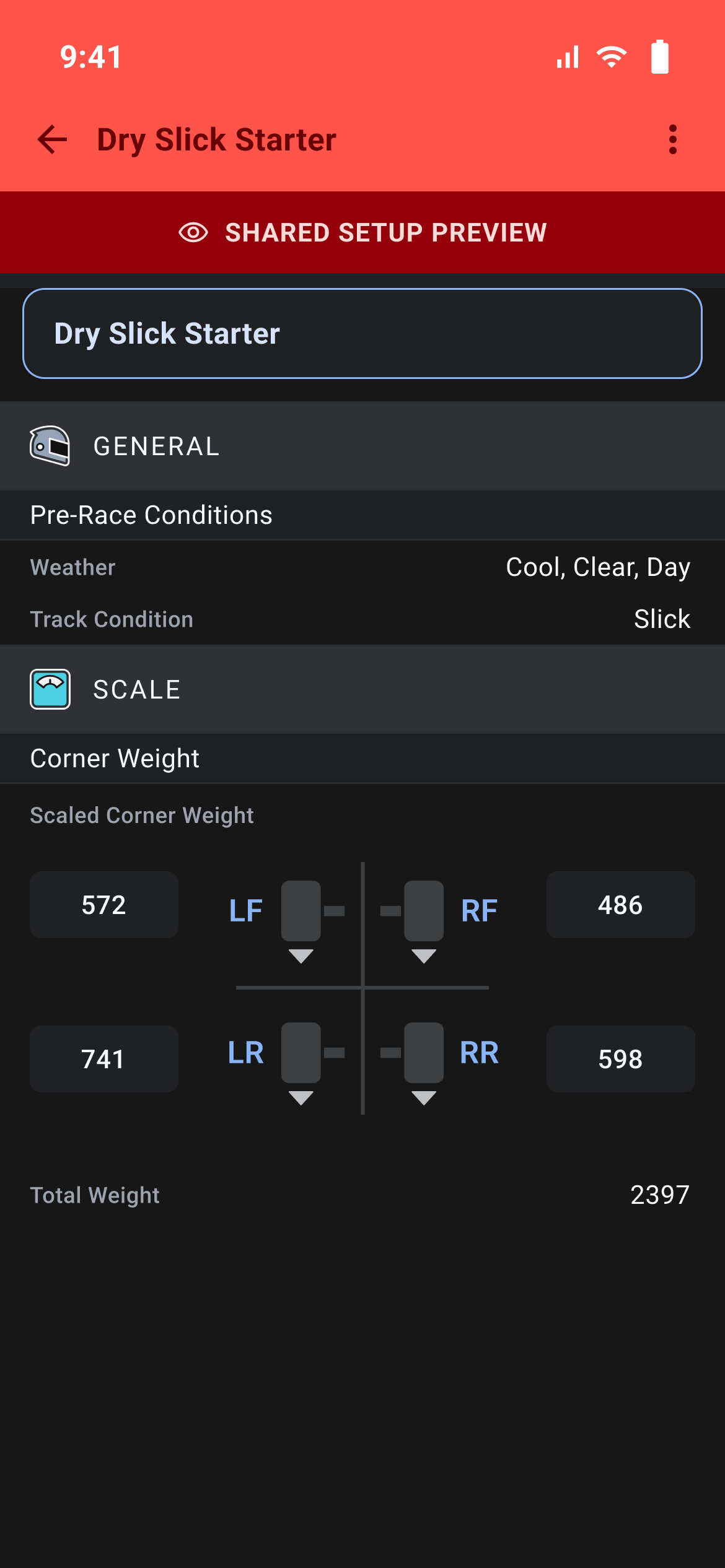
- Tap a row. A spinner covers the screen while the setup is fetched.
- It opens read-only under a red SHARED SETUP PREVIEW banner.
- Tap the back arrow to leave. Nothing is saved to your setups.
Expired listings are dimmed, and tapping one does nothing.
Start a setup from one
From the preview, tap the three-dot menu and choose New Setup with this Baseline. The baseline is locked in and the car list is limited to that race class.
Or, in the create form, tap Select a starting baseline*, then the Community setups tile, then a listing, then Use this baseline. The app checks first behind a brief spinner. With nothing published for that car's class a Community setups dialog reads "No community setups are available for this race class yet." with an OK button. If the check fails the picker opens anyway.
The picker is the same list under a different name: it opens as Use a Community Setup under "Pick a community setup to use as your baseline", with no menu and no home icon, and a listing's preview carries a Use this baseline button along the bottom instead of the three-dot menu.
Either way the result is a normal setup in your setup list. To keep it as a baseline, use Save as baseline on it.
When something goes wrong
- "Add a car to see baselines for your race classes": no car with a race class yet.
- "No marketplace items found for your race classes": nothing is published for your classes, or your car's race class is no longer offered. Check the car in Manage → Cars.
- "The template for this baseline is not available on this device.": open the menu, tap Manage, then Templates, and tap the refresh icon (tooltip Sync Data) on the Manage Templates page, then try the listing again.
- "Could not load the marketplace. Please check your internet connection and try again.": the page behind looks empty rather than failed. Pull down to refresh with service.
Anywhere the app talks to the server, a failure on the server's side raises a second message of its own on top of the page's, so two can appear at once:
| What happened | What you see |
|---|---|
| Signed out, or the session has expired | "Please log in again." |
| The account is not allowed to read it | "You don't have permission to access this resource." |
| Any other server error | "Server returned error:" followed by the status code |
| The request timed out | The "You're in Offline Mode" dialog |
Share your setup
Where in the app: Setups tab → tap a setup → full sheet icon (⤢) → Share
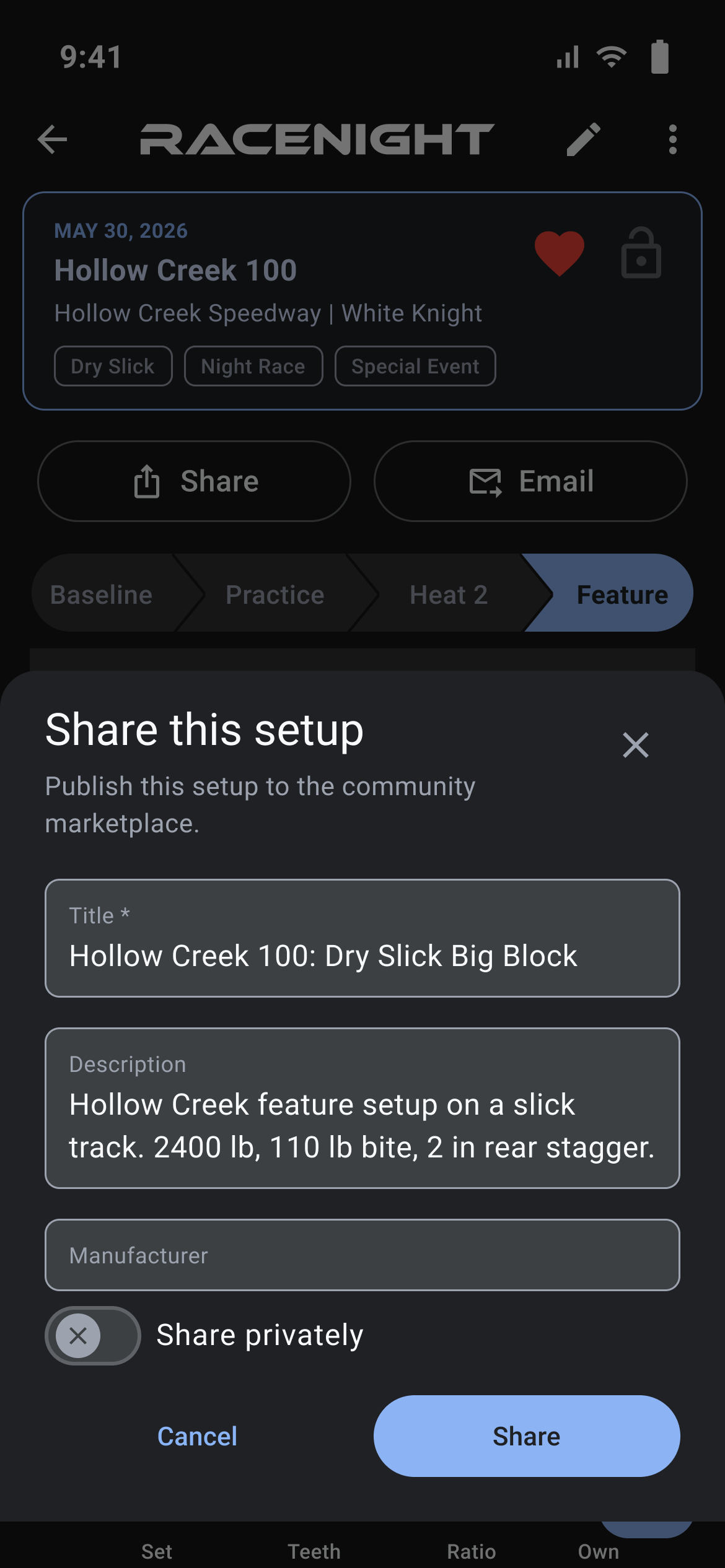
Publish one of your setups so other racers in your class can browse it and use it as a baseline.
Before you start
- Only a normal setup can be shared. Share does not appear when you view a baseline or a template preview.
- The setup needs a car, and that car needs a race class.
- You must be signed in.
- The app does not check for duplicates before publishing.
Fill in the sheet
- Open the setup, tap the full sheet icon (⤢), then Share. It opens under "Publish this setup to the community marketplace."
- Title* is required and starts out as the setup's own name.
- Description is optional. Its hint reads "Describe what this setup is for, conditions, etc."
- Manufacturer is optional. It fills in from your car a moment after the sheet opens, without overwriting text you typed.
- Share privately is off by default.
- Tap Share. The button becomes a spinner while it uploads.
Cancel, and the x in the corner, close without publishing. Both are switched off while the upload runs.
Sharing privately
Share privately creates an 8-character code of capital letters and digits under "Share this code:". Tap the copy icon, tooltip Copy key, to copy it. "Copied!" shows for two seconds. The helper line reads "Send the share code using Email or Text". The app does not send it for you.
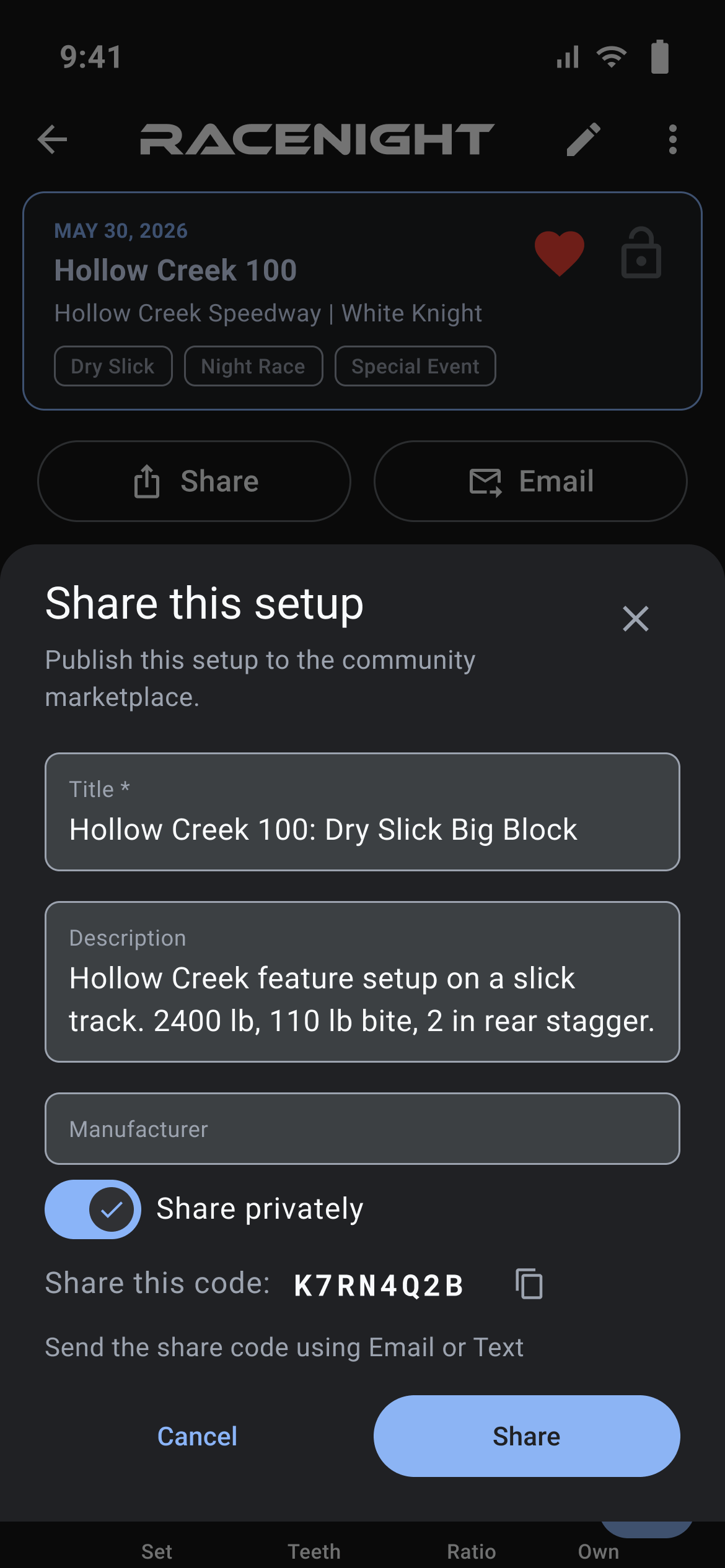
The code is made once, the moment you switch Share privately on, and it is kept if you switch it off and back on again, so a code you have already copied stays the right one.
What gets published
Every field that has a value, plus the title, description and manufacturer you typed, and the setup's race class and template. Not published: photos, tags, the setup's own name, the car, the track, session names, and blank fields. A blank field falls back to the template default for whoever imports the listing.
Your name goes with it. The listing is published under your account, and every row in Community Setups shows the publisher's name and profile photo.
After you tap Share
Success closes the sheet and shows "Your setup has been shared to the marketplace." Failure keeps the sheet open with your text intact, and shows "Could not share this setup. Please check your connection and try again." A blank title shows "Please enter a title", which clears as you type. Sharing needs a live connection.
Three more messages stop the share and leave the sheet open:
| Message | What to do |
|---|---|
| "This setup has no template reference and cannot be shared." | It cannot be published. Build one from a class template instead. |
| "You must be signed in to share a setup." | Sign in, then reopen the sheet. |
| "This setup has no race class and cannot be shared." | Give the setup a car, and give that car a race class. |
My shared setups
Where in the app: Menu → Manage → My Shared Setups
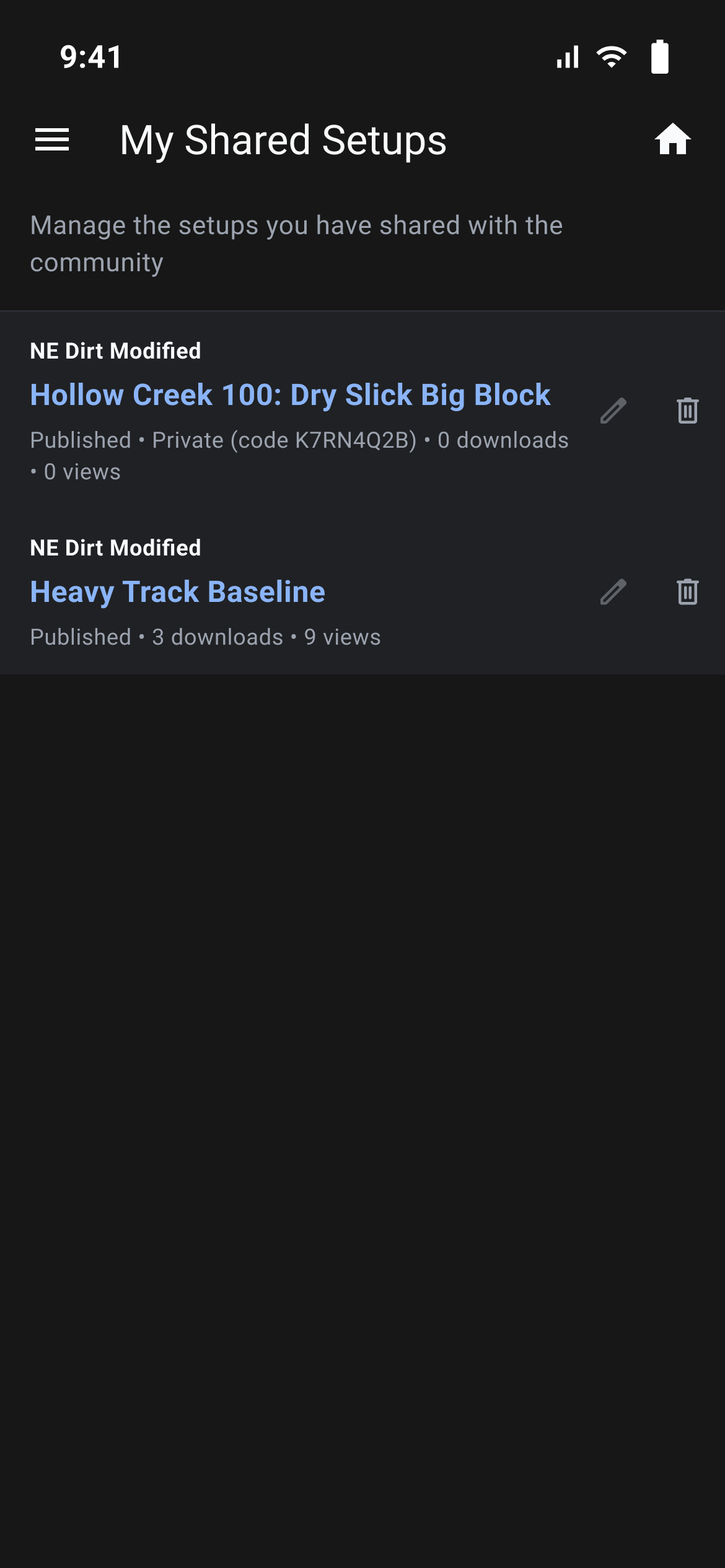
See everything you have published, check where each listing stands, change its wording, or take it down.
Open the list
Open the menu, tap Manage, then My Shared Setups. The page opens under "Manage the setups you have shared with the community" and reloads every time. Pull down to refresh, or tap the home icon to leave. A spinner covers it while it first loads. With nothing published, the page says so and points you at Share.
Read a row
Each row shows the race class, the title, and a status line with the parts separated by bullets.
| Status | What it means |
|---|---|
| In review | Submitted and waiting to be checked |
| Published | Live in Community Setups |
| Official | Verified. Carries the Official badge and appears under the Official only filter |
| Rejected | Not accepted |
| Private (code ABC12345) | Shared privately, with the code generated when you published |
| Private | Shared privately, but the server sent no code back, so there is none to read here |
| Expired | A private share that has run out |
The line ends with the download and view counts. A view is counted when somebody opens your listing in the preview, a download only when somebody finishes creating a setup from it.
Change the wording
- Tap the pencil on the row. Edit shared setup opens under "Update how this setup appears in the community marketplace."
- Edit Title* (still required), Description or Manufacturer.
- Tap Save. Cancel, and the x in the corner, close without saving. Both are switched off while the save runs.
Saving closes the sheet, reloads the list and confirms. A failure keeps the sheet open with "Could not update this shared setup. Please check your connection and try again."
Take a listing down
- Tap the trash icon on the row.
- Delete Shared Setup asks whether to remove that listing and warns "This action cannot be undone."
- Tap Delete to remove it, or Cancel to keep it.
The row goes at once and a message confirms. A failure keeps the row and shows "Could not delete this shared setup. Please check your connection and try again."
If the page will not load
- "You must be signed in to manage your shared setups." Sign in, then tap Retry.
- "Could not load your shared setups. Please check your connection and try again." Tap Retry once you have service.
- Without an active subscription RaceNight shows the full Upgrade Subscription screen and nothing else, so this page and Community Setups cannot be reached.