Cars, tracks, tags and templates
Set up the cars and tracks you race, sort setups with tags, turn on class templates and keep your Best Practices notes.
Cars, tracks, tags and templates
Cars
Where in the app: Manage tab → Cars
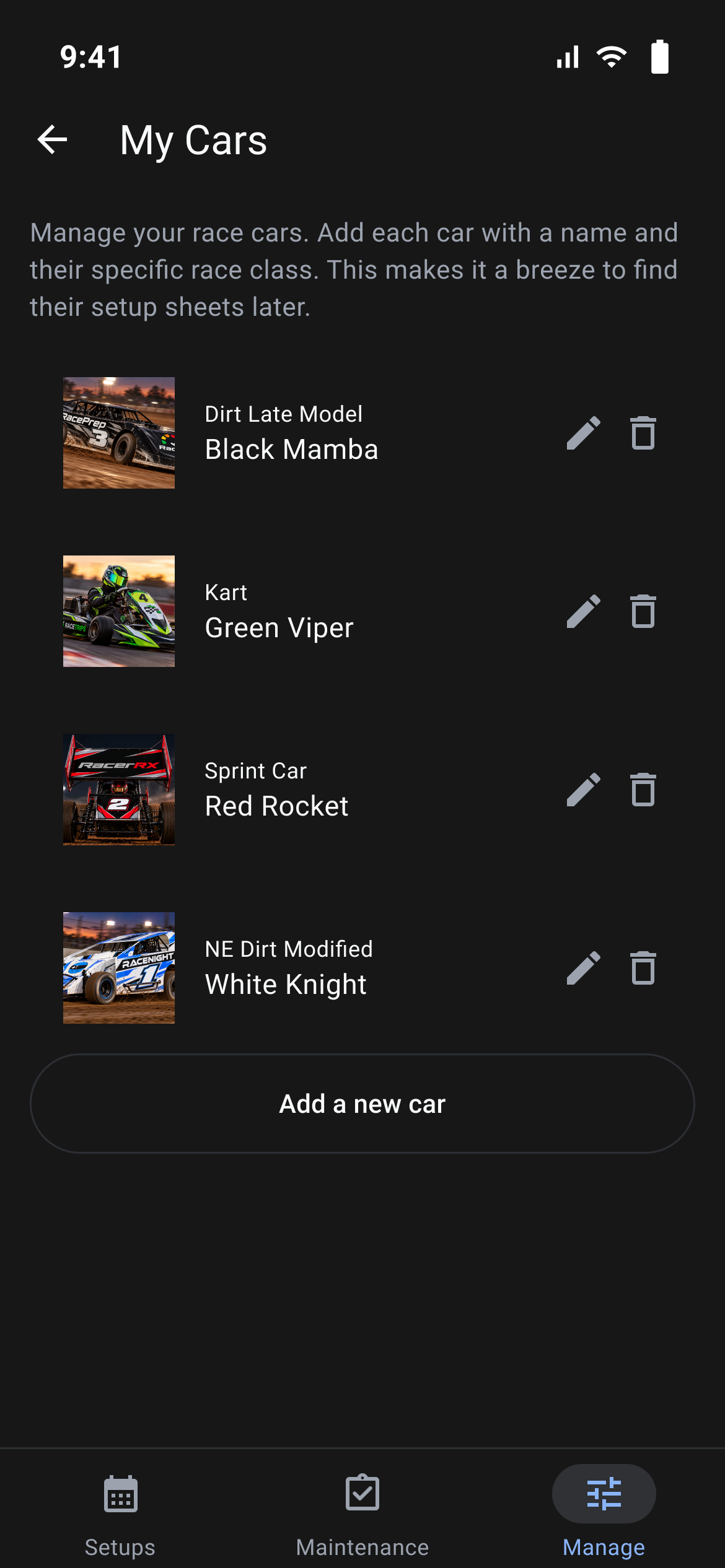
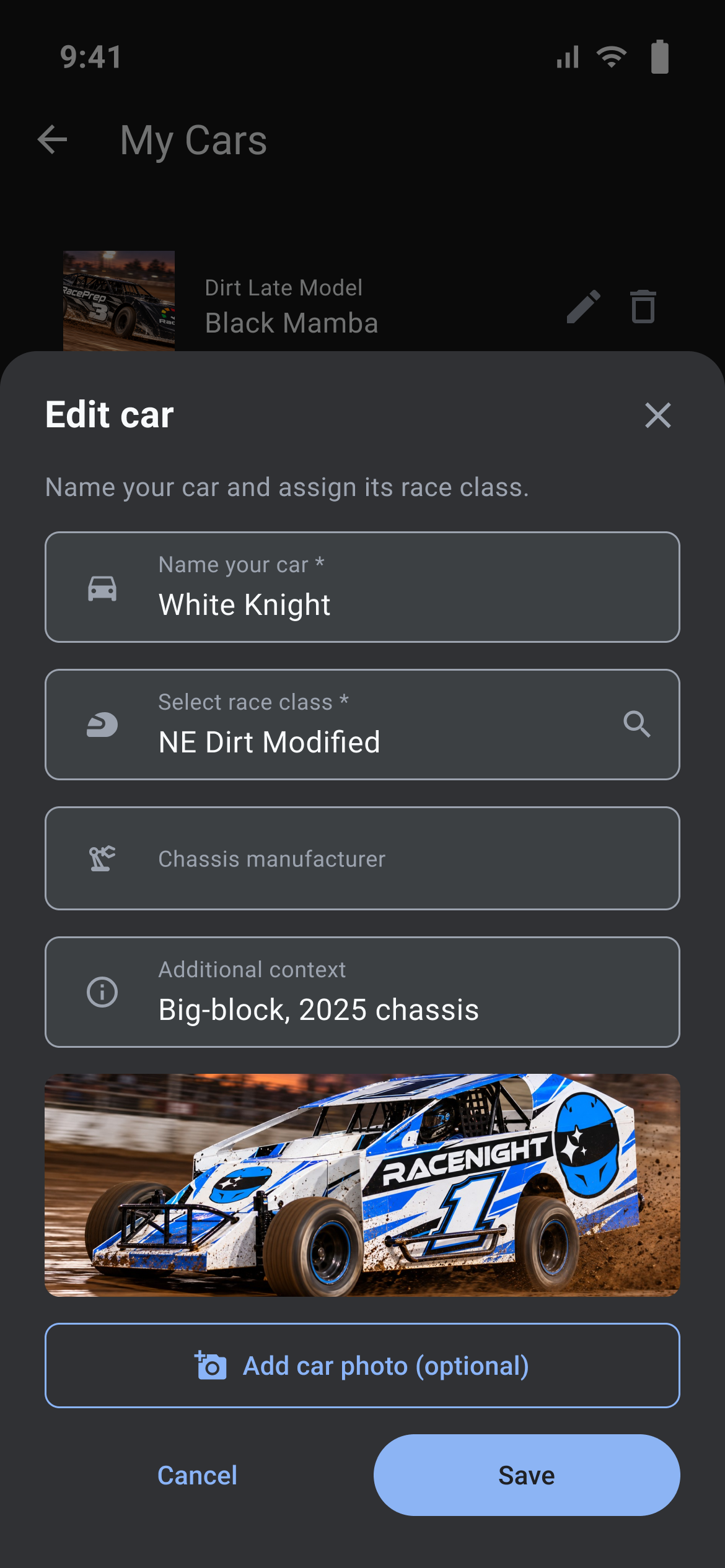
Every setup sheet belongs to a car, and the car's race class decides which templates and baselines you can start from.
The cars list
The page is titled My Cars. Rows are sorted by name A to Z and show the car photo, the race class, the car name, then a pencil and a trash can.
- There is no "no cars yet" message. A fresh account shows the intro line and Add a new car, nothing else.
- A spinner covers the page while it loads. Swipe down to reload.
- If RaceYear withdraws a race class, its name turns red and a warning triangle appears beside it. Long-press the triangle for the tooltip "This race class is no longer available. Edit the car to pick another."
- The race class list comes from RaceYear over the network, so adding a car needs a signal: with no connection the picker is empty and shows "No race classes found". Editing and deleting cars you already have still work.
- Cars works on both plans. With no active plan RaceNight shows only the full Upgrade Subscription screen, so this page cannot be reached.
Add a car
- Tap Add a new car. The sheet is headed Add a car.
- Fill in Name your car*. Blank gives "Please enter a car name".
- Tap Select race class* to open the Select Race Class picker.
- Type in the Search box to narrow the list. A count line reads "3 results", and nothing matching shows "No race classes found".
- Each row shows the class category, name and a short description. Tap one to pick it.
- Classes RaceYear has withdrawn are not listed at all, which is why a car flagged with the red warning cannot simply be saved again with the same class.
- Request a Race Class opens the RaceYear website in your browser.
- Chassis manufacturer is optional free text.
- Additional context is optional and holds several lines. Its hint explains this text is used for AI, so put the year and chassis details here.
- Add car photo (optional) opens Add Photo with the buttons Camera, Gallery and Cancel. The picture is shrunk before saving and previewed in the sheet.
- Save stores the car. Cancel and the × discard it.
Save is refused with no race class ("Please select a race class"), or when the chosen class has been withdrawn ("This race class is no longer available. Please select another.").
After you save a new car here, a full template sync runs and then Manage Templates opens for that car's race class so you can switch sheets on, so this step needs a signal too. If RaceYear has no sheets for that class the modal reads "No templates available" and "There are no templates for this race class yet." Tap Done to close it.
Edit a car, and pick the active one
Tap the pencil. The sheet is identical but headed Edit car. Save writes the change.
There is no active-car switch here. On the Setups tab, when one car is selected a carousel sits above the list; swipe it to move between cars. The filter sheet has a Car section with one chip per car; tap a chip to add that car to the filter and tap it again to drop it. That section has no All chip, and cars you have deleted are not listed.
Delete a car
Tap the trash can. Delete Car asks "Are you sure you want to delete "White Knight"?" and warns the action cannot be undone. Cancel backs out; Delete removes the car from the list, the carousel and the filters. Setups built with that car are not deleted and still show its name.
Tracks [RaceNight Pro]
Where in the app: Manage tab → Tracks
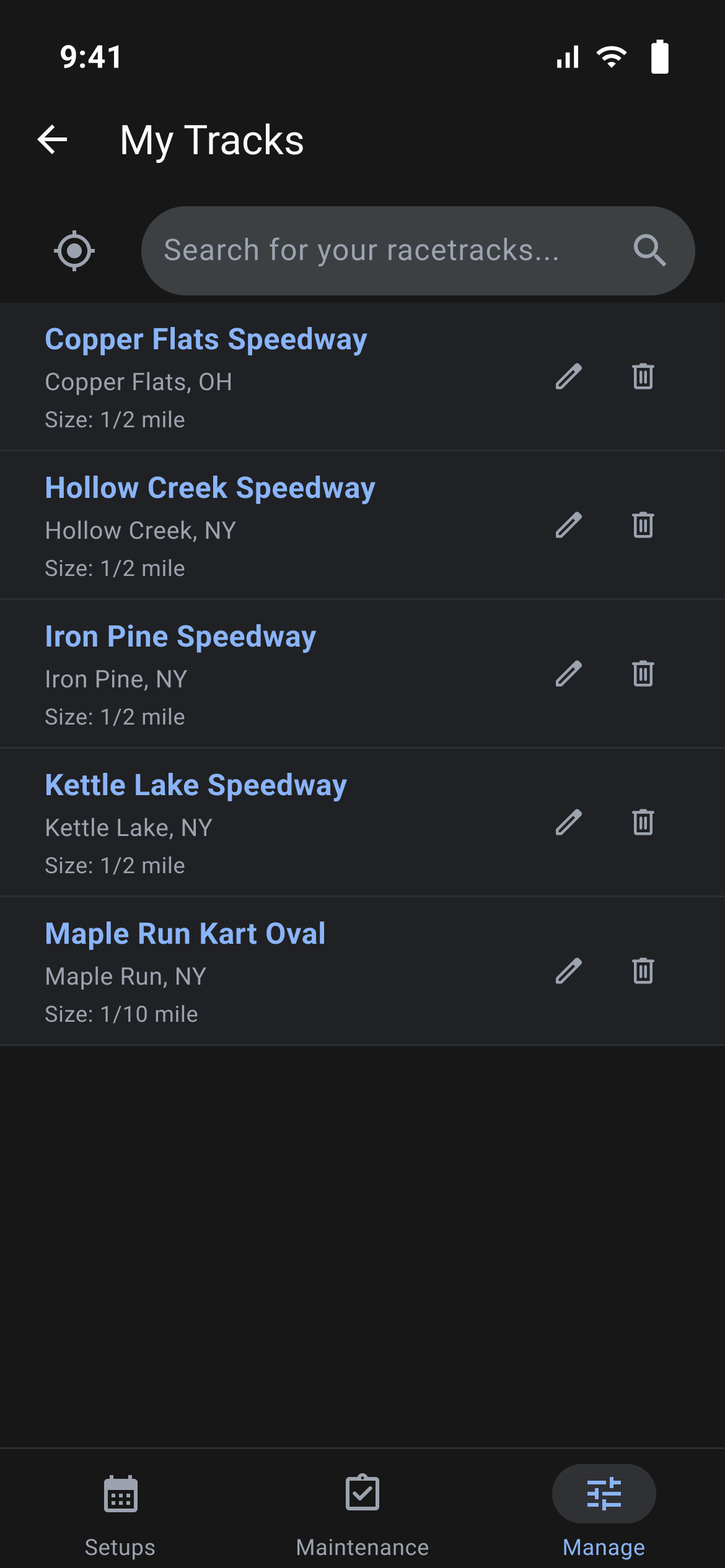
Your tracks list feeds the required track field on every setup sheet.
The tracks list
The page is titled My Tracks. Rows are sorted by name A to Z and show the track name, the address when there is one, a size line such as "Size: 1/4 mile", then a pencil and a trash can.
- With nothing saved you see "No tracks added yet." and "Search above to find your tracks."
- A spinner covers the list area while it loads; the search row stays put. Swipe down to reload.
- Tracks needs RaceNight Pro. On the RaceNight AI plan, tapping it opens the upgrade screen with a close X and Upgrade Subscription. With no active plan RaceNight shows only the full upgrade screen.
- There is no favorites feature. Tracks cannot be starred or pinned.
Find a track
- Tap the search pill reading "Search for your racetracks..."
- Type the track name. The app pauses half a second after you stop typing, then searches Google Maps.
- Empty box: "Enter a search term to find racetracks".
- Nothing found: "No results found".
- A server or API failure shows "Search Error" and "Failed to search for racetracks."; with no connection at all you get the "You're in Offline Mode" notice instead.
- Results are Google Places rows showing the track name, the address and a +. Tap one. The track is saved straight away, the search box is cleared and the search sheet closes, then the Add Track sheet opens so you can set the size. If it is already saved you get "Already Added" instead.
The crosshair button beside the search pill just searches for the word "nearby"; it does not use your phone's location.
Add or edit a track by hand
In the search sheet, tap Add Track Manually. The pencil on a list row opens the same sheet, headed Edit Track.
- Track Name* is required. Blank gives "Please enter a track name".
- Track Address is optional. It is locked on a track you have just picked from a search result; re-open the row later to change it.
- Track Size opens a wheel with seventeen sizes: 1/10, 1/8, 1/7, 3/16, 1/5, 1/4, 1/3, 3/8, 4/10, 1/2, 5/8, 3/4, 1, 1.5, 2, 2.5 and 2.66. It starts on 1/4. Done writes your choice in, and the Miles label beside the box is the unit.
- Save stores the track. Cancel and the × close without saving.
Delete a track
Tapping the trash can deletes the track on the spot. There is no confirmation and no undo. A short "Track Removed" message appears at the bottom.
How a track joins a setup
On Create setup, Select race track* is required; leaving it empty gives "Please select a track". The picker lists every saved track and has a Manage button that opens the same tools with a Done button. Picking a baseline afterwards replaces the track with the baseline's own whenever that baseline has one, so choose the track last.
Tags and active tag filtering [RaceNight Pro]
Where in the app: Manage tab → Tags
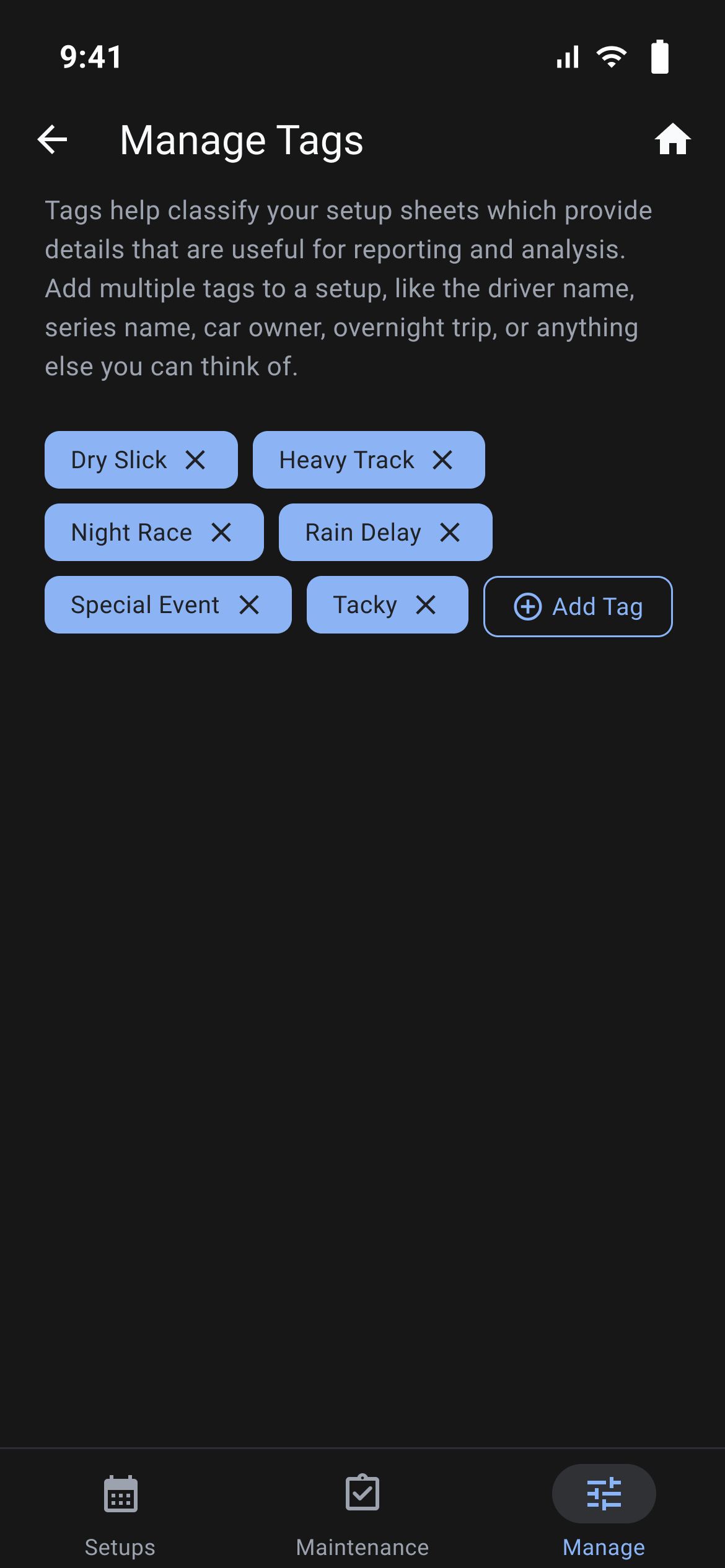
Tags are labels you put on setups so you can filter the list later: series, special events, rain delays.
The tags page
The page is titled Manage Tags. Each tag is a chip, sorted A to Z, with an × icon. The last chip in the row is Add Tag. Tags live on your phone and work with no signal.
Add a tag
- Tap Add Tag to open the Add Tag sheet.
- Type your tag name into Tag Name* (e.g. "Night Race", "Special Event", "Rain Delay", "Asphalt").
- Tap Save to create it. If the name already exists you get "Tag Exists".
Add a tag while building a setup
You don't need to visit Manage Tags to create a tag:
- While building a setup on Create setup, tap Add Tag to open Select Tags.
- Scroll to the end and tap the Add Tag chip.
- Enter the name and tap Save. The new tag is saved to your tag list and put on this setup.
Renaming a tag
To rename a tag while keeping your setup associations:
- Create the new tag with the corrected name.
- Open each setup carrying the old tag, tap the 3-dot menu → Edit sheet details, and select the new tag.
- Once updated, delete the old tag from Manage Tags.
Delete a tag
- Tap the × on any tag chip in Manage Tags.
- A dialog titled Delete "Night Race" asks "Are you sure? This action cannot be undone." If setups use the tag it adds "This tag is used in 3 setups. Deleting it removes it everywhere."
- Tap Cancel to back out, or the red Delete "Night Race" button to remove it from every setup.
Where tags are used
- Create Setup: Put one or more tags on a new sheet before you build it.
- Edit sheet details: Add or remove tags any time from the setup sheet's 3-dot menu.
- Filtering the setup list: The Apply Filters sheet has a Tags section with an All chip plus a chip for every tag in your account. Pick several tags to see setups carrying any of them.
- Tag chips on the list: Tag filters you have on show as chips in the filter row above your setup list. Tap the × on one to drop it.
Class templates [RaceNight Pro]
Where in the app: Manage tab → Templates
A class template is the setup sheet RaceYear builds for a race class, and this page controls which ones are offered when you create a setup.
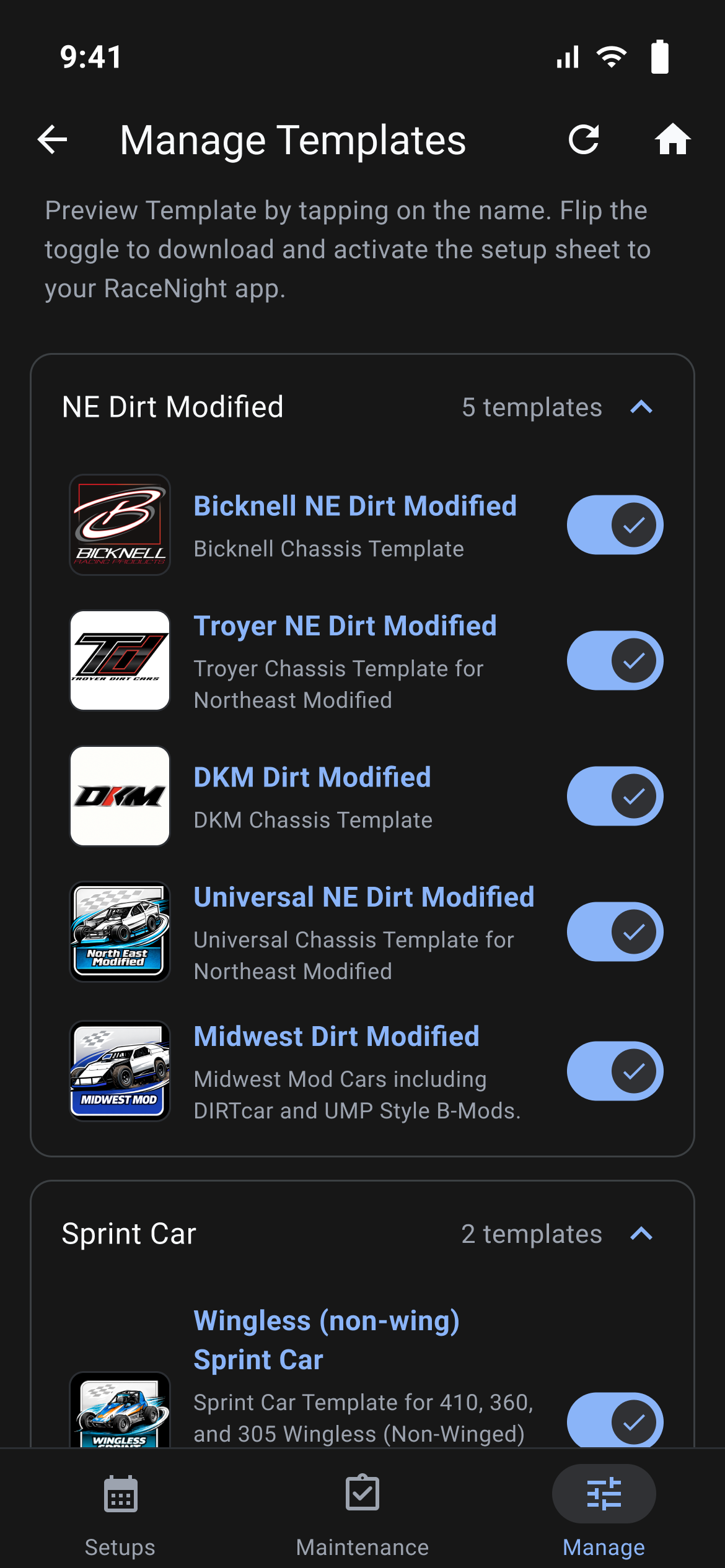
The Manage Templates screen
A template supplies the whole sheet: the categories, tabs, panels, every field, and the session names it starts with. Its name, description, picture and badge all come from RaceYear.
The title is Manage Templates, with a refresh icon (tooltip Sync Data) and a house icon (tooltip Home) beside it. The line under it reads "Preview Template by tapping on the name. Flip the toggle to download and activate the setup sheet to your RaceNight app."
- Templates sit in expandable sections, one per race class, all open to start with. Each header shows the class name and a count such as "4 templates".
- Each row has a picture, the name, the description and a switch.
- You only see templates matching the race classes of your cars. With no cars you get "No templates for your race classes" and "Add cars with different race classes to see more templates, or skip this step". Add a car first.
- If nothing has been downloaded you get "No templates available" and "Please check your internet connection and try again".
- Templates needs RaceNight Pro. On the RaceNight AI plan, tapping it opens the upgrade screen with a close X and Upgrade Subscription. With no active plan RaceNight shows only the full upgrade screen.
Turning a template on
Flip the switch, and that template appears in the Templates section of the Select a baseline sheet when you build a setup. Your choice is remembered through future updates.
Previewing a template, and the PRO badge
Tap the picture or the name. A temporary copy of the sheet opens under a TEMPLATE PREVIEW banner so you can walk through every category and field. It is not locked, so anything you type into it goes away with the copy when you press back.
Templates published as previews only have a switch that is off and cannot be moved. Tapping the row or the switch shows Sneak Peak with "This is a preview only template and cannot be added to your account." Tap OK and the preview opens anyway.
The small PRO pill on a template picture marks the tier that template is published under on the RaceYear server. Nothing in the app stops you toggling or previewing one.
Versions and updates
Every template carries a version number, which is not shown on this page. It matters when a template you have already built from is updated:
- Picking a baseline that is behind its template offers the update, headed Update your setup sheet!, with a line reading "Version 1.7 → 1.8" and a What's new list. I'll do it later leaves the baseline alone; Update Version applies it.
- If the update would stop one of your entered values showing (a field you have filled in is removed, its type changes, or its options no longer contain your value) the heading becomes Optional Update Available, and a second screen, Setup Field Changes, lists those values. Cancel abandons it; Confirm Changes applies it.
- Any sheet's own version shows as a grayed-out Version 2.2 line at the bottom of its 3-dot menu, baselines included.
The refresh button and pulling the list down both run a full sync. A failure shows "Data could not be synced. Please check your internet connection and try again." The page always renders from what is on the phone, so it works offline.
Classes RaceYear publishes
- Bicknell NE Dirt Modified
- Troyer NE Dirt Modified
- DKM Dirt Modified
- Universal NE Dirt Modified
- NE Dirt Sportsman
- Midwest Dirt Modified
- Tour Type Asphalt Modified
- Universal Late Model - DIRT
- Universal Full Fender - DIRT
- Universal 3&4 Cylinder Full Fender
- Pro Stock
- Crown Vic
- Universal Sprint Car
- Wingless (non-wing) Sprint Car
- Micro (600) and Mini Sprint
- Jr Sprint
- Midget Setup Sheet - Full Size Pavement
- Universal Kart (No Shocks)
- Tobias Slingshot
- Bandolero
- US Legend Cars
Seven more templates whose names begin with RC are also published, plus GFRP Assault Sprint. Like every class template, they carry the PRO badge. A sync downloads every one of them; which ones you actually see listed depends on the race classes of your cars.
RaceYear also publishes two templates that are not race classes: AI Assist and notes. The notes one is the sheet behind the Best Practices page, which is why that page needs a sync before it has anything to show.
Asking for a class that is missing
Request a Template at the bottom of this page opens the RaceYear website. For a class rather than a sheet, use Request a Race Class at the bottom of the race class picker (Manage → Cars → edit a car → Select race class*). Both open outside the app, so you need a signal.
Best Practices
Where in the app: Manage tab → Best Practices
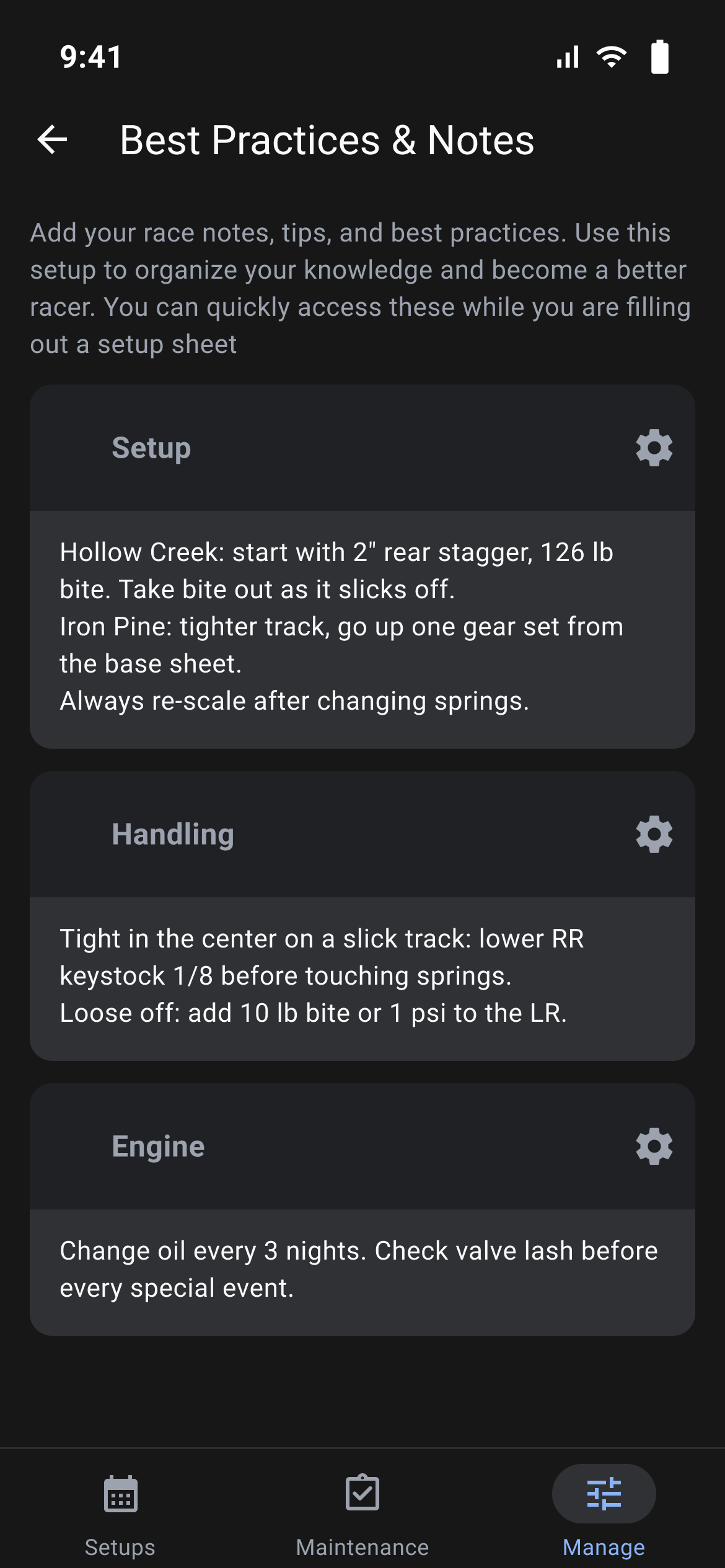
One permanent notes sheet for your own tips and reference notes, reachable while you are filling in a setup at the track.
What the screen shows
The page is titled Best Practices & Notes and opens with "Add your race notes, tips, and best practices. Use this setup to organize your knowledge and become a better racer. You can quickly access these while you are filling out a setup sheet".
Under that is a set of expandable tabs. The tabs and every field in them come from a notes template RaceYear publishes and the app downloads during a sync, so the layout is the same for everyone. Your copy is built the first time you open the page and kept from then on. Only the first section of the template is shown.
Using it
- Tap a tab to open it and type straight into the fields.
- Everything is saved as you type. There is no Save button and no Cancel.
- If the notes section contains a photo tab at all, a camera button (tooltip Add Image) sits at the bottom right, whichever tab you have open.
- The Home button returns to the setup list and clears the screens behind it, so there is no back step afterwards.
- From inside any setup sheet, tap the round button at the bottom right and choose Best Practices. The same notes open in a tall sheet headed Best Practices & Notes with a × to close, and it carries its own round camera button (tooltip Add Image) at the bottom right. A tip written at the track is on the Manage page when you get home.
Other states
- A spinner sits where the tabs will be while the notes are opened; the title and intro line stay visible.
- If the notes template has never been synced you get the message "Notes template not found. Please sync templates first." and a blank page. If a copy exists but has no content you get an orange "Notes template not available" warning with "Please sync templates to see best practices". Either way, go to Manage → Templates, tap the refresh button, then come back.
- Once the notes template has been downloaded the page works with no signal.
- Best Practices works on both plans. With no active plan RaceNight shows only the full Upgrade Subscription screen, so this page and its Add Image button cannot be reached.