Setups and sessions
Find, create and open setups, and work through a race night's sessions from Baseline to Feature.
Setups
Your setup list
Where in the app: Setups tab
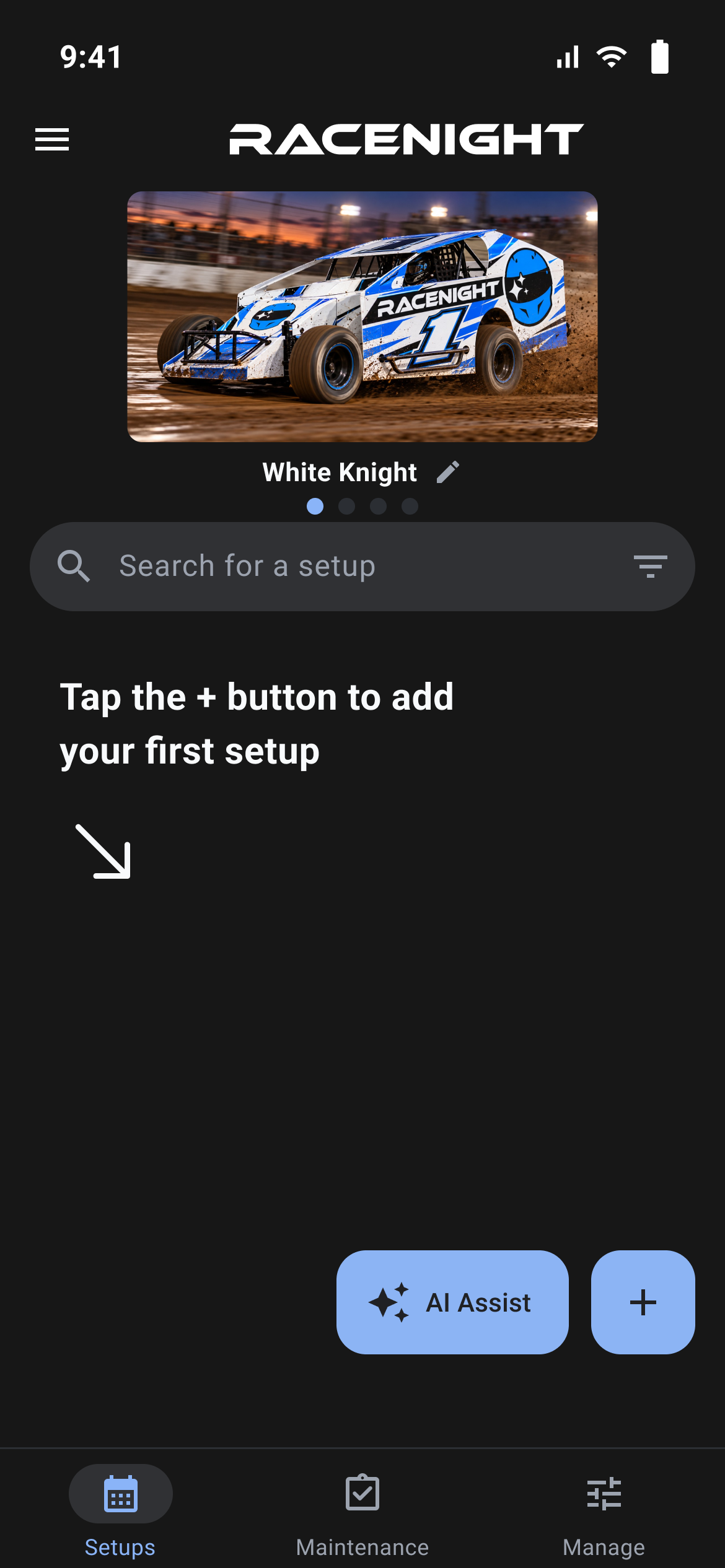
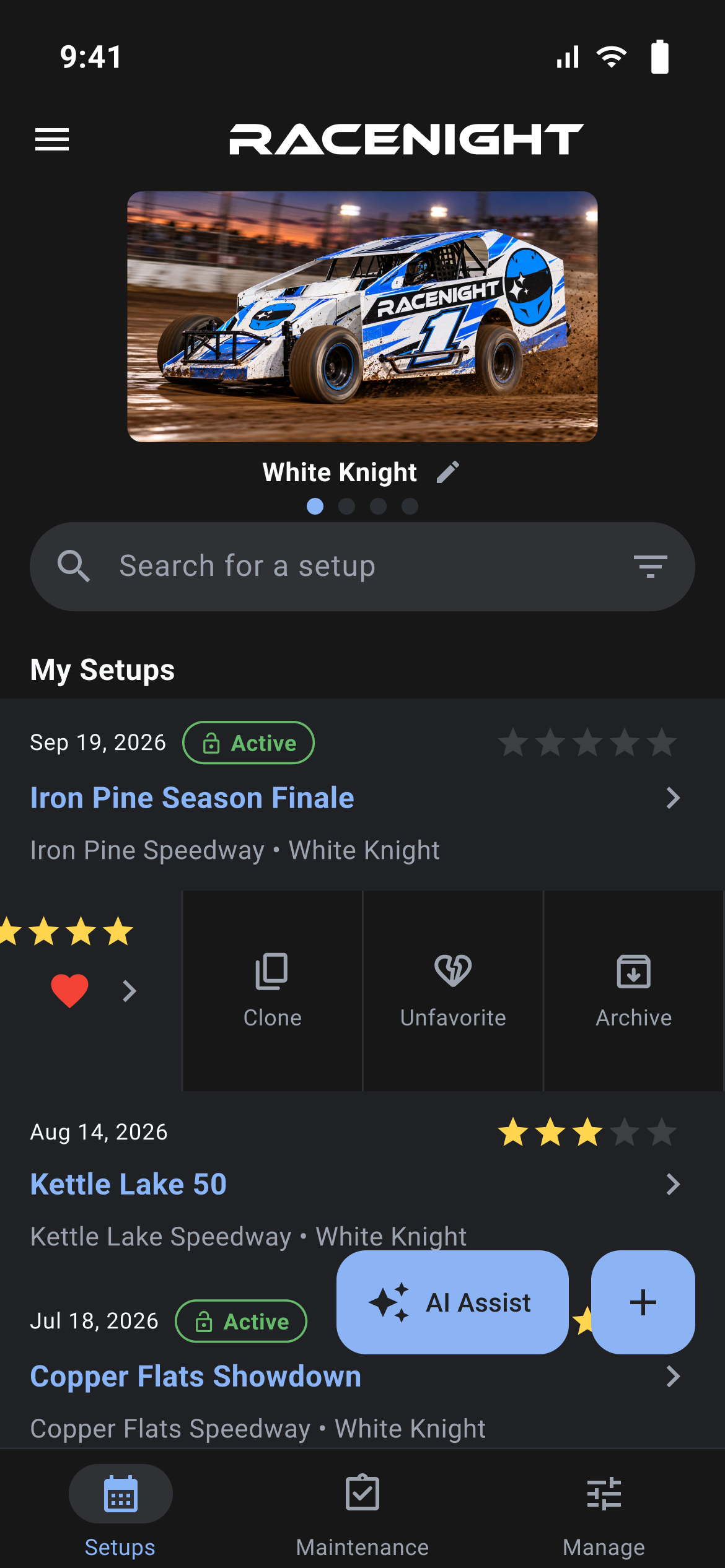
The Setups tab is the home screen of RaceNight and holds every setup you have built.
The top of the screen
- The menu button (☰) opens the side menu and the RaceNight logo sits in the middle. A thin progress line appears under the bar while the app is busy.
- The car carousel shows whenever exactly one car is selected. Swipe it to the next car and the list below re-filters straight away. Tap a car's name to edit it; cars that came with a shared setup have no pencil.
- There is no "all cars" tile and no "add car" tile. To see every car's setups at once, open the filter sheet and tap Clear all, then Show results.
What each row shows
- Top left: the race date, for example "Sep 5, 2026". Archived setups read "ARCHIVED", and a setup with no date shows nothing.
- Top right: a five star rating, taken from the last session that has one. It stays blank until you rate the setup.
- The setup name, a red heart if it is a favorite [RaceNight Pro], then a chevron, with the track and car underneath.
A green Active pill with an open lock marks a setup you have not finished yet. Rows are listed newest race date first and are not grouped. Setups with no race date sit at the bottom.
Row actions and Favorites [RaceNight Pro]
Swipe a row from right to left for three instant actions:
- Clone: Saves the setup as a new reusable baseline rather than copying it, preserving your base chassis geometry for future race nights.
- Favorite / Unfavorite: Toggles the red heart favorite badge [RaceNight Pro]. Favorites show with the My favorite setups filter.
- Archive / Unarchive: Moves the setup to your archive out of your active view without deleting history. Archiving happens at once with no confirmation, so use My archived setups in the filter sheet to retrieve the setup.
Only one row can be open at a time; tapping a row whose buttons are showing closes them. Tap anywhere else on a row to open the setup sheet. There is no way to delete a setup from this tab.
The blue + button at the bottom right, tooltip "Create Setup", opens the Create setup form.
Empty, loading, offline and locked
- First run: "Tap the + button to add your first setup", with a large arrow pointing at the + button. With filters on and nothing matching: "No items found".
- A spinner fills the screen on the first load only. After that the list refreshes itself whenever you open the tab or leave a setup, and there is no pull to refresh.
- Everything here works with no signal, because your setups live on the phone.
- On a free trial a band across the top reads, for example, "9 days left on your free trial." Tapping it opens the subscription page.
- If no plan is active, RaceNight shows only the full Upgrade Subscription screen. On the RaceNight AI plan the list shows, but tapping a row, search, filters or the + button opens the upgrade screen. AI Assist still works.
Search and filter your setups
Where in the app: Setups tab → search box, or the filter icon inside it
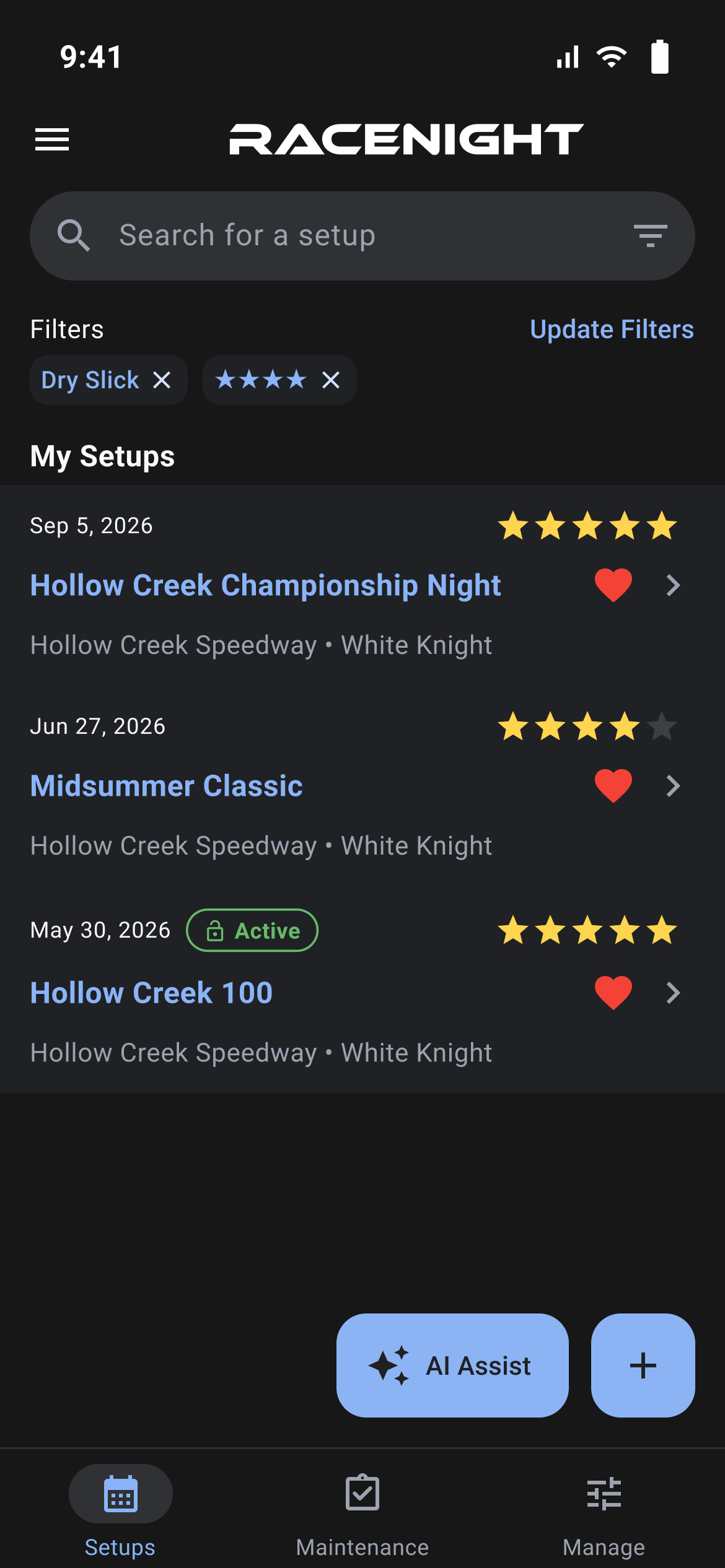
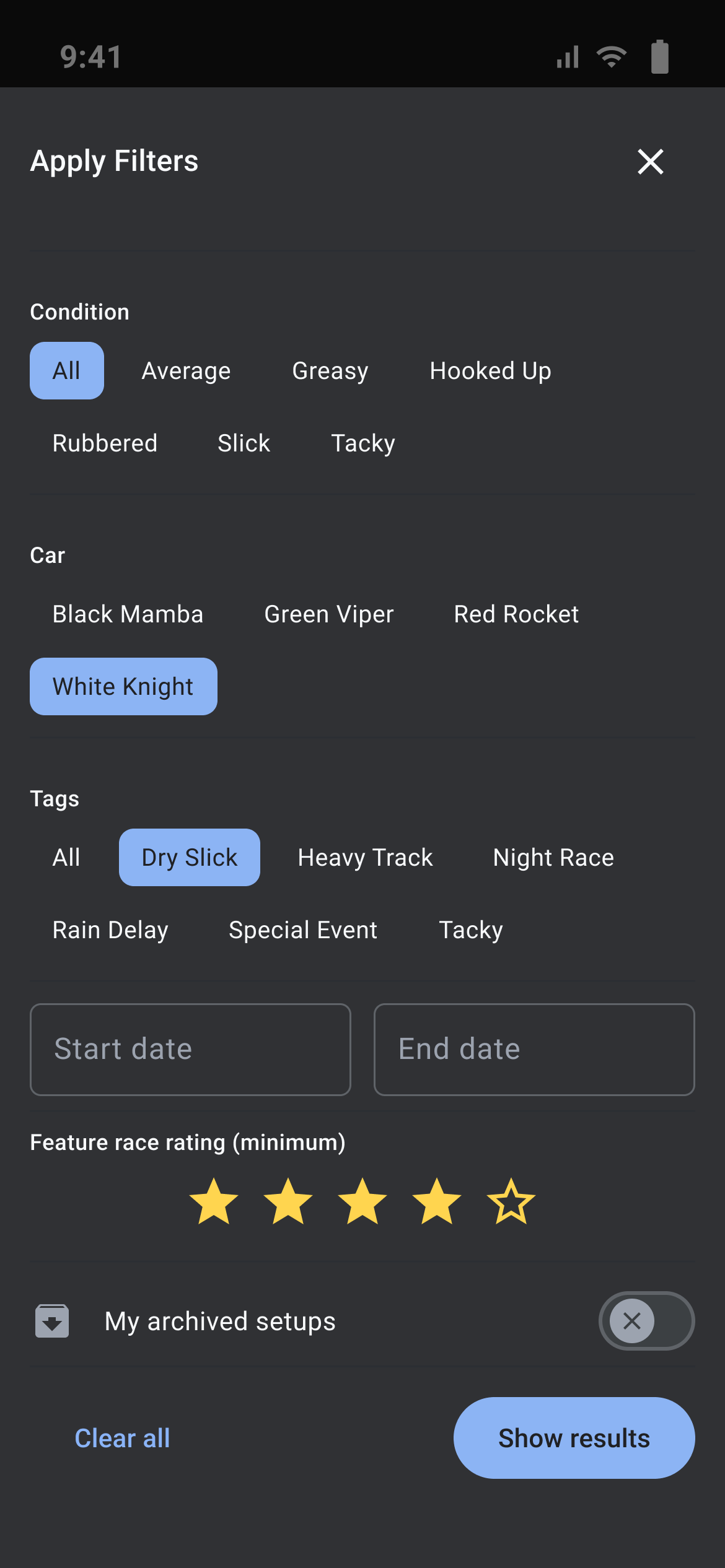
The search box and the filter sheet narrow the list down to the setups you want to see.
Search
Type in the box hinted "Search for a setup". The list filters as you type and matches the setup name and the track name only, not car names or tags. There is no clear button, so delete the text by hand, and the text stays put when you leave the tab and come back.
The filter sheet: Favorites, Tags, and Ratings [RaceNight Pro]
Tap the filter icon in the search box, or Update Filters in the filters row, to open Apply Filters.
| Control | What it does | Default | Plan |
|---|---|---|---|
| My favorite setups | Filters the list to show only starred setups marked with the red heart | Off | [RaceNight Pro] |
| Track Name | One chip per track used by the setups on screen. All clears the group | All | [RaceNight Pro] |
| Size | One chip per track size found in those setups (e.g. 1/4 mile, 3/8 mile) | All | [RaceNight Pro] |
| Condition | One chip per track condition recorded in them | All | [RaceNight Pro] |
| Car | One chip per car name. This group has no All chip | No car filter | [RaceNight Pro] |
| Tags | One chip per active tag. A setup matches if it carries any selected tag | All | [RaceNight Pro] |
| Start date / End date | A date picker each, five years back to five years ahead. A setup with no race date is hidden while either is set | Empty | [RaceNight Pro] |
| Feature race rating (minimum) | Tap or drag across the stars for a minimum of 0 to 5 stars | 0 | [RaceNight Pro] |
| My archived setups | Shows only archived setups, and takes effect the moment you tap it | Off | [RaceNight Pro] |
Clear all resets every filter and re-selects all your cars. Show results applies everything and closes the sheet.
Filter chips and the car carousel
With any filter on, a row headed "Filters" appears above the list with a chip per filter and an Update Filters button. Tap the × on a chip to drop it. The favorites chip is a heart with no text, and the rating chip shows only filled stars, so a three star minimum reads ★★★.
With one car selected the carousel shows and swiping it changes the filter. Select two or more and the carousel is replaced by a chip per car name, and the Maintenance tab keeps working.
Create a setup
Where in the app: Setups tab → +, or a baseline → New Setup with this Baseline
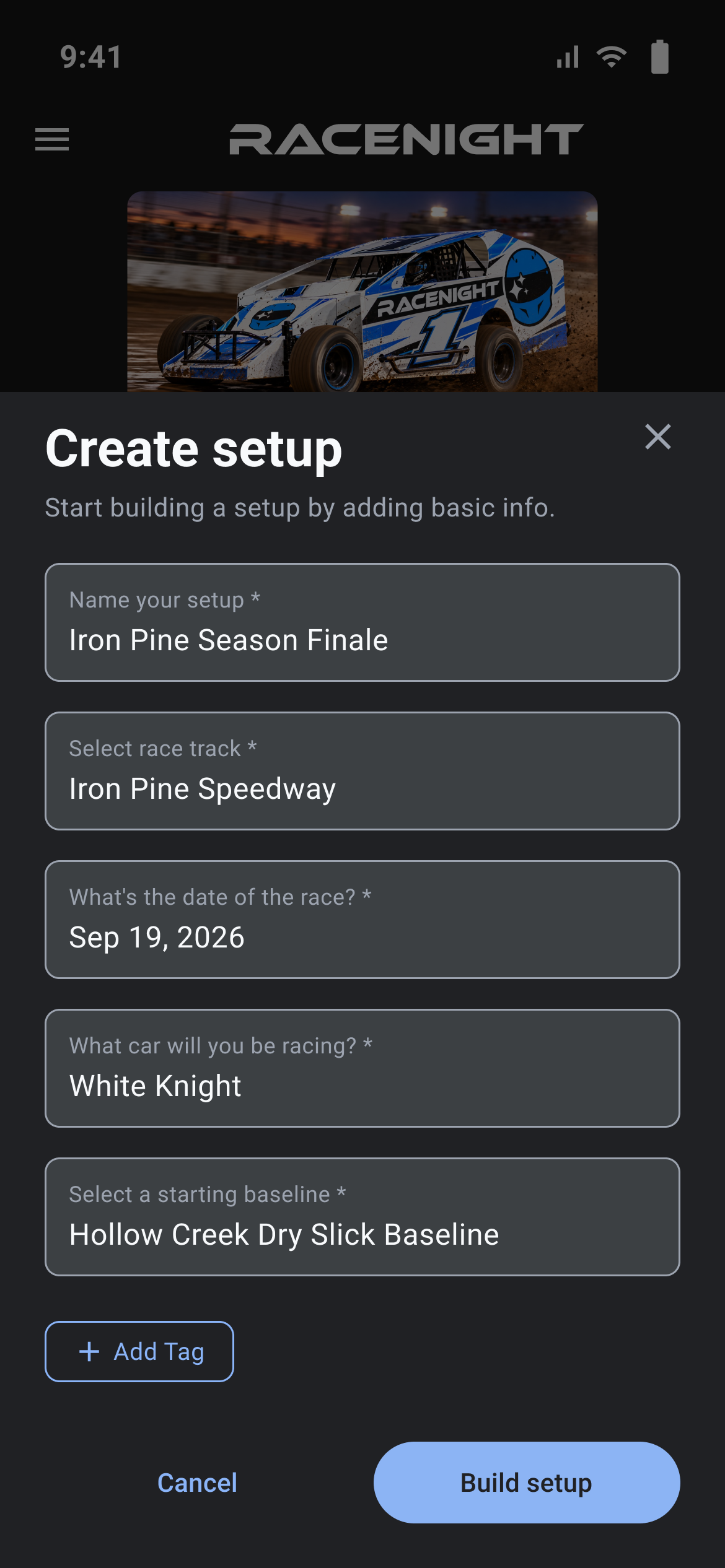
The Create setup form asks for the basics RaceNight needs to build your sheet.
Ways in
- Tap the blue + button on the Setups tab.
- Swipe a baseline row on My Baselines and tap Create Setup.
- Open any baseline in the Full Setup Sheet and choose New Setup with this Baseline.
- Select a shared setup from Community Setups [RaceNight Pro]. This locks the baseline, labels it Starting baseline (shared setup) with a padlock, and offers cars matching that race class.
The screen is headed "Create setup" with the subtitle "Start building a setup by adding basic info."
Fill in the form [RaceNight Pro]
- Name your setup *: Free text name for your race night (e.g. "Spring Nationals Night 1").
- Select race track *: Opens your track library with name, address, and track length in miles. Tap Manage to add a new track on the fly.
- What's the date of the race? *: Selects the event date, defaulting to today.
- What car will you be racing? *: Opens Select a car showing each vehicle's photo and assigned race class. The chosen race class determines which templates and baselines are available.
- Select a starting baseline *: Opens the Select a baseline sheet:
- Community setups [RaceNight Pro]: Browse setups shared by other racers in your race class.
- Your baselines [RaceNight Pro]: Saved baselines built from previous race nights. Tapping one previews it read-only.
- Templates [RaceNight Pro]: Official RaceYear class setup templates. Tapping a template opens a full-screen read-only preview.
- Tags [RaceNight Pro]: Tap Add Tag to open Select Tags. Toggle tags on or off, then tap Select (n), or Done when none are on. Clear All turns them all off. To make a new tag immediately without leaving the form, tap Add Tag inside the tag sheet, enter the name, and press Save.
Build setup
Tapping Build setup builds the setup sheet from the chosen baseline or template, attaches your car, track, race date and tags, and starts the sheet with its template's sessions. Switch on more of the template's sessions later from Edit sessions.
Inside a setup sheet
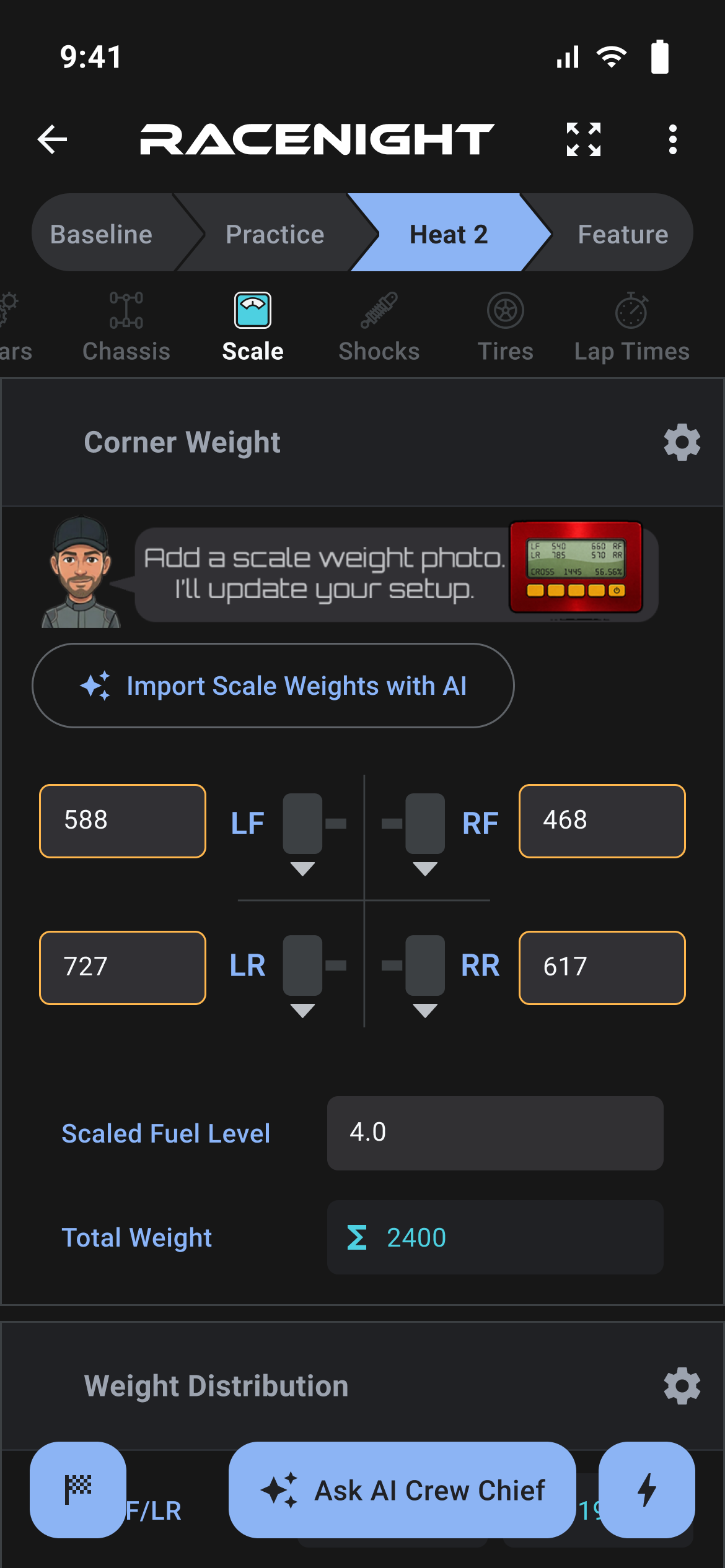
Where in the app: Setups tab → tap a setup
This is the sheet you fill in at the track: chassis adjustments, tire data, shock settings, scale numbers and driver feedback.
The app bar and header card
- Back arrow: Leaves the sheet right away. Everything you type saves when you leave the field. There is no Save button.
- Full sheet icon (⤢): Opens the read-only Full Setup Sheet [RaceNight Pro]. The Share and Email buttons live there.
- Header Card & Favorites [RaceNight Pro]: Shows the race date in capitals, setup name, track, and car. Tapping the red heart icon toggles the favorite status on the spot.
- 3-Dot Menu: Contains Update available (when template revisions exist), Edit sheet details (rename setup, swap car, adjust date/track/tags), Edit sessions (show or hide the template's sessions, or rename them, up to 12), Save as baseline [RaceNight Pro], and Favorite / Unfavorite setup. The template version shows at the bottom. Share and Email are in the Full Setup Sheet.
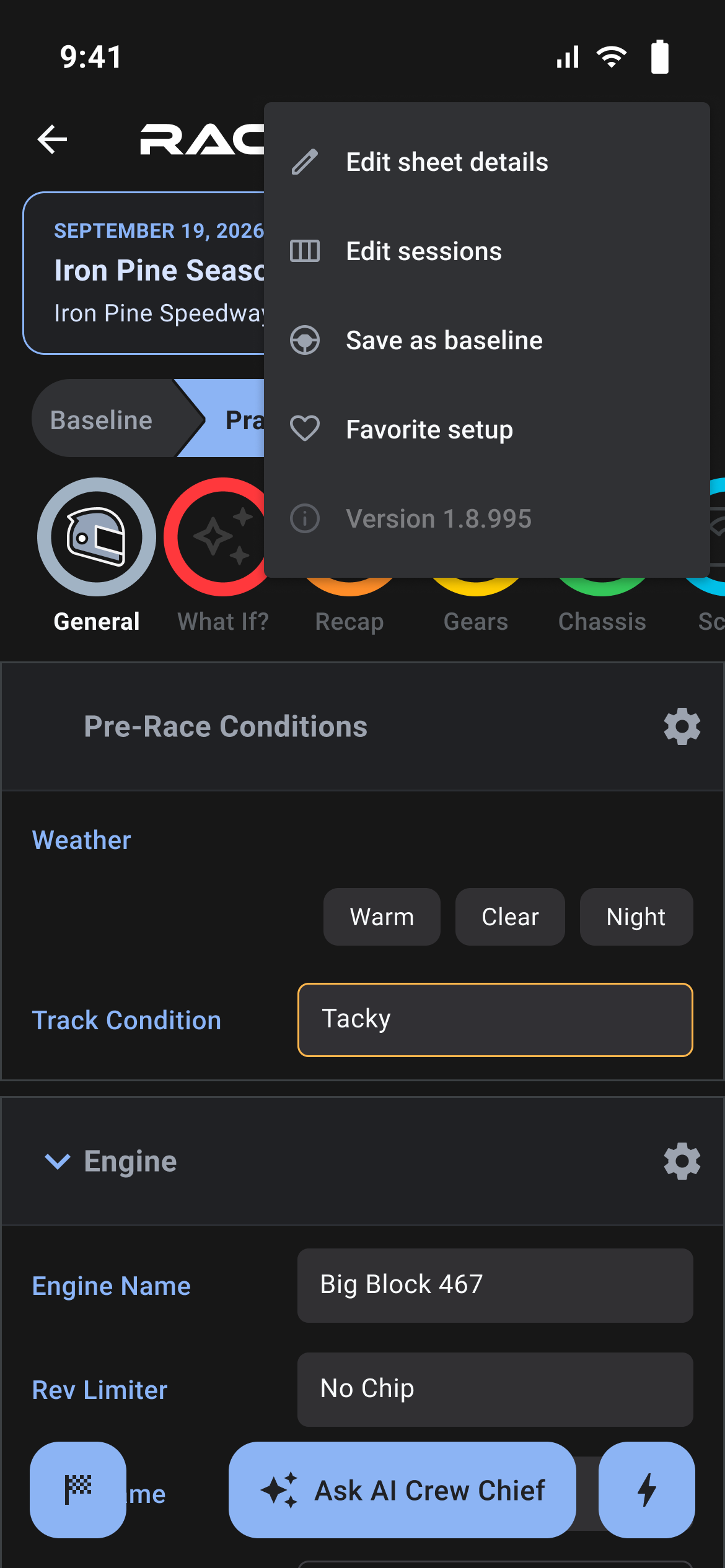
Session bar and category strip
- Session Bar: Switch between Baseline, Practice, Qualifier, and Feature (or Round 1, Round 2, Feature) with a single tap.
- Category Strip: A row of round icons you slide sideways, one per category on the sheet. On the Universal NE Dirt Modified template they run General, What If?, Recap, Gears, Chassis, Scale, Shocks, Tires and Lap Times. Tap an icon to show that category's panels below.
The lightning button and AI Crew Chief
- Lightning Bolt Button: Quick actions menu offering Full Setup Sheet [RaceNight Pro], Best Practices, Add Photo (when the current category has a photo section), and Update Info (after a template update left values behind). The checkered flag at the bottom left finishes the setup.
- Ask AI Crew Chief [RaceNight Pro]: When your class template has it, opens the AI Crew Chief chat with your current session's setup, track conditions and recap notes already loaded.
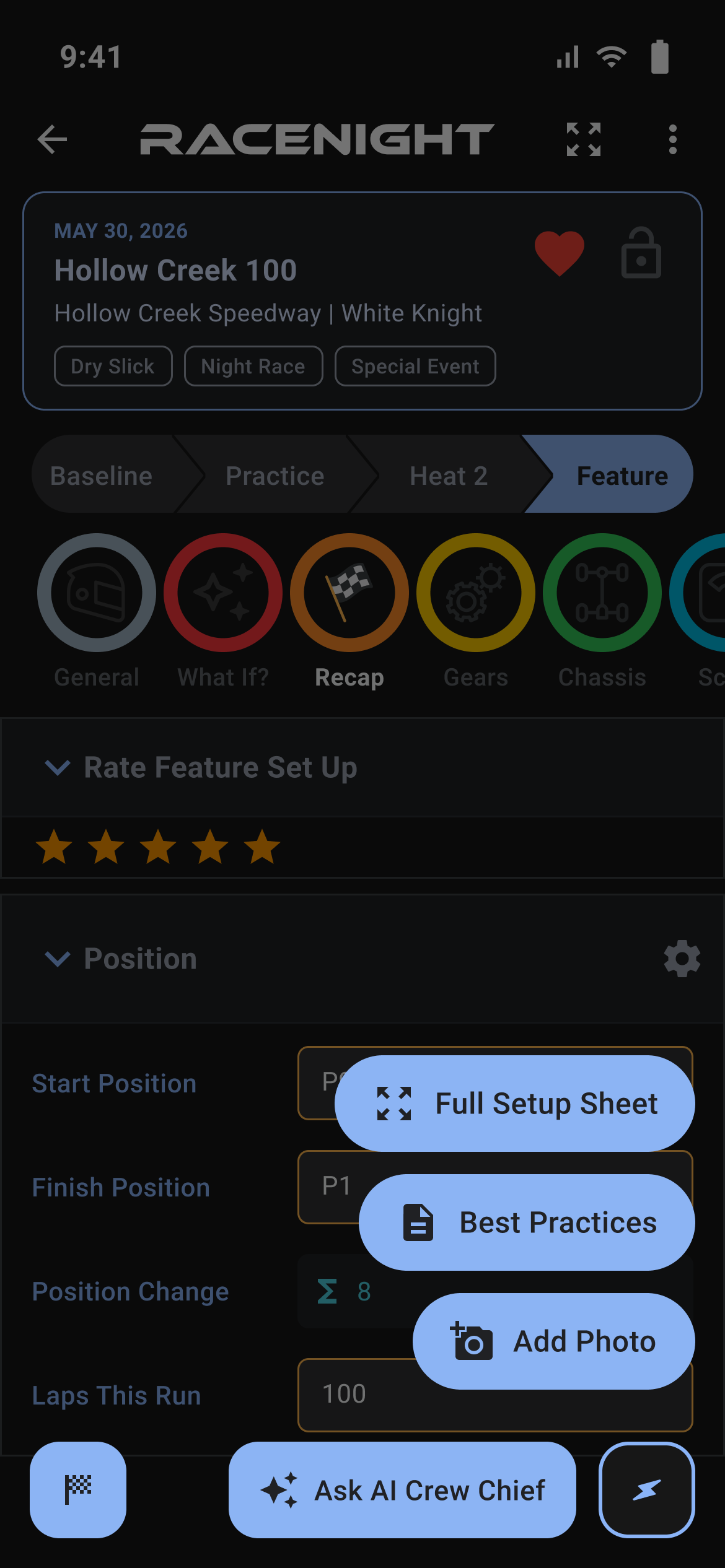
Template categories and sheet layout
Where in the app: Setups tab → tap a setup → category icon bar
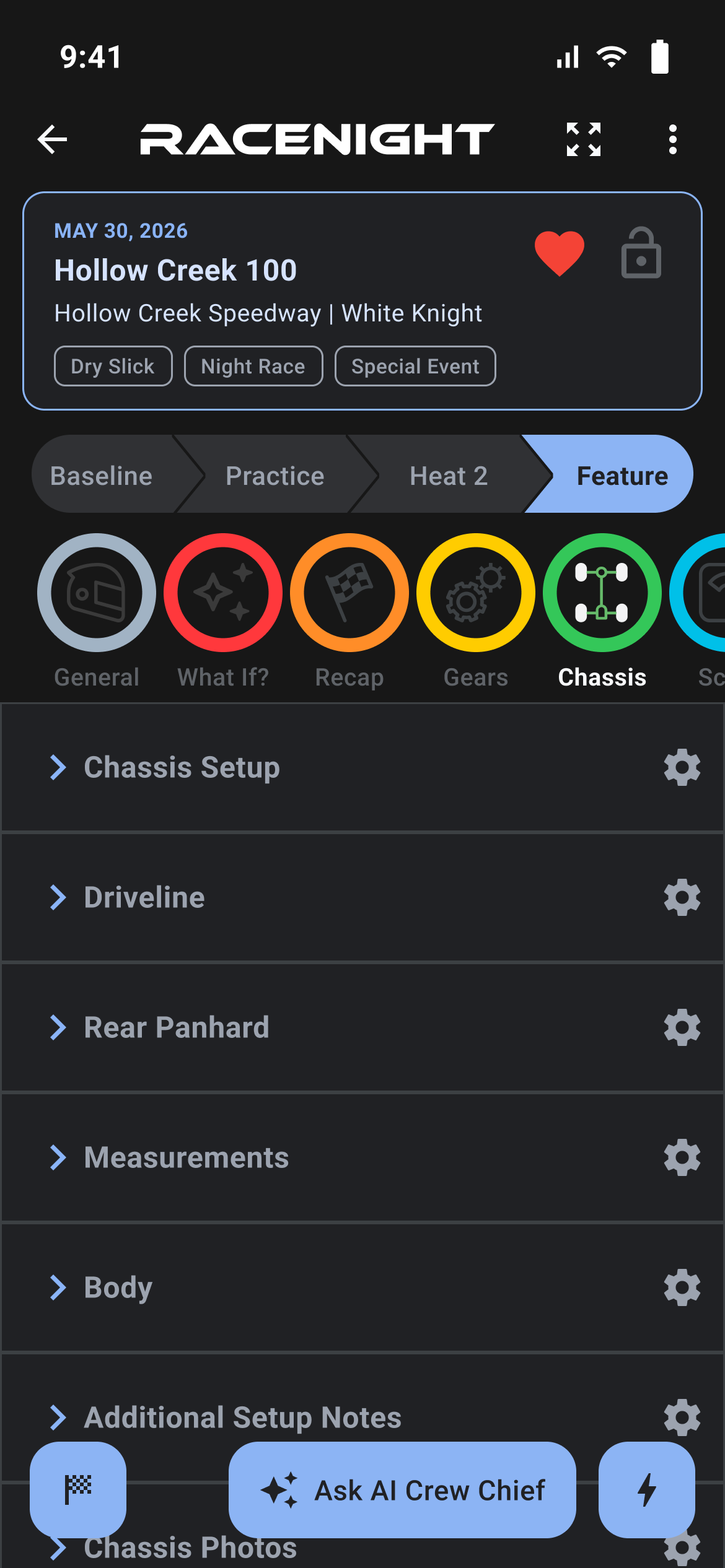
Every setup sheet is split into categories, one for each part of the car. Here is what each one is for on race night:
1. General [RaceNight Pro]
Conditions before you run and the engine package:
- Pre-Race Conditions: Weather, Track Condition, Air Temp and Air Density %.
- Engine: Engine name, rev limiter, carb, carb spacer, carb reducer and fuel pressure.
- Baseline Insight: Notes on the baseline, plus a Setup Sheet Photo section.
2. What If? [RaceNight Pro]
Ask the AI what a change would do before you make it:
- Weather Change: No Change, Colder, Hotter, More Overcast, More Sun, More Humidity, or a move to Day, Evening or Night.
- Track Surface Change: No Change, Drying Out, Shiny Slick, Rubbering Up, Roughing Up, They Watered it or Dusty Loose.
- What other changes do you want to make??: The chassis, spring, shock, tire or gear change you have in mind.
- Ask A What-if Question [RaceNight Pro]: Type your question and send it. The AI reads it with your sheet.
3. Recap [RaceNight Pro]
The post-session debrief where performance and driver feedback are logged:
- Position [RaceNight Pro]: Start position and finish position (P1 to P30, DNF) with automated Position Change calculation (+/- spots gained or lost).
- Laps This Run: Laps in the session. It feeds the Fuel / Lap calculation in Post Race, and when you finish the setup with the checkered flag it goes to your car's maintenance counters in RacePrep [RaceNight Pro].
- Driver Feedback: How the car felt, picked from chips: Corner Entry, Middle of the Corner and Corner Exit (Tight, Good or Loose), plus Forward Bite and Side Bite.
- Race Conditions: Weather, Track Condition, RaceTrack Changes, Air Temp and Air Density % for the session.
- Trackside Tuning Guidance [RaceNight Pro]: One tap and the AI reads the driver's complaints for the session, then suggests chassis, shock and tire changes for the next one.
4. Gears [RaceNight Pro]
Drivetrain, rear-end gearing, and final drive ratio management:
- Pinion & Spur Ratio Grid: On templates that have one, such as kart sprocket templates, a ratio chart where tapping a pinion and spur tooth pair sets the final drive ratio.
- Quick Change Gear Set and Ratio: Picks a quick change gear set from your saved gear inventory.
- RPM Gear Calculator [RaceNight Pro]: Enter Current RPM and Target RPM. The sheet works out Current Gear Ratio and New Gear Ratio, and AI Gear Selection asks the AI to pick a gear.
5. Chassis [RaceNight Pro]
Geometry, links and body:
- Chassis Setup: Toe, front and rear axle lead, wheelbase on both sides, front panhard holes and spring rod.
- Driveline and Rear Panhard: Torque arm, biscuit setup, panhard side and holes, and the left side J-bar.
- Measurements, per corner: Caster, camber, spring rate, shock PSI, keystock, rod lengths, mount holes and, on the rears, torsion bar rate.
- Body: Rear spoiler height and sail panels, plus Additional Setup Notes and Chassis Photos.
6. Scale [RaceNight Pro]
Static weight distribution and 4-corner chassis balance:
- Corner Weight: A 2x2 grid for the Left Front (LF), Right Front (RF), Left Rear (LR) and Right Rear (RR) wheel weights, plus Scaled Fuel Level and Total Weight, which adds up all four corners. Import Scale Weights with AI [RaceNight Pro] reads a photo of the scale display.
- Weight Distribution [RaceNight Pro]:
- Total Weight comes from Corner Weight, and every percentage below is worked out from it.
- Cross RF/LR: RF plus LR, as a percent of Total Weight.
- Left Side: LF plus LR, as a percent of Total Weight.
- Rear: LR plus RR, as a percent of Total Weight.
- Wedge (Bite): LR minus RR, in pounds. Right Side, Front and Diag are worked out the same way as the percentages above.
- Ride Heights: 4-corner frame rail ride heights measured on the setup pads.
7. Shocks [RaceNight Pro]
Coilovers and spring smash numbers:
- Coilover Assembly, per corner (LF, RF, LR, RR): Shock, label, brand, shaft, valving, clicks and PSI.
- Springs and collars: Spring type and rate, height or shape, tender, rubbers and bump stops, collar adjustment and collar turns.
- Shock Notes and photos: A notes box and a Shock / Spring Smash Photos section.
- Spring Smash Data [RaceNight Pro]: Per corner, the load at each travel point from -3 to 5, extension load, max travel, bump contact and bump load.
8. Tires [RaceNight Pro]
Wheels, stagger and tire temperatures:
- Wheels & Tires, per corner: Tire ID, compound, tire size, tire PSI, wheel brand, wheel, backspace and offset. Tire Brand and Recommended Rear Stagger sit in the Overview above.
- Stagger: Front and rear stagger worked out from your tire sizes, checked against your planned stagger (Actual vs Plan, Rear Stagger Variance).
- Tire Temps, per corner [RaceNight Pro]: Outer, Middle and Inner on each tire, with an average per tire and averages across the car. Scan Tire Pyrometer with AI [RaceNight Pro] reads a photo of your pyrometer readings, and Analyze Tire Temps with AI [RaceNight Pro] gives a read on the temps.
- Tire Wear: Describe the tire condition for each session, plus Tire and Tire Temp Photos.
9. Lap times [RaceNight Pro]
Your fastest lap against the fastest in the race:
- Lap Time Comparison: Pick your name in Driver to Match, then Import Lap Time with AI [RaceNight Pro] reads a screenshot of the results. My Lap Time, Fastest Time and Difference fill in.
- Lap Time Photos: Keep the results screenshots with the setup.
- Laps and maintenance: Laps reach maintenance when you finish the setup.
Sessions: Baseline to Feature
Where in the app: Setups tab → tap a setup → the chevron bar under the header card
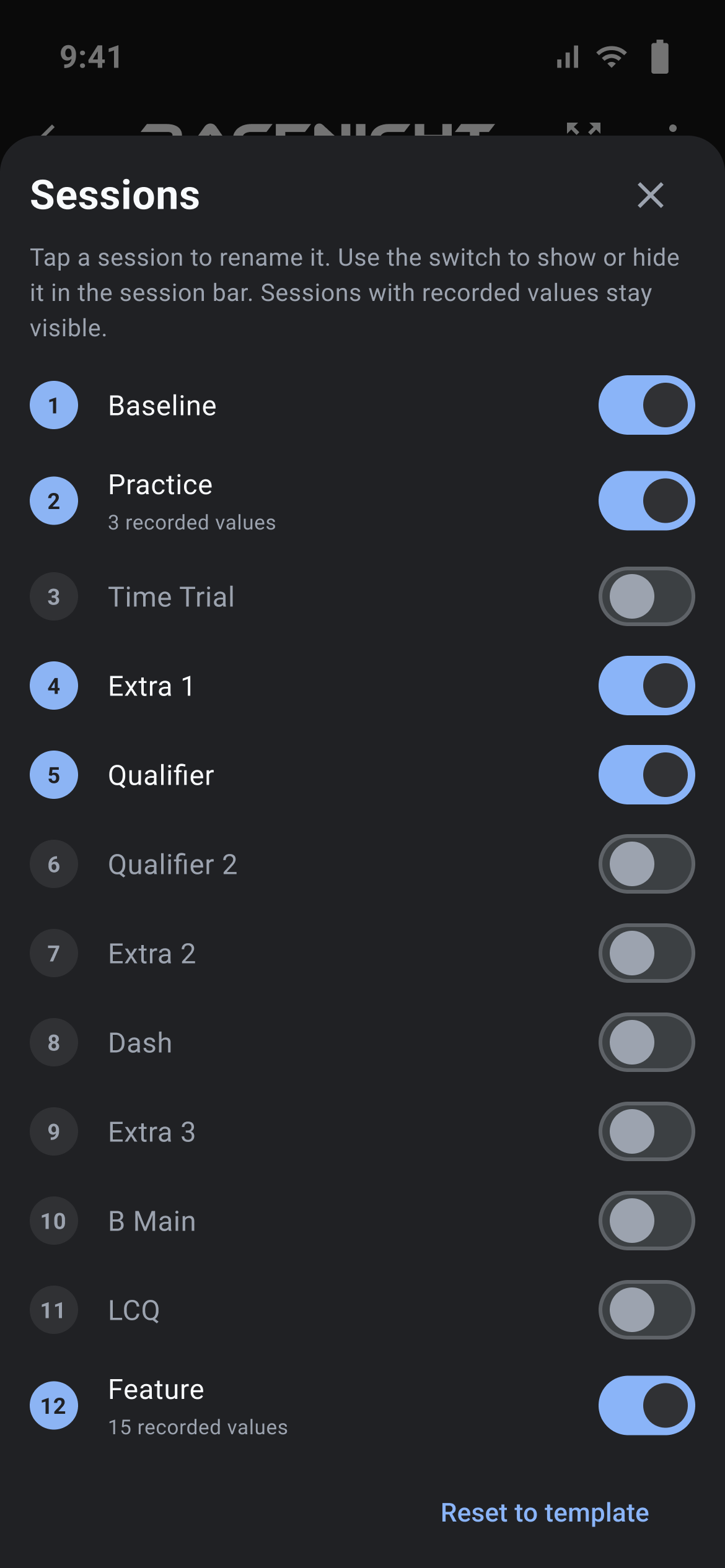
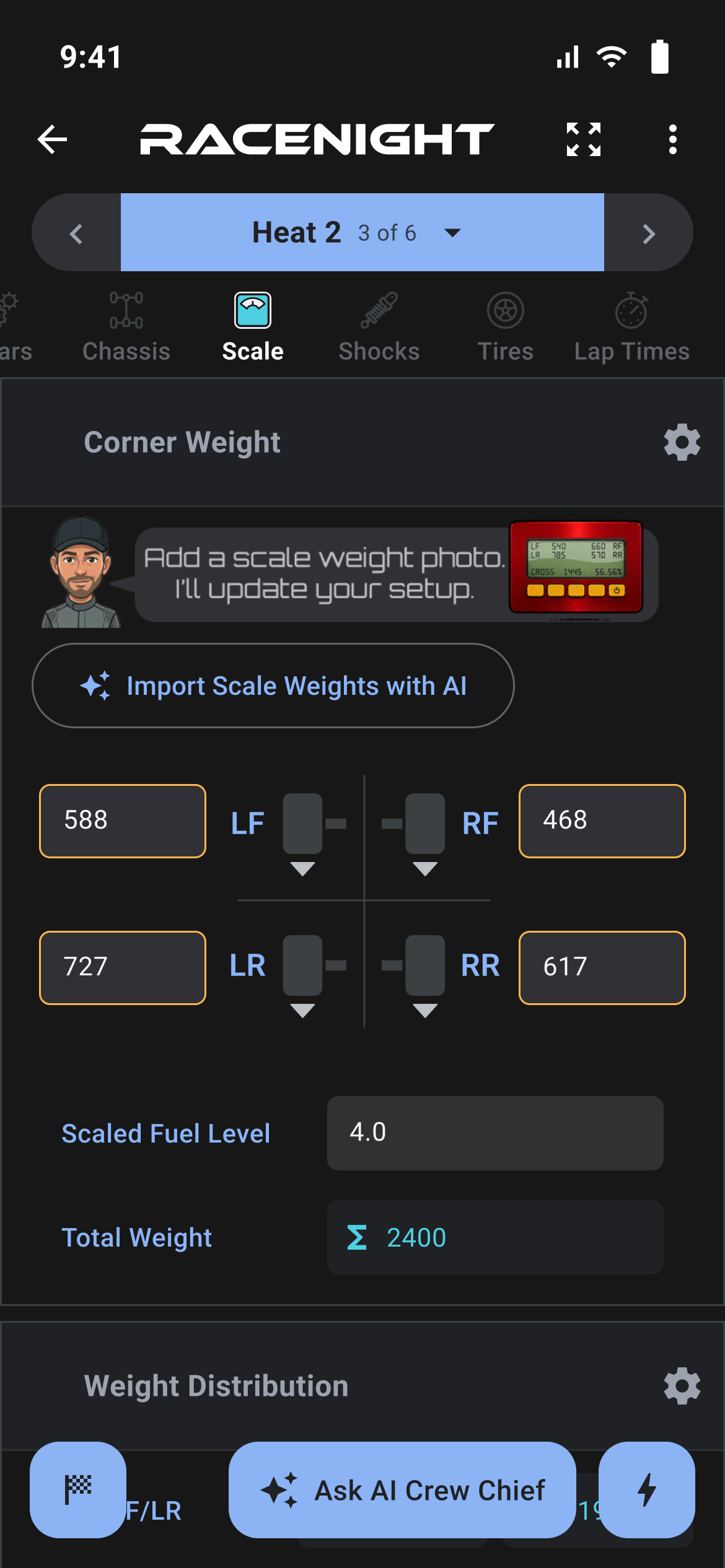
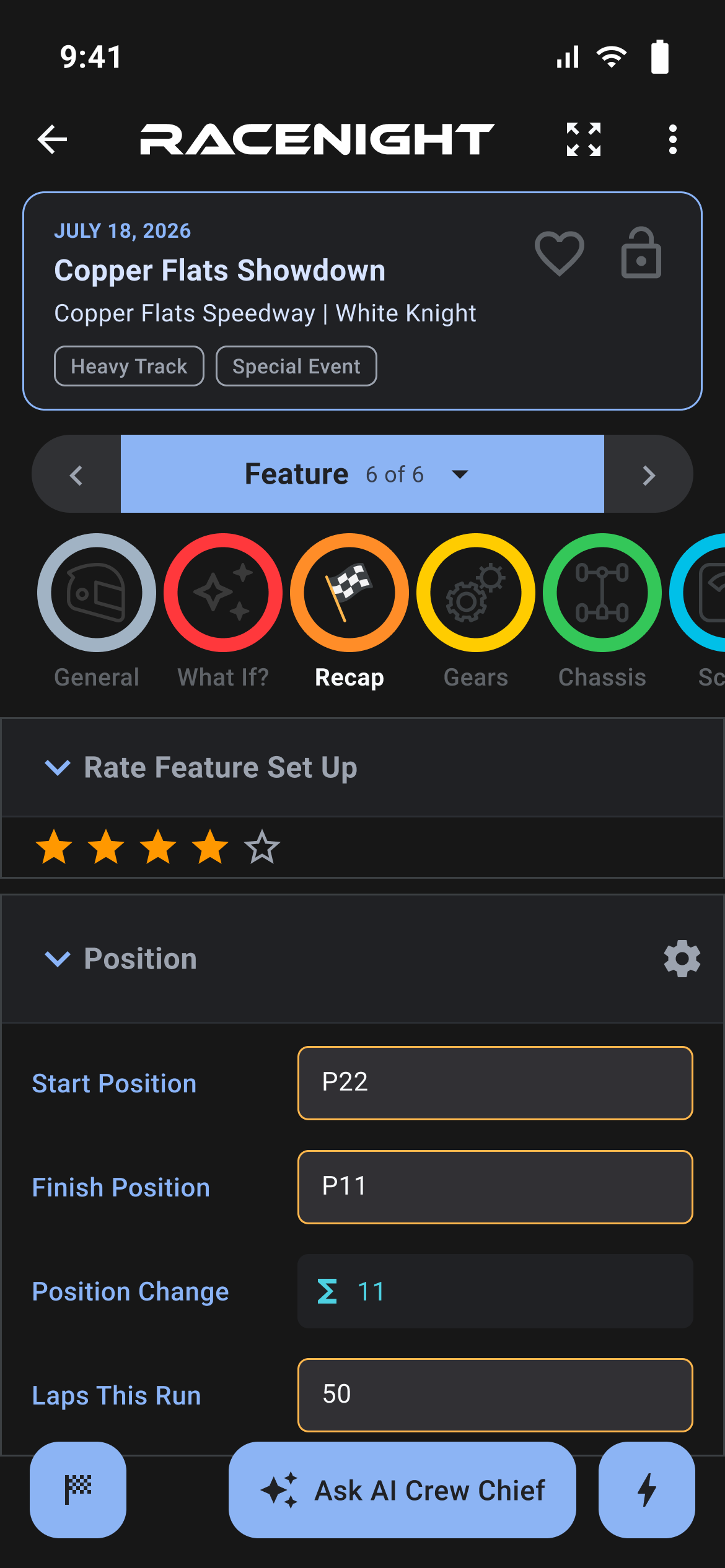
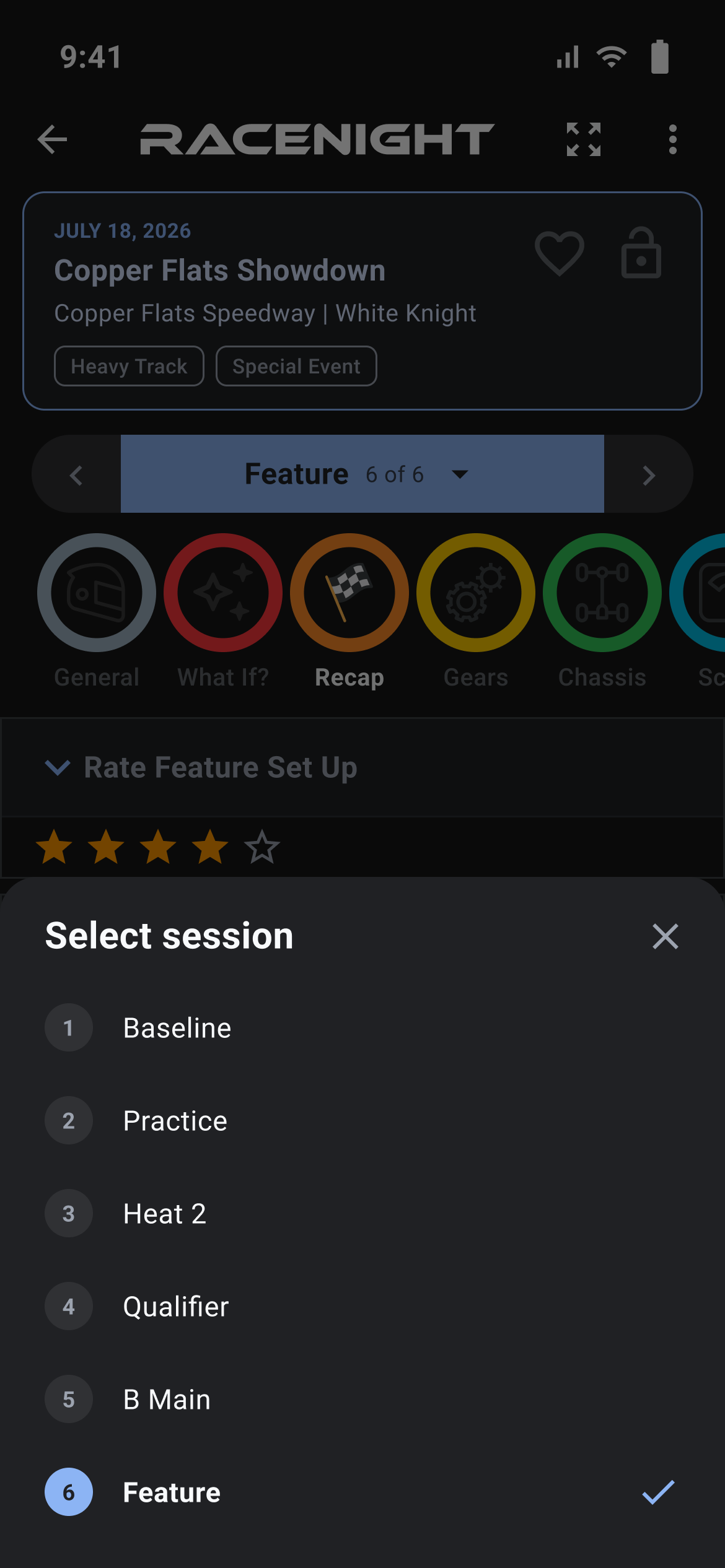
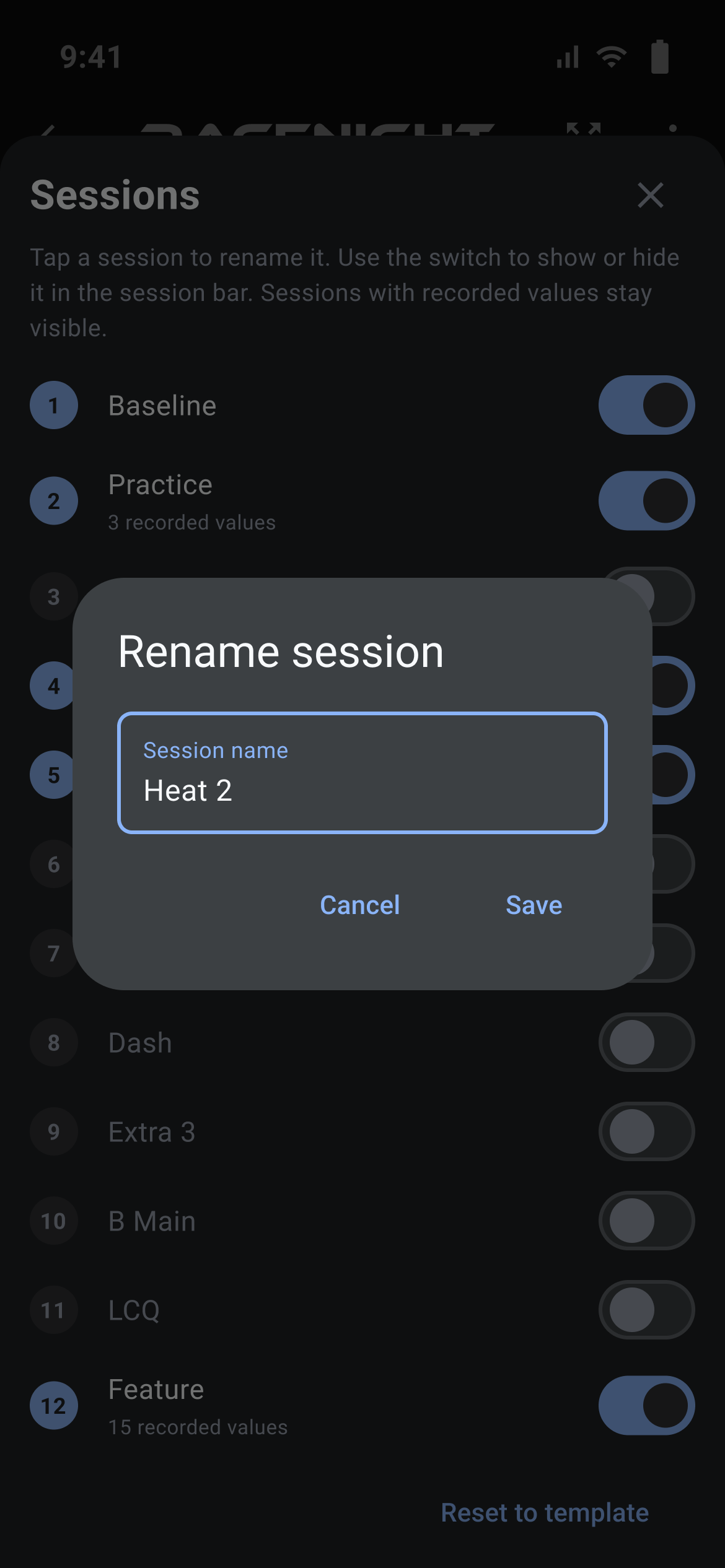
RaceNight splits every race night into the sessions your template starts with, up to 12, so you can track how the car and the track change through the event.
Sessions and session switching [RaceNight Pro]
The session names reflect your class template (typically Baseline, Practice, Qualifier, and Feature, or Baseline, Round 1, Round 2, and Feature).
- Tap any session in the chevron bar to switch. To show more sessions, open the 3-dot menu and pick Edit sessions: switch on more of the template's sessions, or tap a session name to rename it. You can't add or delete sessions; the template sets the slots, up to 12, and Add Laps covers every one you show.
- Switching sessions closes the keyboard, auto-saves whatever you were editing into the session you are leaving, and loads the target session.
- The template can limit a category to some sessions. In some templates Recap and Lap Times don't show on Baseline.
Sessions with recorded values stay visible, and the Baseline session is always visible. Reset to template puts names and visibility back. Your values stay.
How values carry forward between sessions [RaceNight Pro]
- Values carry forward: What you enter in one session carries into the sessions after it. Set spring rates in Baseline or air pressures in Practice and they stay in Qualifier and Feature until you change them.
- Earlier sessions stay put: A change in a later session never changes an earlier one, so your Baseline stays as you left it.
- Changed values are shaded:
- Highlighted Shading: Values changed in this session get the stronger highlight.
- Lighter Shading: Values changed in an earlier session and carried forward get a lighter shade. Values never changed have no shading.
- Some fields start empty each session: Comments, and any field the template marks as per-session, start empty in each session.
- Photos: Photos captured in an earlier session remain visible across all subsequent sessions.