AI tools
The AI crew chief, AI Assist, the AI buttons inside a sheet, Snap & Fill photos, and what to do when the AI can't answer.
AI tools
Ask the AI crew chief [RaceNight Pro]
Where in the app: Setups tab → tap a setup → Ask AI Crew Chief, left of the lightning bolt button
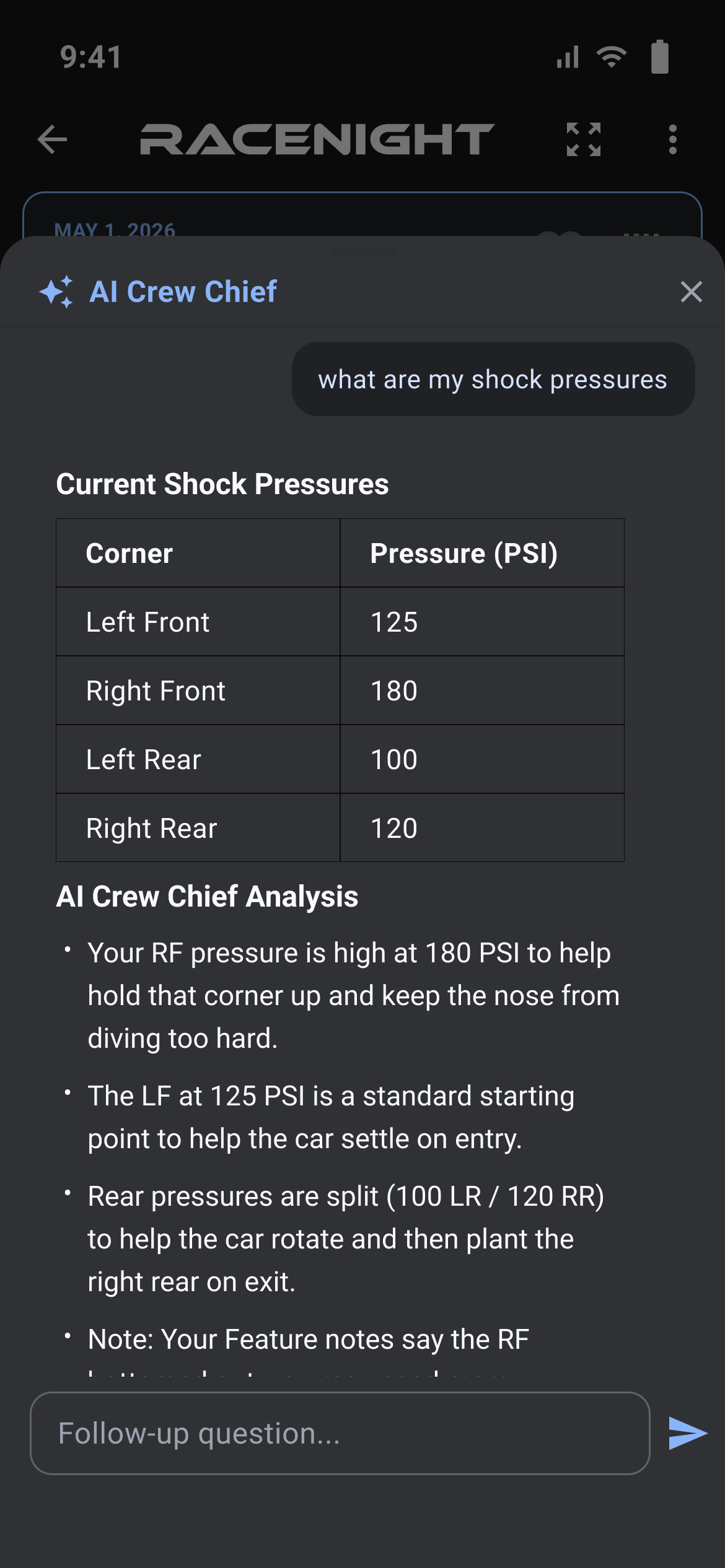
A chat with an AI crew chief that already knows what is on the setup sheet in front of you.
Opening it
- The Ask AI Crew Chief button shows only when your setup's class template carries a crew chief prompt. Most class templates do.
- It works on a template preview as well as on your own setups, and it also opens on its own when you send from an AI chat field.
- It does not close the lightning bolt menu, so that menu is still open when you close the sheet.
The sheet
- A sparkle icon, the heading AI Crew Chief, and an ✕ that closes the sheet.
- An empty sheet shows an illustration and two lines: "What it's doing, what to change" and "What that change will do, what each part does".
- A typing box reading "Ask AI Crew Chief..." for your first question and "Follow-up question..." after that. It takes as much text as you like.
- The typing box is already focused when the sheet opens, so the keyboard comes up with it.
- The return key inside this box makes a new line rather than sending, so use the send arrow.
Asking
- Type your question in plain language and tap the send arrow. The box and arrow gray out while it works.
- A "Thinking..." panel covers the screen for up to two minutes and cannot be canceled.
- The answer appears under your question. Keep typing in the same box for follow-ups.
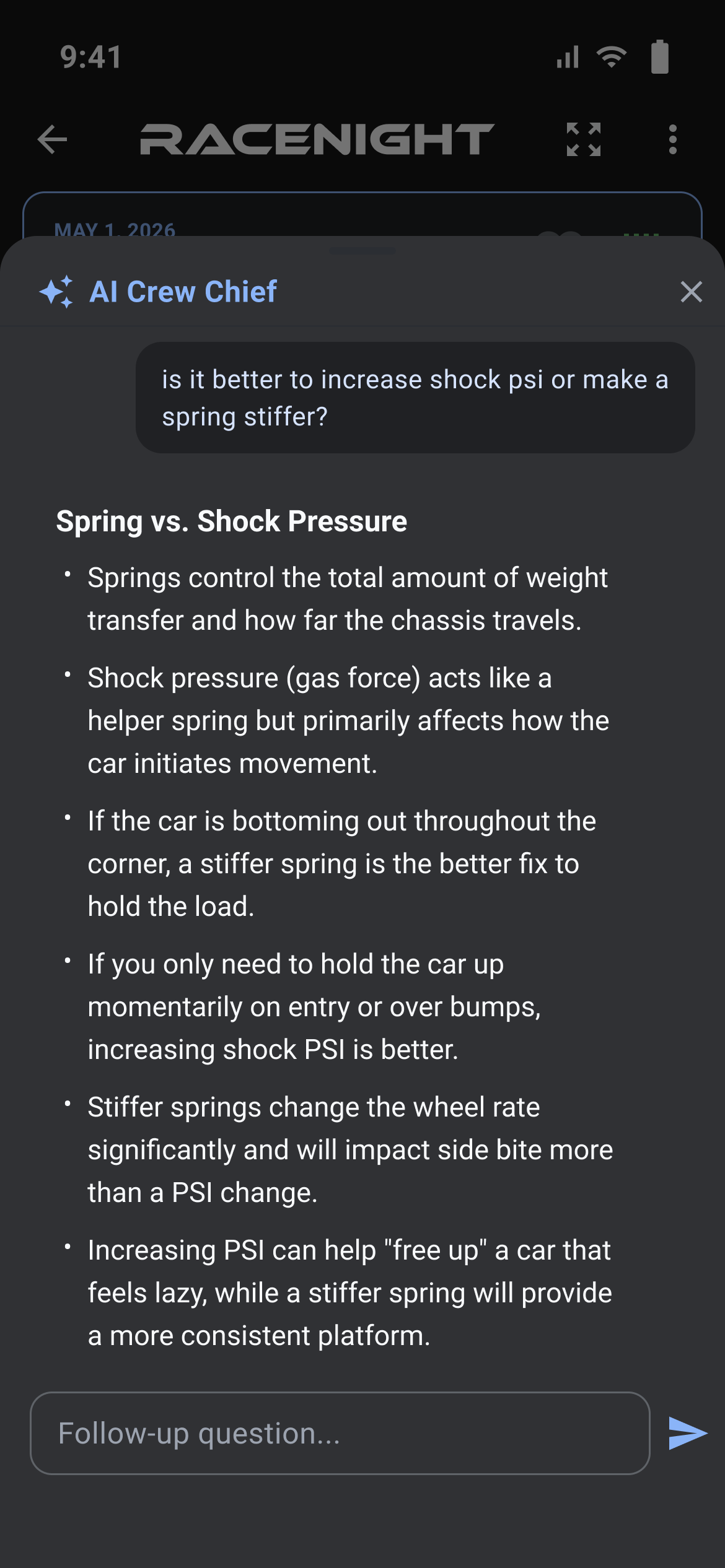
Tapping send with nothing typed still sends a request, carrying your sheet but no question.
Rating an answer
Under each answer sit a thumbs up, a thumbs down and the line "Review results. AI can make mistakes." Thumbs up sends at once. Thumbs down opens What could be improved?, a box hinted "Tell us what could be improved..." and a Send feedback button. Its ✕ closes the panel without sending, and an empty box sends nothing. Every answer keeps its own thumbs, but the rating is sent against the whole conversation rather than the one answer.
- The thumbs and the "Review results. AI can make mistakes." line only appear once the server has given the conversation an id. When it does not, there is nothing to rate.
- Feedback that fails to send says nothing in this sheet. The same failure on an AI button's answer puts up "Failed to send feedback: " and the reason.
What RaceNight sends with your question
| Sent with every question | Where it comes from |
|---|---|
| Setup name and description | The setup |
| Track name, address, track size and country, or just the name when the track is not stored on this phone | The track on the setup |
| Race date | The setup |
| Car name, car type and race class, plus chassis maker and extra notes when you have filled them in | The car on the setup |
| The name of the session you are on | The session bar |
- From that button it also sends every session's field values and every inventory table your sheet uses.
- "Every session's field values" means what each session recorded plus that session's calculated answers, not the whole sheet as that session reads it. A value you entered on an earlier session and carried forward goes out under the session you typed it on.
- From an AI chat field it sends what that field was built to send: the current session, every session, your inventory tables, or none of those.
- Fields the template keeps out of AI context are left out unless the AI field forces them back in. Calculated fields go out with their answers, an inventory selector as the row you picked with its column headings attached, so the AI reads the row rather than a row number.
- An inventory selector whose table or row cannot be found is dropped from what is sent rather than sent as a bare row number, so the AI may not see that field at all.
- Photos go only when the field asks for one.
- On a template preview a TEMPLATE PREVIEW banner sits where the session bar normally is, so there is no session bar to read the last row off.
Suggested values and closing
- Values arriving with an answer are written into the session you are on with no confirm step and no undo, and on the first session into the base values too. Pick that session before you open the chat, then check the fields it touched. On a template preview there is no session bar to pick from.
- Names that are not on your sheet, and read-only fields, are skipped without a message.
- The ✕ or a swipe down closes the sheet. Conversations are not saved, so press and hold to select and copy an answer first.
AI Assist [RaceNight AI]
Where in the app: Setups tab → AI Assist, beside the + button at the bottom right
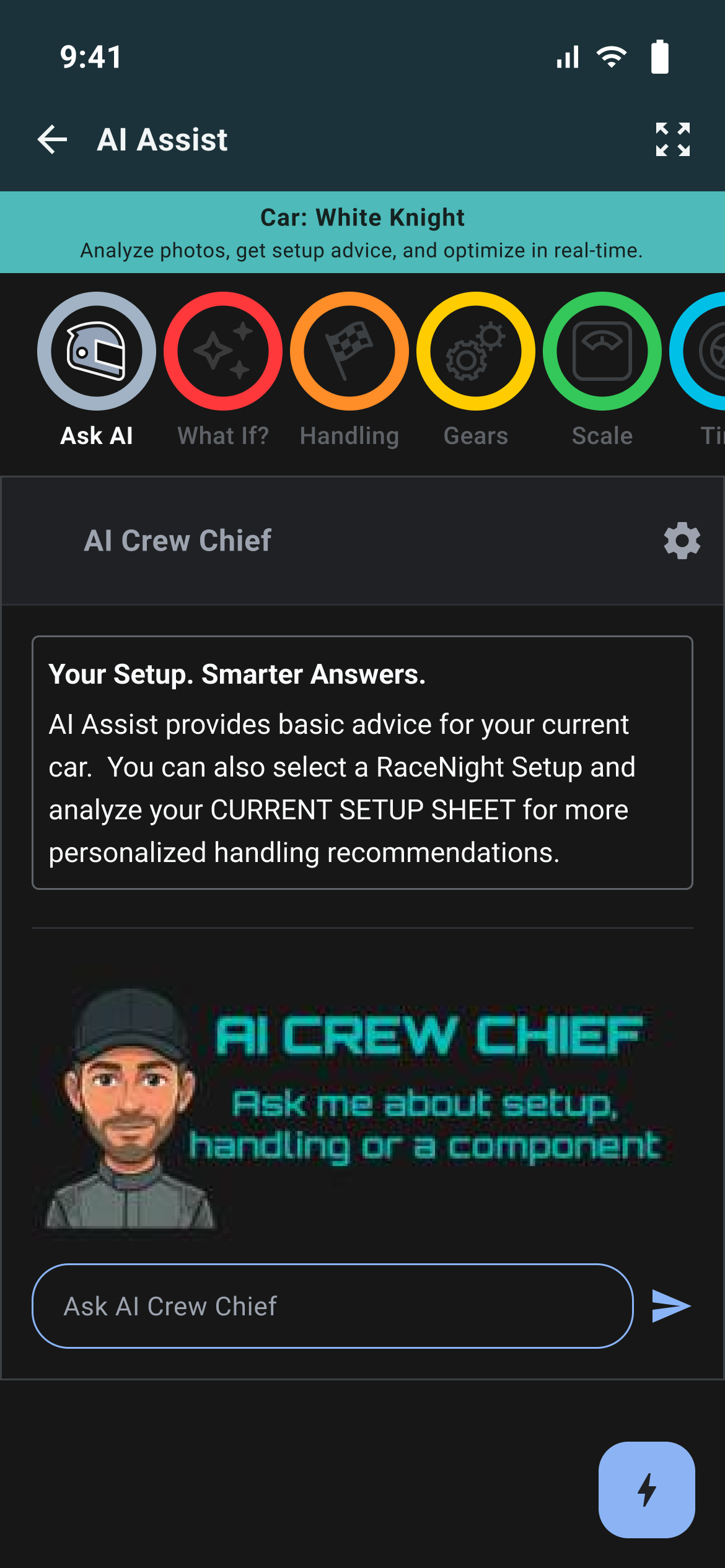
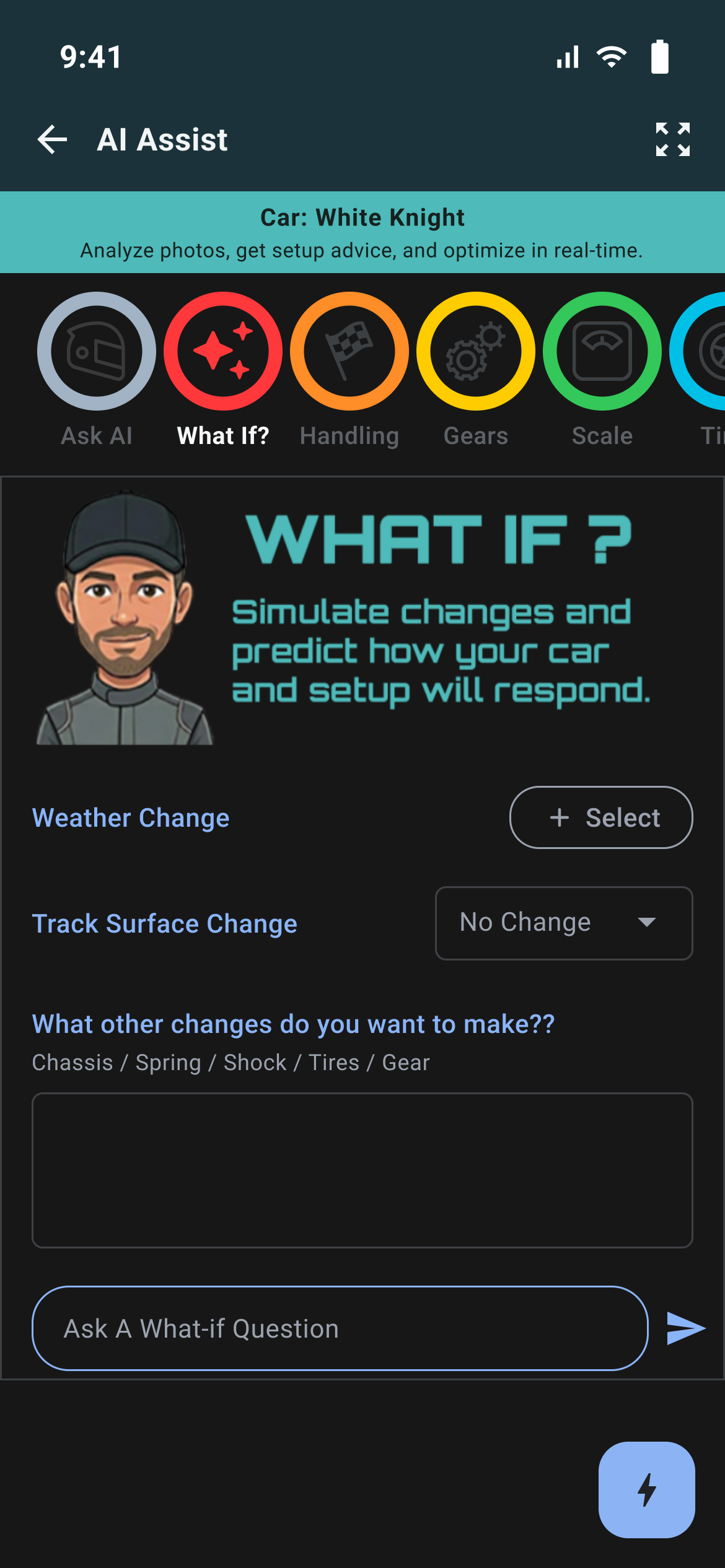
AI Assist, beside the + button on the setup list, is how the RaceNight AI plan reaches the AI. It opens an AI screen for the car you picked in the carousel, without opening a setup. The bar at the top reads Car: and the car's name, or POWERED BY RACENIGHT AI when no single car is picked. RaceYear supplies what is on that screen, so it can change without an app update.
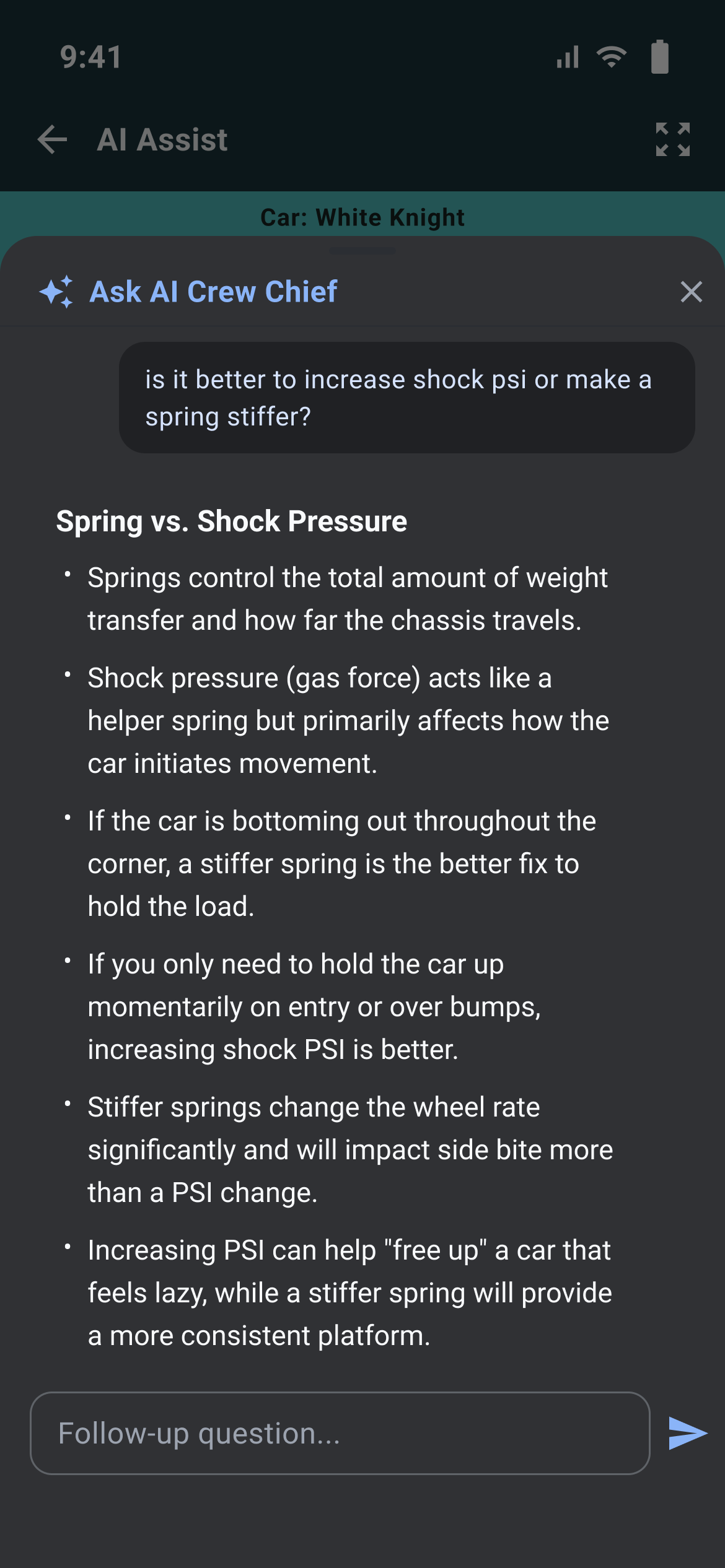
- It works on the RaceNight AI plan, on RaceNight Pro and during the free trial.
- Pick the car in the carousel first. With all cars selected, the AI is not told which car you mean.
- The tabs across the top hold the AI tools: Ask AI for the crew chief chat, What If?, Handling, Gears, Scale and Tires, plus Support for sending feedback.
AI buttons and chat inside a sheet [RaceNight Pro]
Where in the app: Setups tab → tap a setup → any category holding an AI field
Two kinds of field put the AI inside your setup sheet: a button that runs one job, and a box you type a question into.
Where they are
Templates decide where these live. Universal NE Dirt Modified and Universal Sprint Car each carry six AI buttons and one AI chat field. Both work on a template preview as well as on your own setups. Neither appears in the Full Setup Sheet.
AI buttons
An AI button is a full width outlined pill carrying the label the template gave it, with a small icon to the left of that label when the template supplied one.
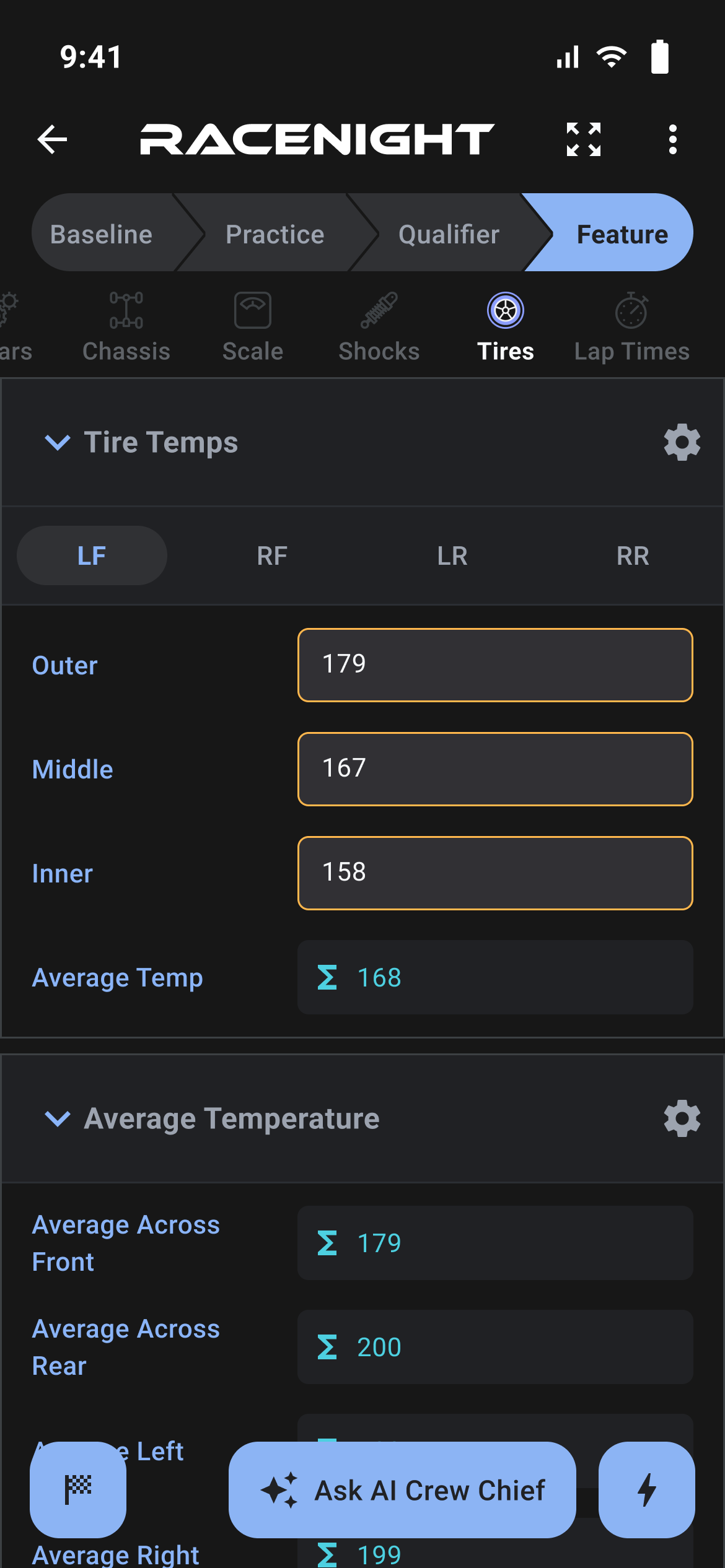
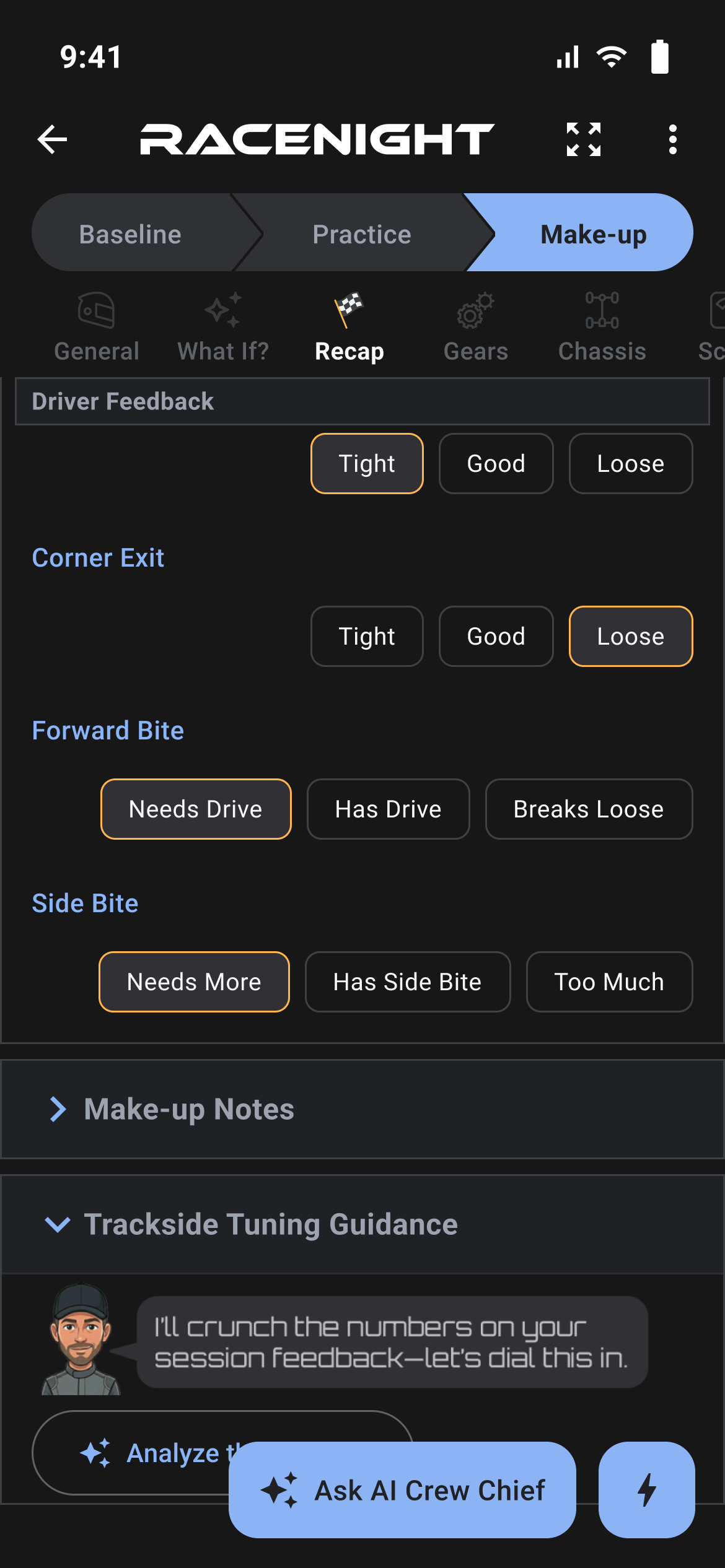
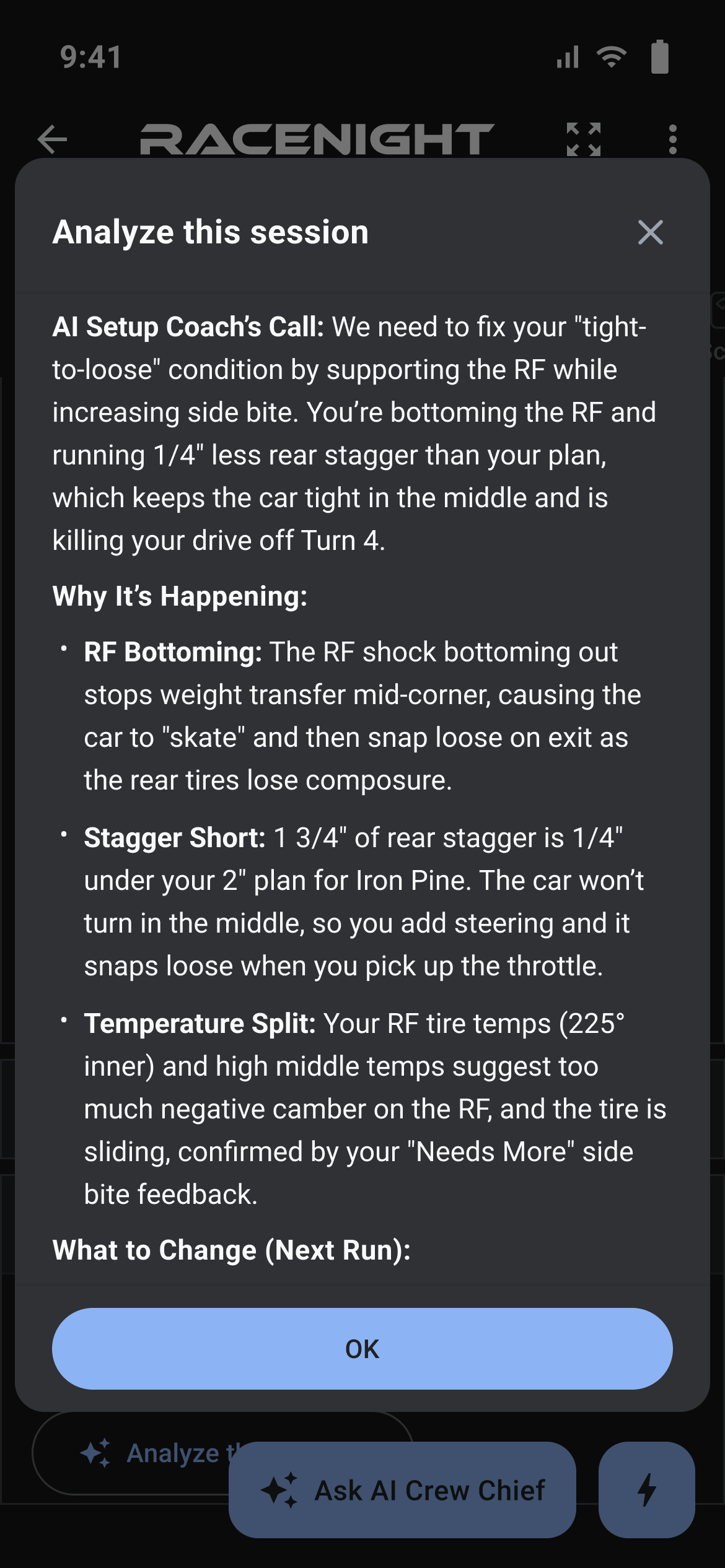
- Tap it. Whatever field you were typing in is saved and the keyboard drops.
- If that button wants a photo, Add Photo comes up first.
- A "Thinking..." panel covers the screen for up to two minutes.
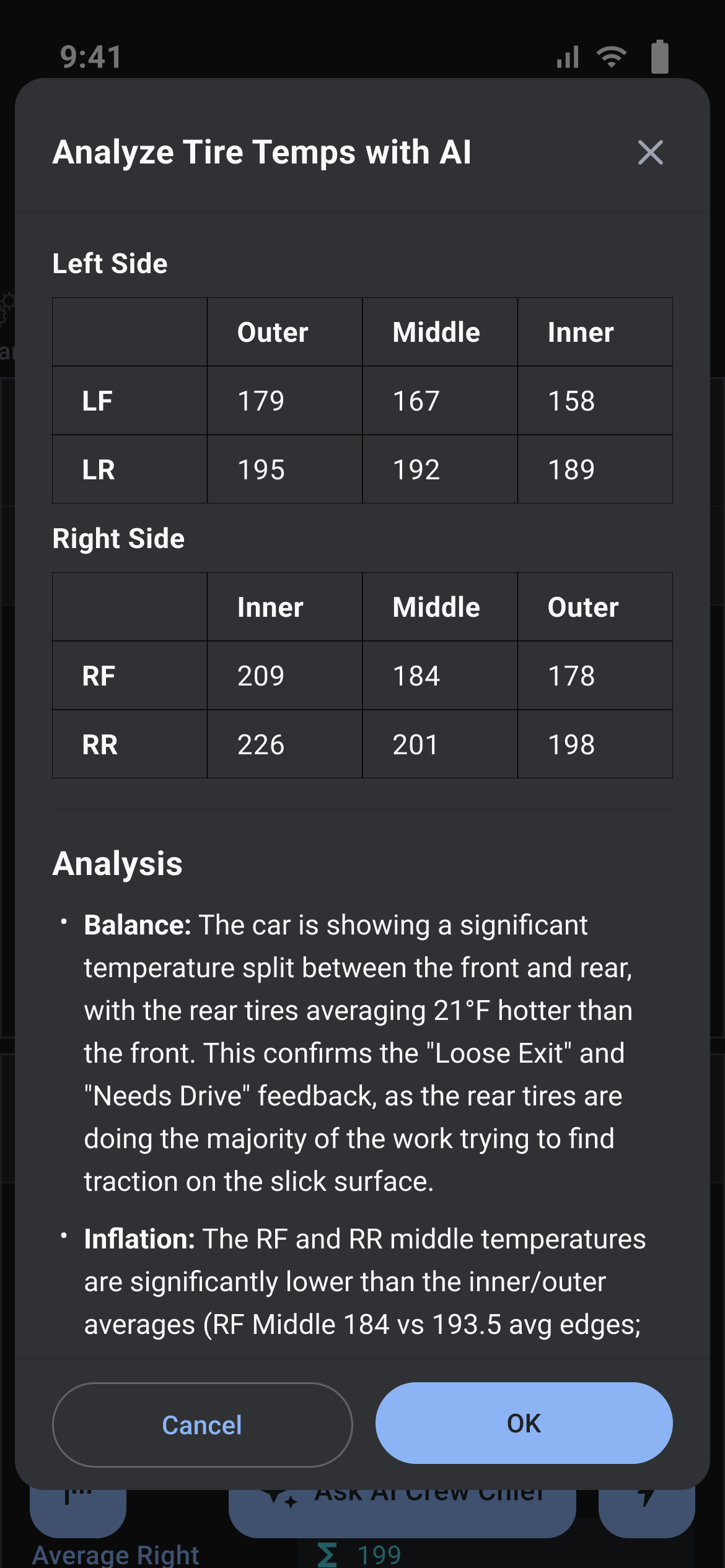
- The answer opens in a dialog titled with the button's label, with the same rating and feedback panel as the chat.
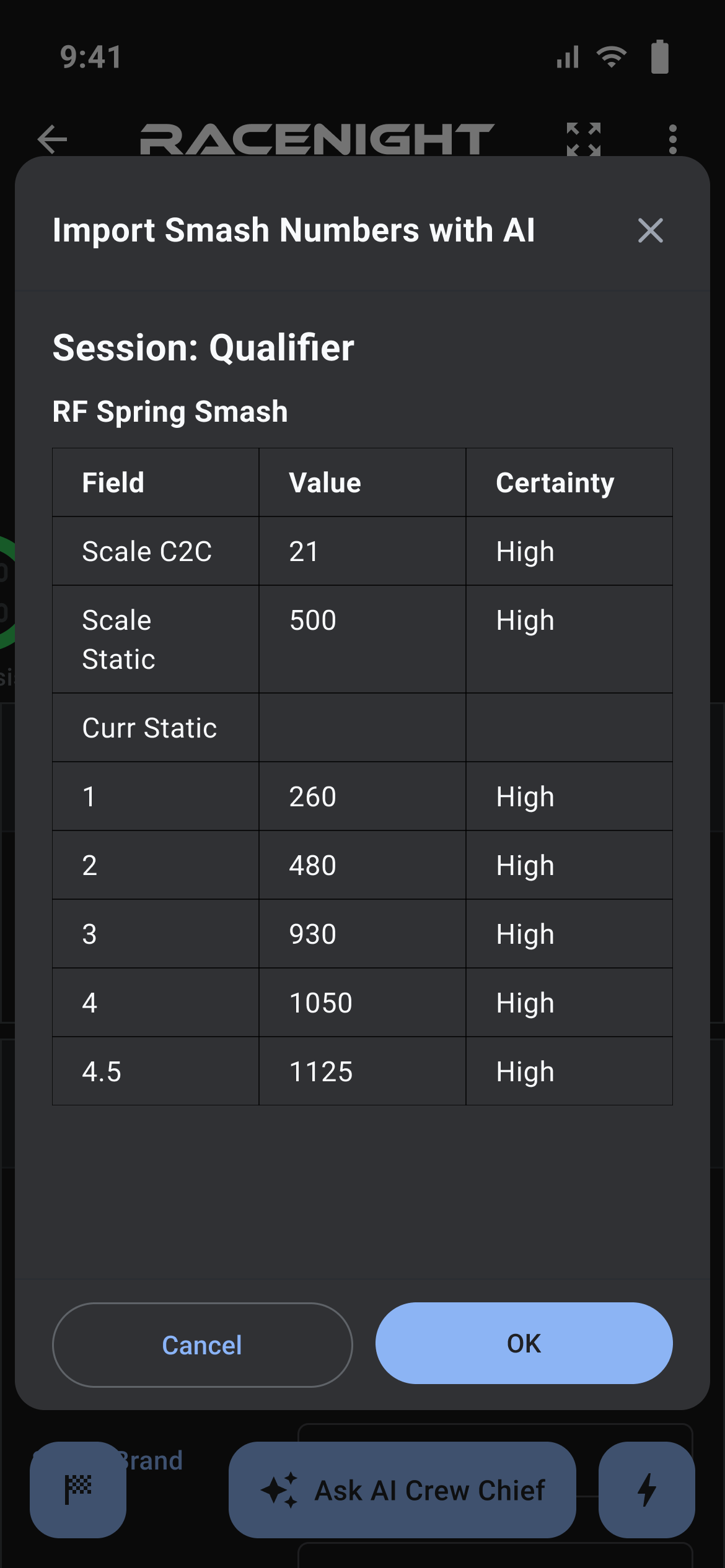
- When the AI suggests values you get two buttons. OK writes them in; Cancel and the ✕ both throw them away.
- When it suggests nothing you get one OK that only closes the dialog.
- The thumbs here carry the tooltips Good response and Bad response, which the chat's thumbs do not.
OK writes into the session selected in the session bar, and on the first session into the base values too. On a pick list you are allowed to add your own entries to, a value that is not in the list yet is added, so it shows up straight away. Unknown names and read-only fields are skipped with nothing said, and there is no undo.
AI chat fields
An AI chat field is a rounded box with a send arrow tooltipped Send. The hint inside it is the question the template wants you to answer.
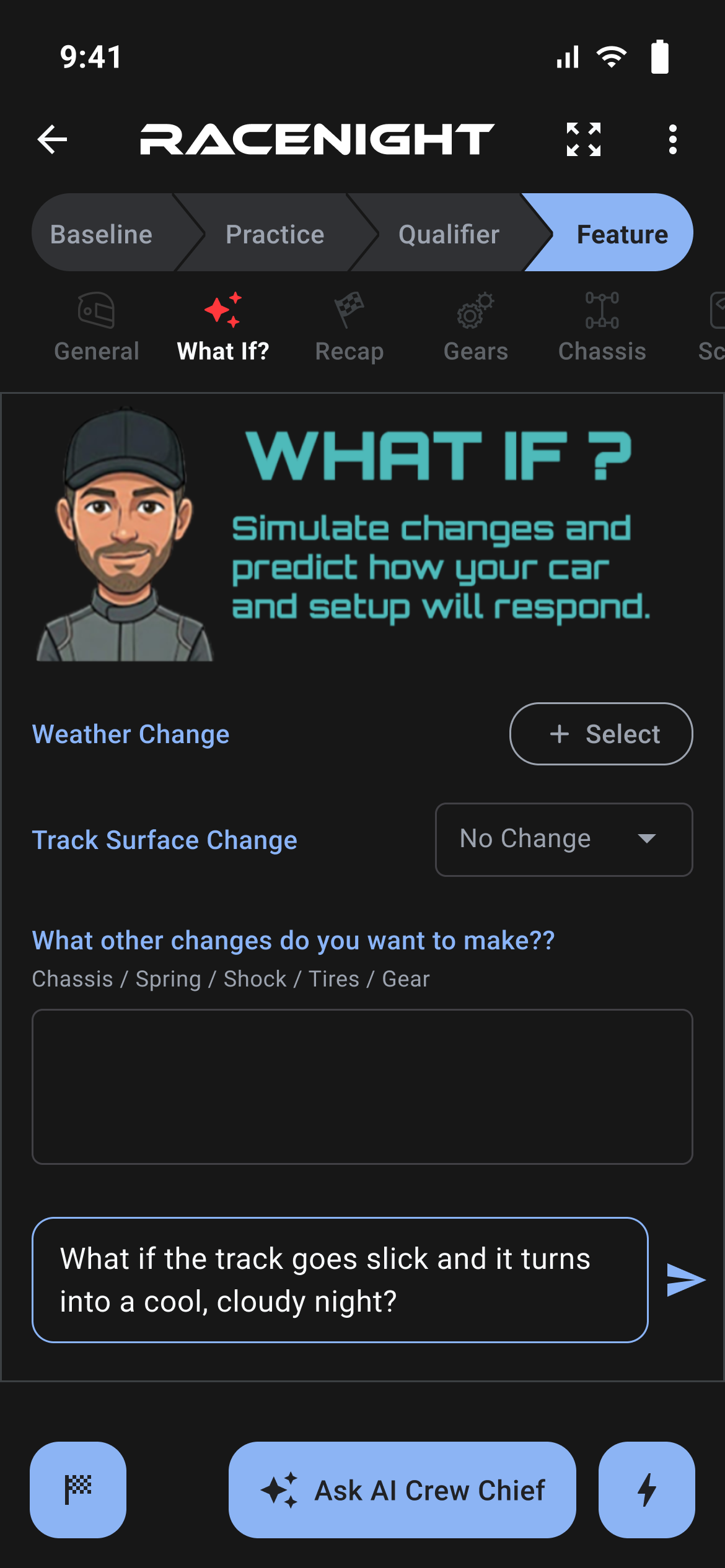
- Type your question and tap the arrow, or press the send key on your keyboard. If the field wants a photo, Add Photo comes up first.
- The box clears and the crew chief sheet opens with your question already sent, titled with the field's own label.
- Carry on there. Follow-ups, ratings and closing work as above.
Tapping the arrow with nothing typed still sends a request. Answers in that sheet write their values in with no confirm step, unlike an AI button.
When one will not go
| What you see | What it means |
|---|---|
| "No AI code specified for this button" | The template did not finish setting that button up. Nothing was sent. |
| "No AI code specified for this chat field" | The same, for a chat field. Nothing was sent. |
| "Setup not available" | The setup was not loaded. Back out and open it again. |
All three arrive as a brief note at the bottom of the screen rather than a dialog, so there is no OK to tap and they clear on their own.
Snap & Fill: sending a photo to the AI [RaceNight Pro]
Where in the app: Setups tab → tap a setup → an AI button or AI chat field that asks for a picture
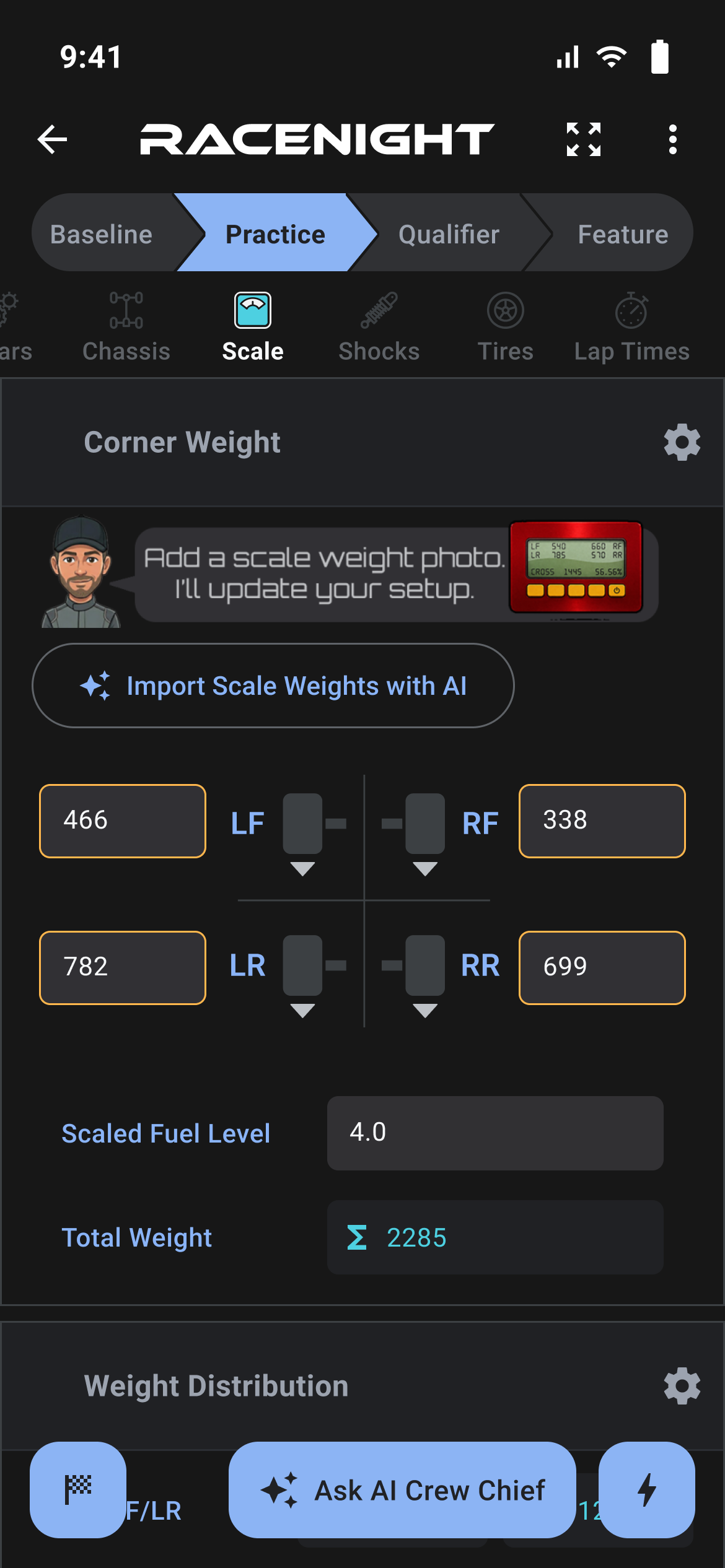
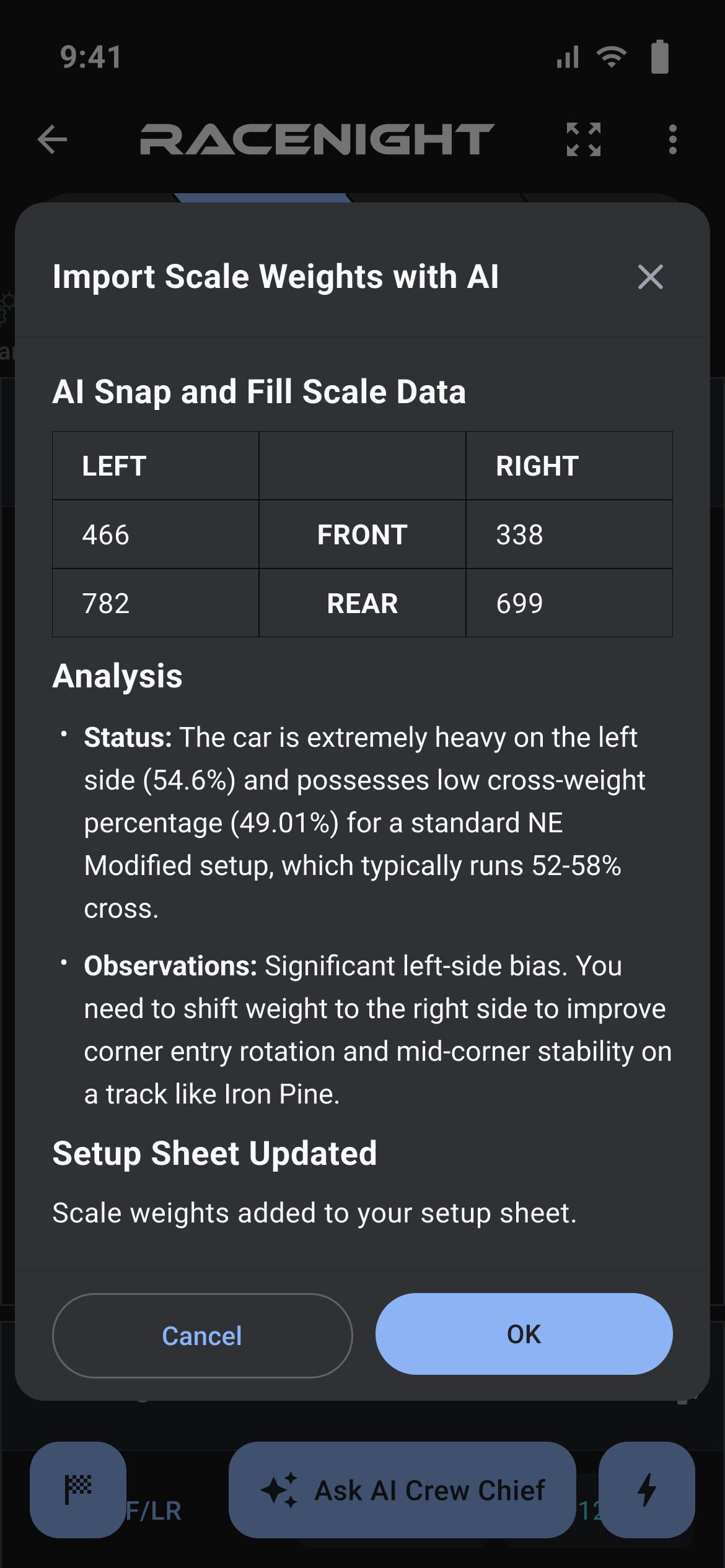
Some AI fields want a photo before they run, so the AI can look at the thing you are asking about.
How it works
- Tap the AI button or the chat field's send arrow. Add Photo opens before anything is sent.
- Under the title you get the field's own description when the template supplied one, then "Choose image source:".
- Tap Camera or Gallery.
- The picture goes with your request as soon as you pick it. There is no preview and no confirm step.
- Cancel stops everything and sends nothing. On a chat field your typed question is still there.
The answer comes back like any other: text, and sometimes values for your sheet.
Limits
- One photo per conversation, and only on the first message. To send a second, close the sheet and tap the field again.
- The picture is shrunk to 1024 pixels on its longest side, so fill the frame with the part you are asking about.
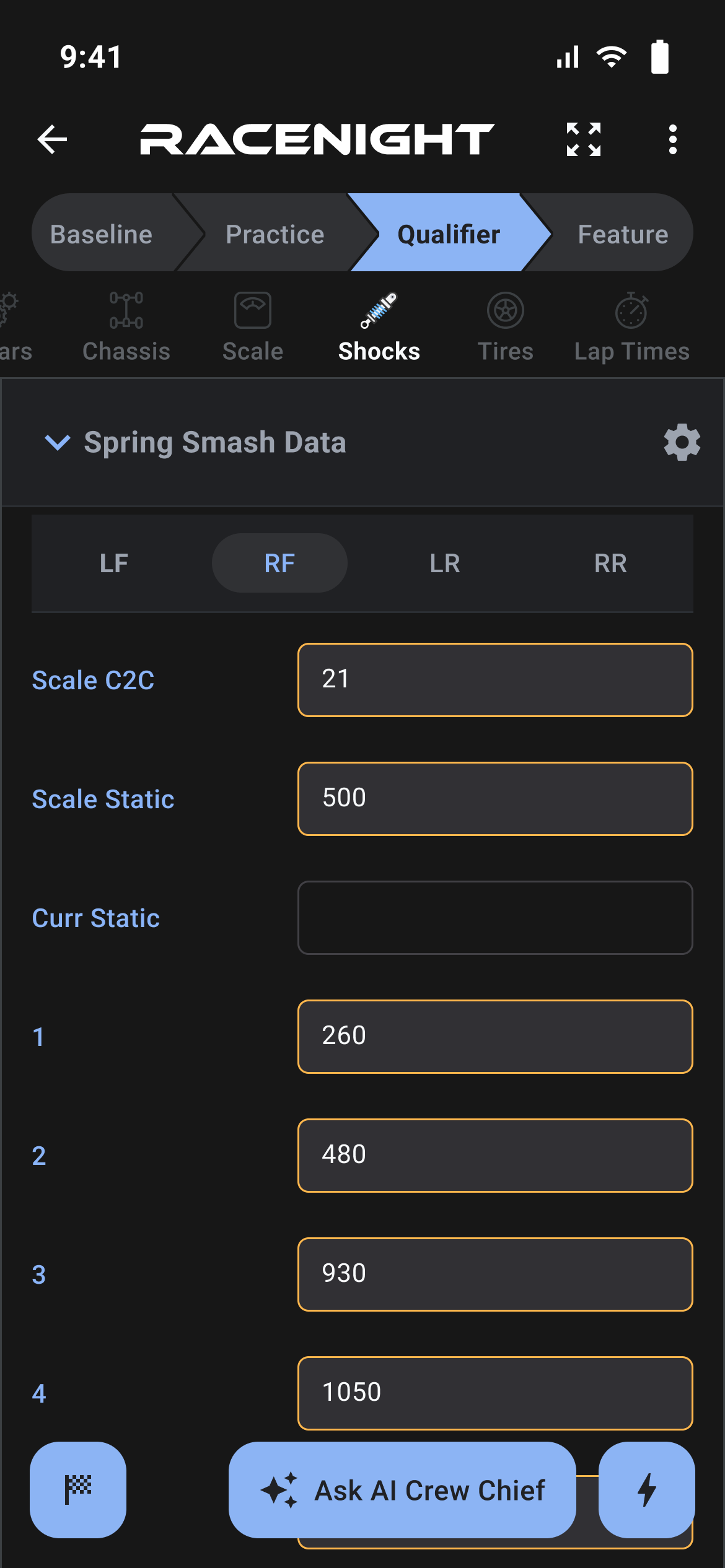
- Only fields set up for photos ask for one. You cannot attach a picture to the Ask AI Crew Chief chat yourself. Templates decide which AI buttons read a photo. Some read a scale display or a paper spring smash sheet.
- If the camera or gallery fails you get "Failed to pick image:" and the reason, and nothing is sent.
When the AI cannot answer
Where in the app: Anywhere you use AI inside a setup
AI needs a live connection, and this is what RaceNight shows when it cannot get one.
AI needs service
Every AI request goes to the server there and then; nothing is queued for later. The rest of the sheet works offline.
"You're in Offline Mode"
This dialog covers the screen when an AI request cannot get through.
- Under the heading: "No signal? No problem. There's still a lot you can do without service."
- "What you can still do without service:" lists Create and edit setups, Search setup history and Save changes.
- "What's paused until you go online:" lists AI capabilities, Emailing your setups, Manage cars and tracks and Template updates.
- I understand closes it, leaving the chat sheet open behind. Your question stays in the thread but the typing box is empty, so retype it to send again.
It also shows when the AI server has trouble or takes too long, so it does not always mean your phone is out of signal. With good bars, wait a minute and send again. Losing signal puts a note headed "No internet connection" at the bottom of the screen, but only at the moment the connection drops and at most once an hour.
"AI request failed"
The request got through and was turned down. The line under the heading is usually the server's own explanation, so read it as written, then tap OK. A few come from the app. A server that answers with an error code does not land here, it comes back as the "You're in Offline Mode" dialog.
| Message | What it means |
|---|---|
| "Unknown AI error" | Refused with no reason given. Try again. |
| "Unexpected response format" | The answer came back in a shape the app could not read. |
| "No AI prompt code available for this chat" | The setup's AI prompt is blank, so nothing can be sent. |
Waiting, plans and limits
- Waiting for the answer gets two minutes, while making the connection and sending your request get thirty seconds each. When any of them runs out you get the offline dialog.
- RaceNight puts no counter, credit or plan tier on AI itself, and nothing tells you how many questions you have left.
- AI inside a setup needs RaceNight Pro or the free trial, because the RaceNight AI plan cannot open setups. On that plan, use AI Assist on the setup list. With no active plan, RaceNight shows only the full Upgrade Subscription screen, so no AI is reachable.
- Any limit on AI use is applied at the server and reaches you as the wording inside the AI request failed dialog.