Weekly Inspection
Work through the weekly checklist, reset it for the next race week, and choose which items each car has on it.
Weekly Inspection
Run the weekly inspection
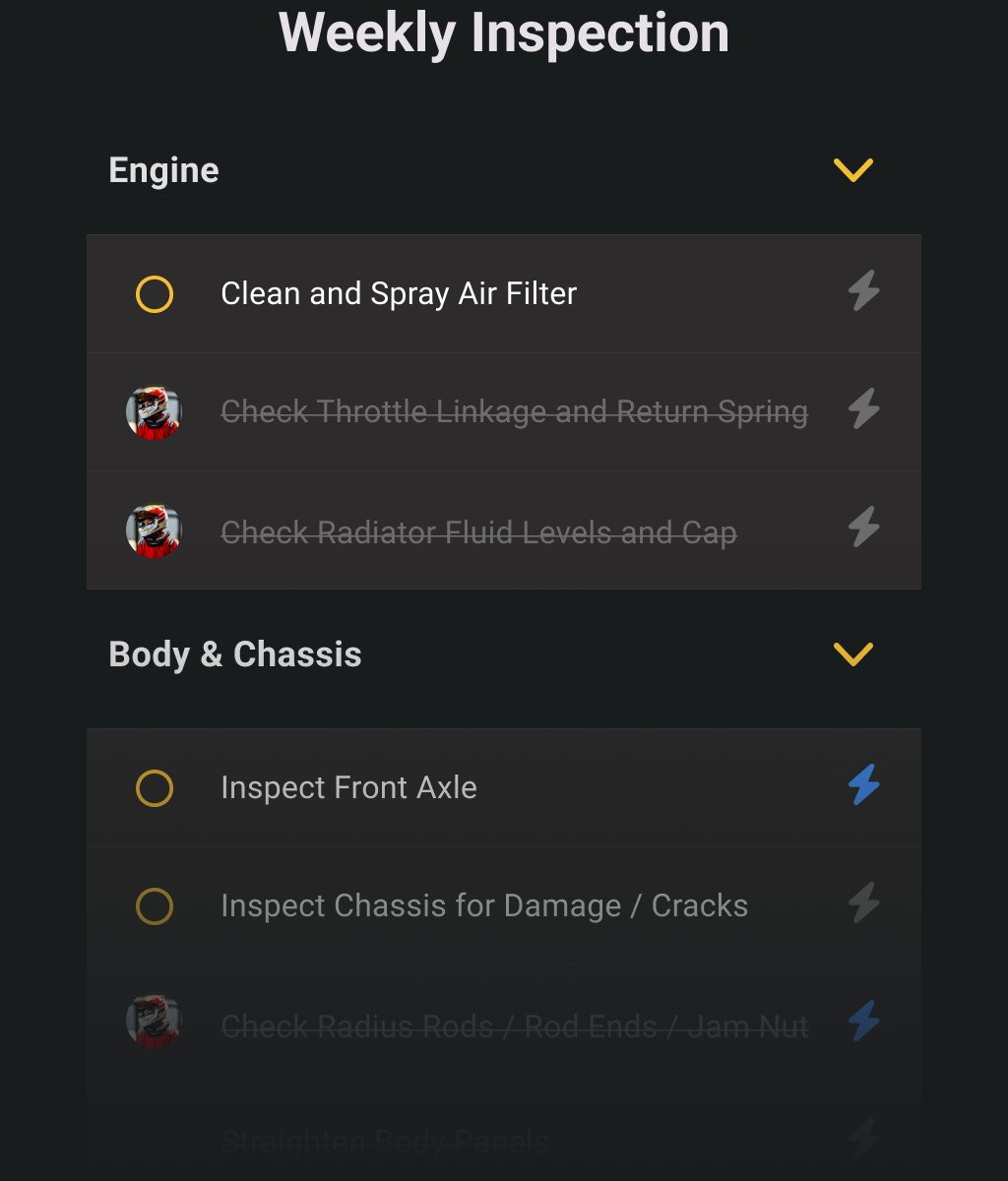
Where in the app: Inspection tab on the bottom bar
The Weekly Inspection is the checklist you walk through before a race weekend: everything you want to look at on one car, grouped by the part of the car it belongs to.
Pick the car
- The photo carousel at the top holds your team's race cars, without the garage. Swipe sideways to another car and the checklist below reloads for it. The dots show how many cars there are and which one you are on.
- Tap the car name or the pencil beside it to open Race Car Details for that car.
Work through the list
Each section is one car area, for example "Body and Chassis". Sections and items come in the order your account sends them.
- Tap a section title to open or close it. A section where every item is already ticked starts closed. The rest start open.
- Tap anywhere on a row to check the item off. The name gets a line through it and your profile picture appears at the left of the row.
- Tap the row again to uncheck it.
- Tap the circle to the left of a section title to tick off the whole area at once, and again to clear it.
- The circle beside a section title is a filled orange check once the whole area is done, and hollow while anything is still open.
- The picture at the left of a row is the crew member who ticked it. There is no name and no time stamp.
- Anyone on the team can check or uncheck any item, including one somebody else completed. Crew members and the team owner see the same screen.
- The bolt at the right of a row opens a screen titled with the item's own name, asking "What do you need to Order, Replace or Repair". It holds two cards, "Add maintenance Task(s)" and "Add Items(s) to Shopping List", where you note parts to order, replace or repair. It is orange when the item already has something attached and grey when it does not.
Progress and the badge
There is no "x of y" counter. You read progress from the struck-through rows and the filled circles beside the section titles. The red badge on the Inspection tab comes from your account, always describes the car you are on, and refreshes every time you tick something and every time the list loads.
Reset for the next week
- Tap the circular arrow in the title bar. Its tooltip reads "Clear Completed Tasks".
- The dialog "Reset checklist" opens: "Reset will uncheck all weekly checklist tasks. We recommend doing this only after your Race Trip is complete. This cannot be undone."
- Tap Reset tasks to clear every tick on this car, or Cancel to keep them.
The dialog stays open while the reset runs and closes itself once the list has reloaded, so give it a moment. Cloning tasks from another car clears the ticks too.
Reloading and empty states
- Pull down to reload the cars and the checklist. The spinner disappears while the data is still on its way, so give it a second and pull again if nothing changed.
- If the round spinner in the middle of the screen keeps turning, leave the tab and open it again.
- A car with nothing configured shows a wrench icon, the text "This car is not yet configured for maintenance" and a Configure now button that opens the Weekly Checklist Library.
- Other problems print as a line of plain text where the list would be, for example "Something went wrong. No Internet?".
If your team is blocked
The list is dimmed behind a card titled "Subscription Required" that reads either "Your Trial has ended." or "Your Subscription has been canceled.", plus a line saying your data is safe but you cannot continue without buying a subscription. Buy Subscription opens My Subscriptions. The title-bar buttons, the side menu and the bottom bar still work.
Choose your inspection items
Where in the app: Weekly Inspection, gear icon, Weekly Checklist Library
The Weekly Checklist Library decides which items appear on one car's inspection. Switch on the ones you want, add your own, or copy a whole set from another car.
Open the library
Tap the gear in the Weekly Inspection title bar (tooltip "Configure"), or Configure now in the empty state. The photo at the top is the car you were on in the checklist and you cannot change it here. To configure another car, go back, swipe the carousel to it, then open the gear again.
Turn items on and off
- Each section is a car area, and every section starts open.
- Tap the switch at the right of a row to put that item on the checklist, or to take it off. Tap the switch itself, because tapping the task name does nothing.
- Leave with the back arrow. Your switches are sent then.
- There is no Save button and no message when the save finishes or fails. Reopen the library afterwards to confirm your switches stuck, especially on a poor connection.
- You cannot reorder the items. The order comes from your account.
- You cannot rename or delete a library item. Switch off what you do not want.
Create a custom task
Tap Create Custom Task in the library header. The form is titled "Create Custom Task" and reads "This task will be added to your Weekly Checklist". Fill it in from top to bottom.
- Task. The name that appears on the checklist. It is required and holds up to 512 characters, with a counter under the field. Blank shows "Enter a name" when you save.
- Category. A dropdown of car areas, helper text "Select a Category from the list". It sets the section the item lands in. Nothing is selected to start with, and leaving it empty shows "Select a category".
- Add custom task to. One row per race car, each with the car photo, the race type and the car name in larger text beneath it, and a tick box. Every car is ticked to begin with. The car you came from is ticked and greyed out, so the task always goes on it. Untick the cars you do not want.
Then save:
- Save (the check icon) stores the task, shows a "Created" message with the task name, and returns you to the Weekly Inspection checklist rather than the library.
- Save & New (the plus icon) stores the task and clears the form for the next one. The name is emptied and the category has to be picked again. The car tick boxes stay as you left them.
The circle with a cross at the end of the Task field is decoration, not a clear button. Empty the field by hand if you want to start over.
Leaving the form
- With errors on the form you get "Errors exist" and "There are errors on the form (shown in Red)." Choose Continue editing to stay or Discard to leave without saving. Save & New shows the same title with "Can't save because there are errors on the form (shown in Red)." and only a Continue editing button.
- Backing out of a form you never typed in counts as an error, because the name is empty. You get "Are you sure?" and the same red-errors text. Tap Discard to leave.
- With a valid form and unsaved edits you get "Unsaved changes" and "Do you want to save or discard modifications." Choose Save or Discard changes.
Copy the items from another car
- Tap Clone From Existing Car in the library header.
- The dialog "Clone Inspection Tasks From Existing Car" explains: "You are going to delete all current Weekly Inspection tasks from this car and replace them with all Weekly Inspection tasks from an existing car in this race class. This will reset all Weekly Inspection cards."
- Pick a car under Clone From Car. The dropdown only offers cars counted in the same units as this one, so a car counted in laps can only be cloned from another car counted in laps.
- Tap Clone, or Dismiss to back out.
The dialog closes once the copy is finished and the library reloads with the new items. Nothing on screen shows progress while it runs, so wait for it instead of tapping again.
With no matching car you get "Error: No Cars Available to Clone" and an explanation that cloning is only possible when both cars use the same counting units (laps, hours, races, runs, miles, km). Tap OK.
The other way in
Race Car Details has an Inspection tab with the same switch list and the same clone button, reached by tapping a car name or pencil under the carousel. It adds the heading "Configure your Weekly Inspection" and the note "Racers like you often add these tasks to their weekly inspection. You can change these at any time or add custom tasks from the Weekly Inspection settings." Finish with Save and Close. With too few Dashboard items enabled you get "Please select Dashboard items" and "Please enable and configure at least 5 Dashboard items to build a car." and land on the Dashboard tab instead.
Fixing problems
- The list did not reset. Resetting is manual. Tap the circular arrow in the title bar, then Reset tasks. Ticking Reset Weekly Checklist when you log laps does the same job.
- Every row shows your photo after using the area circle. The screen has not reloaded yet. Pull down to refresh and the right photos appear.
- A row does not change when tapped. The change did not reach the server and the app shows no error. Check your connection and try again.
- "Error: No Cars Available to Clone". As on the dashboard, cloning needs two cars with the same unit.