Track maintenance
How the Dashboard counts part life, how to choose what each car tracks, and how to record a service and reset the count.
Track maintenance
The Dashboard
Where in the app: Dashboard tab
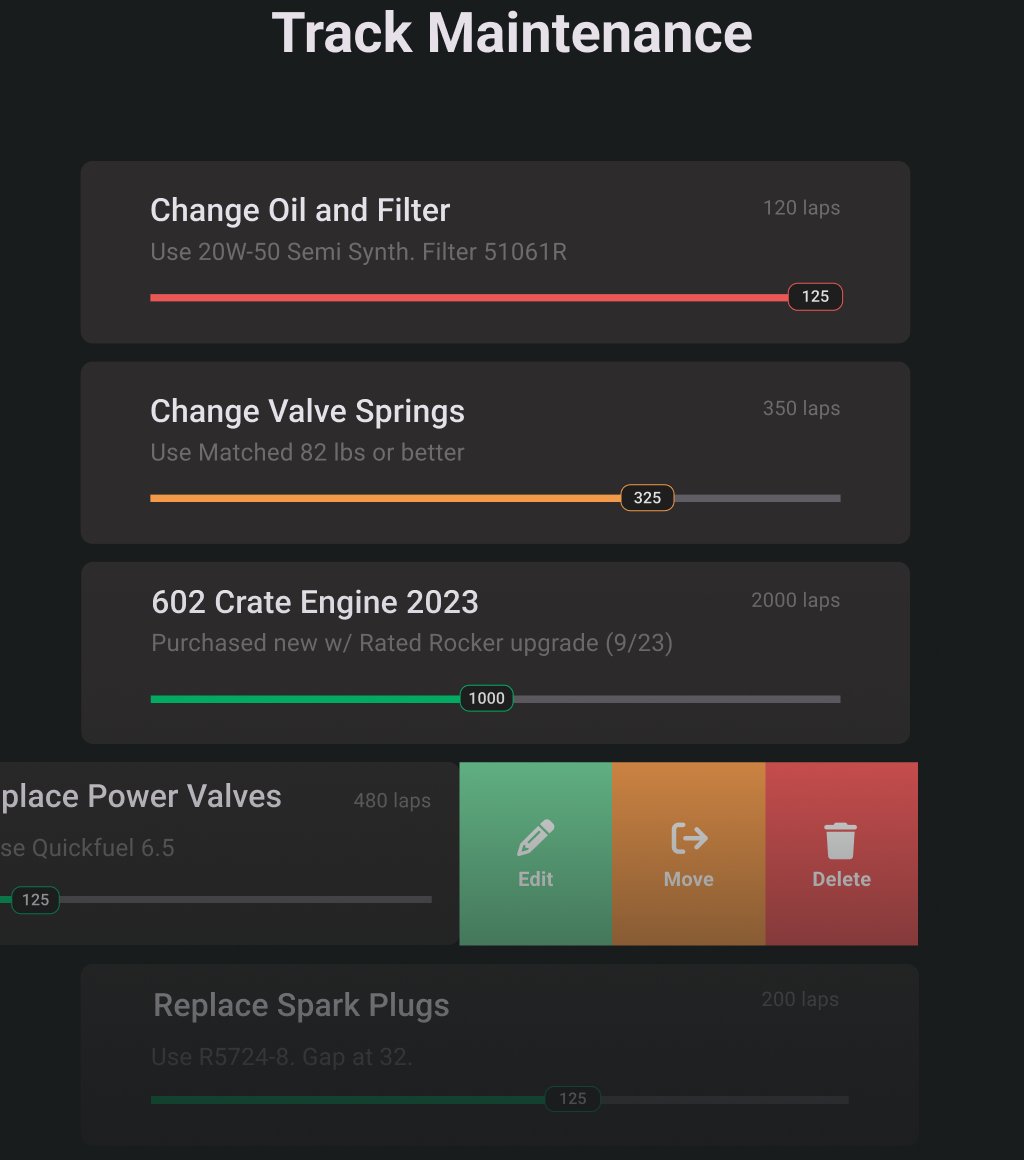
The Dashboard is one card for every part or job you want to watch on the car you are on, with the count it has run and how close it is to being due.
Reading a card
- The name of the item is on the left. On the right is the limit you set for it, for example "100 laps".
- Under the name is your note for that item, if you wrote one.
- The bar underneath fills as the count climbs toward the limit. The number in the marker on the bar is the actual count.
| Bar colour | What it means |
|---|---|
| Green | The count is below your notification threshold. Nothing to do. |
| Orange | The count has reached the notification threshold. This one is coming due. |
| Red | The count has reached the limit. Service it. |
- A card that is past its limit shows a full red bar with the real number in the marker, so 250 laps on a 100 lap limit still reads 250.
- Cards appear in the order your account sends them. There is no sort control.
The header row
- Update All Laps opens the screen where you log a race night. The word changes with the unit the car uses, so it may read Update All Hours or Update All Miles.
- The magnifying glass opens a search field labelled Search Dashboard Cards. The team banner and the car photos slide out of the way while you search.
- The gear opens the configurator, where you choose what this car tracks.
- On the garage the row is different. There is no update button. The row shows the word "Dashboard", the magnifying glass and a plus icon for adding an item to the garage.
Moving and deleting a card
Swipe a card to the left to reveal three actions.
- Edit opens the same screen as tapping the card.
- Move opens Move Item, a list of the other cars and the garage. Tapping a car moves the item at once with no confirmation. Tapping the garage asks first, with the dialog "You're moving item to the Garage" and the buttons Cancel and Move to Garage.
- Delete asks "Are you sure?" and explains that deleting removes the item and its data for good. The buttons are Cancel and Delete Task.
Empty and locked states
- A car with nothing configured shows a wrench icon and "This car is not yet configured for maintenance", with Configure now.
- A team with no cars shows "No car found" where the photos would be.
- If your trial or subscription has ended the whole dashboard is dimmed behind a Subscription Required card.
Set up what you track
Where in the app: Dashboard, gear icon
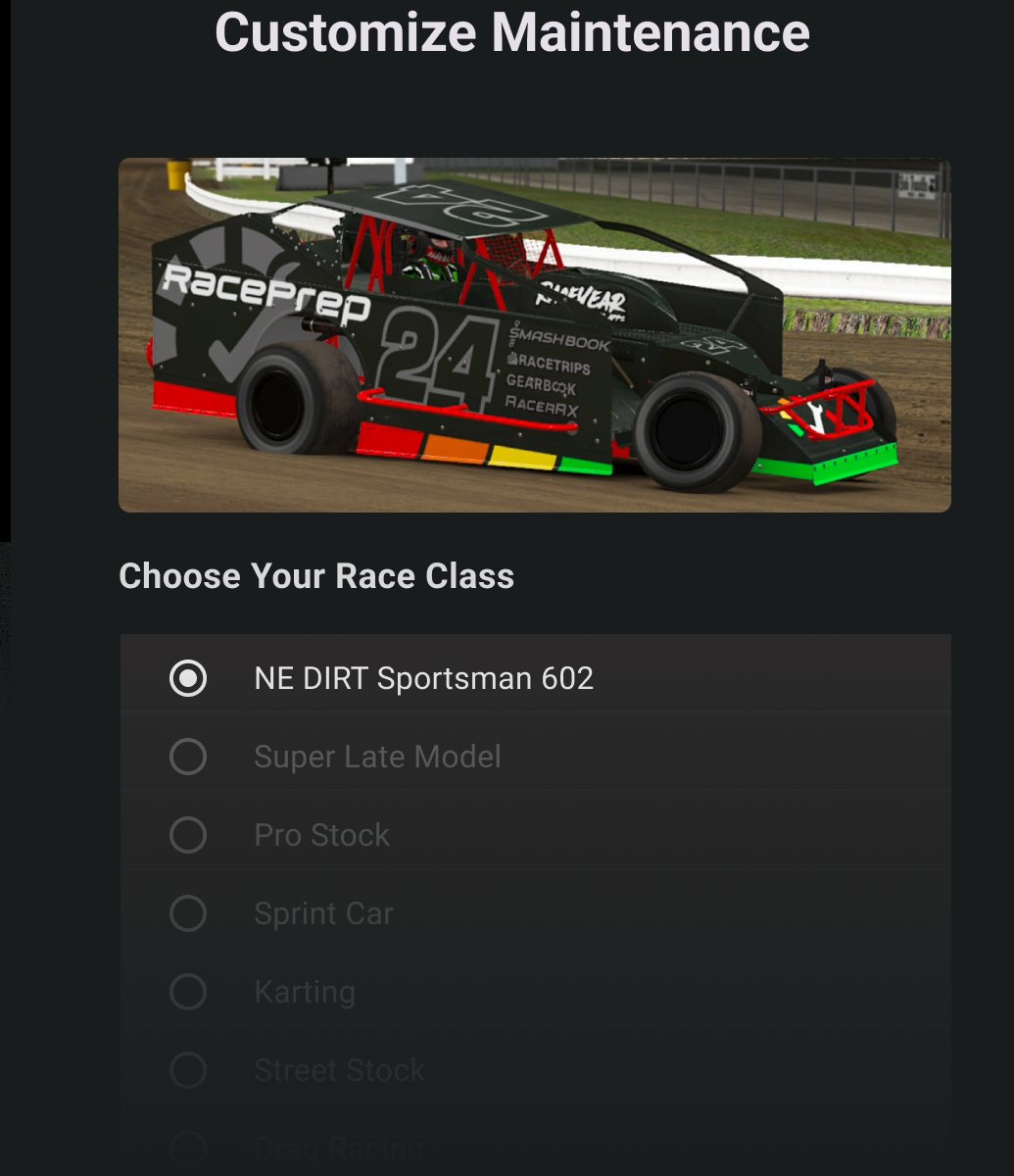
The configurator is where you switch on the items this car should track, clone them from another car, or write your own.
Open it
- On the Dashboard, tap the gear at the right of the header row.
- The screen Configure Dashboard cards opens with the car photo at the top.
You can also get here from Configure now on a car that has nothing set up yet.
Turn items on
Under the heading "Racers like you track some of the following items:" is a list your account suggests for this car.
- Flip the switch beside an item to turn it on.
- The edit screen opens straight away so you can fill in the numbers for it.
- Fill in the count that is already on the item and the two thresholds, then tap the orange check to save.
- A switched-on item shows three lines underneath: the current count, the Maintenance Threshold and the Notification Threshold. The current count is highlighted while it is still zero.
- Edit beside an item reopens those numbers.
- Flipping a switch off takes the item off the dashboard. That change is saved when you leave the screen.
Write your own item
- Tap Create Custom Dashboard Card.
- Leave Include in Dashboard on if you want it to appear straight away.
- Fill in Item name, the count already on the item, both thresholds and any Notes.
- Tap the orange check to save, or the plus to save and start another one.
Copy a car you already set up
- Tap Clone From Existing Car.
- Pick the car in Clone From Car and tap Clone.
The dialog warns you first: cloning deletes the current cards on this car, replaces them with the ones from the car you pick, and sets every count back to zero.
The numbers you set
| Field | What it does |
|---|---|
| Count on the item | How much use the part has already had when you set it up. |
| Maintenance Threshold | The point where the item is due. The bar turns red and the item moves to Action Now. |
| Notification Threshold | The earlier warning point. The bar turns orange and the item moves to To Do Soon. |
Both thresholds must be a number greater than zero, or you see "Enter a number greater than zero".
Service an item and reset its laps
Where in the app: Dashboard, tap a card
When you service a part, open its card, set the count back to zero and save. The card goes green again and the history keeps the record.
Open the card
Tap the card on the Dashboard, or swipe it left and tap Edit. The title bar reads "Edit" followed by the item name.
What is on the screen
- The car photo and name.
- Total Laps, a large number box on the right with the words "Enter or change the total # of laps" beside it. The unit follows the car.
- Reset to Zero, a full width button.
- Item name.
- Laps Maintenance Threshold with the note that it is the number of laps before the job is added to "Action Now".
- Laps Notification Threshold with the note that it is the number of laps before the job is added to "To Do Soon".
- Notes, up to a few lines.
- History, with an Email this item button.
Every field except the Total Laps box has a small cross at the right that clears it.
Record the service
- Tap Reset to Zero.
- The dialog Maintenance complete? explains "Reset lap counter when you perform maintenance or replace the item. Resetting can't be undone."
- Tap Reset to Zero to accept, or Cancel to keep the count.
- Tap the orange check in the title bar to save.
Correct a count by hand
Type the new figure into the Total Laps box and save. Use this when you logged a race night twice or forgot one. The box must hold a number. An empty or non-numeric entry gives "Enter amount" when you save.
Replace a part
There is no separate replace button. Two things work well:
- Service the item and reset it to zero when the new part goes on, so the count starts again.
- Or swipe the old item to the garage first, which parks it with its count intact, then set up the replacement on the car.
The history
- Under History each line shows the date, the track or series, what changed and the running total.
- Email this item sends a summary of the item to you. The app confirms with a Task Summary message.
- History lines cannot be edited or deleted.
Saving and leaving
- The orange check saves. You see "Updated" and the name at the bottom of the screen.
- Leaving with unsaved changes asks "Unsaved changes" with Discard changes and Save.
- Leaving with a mistake on the form asks "Are you sure?" and explains there are errors shown in red. Continue editing goes back to the form, Discard leaves without saving.
Delete an item
Swipe the card on the Dashboard and tap Delete, then Delete Task. The dialog suggests two safer options first: move the item to the garage to keep its data, or edit it and reset the laps to zero.
Fixing problems
- "This car is not yet configured for maintenance" with Configure now. Nothing is set up on this car yet. Tap the button and switch some items on.
- The same panel appears after a search. A search that matches nothing shows the not-configured panel. Clear the search with the cross and your cards come back.
- "Enter a name" on a card. The item name is required.
- "Enter a number greater than zero" on a threshold. Both thresholds must be a positive number.
- "Enter amount" in the totals box. The box takes numbers only.
- A card is orange or red when it should not be. Check the two thresholds on the card. The app does not stop you setting the notification threshold higher than the maintenance threshold, and a card set that way jumps straight to red.
- "Error: No Cars Available to Clone". Cloning only works between cars that count in the same unit. Change the unit on one of the cars first, or set the items up by hand.
- A card you deleted is still there. The app says "Deleted" before it asks the server. Pull down to refresh, and delete it again if it is still listed.
- "Are you sure?" with a message from the server after tapping Update Laps. RacePrep has spotted something odd about the entry. Read it and choose Yes, Continue or No, Ignore this change.