Tasks and lists
The Task List, the shopping list the whole team shares, and the Parts and Supplies library behind it.
Tasks and lists
Task List
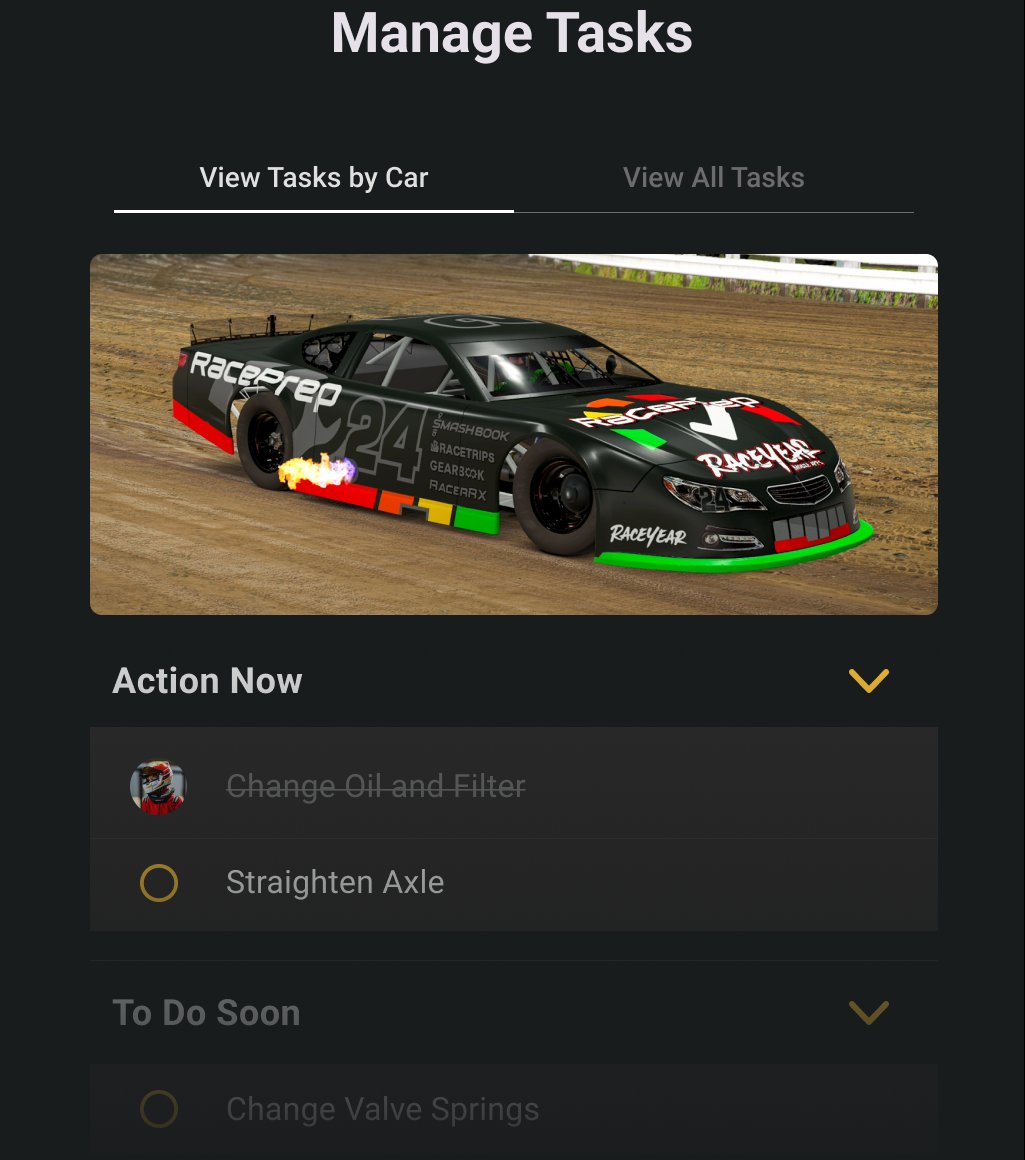
Where in the app: Task List tab
The Task List is the jobs waiting on the car, split into what needs doing now and what is coming up soon.
Reading the screen
- Tabs at the top switch between View by Car and View All. View by Car shows the car in the photo strip. View All hides the strip and groups the jobs under each car.
- Action Now is the first block. To Do Soon follows.
- Which block a job lands in is decided by your account, from the thresholds you set on the dashboard cards.
- The garage is not shown in the photo strip, and it is not offered when you add a job.
Each row is a circle and the name of the job. A job someone has done shows a line through the name and the photo of the crew member who ticked it, in place of the circle.
Ticking jobs off
- Tap anywhere on the row to tick it.
- Tap it again to untick it.
- Anyone on the team can tick or untick any job.
- Ticked jobs stay in the list until you clear them.
- The broom in the title bar wakes up as soon as something is ticked. Its tooltip reads "Clear Completed Tasks".
Clearing what you finished
- Tap the broom in the title bar.
- The dialog Completed tasks. explains "Clears all completed items and resets lap counts. This cannot be undone."
- Tap Clear items to clear them, or Cancel to leave them.
If you try to leave the tab while jobs are ticked you get the same dialog with a different message, "You have completed tasks that will be cleared and reset to zero on the dashboard", and the buttons Do it later and Clear items. Do it later leaves the screen and keeps the ticks.
Adding a job
- Tap the orange plus beside Action Now.
- The screen Create Maintenance Task opens with the line "This task will be added to your Maintenance Tasklist" [sic].
- Type a Task name. It is required, and an empty name shows "Enter a name".
- Under Add task to, tick the cars this job applies to. Coming from View by Car the current car is already ticked. Coming from View All every car is ticked.
- Tap the orange check to save, or the plus to save and start another.
- The message "Created" with the name confirms the save.
- There is no priority, due date, assignee or note. A job is a name and the cars it belongs to.
What you cannot do here
- Jobs cannot be edited or deleted once created. Tick and clear them instead.
- There is no search, sort or done filter.
Shopping list
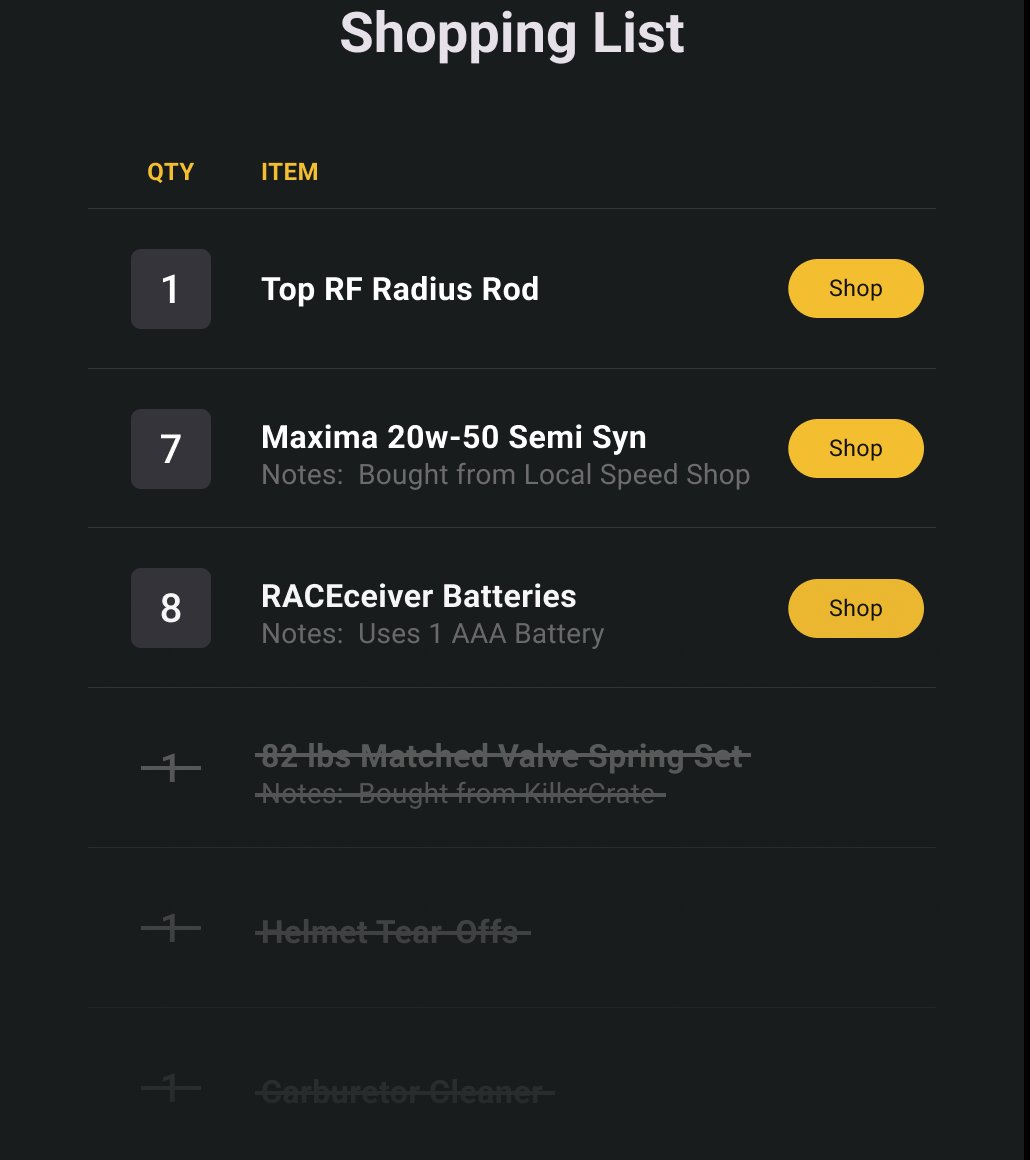
Where in the app: Shopping tab
One list for the whole team of what needs buying, with a quantity against each line and a shortcut to the supplier.
Adding an item
- Tap Search for or add a new item at the top.
- Type what you are after. Matches from your parts library appear as you type.
- To add one of them, tap the cart icon on its row.
- To add something that is not in the library, tap the plus on the first row, which reads "Add" followed by what you typed.
- Set the quantity in the dialog Adding "..." to Shopping List with the up and down arrows, then tap Add to Shopping List.
- The quantity starts at 1 and cannot go below 1. It is stepped with the arrows, not typed.
- Adding an existing part confirms with the part name and "Added to your shopping list".
- A brand new item is added under its name only. Give it a supplier and a link later by adding it to Parts instead.
Working the list
- Items are grouped by supplier, with the supplier name as the heading. Anything without a supplier sits at the top with no heading.
- The box on the left of each row is the quantity. Type over it and the app saves it a moment later on its own. It takes up to 5 digits.
- Tap anywhere else on the row to cross the item off. Tap it again to bring it back.
- Shop opens the supplier page in your browser. It shows only on rows that have a link and are not crossed off, so use it before you cross the row off.
- Crossed-off rows stay on the list, struck through, with the quantity locked, until you clear them.
Clearing what you bought
- Tap the broom in the title bar. Its tooltip reads "Clear Shopping List".
- The dialog Clear Shopping List explains "Clears all items from the list that are crossed off."
- Tap Clear Shopping List to clear them, or Cancel.
Featured Catalogs
If your account has any, a Featured Catalogs block appears under the list. Tapping a catalog opens the supplier's site in your browser.
Parts and Supplies
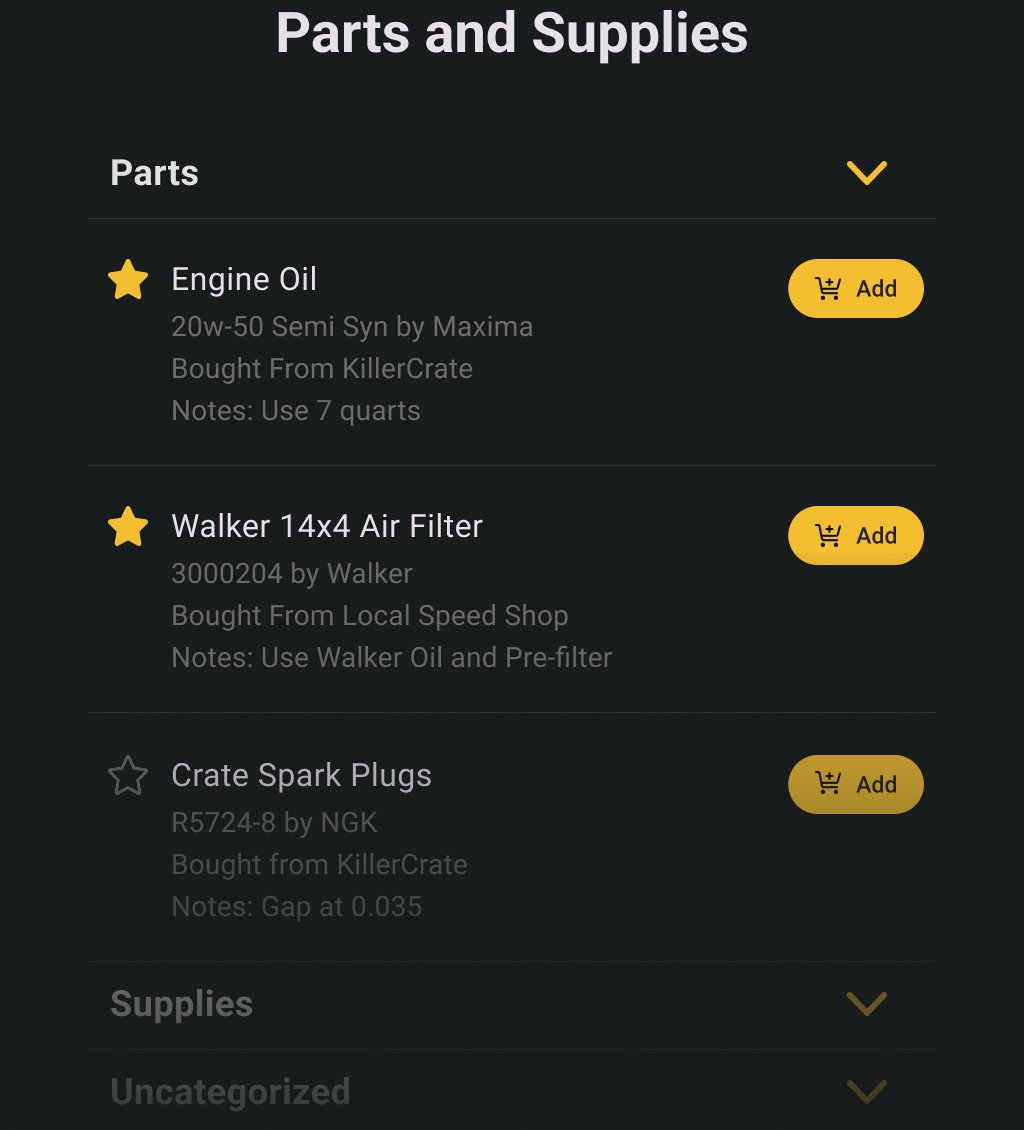
Where in the app: Parts tab
Parts is your library of the things you fit and use, with part numbers, suppliers and links, so the shopping list can be filled in two taps.
Finding a part
- Search for an item at the top searches your library. Matching happens on the server as you type, after a short pause.
- The cross at the right of the field clears the search, but only while the field has the keyboard. Otherwise select the text and delete it.
- Parts are grouped in the categories your account provides. Every group starts open.
A part row
- The star on the left marks a favourite. It is yours alone, not the team's.
- The name is next, with a grey line under it built from the manufacturer, part number, supplier, SKU and your notes.
- Add on the right puts the part on the shopping list. Set the quantity in the dialog and tap Add to Shopping List.
- Tapping the row opens the part for editing. Swiping it left offers Edit and Delete.
Adding a part
- Tap the plus in the title bar. Its tooltip reads "Add Item to the list".
- The screen Add New Part opens with the line "Create an item for your Shopping List Library."
- Fill in the fields, in this order:
| Field | Notes |
|---|---|
| Part name/Part description | Required. An empty name shows "Enter a Part Name". |
| Also add to Shopping List | Ticked by default on a new part. |
| Category | Pick from your team's categories. |
| Part Number | The manufacturer part number, or leave blank. |
| Manufacturer | Optional. |
| Purchased from | The supplier, optional. |
| Supplier SKU number | Optional. |
| Shopping Link URL | The supplier page for this part. This is what the Shop button opens. |
| Notes | Anything you want on the grey line under the name. |
- Tap the orange check to save, or the plus to save and start another.
The app confirms with "Created and added to the Shopping List" when the box was ticked, and "Created" when it was not.
Editing a part
Tap the row, change what you need and tap the orange check. The app confirms with "Updated".
Leaving with unsaved changes asks Unsaved changes, with Discard changes and Save. Leaving with an error on the form asks "Are you sure?" with Continue editing and Discard.
Deleting a part
Swipe the row left, tap Delete, then Ok on Delete Part from Library. There is no undo.
Fixing problems
Task List
- "Completed tasks." when you try to leave the tab. Jobs are ticked and waiting. Clear items clears them and resets the matching lap counts. Do it later leaves them ticked.
- The broom is grey. Nothing is ticked on this car, so there is nothing to clear.
- A job you created is missing. The app says "Created" even when the save failed. Pull down to refresh and add it again.
- You cannot delete a job. Jobs cannot be edited or deleted in the app. Tick the job and clear it.
- Pressing back on a blank new-task form asks "Are you sure?" The empty name counts as an error. Tap Discard to leave.
Shopping list and parts
- A quantity will not stick. The app compares what you type against the number it loaded, so typing back the original value is ignored. Pull down to refresh first, then set the number.
- The list looks empty. There is no empty message on the shopping list or in parts. A blank area under the search box means nothing matches or nothing is there yet.
- "No tasks found" on the parts screen. The wording is wrong for this screen. It means the app got no parts back. Pull down to refresh.
- A part you deleted is still listed. The app says "Deleted" before it asks the server. Refresh and try again.
- The category you picked was not saved. Open the Category list and choose the category, even when the right one already shows. A category that was only displayed is not saved.
- Ticking "Also add to Shopping List" on an existing part on its own does nothing. The app only saves the form when a text field or the category has changed, so the tick alone is discarded. Use the Add button on the part row instead.
- The cross in the parts search does not show. It only appears while the field has the keyboard. Tap the field again, or select the text and delete it.