Team and cars
Add and edit race cars, invite and remove crew, and join a team with an invite code.
Team and cars
Manage Race Cars
Where in the app: Side menu, Manage Race Cars
Add race cars to your team, set each car's name, race class, unit and photo, and choose the car the rest of the app works on.
The car list
Open the side menu and tap Manage Race Cars. Under the title sits the line "Update your Race Car’s configurations including the Dashboard and Weekly Checklist items." and the header Configure Race Cars.
- Every car on the team you have selected gets a row: a square photo on the left, the car name, and the race class underneath. Tap the row or the > arrow to open it.
- Your Garage is not in this list. The Garage is the extra tile in the dashboard carousel and it has no details screen, so it cannot be renamed or given a race class.
- A car with no photo shows a yellow spinner picture until you upload one.
- When the team has no cars the list reads "No car found". A connection problem shows its message in the same place, for example "No Internet".
- Pull down to refresh. The spinner clears before the new list arrives, so wait a moment and pull again if something is missing.
- The five bottom tabs stay on screen here but none of them is highlighted. Tapping one leaves this screen.
Add a car
Add a New Race Car sits between the intro line and the list. It only appears when you are the owner of the team you have selected. Crew members do not see it, and nothing on screen explains why.
- Tap Add a New Race Car.
- Type a name in Car name. Each word is capitalised for you as you type.
- Tap Add, or Cancel to back out.
- Add does nothing while the field is empty and shows no message. Type a name, then tap it again.
- The new car starts with the unit Laps and no race class. Set both on the car's own screen.
- There is no success message, and the list reloads from the top. The new car is not opened for you, and the first car in the team becomes the current car, so you may be switched away from the car you were working on. If you do not see it in the list, pull down to refresh.
- If the car cannot be created, a message appears at the bottom of the screen titled "Could not add car" with the reason underneath.
Car details
Tapping a car makes it the current car and opens Race Car Details, with three tabs: Details, Dashboard and Inspection. The screen saves by itself. There is no save icon in the title bar and no "unsaved changes" question when you leave.
The Details tab holds three fields:
| Field | What it does |
|---|---|
| Car Name | Up to 60 characters. There is no counter, so typing stops at 60. |
| Race Class | Read only. Tap it to search the class list. |
| Unit | Laps, Hours, Races, Runs, Miles or Km. |
- Under Race Class you see "Select a Race Class to pre-populate suggested maintenance tasks as a starting point or build a custom class by selecting “Other”."
- Under Unit you see "The unit which measures preventative maintenance thresholds." The unit counts every maintenance threshold on the car, and two cars can only clone from each other when their units match.
To set the race class:
- Tap the Race Class field. Search your Race Class opens full screen.
- Type in Search Race Class. The list filters as you type. Each row shows the class name with its category and a description.
- Tap the row or its + to pick it.
- If the car already had a class you are asked "Warning: Race Class change will reset car." Tap Back to the list to keep looking, or Clear tasks to apply the new class.
Picking a class saves the car straight away and also sets the Unit to that class's own unit, so check the unit afterwards.
The car photo
Under the form is a large picture of the car and the button Upload Race Car Photo.
- Tap Upload Race Car Photo.
- The dialog Add a Car Photo asks "Do you want to use the Camera or select a Photo from your Gallery".
- Tap use Camera or use Gallery.
The camera opens on the front lens, so switch lenses before you shoot the car. Pick an image file, not a video. If the upload fails there is no message, so reopen the car to check whether the new photo took.
Save, reset and leaving the screen
- Save and Next at the bottom of the Details tab saves the form and moves you to the Dashboard tab.
- Move between the three tabs by tapping Details, Dashboard or Inspection at the top. Tapping a tab saves the tab you are leaving, so this is the reliable way to work. If you use Save and Next and then change something on the tab it lands you on, tap that tab's title once before pressing back so your change is the one that gets saved.
- The back arrow saves and closes without asking anything.
- Reset Car is the red button under the photo. It asks "Warning: Reset car can’t be undone." with the body "Resetting this car to its starting point will permanently erase everything attached to this car including all Dashboard cards, Lap History, Tasks, etc. This cannot be undone." Tap Cancel to stop or Reset Car to go ahead. There is no undo.
- After a reset, leave Race Car Details and open the car again before you touch the Dashboard or Inspection tab. Those two tabs still show the pre-reset lists until the screen is reopened.
Switching the active car
One car at a time is the current car, and the dashboard, inspection, task list, shopping list, parts and the bottom-bar badges all follow it.
- Swipe the carousel at the top of the Dashboard to change cars.
- Tapping a row in Manage Race Cars, or the car name under the dashboard carousel, makes that car current and opens Race Car Details. Because closing that screen makes the first car current again, use the dashboard carousel when you only want to switch cars.
- Closing Race Car Details reloads the car list and the first car becomes current again, whichever car you were editing. Swipe the dashboard carousel back to the car you want.
Deleting a car
There is no delete, archive or retire button for a car anywhere in the app. Reset Car is the only destructive action, and it empties a car rather than removing it. To have a car taken off your team, ask RacePrep support.
Manage My Race Team
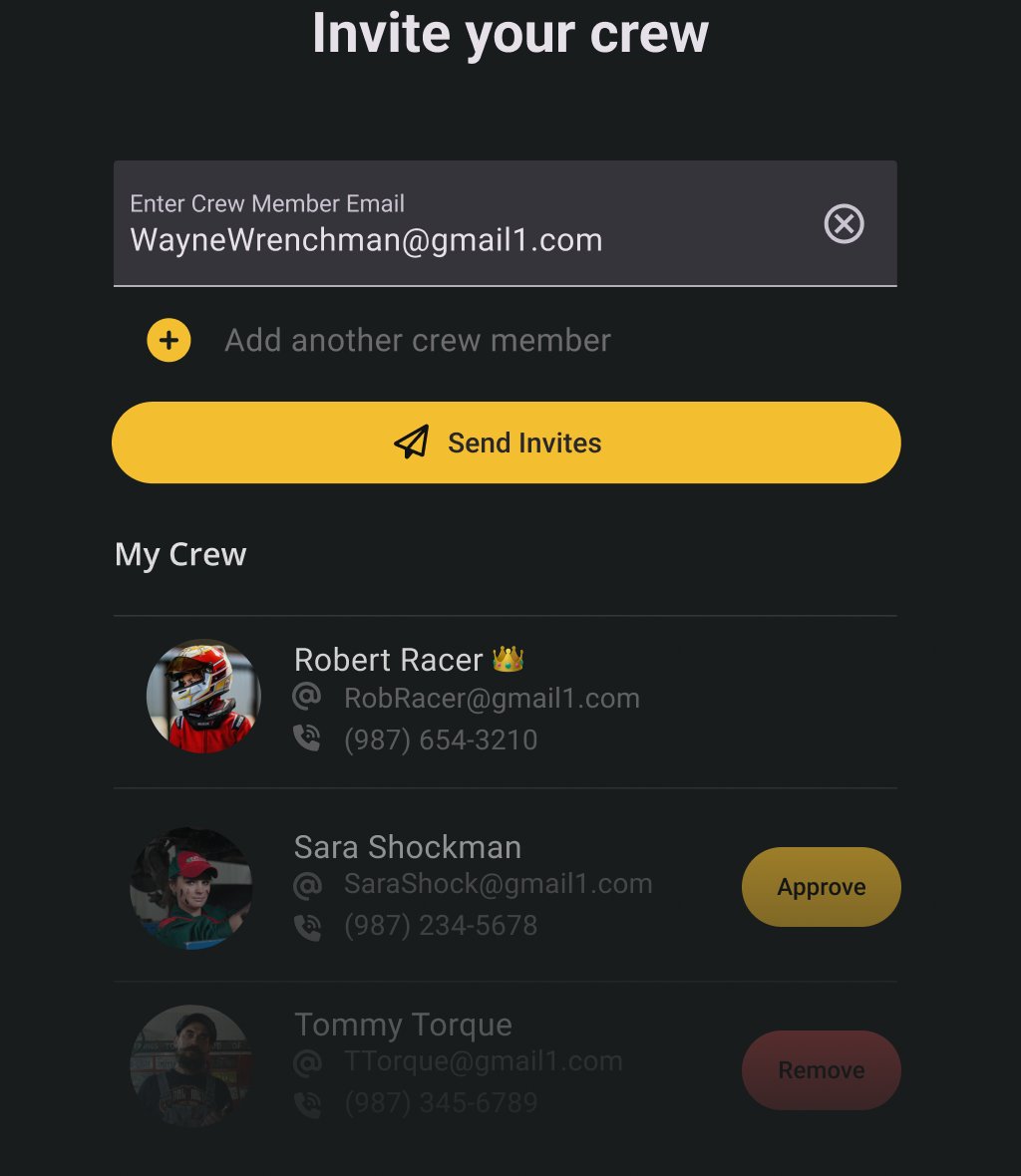
Where in the app: Side menu, Manage My Race Team
Rename your team, invite crew members by email, and remove or restore their access.
Who can do what
A team belongs to one person: the racer whose account created it. Everyone else on it is a crew member. There are no other roles and no per-person permissions.
| Task | Team owner | Crew member |
|---|---|---|
| Open Manage My Race Team | Yes | Yes, but the page is read only |
| Change the team name | Yes | No |
| Invite, resend, remove, unblock | Yes | No |
| Transfer ownership | Yes | No |
| Add a race car | Yes | No |
| Edit cars, tasks, laps, parts | Yes | Yes |
| Join another team by code | Yes | Yes |
| Leave a team | No button exists | No button exists |
The owner view
The title reads Manage Race Team & Crew. The page holds four blocks, top to bottom.
1. Team name. The field is labelled Team name and takes up to 60 characters. Leave it empty and you get "Need a teamname". Tap Update to save. A message reading "Profile updated" appears at the bottom of the screen.
2. Invite your Crew. Crew members cost nothing to add.
- Tap the orange + beside "Add another crew member invitation" to open an email row.
- Type the crew member's address in Enter Crew Member Email. A bad address shows "Please Enter a valid Email address" under the field.
- Repeat for everyone you want to invite. The + greys out until the row you just added holds a valid address.
- Tap the × at the end of a row to drop that invitation.
- Tap Send Invites.
- The + is greyed out and does nothing while any address in the list is invalid. Correct the address and the + lights up again. Send Invites is greyed out while any address in the list is invalid, and while a freshly added row is still empty.
- Tapping Send Invites with no rows at all shows "Add an invitation first." and "There are no invites in the list".
- There is no confirmation once the invites go out. The rows clear and the crew list reloads, and each new person appears with a blue PENDING badge. That badge is your receipt. If nothing changes in the list, the send did not reach the server, so try again.
- Addresses go out exactly as typed, so watch for stray spaces.
3. My Crew. Each row shows a photo, a state badge, the name, the email and the phone number. A pending invitation has no name or phone yet. An empty crew list shows nothing at all.
| Badge | Meaning | Button |
|---|---|---|
| PENDING (blue) | Invited, not accepted yet | Resend |
| ACTIVE (green) | On the team | Remove |
| REMOVED (red) | Blocked from the team | Unblock |
| OWNER (yellow) | You | none |
To remove someone, tap Remove, read "Are you sure?" and "The Crew Member will be blocked and will no longer have access.", then tap Ok, or Dismiss to stop. To let them back in, tap Unblock on the red row and confirm "The Crew Member will regain access." Removing is never permanent: the person stays in the list with a red badge so you can undo it.
4. Transfer Team Ownership. The Transfer button opens the RacePrep transfer page in your browser. Nothing happens inside the app, and the app gives no feedback afterwards.
The crew member view
When the team you have selected belongs to somebody else, the title reads Manage followed by the team name and the page is a single paragraph: "Managing the crew of" the team name "is only allowed by the team owner:" with the owner's name and email address. Under it is one button:
- Switch to your own team if you own a team as well. The page redraws as the owner view straight away.
- Buy your own team if you do not. It opens the subscriptions screen.
Crew members cannot leave a team from the app. Ask the owner to remove you.
Team data belongs to the team. Cars, cards, checklists, tasks, the shopping list and the parts library are shared by everyone on the team. A crew member who leaves or is removed loses access to it, and the data stays with the team.
On a demo team
- Manage My Race Team is greyed out in the side menu and tapping it does nothing at all. The menu stays open.
- If you have no team of your own, the top of the side menu carries an extra button: Get free Trial, or Create my own team once a trial is no longer available. Both open the subscriptions screen.
- The Dashboard shows the panel "You are in DEMO MODE", with DEMO MODE in bold, with Start a Trial or Buy a Subscription.
Join a race team
Where in the app: Side menu, Join a race team
Use the code a team owner emailed you to join their team as a crew member.
Enter your code
The screen opens with "Enter your invite code to join a race team. If you do not have a code, please ask the team owner to invite you to the team from within their app." Under it is one large centred box and one button.
- Open the side menu and tap Join a race team.
- Type your code into Invite Code. The helper line reads "The invite code emailed to you." The box takes up to 8 characters.
- Tap Join the Team.
- The code comes from the invitation email. A link in that email cannot open this screen for you, so type the code in by hand.
- The field keeps whatever you typed after a failed attempt. Clear it yourself before trying a different code.
- A thin progress line runs under the title while the code is checked. Pulling down on this screen does nothing.
What happens next
On success a dialog appears titled "You joined a Race Team!" with "Welcome as a crew member of" and the team name. Tap OK and the app switches to that team and opens the Dashboard. A short message reading "Accepted to" and the team name also appears at the bottom of the screen.
If the code is not accepted, the dialog is titled "Couldn't join the race team." and the body carries the reason. Two you may see:
- "Invalid invide code" [sic], when the server rejects the code and sends no reason of its own.
- "Could not verify this invite code, please try again later.", when the app could not reach the server.
Tap OK, check the code against the email, and try again. If nothing appears at all after you tap Join the Team, treat it as a failure and try once more.
When you belong to more than one team
Joining a team does not replace the team you already have. Both stay in your account and you switch between them.
- Open the side menu.
- Tap the Select Race Team dropdown at the top.
- Pick a team.
The menu closes and the Dashboard opens on the team you picked.
- Switching teams reloads the cars. The car you were on stays current if it belongs to the new team, otherwise the first car in the new team takes over.
- You are the owner of your own team and a crew member of every team you joined. What you can do changes with the team you have selected.
- The badges on the bottom bar, the dashboard, the inspection, the task list, the shopping list and the parts list all belong to the current car of the current team.
- At sign in the app always starts on the first team in your list. Use the Select Race Team dropdown to switch back to the team you want.
Fixing problems
- "No car found" where the car photos should be. The team has no cars yet. Open Manage Race Cars from the side menu and add one. Only the team owner sees Add a New Race Car.
- "Could not add car" with a reason. The car was not created. Check your connection and try again.
- "Managing the crew of ... is only allowed by the team owner" on Manage My Race Team. You are a crew member on someone else's team. Ask the owner to make the change, switch to your own team, or buy one.
- "Need a teamname". The team name cannot be empty.
- "Invalid email in the list." with "Please correct this first before adding new ones" when inviting crew. Fix the address that is marked before you add another row.
- "Add an invitation first." with "There are no invites in the list". Type at least one email address before tapping Send Invites.
- "Couldn't join the race team." when entering an invite code. The code was not accepted. Codes are 8 characters. Check it with the owner, who can send it again.
- "Invalid invide code" [sic]. Same thing. The app shows this wording when the server rejects the code without giving a reason. Ask for a fresh invite.
- "Please select Dashboard items" with "Please enable and configure at least 5 Dashboard items to build a car." A new car needs at least five items switched on. Open the configurator and switch more on.
- "Warning: Reset car can’t be undone." Read it carefully. Resetting erases the cards, the history and the tasks on that car.
- "Warning: Race Class change will reset car." Changing the race class replaces the starting data for that car.